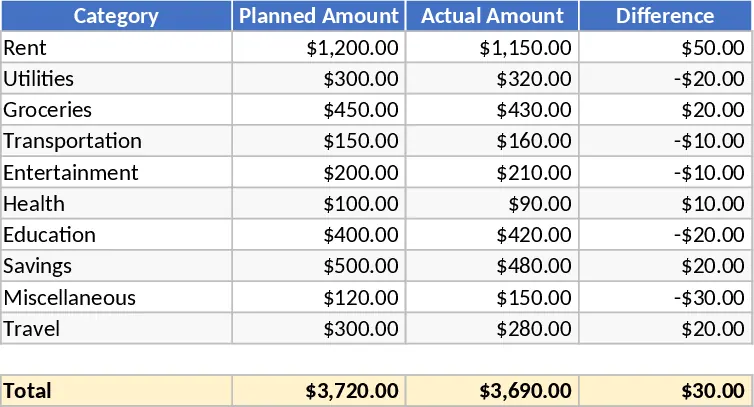
Annual Budget vs Actuals Deviation Template
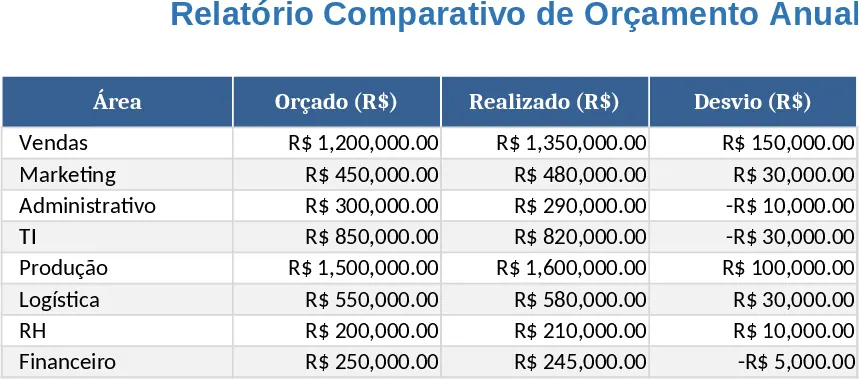
This template is built for finance teams that need a quick, visual way to see how a company’s yearly budget stacks up against what was actually spent or earned. The workbook contains three main sheets: a Data Input sheet where you paste or type the month‑by‑month actual and planned numbers for each cost centre or revenue line, a Calculations sheet that automatically computes the variance amount, percentage difference, and cumulative totals, and a Dashboard sheet that pulls the key metrics into easy‑to‑read tables and charts. Drop‑down lists let you select the fiscal year and the specific department you want to analyse, while conditional formatting highlights over‑runs in red and savings in green, giving you an instant visual cue.
The template solves the common pain of juggling multiple spreadsheets or manual calculations when trying to understand budget health. By consolidating raw data, formulas, and visual summaries in one place, you eliminate the risk of transcription errors and spend far less time reconciling figures. It also helps you spot trends early – for example, a growing variance in operating expenses can trigger a review before the year ends, while positive revenue variances can be highlighted for strategic planning. The result is a more disciplined budgeting process and clearer communication with senior management.
Anyone responsible for financial planning, budgeting, or month‑end close will find this tool valuable – from CFOs and finance managers to department heads who need to justify their spend. It works best in scenarios where the organization follows a traditional annual budgeting cycle but wants to track performance on a rolling basis, such as quarterly reviews or mid‑year adjustments. The template tracks each line‑item’s actual amount, the original budget, the absolute variance, and the variance percentage, and it aggregates these into department‑level and company‑wide summaries.
To start using the workbook, first open the Data Input sheet and select the fiscal year from the drop‑down. Then enter or paste your actual and budgeted numbers for each month and each cost centre. The formulas on the Calculations sheet will instantly update, showing you the variance and cumulative totals. Finally, switch to the Dashboard sheet to see the refreshed tables and charts – you’ll see bar graphs of actual vs budget, a heat‑map of variance percentages, and a summary box that flags any items exceeding a preset tolerance. The template also includes a simple “Refresh” button that recalculates everything after you make changes.
Expected benefits include a noticeable reduction in time spent preparing budget variance reports, fewer manual errors, and clearer insights that support faster decision‑making. By having all the numbers and visual cues in one place, teams can focus on analysis rather than data collection.