Project Task Tracker & Overview with Dashboard Template
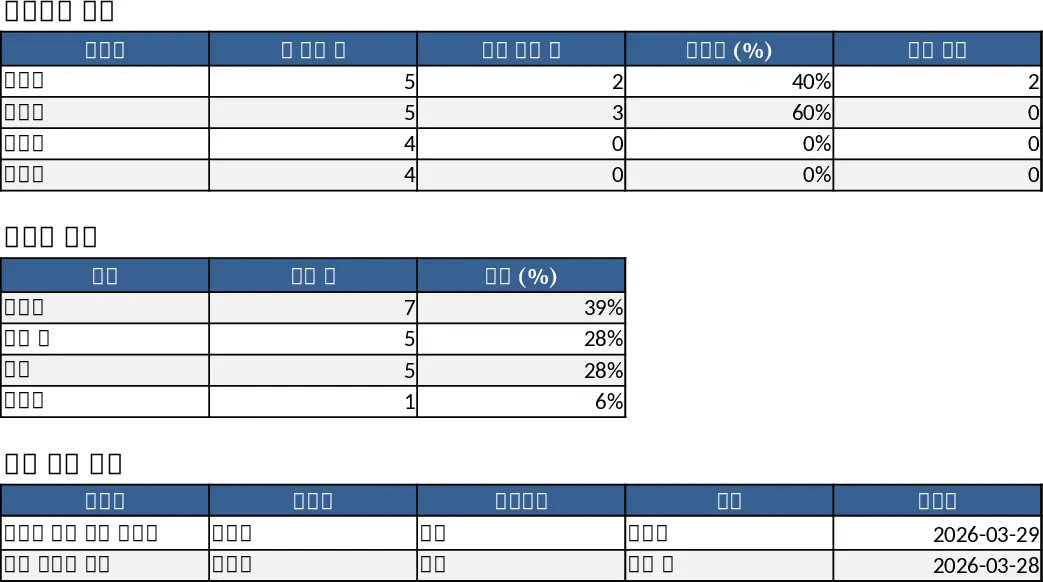
This Excel template is organized into two worksheets that work together to give you a clear picture of every task in your projects. The Tasks sheet holds the raw data: each row is a task with columns for Task ID, Task Name, Project, Assignee (chosen from a dropdown list), Priority (High, Medium, Low), Status (Not Started, In Progress, Blocked, Completed), Start Date, Due Date, Estimated Hours, Actual Hours, Dependency, and Notes. The Due Date column is mandatory, and conditional formatting automatically highlights any overdue task (Due Date earlier than today and Status not set to Completed) in red, so you can spot problems at a glance. The Project Overview sheet pulls information from the Tasks sheet and presents three key summaries. First, a per‑assignee table shows total tasks, completed tasks, completion percentage, and the count of overdue items for each team member. Second, a status‑based summary aggregates tasks by their current state, giving you a quick health check of the project pipeline. Finally, a compact table lists all overdue tasks with only the most important columns, making it easy to prioritize corrective actions. Sample data for two projects and eighteen tasks is already included, so you can see the layout in action right away.
The template solves the common headache of manually consolidating task information from emails, chat, or separate spreadsheets. By centralizing task details and automating calculations, it eliminates duplicate entry, reduces the risk of missing deadlines, and provides instant visibility into workload distribution and project progress. Project managers, team leads, and anyone responsible for coordinating work can use it to monitor performance, allocate resources, and communicate status to stakeholders without building a custom solution from scratch. Because the dropdowns enforce consistent data entry and the conditional formatting flags issues instantly, you spend less time cleaning data and more time acting on insights.
How to use
- Open the Tasks sheet and enter each task, selecting the appropriate Assignee, Priority, and Status from the dropdown menus; be sure to fill the Due Date column.
- Update the Estimated Hours and Actual Hours as work progresses; if a task depends on another, note the dependency in the designated column.
- Switch to the Project Overview sheet – all totals, percentages, and the overdue list refresh automatically based on the data you entered.
- Use the per‑assignee and status summaries to identify bottlenecks, re‑assign work, or adjust timelines as needed.
Expected benefits: streamlined data entry, instant visibility of overdue tasks, and automated summary reports that save time on manual tracking and status meetings.
Similar Templates Recommendation
Project Task Tracker & Overview with Resource Planning Template
Track and manage project tasks with a two‑sheet Excel workbook that logs details, highlights overdue items, and provides per‑assignee and status summaries.
Project Task Tracker with Overview and Dashboard Template
Track project tasks in Excel, assign owners, set priorities and deadlines, monitor real‑time status, and view summary dashboards by assignee and status.
Project Task Tracker & Overview with Priority Tracking Template
Track, prioritize, and monitor project tasks with owner assignments, status, deadlines, and visual summaries in one Excel workbook.