Student Absence Tracking for Evaluation Days Template
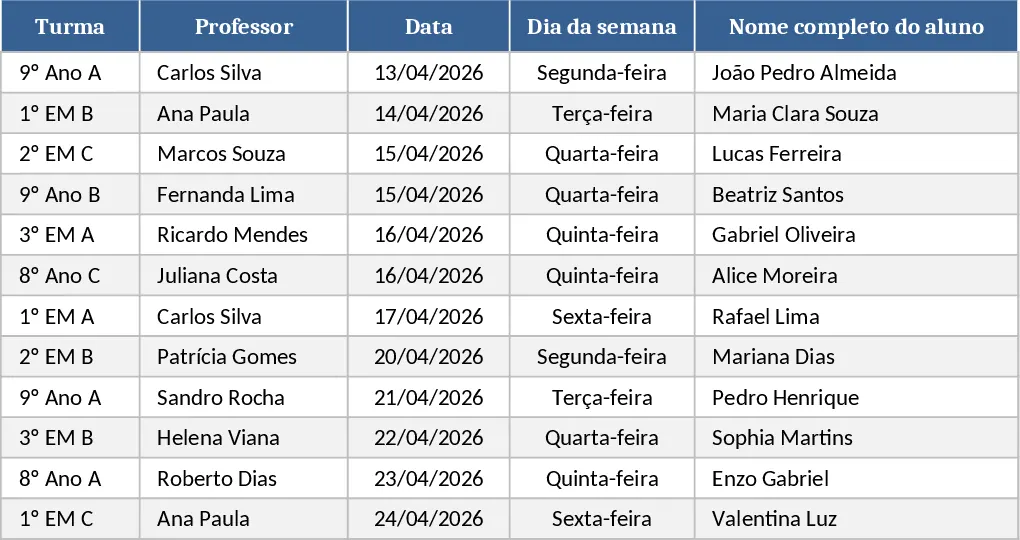
This template is a ready‑to‑use Excel workbook designed to record every missed exam for each student in a clear, organized way. The file contains a single sheet titled Absence Register with columns for Class, Teacher, Date, Day of Week, Student Full Name, Missed Assessment, Reason for Absence, Make‑up Date, Status (e.g., pending, completed, excused) and Observations. Drop‑down lists are built into the Status and Reason fields to keep entries consistent, while the Day of Week column auto‑calculates from the date you enter. At the top of the sheet a small summary table automatically counts total absences, absences per class, and the number of make‑ups completed, giving you a quick snapshot of attendance health during assessment periods.
The workbook solves the common headache of manually tracking exam absences across multiple classes and teachers. Instead of juggling separate notes, emails, or paper logs, you now have a single source of truth that updates in real time. This reduces the risk of missing a make‑up opportunity, helps teachers and administrators spot patterns (such as frequent absences on certain days), and simplifies reporting to school leadership or accreditation bodies. By consolidating data, you save time on data entry, avoid duplication, and gain confidence that your attendance records are accurate and audit‑ready.
Ideal for teachers, academic coordinators, and school administrators who need to monitor exam attendance for a cohort of students. Whether you’re managing a single classroom or an entire grade level, the template scales easily – just add more rows for additional students or duplicate the sheet for different subjects. It’s especially useful during mid‑term or final exam periods when the volume of missed assessments spikes and quick follow‑up is essential.
How to use
- Open the workbook and locate the Absence Register sheet. Enter the class name, teacher’s name, and the exam date in the first three columns; the day of the week will fill in automatically.
- For each absent student, type their full name, select the missed assessment from the drop‑down, and choose a reason (illness, personal, etc.). If a make‑up exam is scheduled, enter that date; otherwise leave it blank.
- Update the Status column to reflect the current state (e.g., "Pending" until the make‑up is done, then change to "Completed"). Add any additional notes in the Observations column.
- Watch the summary table at the top refresh instantly, showing total absences, per‑class counts, and how many make‑ups have been completed.
Expected benefits: By centralising all exam‑absence information, you’ll spend far less time hunting for records, reduce errors from manual entry, and gain quick insights that help you intervene early and keep students on track.