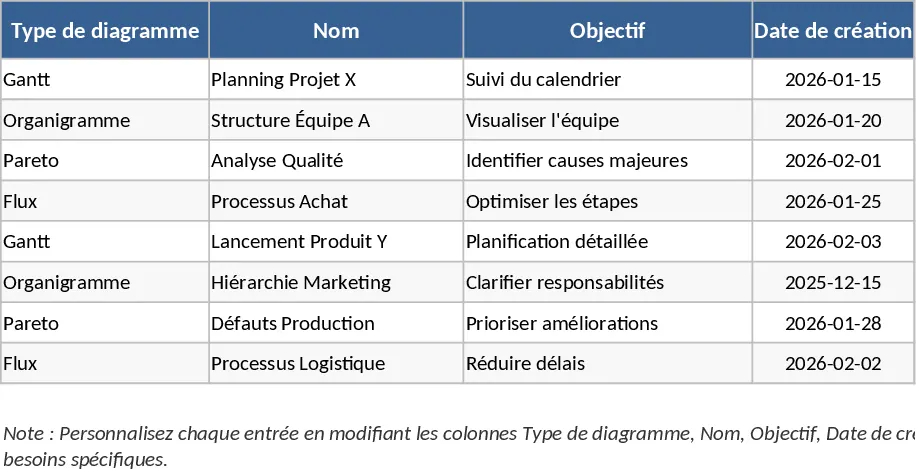
Project Chronicle Tracker with Milestones and Gantt Template
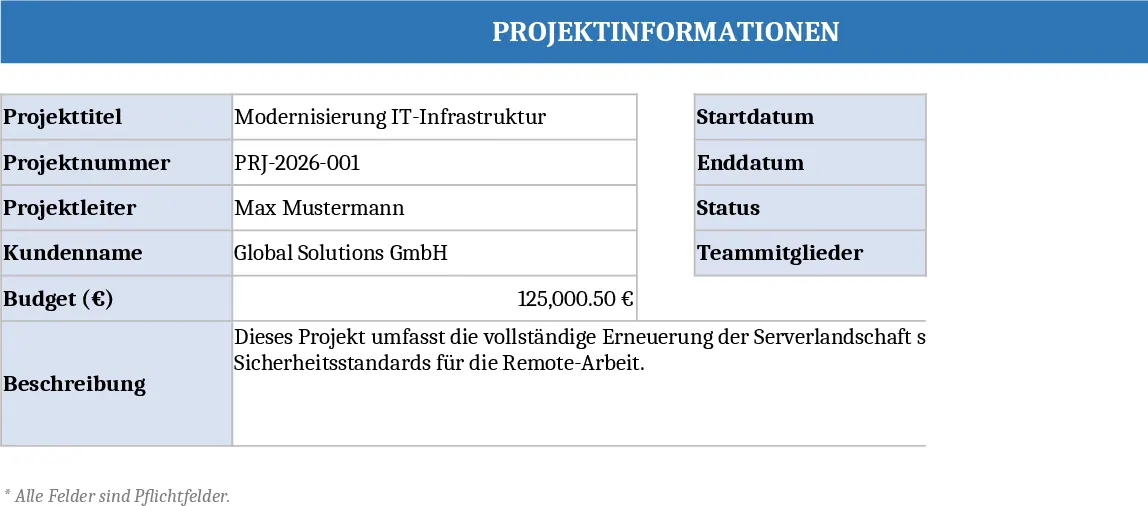
This workbook is built around three interconnected sheets. The first sheet is a Project Information Form where you enter the project name, ID, manager, start and end dates, budget, and a brief description. The second sheet is a Milestones table that lists each key deliverable with columns for Milestone ID, description, planned date, actual completion date, status (with a dropdown of Planned, In‑Progress, Completed, Delayed) and free‑form notes. The third sheet is a Gantt Chart that reads the dates from the Milestones table and automatically draws a visual timeline, using conditional formatting to colour‑code status.
By consolidating project metadata, milestone tracking, and visual scheduling in one file, the template eliminates the need to maintain separate documents or recreate charts each week. It gives you an instant snapshot of where a project stands, highlights overdue items, and makes it easy to communicate progress to stakeholders. The automated Gantt view updates instantly when you edit milestone dates, so you always have an up‑to‑date schedule without manual drawing.
The template is ideal for project managers, team leads, PMO staff, and anyone who runs multiple initiatives in fields such as IT, construction, product development, or research. Whether you are preparing a status report for senior leadership or simply keeping your team aligned, the workbook provides a single source of truth for project history and future planning.
With this tool you can capture every project’s background, monitor each milestone’s planned versus actual dates, record status changes, and instantly generate a Gantt chart that visualises the entire timeline. The linked structure means that any change in the Milestones sheet is reflected in the chart, helping you spot delays early and re‑allocate resources proactively.
How to use
- Open the file and fill out the Project Information Form on the first sheet.
- Switch to the Milestones sheet and add each milestone, selecting the appropriate status from the dropdown and entering dates.
- Go to the Gantt Chart sheet – the chart will populate automatically based on the data you entered.
- Review the visual schedule, adjust column widths if needed, and export the chart or the whole workbook for reporting.
Expected benefits: you’ll spend far less time building timelines by hand and gain a clear, up‑to‑date visual status of every project at a glance.
Similar Templates Recommendation
Automated Gantt Chart Project Planner Template
Track project tasks and milestones with an automated Gantt chart timeline and a summary dashboard to monitor progress and identify critical delays.
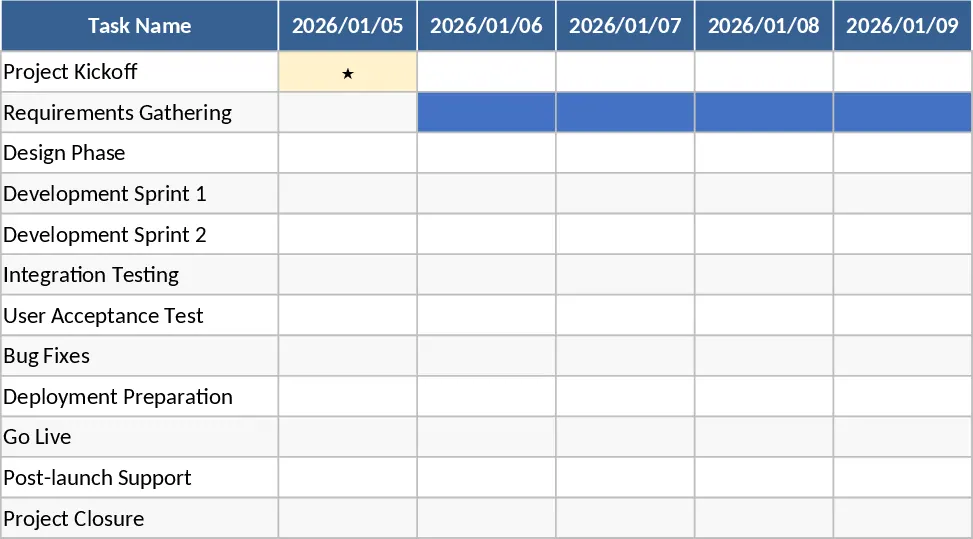
6-Month Software Development Gantt Chart with Progress Tracking Template
Plan and monitor your 6-month software development lifecycle with visual Gantt bars, task-level progress tracking, and phase-based milestones.
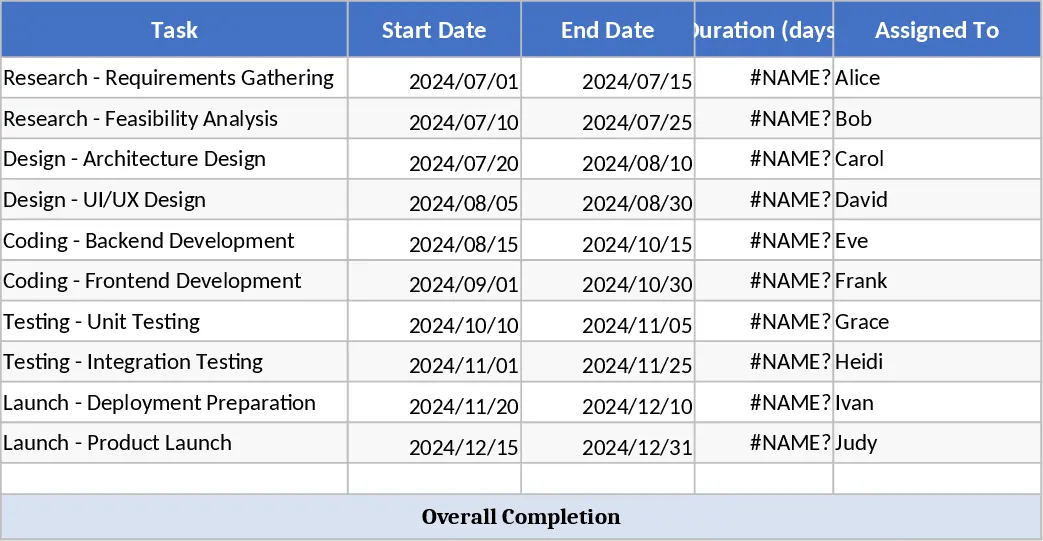
Project Timeline and Diagram Template
Visualize project schedules and workflows with professional diagrams and timelines to track milestones and task dependencies effectively.