Daily Task Tracker with Pending Days Update Template
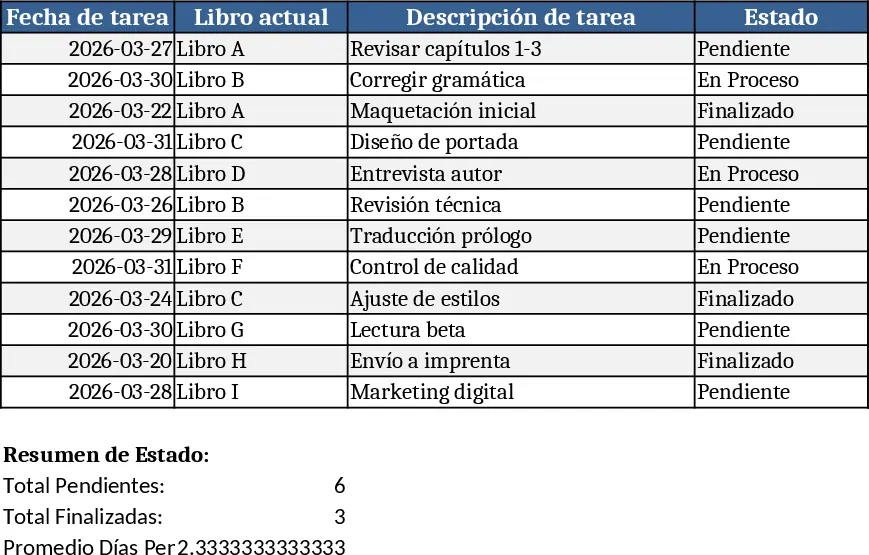
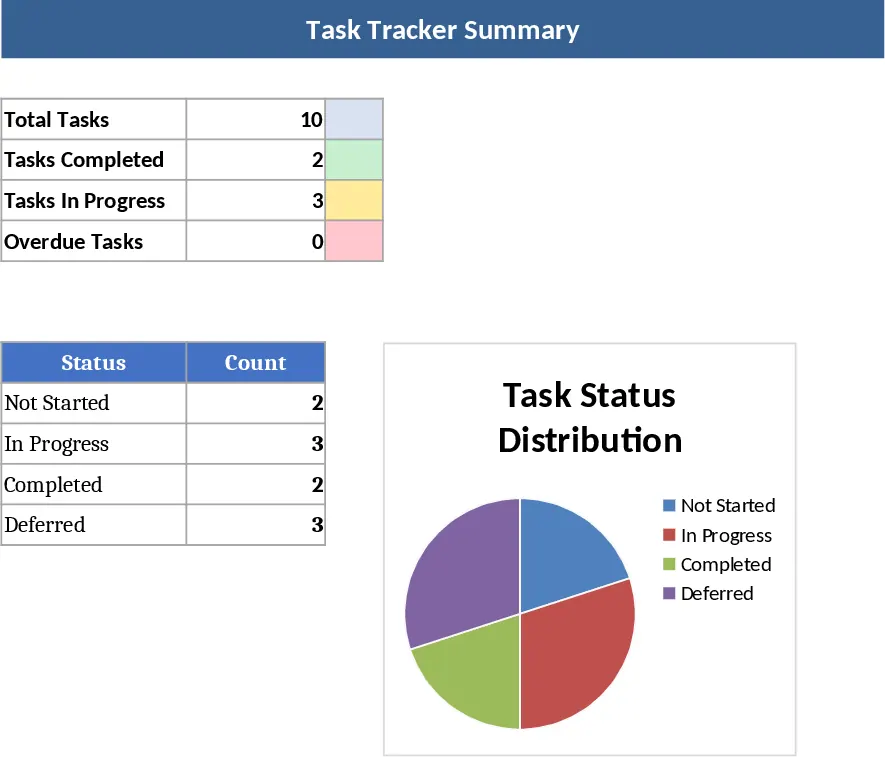
This Excel template is a compact daily‑task manager that lets you list every activity, assign a date, and watch the number of days each item remains pending. The workbook is split into three simple sheets: Task List, Summary, and Settings. In the Task List you enter the task description, the planned date, and choose a status from a dropdown (Pending, In‑Progress, Completed). A formula in the Days Pending column automatically calculates how many days have elapsed since the task’s date, updating each time the file is opened. The Summary sheet pulls key metrics – total tasks, tasks overdue, and a quick visual of pending versus completed items – so you can see at a glance how your day is shaping up. The Settings sheet holds any custom lists (e.g., status options) and lets you adjust the start date for new periods without breaking formulas.
The template solves the common headache of manually counting overdue items and constantly adjusting formulas when you start a new day or week. By simply copying the Task List sheet and renaming it (for example, "Day 02"), all linked calculations refresh automatically, giving you a fresh view without rebuilding the tracker. This saves you the time of recreating tables, reduces errors from manual date arithmetic, and keeps your workflow consistent across days or projects. It’s especially handy for freelancers, office assistants, or small teams that need a lightweight, no‑software‑required solution to stay on top of daily responsibilities.
Anyone who juggles multiple to‑dos – from personal productivity enthusiasts to project coordinators handling daily checklists – will find this workbook useful. It helps you monitor what’s been started, what’s still pending, and how long each item has lingered, turning a scattered list of tasks into a clear, data‑driven overview. The automatic counters and summary visuals make it easy to prioritize, spot bottlenecks, and ensure nothing slips through the cracks.
How to use
- Open the workbook and go to the Task List sheet. Enter each task in the Task column, set the intended date, and pick the appropriate status from the dropdown.
- The Days Pending column will fill in automatically, showing how many days have passed since the task’s date (or zero if the date is today).
- Review the Summary sheet to see totals, overdue counts, and a quick chart of pending versus completed tasks.
- When you need a new day’s tracker, right‑click the Task List tab, choose Move or Copy, check Create a copy, rename the sheet, and the formulas will adjust to the new date range automatically.
Expected benefits include a noticeable reduction in the time spent updating task logs, fewer manual calculation errors, and a clearer picture of daily workload, letting you focus on getting work done rather than managing spreadsheets.