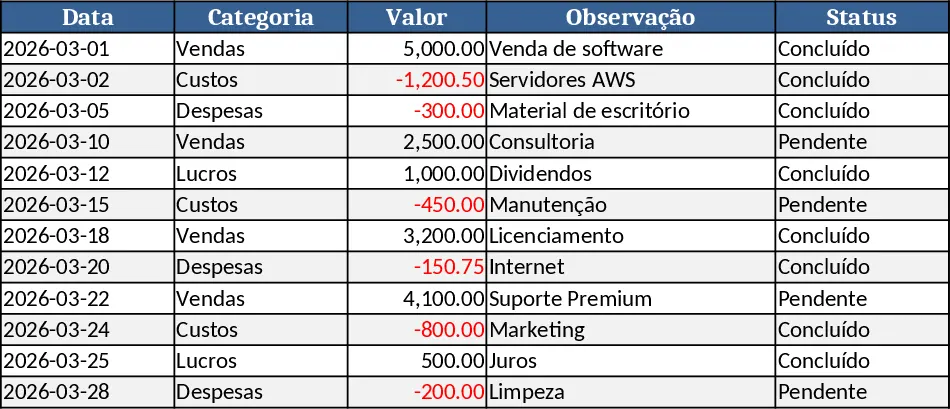
General Purpose Excel with Data Validation Template
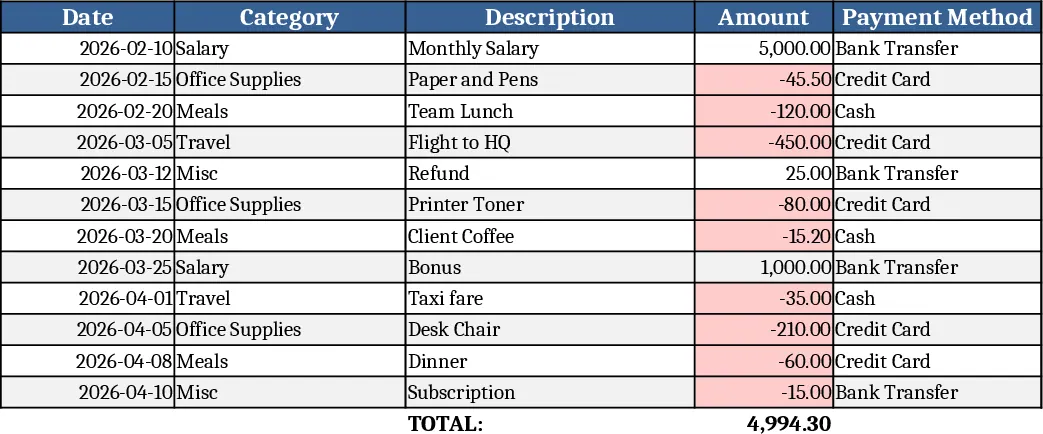
This all‑purpose Excel template is built with three core sheets – Input, Dashboard, and Settings – that work together to turn raw data into clear, actionable insights. The Input sheet provides a clean table where you can paste or type records, with built‑in data validation dropdowns for categories, status, dates, and owners. The Settings sheet lets you define the lists used in those dropdowns, add custom calculation rules, or adjust thresholds for conditional formatting. All of the heavy lifting happens in the Dashboard sheet, where pivot‑style tables, charts, and key‑metric cards automatically update as you add or edit rows in the Input sheet. No VBA is required; everything runs on native Excel formulas and dynamic arrays, so the file stays lightweight and easy to share.
The template solves the common headache of building a reporting system from scratch each time you start a new project or department initiative. Instead of recreating tables, formulas, and charts, you simply plug your data into the Input sheet and let the Dashboard generate a professional‑looking overview instantly. This saves hours of manual setup, reduces the risk of formula errors, and ensures consistency across reports. It’s especially useful for weekly status updates, monthly performance reviews, or ad‑hoc analysis where you need a quick, reliable view of key numbers.
Anyone who regularly works with spreadsheets will find this template helpful – from small‑business owners tracking sales and expenses, to project managers monitoring task progress, to analysts summarizing survey results. The flexible design means you can tailor it to sales pipelines, inventory logs, HR onboarding lists, or any other dataset that benefits from categorisation, date tracking, and visual summarisation. Because the Settings sheet is separate, you can easily swap out dropdown options or add new calculation fields without breaking the Dashboard.
How to use
- Open the file and go to the Settings sheet. Edit the dropdown lists (e.g., Product Category, Status, Owner) to match your own terminology.
- Switch to the Input sheet and start entering your records. Each row should include the required fields such as Date, Category, Amount, Owner, and any custom columns you added in Settings.
- As you fill in data, watch the Dashboard sheet refresh automatically – key metrics, trend charts, and summary tables will reflect the latest entries.
- If you need additional calculations or visualisations, duplicate the existing dashboard widgets and adjust the underlying formulas to point at the new fields.
Expected benefits include a noticeable reduction in time spent building reports, fewer manual errors, and a consistent visual language for all stakeholders.
Similar Templates Recommendation
General Purpose Excel with Category Breakdown Template
A versatile Excel template that lets you organize data, track key metrics, and generate clear reports for any business need.
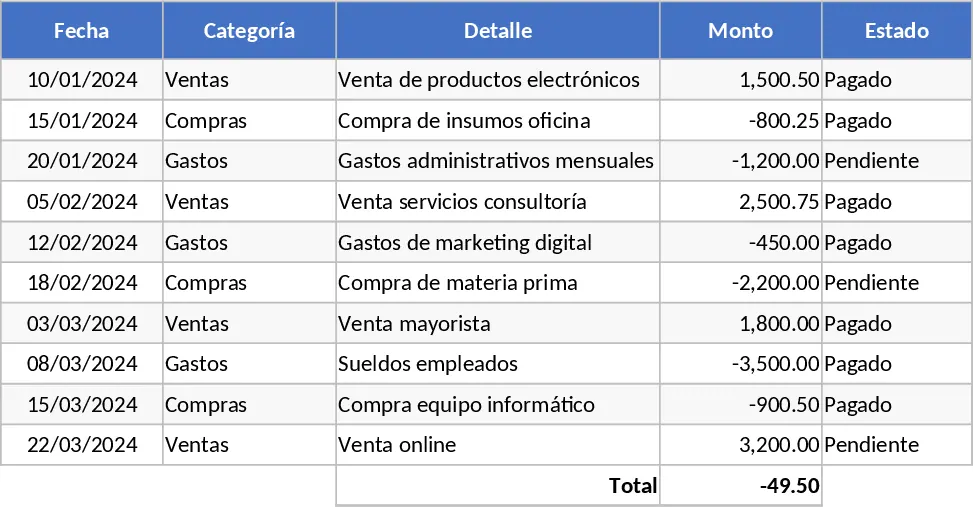
Hello Message Log with Charts Template
A versatile template for logging, tracking and summarizing hOLA data in a clear, customizable spreadsheet.
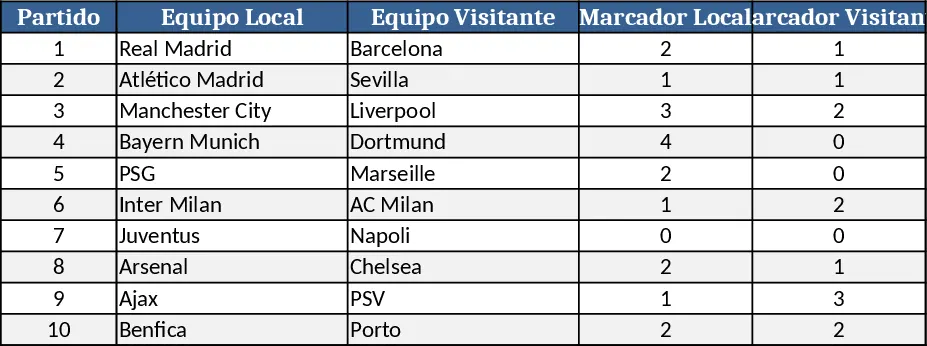
Data Extraction Chart Template
Create dynamic extraction charts in Excel to visualize data pulls, track trends, and generate instant visual reports.