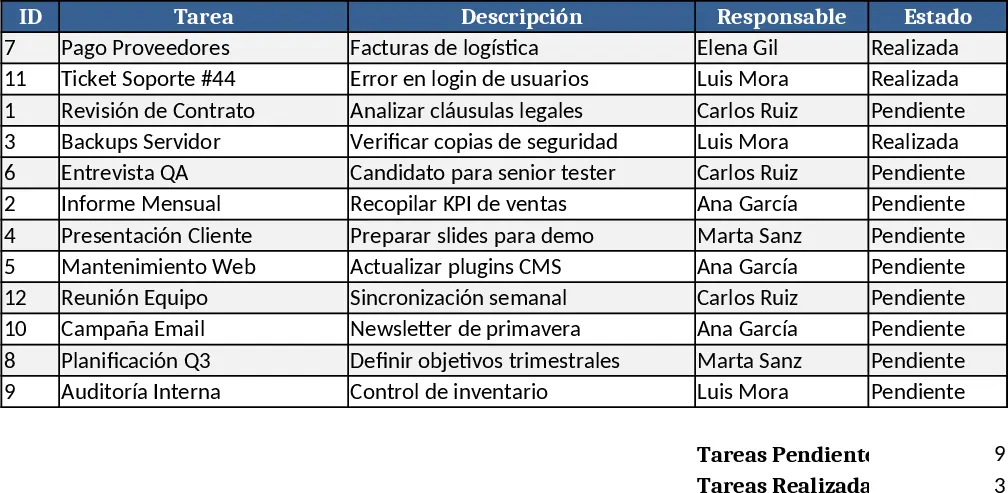
Task Tracker with Due Dates and Auto‑Sort and Project Timeline Template
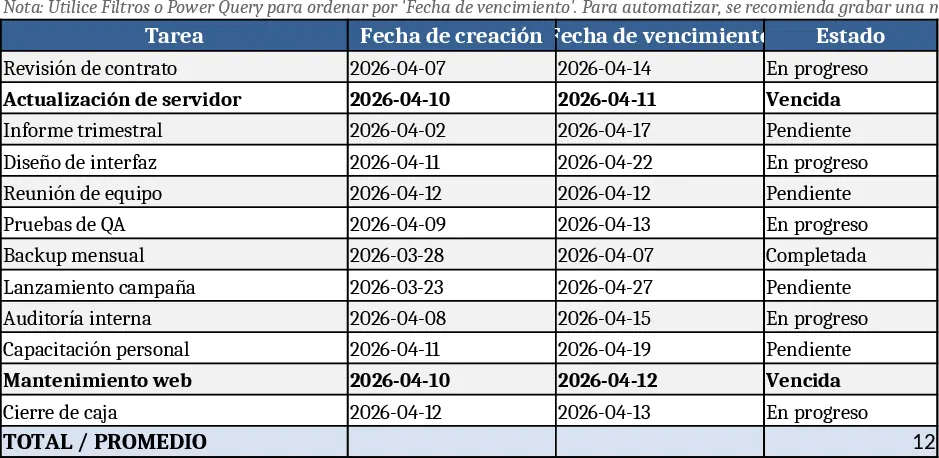
This Excel workbook is built around three simple sheets – Tasks, Dashboard and Settings. In the Tasks sheet you enter each item’s name, owner, due date, priority and status. A calculated column shows the number of days left until the deadline, and another flags overdue items. The Dashboard pulls those rows, groups them by urgency, and displays a quick‑look list of upcoming, due‑today and overdue tasks. The Settings sheet lets you define custom priority levels or status codes, and the macro (or Power Query refresh) automatically re‑orders the task list from the nearest due date to the farthest.
The template eliminates the tedious manual sorting and constant date‑checking that often cause missed deadlines. By visualising how many days remain for each task and highlighting those that are overdue, teams can prioritize work instantly, reduce the risk of forgetting critical items, and keep project timelines on track. The built‑in automation means you spend minutes updating a table instead of hours hunting through emails or separate lists.
Anyone who manages a to‑do list with deadlines will find this useful – project managers coordinating multiple workstreams, team leads allocating resources, freelancers juggling client deliverables, or even small business owners tracking daily operations. It works best in scenarios where tasks have clear due dates and need to be reviewed regularly, such as sprint planning, client project roll‑outs, or maintenance schedules.
How to use:
- Open the workbook and go to the Tasks sheet; fill in each row with the task description, assign an owner, set the due date, choose a priority and mark the current status.
- Make sure the due‑date column uses a proper date format; the Days‑Remaining column will calculate automatically.
- Click the Refresh button on the Dashboard (or run the macro from the ribbon) – the list will sort itself so the nearest deadlines appear at the top.
- Review the Dashboard for a color‑coded snapshot of what’s due soon, what’s overdue, and what can be deferred.
Expected benefits include a noticeable cut in time spent reorganising task lists, fewer missed deadlines, and a clearer, data‑driven view of workload distribution.