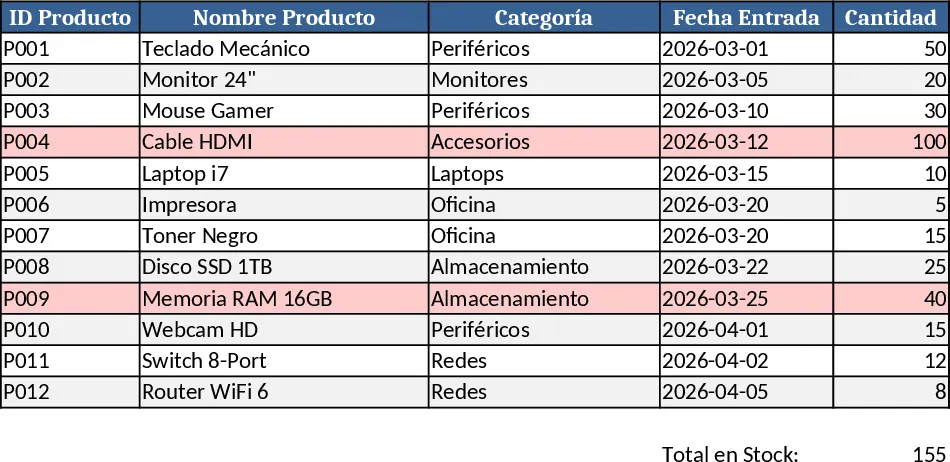
Inventory Invoice Tracker Template
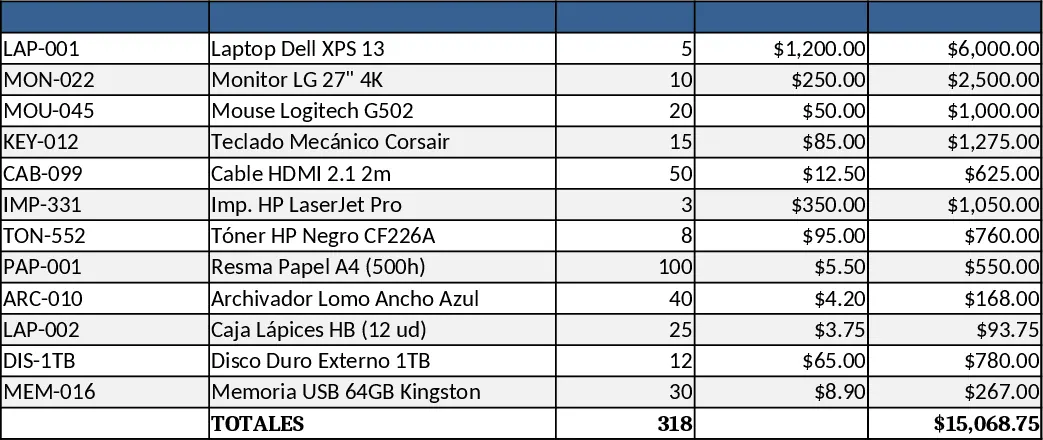
This Excel workbook combines two essential tools – an inventory register and an integrated invoice generator – into a single, easy‑to‑use file. The first sheet, Inventory, lists each product by Item Number, Description, Current Quantity, and Unit Price. You can add new items, edit existing ones, or import a list via copy‑paste. A dropdown in the Invoice sheet pulls the Item Number from the inventory, automatically filling the Description and Unit Price, so you never have to type them again. As you enter the quantity sold, the sheet calculates the line total, adds up all lines, and shows the grand total at the bottom. When you finalize the invoice, a simple macro (or built‑in formula) subtracts the sold quantity from the stock on the Inventory sheet, keeping your records instantly up‑to‑date.
The template solves the common headache of juggling separate spreadsheets for stock and billing. By linking the two, you eliminate manual copy‑pasting, reduce transcription errors, and ensure that every sale instantly reflects in your inventory count. This saves time during busy periods, improves accuracy for reorder decisions, and gives you a clear view of both current stock levels and revenue generated from each invoice. It’s especially useful for small retailers, workshop owners, or anyone who needs a lightweight solution without investing in dedicated ERP software.
Who benefits most? Small business owners, shop floor managers, and freelancers who sell physical goods and need a quick way to record sales while keeping inventory accurate. Whether you run a boutique, a hardware store, or a craft studio, the template adapts to any product catalog and can be expanded with extra columns for categories, suppliers, or batch numbers if needed.
The workbook helps you track item quantities, manage pricing and discounts, and produce professional‑looking invoices that summarize each transaction. Because the stock deduction happens automatically, you always know what’s available for the next order, preventing stock‑outs and over‑selling. The built‑in summary section also shows total sales for the period, average invoice value, and remaining inventory value, giving you quick insights for planning and budgeting.
How to use
- Open the file and go to the Inventory sheet. Enter each product’s Item Number, Description, starting Quantity, and Unit Price. Use the dropdown in the Category column if you want to group items.
- Switch to the Invoice sheet. Select an Item Number from the dropdown; the Description and Unit Price fill in automatically.
- Type the quantity sold for each line. The line total and overall invoice total update instantly.
- When the invoice is complete, click the Update Stock button (or press the designated shortcut). The sold quantities are subtracted from the Inventory sheet, and the stock column refreshes.
Expected benefits include a noticeable reduction in manual data entry, fewer calculation mistakes, and faster turnaround from sale to updated inventory, letting you focus more on serving customers and less on spreadsheet gymnastics.
Similar Templates Recommendation
Inventory Management Tracker with Dashboard Template
A ready‑to‑use Excel workbook that tracks product master data, records stock movements, and automatically calculates current inventory with reorder alerts.
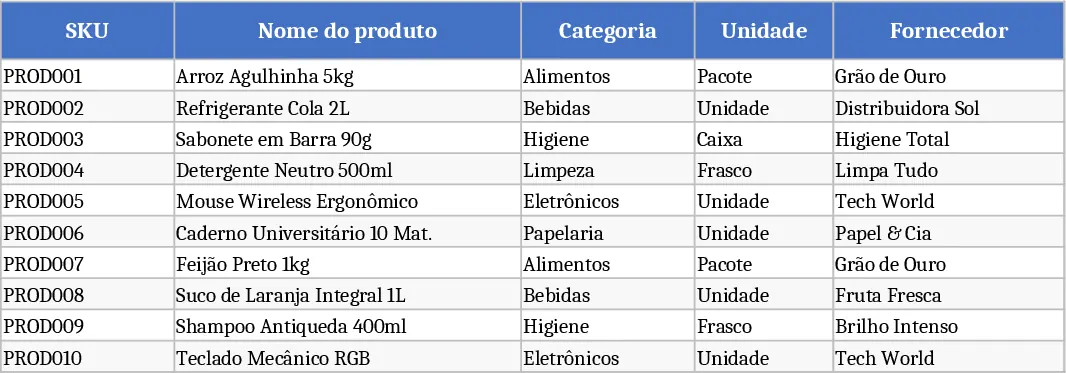
Three‑Sheet Inventory Management with Sample SKUs Template
Track product master data, record inventory movements, and view real‑time stock levels with a ready‑made 3‑sheet Excel template.
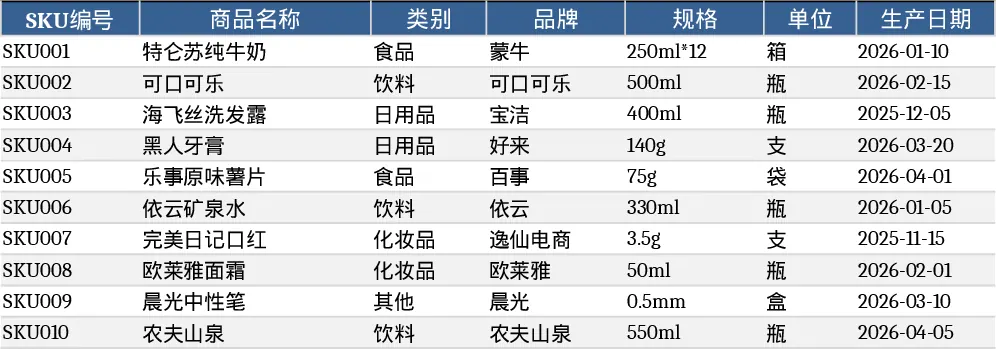
Inventory In/Out Tracking with Sales Details Template
Track inventory levels, record inbound and outbound movements, and log cash, transfer, and loss sales with dates and seller names.