As a User Growth Manager at RowSpeak, I've seen firsthand how spreadsheet formulas can become roadblocks for business professionals. Whether you're calculating quarterly sales or analyzing customer behavior, manual formula creation is time-consuming and prone to errors.
The good news? AI has revolutionized spreadsheet management. Tools like RowSpeak now enable anyone—from spreadsheet novices to data experts—to work smarter with automated formula suggestions, natural language processing, and predictive analytics.
Why AI-Powered Formulas Matter
AI in spreadsheets isn't just about convenience—it's about accuracy, efficiency, and accessibility. Here's why modern teams rely on AI-enhanced tools:
- Reduces human error: AI suggests context-aware formulas, minimizing mistakes.
- Saves hours of work: Automate repetitive calculations with a single query.
- Democratizes data analysis: No advanced Excel skills required.
While Google Sheets offers basic AI features through its "Explore" function, dedicated AI tools like RowSpeak provide deeper, more intuitive functionality—especially for business-critical tasks.
Step 1: Leverage Google Sheets' Built-In AI (Explore)
For quick ad-hoc analysis, Google Sheets' Explore feature provides a starting point:
- Open your spreadsheet and click the Explore button (bottom-right diamond icon).
- Type natural language queries like:
- "Sum of Q2 sales"
- "Average customer age in column C"
- Review the AI-generated formula (e.g.,
=SUM(B2:B90)) and click to insert it.
Pro Tip: Explore works best for simple calculations. For advanced modeling or recurring reports, switch to RowSpeak for enterprise-grade AI assistance.
Step 2: Supercharge Sheets with RowSpeak's AI
RowSpeak transforms formula creation with these advantages over native tools:
✅ Context-Aware Suggestions: AI analyzes your dataset structure to recommend the most relevant formulas.
✅ Natural Language to Formula: Describe what you need (e.g., "Show monthly growth %") and get ready-to-use code.
✅ Error Prevention: Real-time validation flags inconsistencies before they cause problems.
Example Workflow:
- Connect your Google Sheets data to RowSpeak.
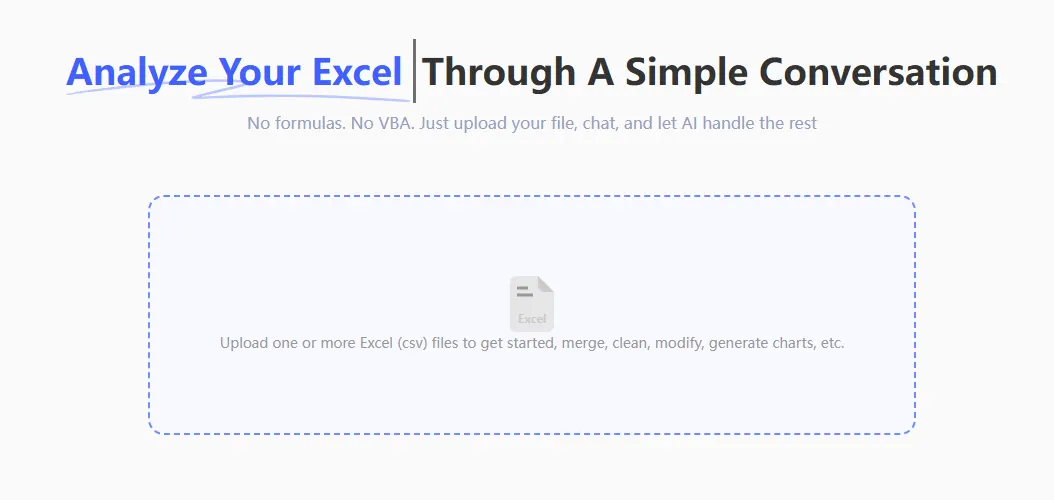
- Ask: "Calculate YoY revenue growth by product line"
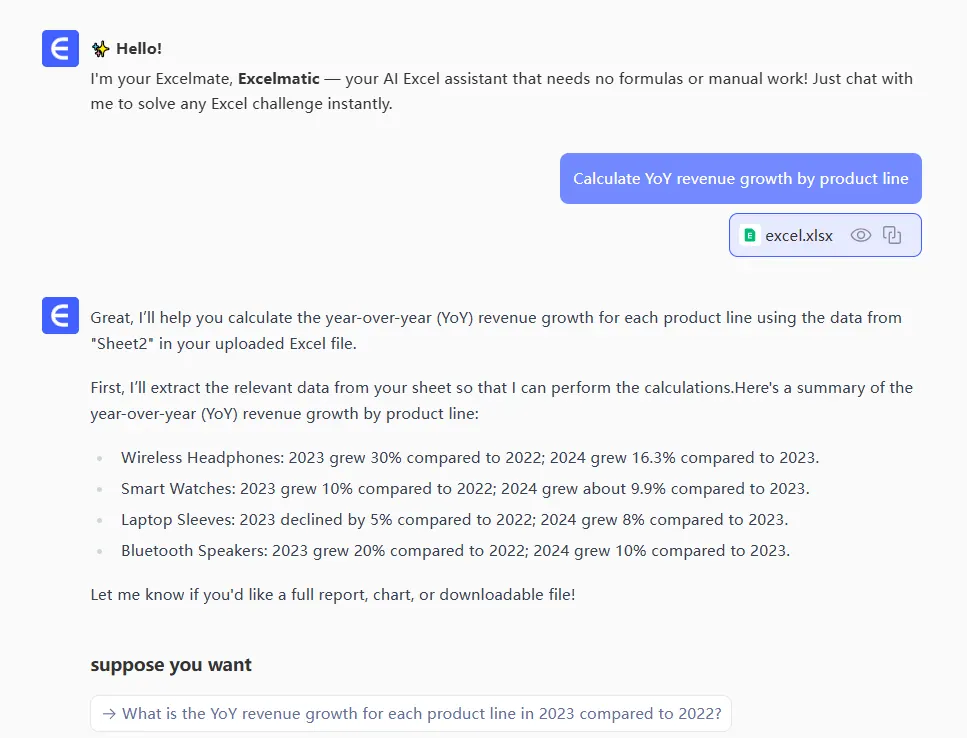
- RowSpeak generates the complete formula suite, including dynamic tables and charts.
Step 3: Automate Recurring Tasks
AI shines when automating repetitive work:
- Macro Generation: Tools like RowSpeak can record and optimize complex workflows.
- Predictive Formulas: Automatically extend time-series calculations (e.g., forecasting).
- Smart Templates: Save AI-generated formulas as reusable templates for your team.
Case Study: A retail manager used RowSpeak to reduce monthly inventory reporting from 6 hours to 20 minutes by automating 15+ complex VLOOKUP and SUMIFS formulas.
Best Practices for AI-Assisted Spreadsheets
- Start Simple: Master basic AI features before tackling advanced automation.
- Verify Critical Formulas: Always spot-check AI outputs for high-stakes calculations.
- Centralize Learnings: Use RowSpeak's shared formula library to standardize best practices across your organization.
The Future: Beyond Basic Formulas
Leading teams are moving past manual spreadsheets entirely. With RowSpeak's AI Dashboard Builder, you can:
- Transform raw data into interactive reports with one command
- Get AI-powered insights like anomaly detection and trend forecasting
- Collaborate with automated change tracking and version control
Ready to Work Smarter?
While Google Sheets' AI features offer a helpful starting point, RowSpeak delivers the full power of AI-driven data analysis—making formula creation as simple as having a conversation.
Try RowSpeak free today and experience spreadsheets without the spreadsheet struggle.