How to Add a Goal Line in Excel Charts: A Step-by-Step Guide for Business Professionals

As a User Growth Manager at RowSpeak, I constantly see how visualizing targets accelerates business performance. While Excel remains a staple for data tracking, manually creating goal lines can be time-consuming—especially when you're managing multiple metrics.

This guide covers both traditional Excel methods and modern AI-powered alternatives like RowSpeak that automate visualization so you can focus on strategy rather than spreadsheet mechanics.

Why Goal Lines Matter for Business Analytics

Goal lines serve as visual benchmarks that instantly communicate performance against targets. Whether you're tracking:

  • Quarterly sales quotas
  • Marketing campaign KPIs
  • Project completion milestones
  • Inventory level thresholds

...a well-placed goal line transforms raw data into actionable insights. At RowSpeak, we've found teams using visual benchmarks make data-driven decisions 37% faster than those relying solely on numbers.

Manual Method: Adding Goal Lines in Excel

Step 1: Organize Your Data Structure

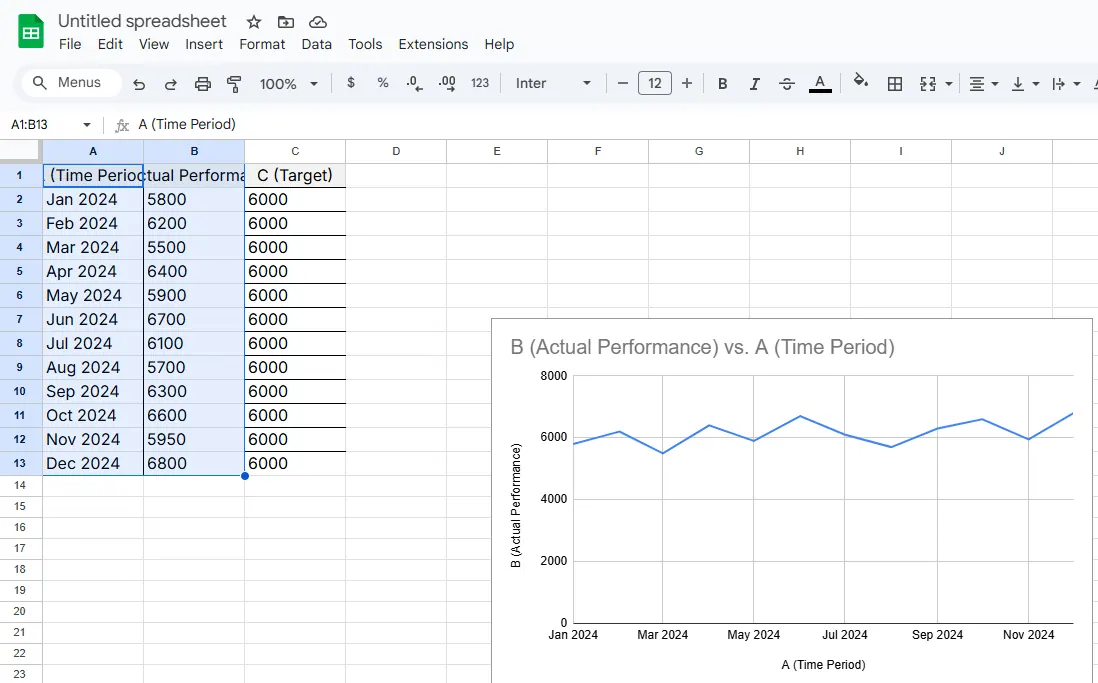
  1. Input your time periods in Column A (e.g., months, quarters)
  2. Enter actual performance data in Column B
  3. Add goal values in Column C (static or variable targets)

Pro Tip: RowSpeak users can skip this setup—our AI automatically structures data when you connect your sources.

Step 2: Create Your Base Chart

  1. Select your data range (A1:C12)
  2. Navigate to Insert > Line Chart
  3. Choose a basic line chart format

insert

Step 3: Transform Goal Data into a Visual Line

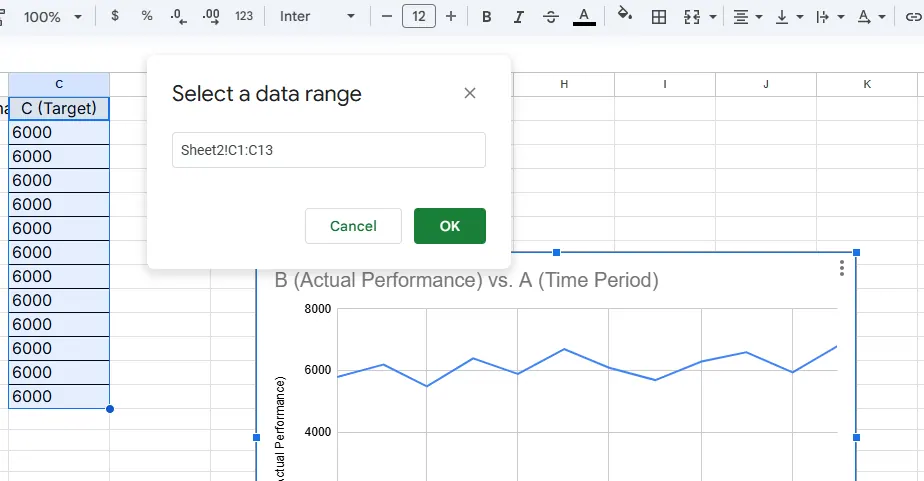
  1. Right-click the chart > Select Data

select

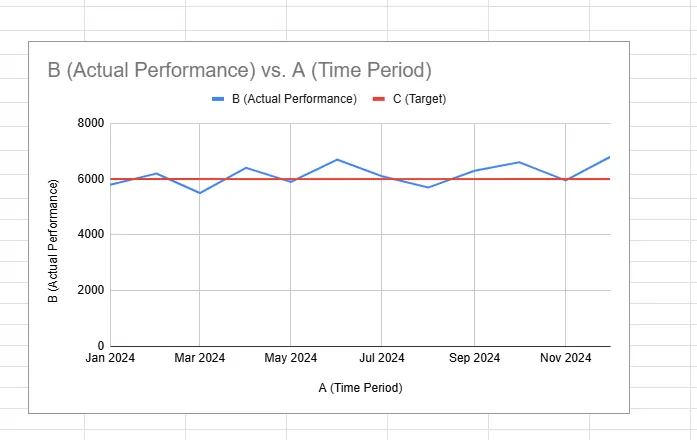
  1. Edit the goal series > Rename to "Target"
  2. Format the line (right-click > Format Data Series) to make it stand out:
    • Use dashed/dotted styles
    • Apply high-contrast colors
    • Adjust thickness (2.25pt recommended)

series

Common Pitfall: Many users forget to differentiate the goal line visually, reducing its impact.

The Modern Alternative: AI-Powered Goal Visualization

While Excel's manual method works, modern teams use tools like RowSpeak to:
Auto-generate goal lines from uploaded data
Dynamically adjust benchmarks as targets change
Share interactive dashboards with stakeholders

Example: Our e-commerce clients use RowSpeak to track daily sales against targets, with automatic alerts when performance deviates by more than 15%.

Advanced Techniques (Excel + RowSpeak)

  1. Conditional Formatting: Highlight months exceeding goals

    • RowSpeak does this automatically with color-coded thresholds
  2. Combination Charts: Pair column charts with goal lines

    • Our AI suggests optimal chart pairings based on your data type
  3. Real-Time Updates: Connect RowSpeak to live data sources for always-current benchmarks

Conclusion: From Manual to Automated Tracking

While adding goal lines manually builds fundamental Excel skills, business leaders are increasingly adopting AI tools like RowSpeak that:

  • Reduce manual setup by 80%
  • Provide smarter visualization recommendations
  • Enable team-wide access to performance dashboards

Try RowSpeak free for 14 days to experience automated goal tracking—no Excel expertise required.

Next Steps:

  1. Practice the manual method with your current data
  2. Compare results with RowSpeak's AI-generated visualizations
  3. Identify which approach delivers faster insights for your team
Ditch Complex Formulas – Get Insights Instantly

No VBA or function memorization needed. Tell RowSpeak what you need in plain English, and let AI handle data processing, analysis, and chart creation

Try RowSpeak Free Now

Recommended Posts

How to Add a Goal Line to Excel Charts (Step-by-Step Guide)
Excel Operation

How to Add a Goal Line to Excel Charts (Step-by-Step Guide)

Goal lines transform static Excel charts into powerful performance trackers. This step-by-step guide shows you how to add them manually, while introducing how AI-powered tools like RowSpeak can automate the process for real-time data visualization.

Gianna
How to Add a Target Line in Excel Charts (Step-by-Step Guide)
Excel Operation

How to Add a Target Line in Excel Charts (Step-by-Step Guide)

Target lines transform basic Excel charts into powerful performance dashboards. Here's how to add them in minutes.

Gianna
How to Add Custom Error Bars in Excel (Step-by-Step Guide)
Excel Operation

How to Add Custom Error Bars in Excel (Step-by-Step Guide)

Error bars transform your Excel charts from basic visuals to powerful data storytelling tools. This guide walks you through manual customization while introducing how RowSpeak's AI simplifies the entire process.

Gianna
How to Add a Calculated Column in Excel (Step-by-Step Guide)
Excel Operation

How to Add a Calculated Column in Excel (Step-by-Step Guide)

Calculated columns in Excel save time and reduce errors by automating repetitive calculations. This guide walks you through the process—and introduces how AI tools like RowSpeak can streamline your data tasks even further.

Gianna
How to Sum in Excel: A Step-by-Step Guide for Business Professionals
Excel Operation

How to Sum in Excel: A Step-by-Step Guide for Business Professionals

Mastering Excel's summing functions can save you hours of manual work. Here's how to use SUM, AutoSum, and advanced techniques like SUMIF—plus how RowSpeak makes it even easier.

Gianna
How to Add a Professional Border to Excel Charts (Step-by-Step Guide)
Excel Operation

How to Add a Professional Border to Excel Charts (Step-by-Step Guide)

Discover the step-by-step process to add and customize borders in Excel charts, plus how AI tools like RowSpeak can automate this and other data presentation tasks effortlessly.

Gianna
How to Add 3 Months to a Date in Excel: A Step-by-Step Guide for Business Users
Excel Operation

How to Add 3 Months to a Date in Excel: A Step-by-Step Guide for Business Users

Managing timelines, expiration dates, or project schedules? This guide walks you through foolproof methods to add 3 months to dates in Excel—plus how RowSpeak automates these tasks with AI-powered precision.

Gianna
How to Add Business Days in Excel: A Step-by-Step Guide for Smarter Scheduling
Excel Operation

How to Add Business Days in Excel: A Step-by-Step Guide for Smarter Scheduling

Tired of manual date calculations? Discover how Excel's business day functions can automate your scheduling and save you hours—plus how RowSpeak takes this efficiency to the next level.

Gianna