Let's be real—we've all been there. Staring at a spreadsheet full of numbers, trying to add them up manually like it's 1999. But here's the good news: Excel's summing functions can turn that headache into a few simple clicks. Whether you're calculating quarterly sales, project budgets, or marketing ROI, knowing how to sum properly in Excel is a game-changer.
The Basics: Adding Numbers in Excel
At its core, Excel makes addition stupidly simple. Need to add two numbers? Just type =A1+B1 and boom—you're done. But let's be honest, you didn't come here for basic math. You came because you've got columns of data that need summing, and you want to do it like a pro.
Enter the SUM function—your new best friend. Instead of typing =A1+A2+A3... until your fingers cramp, just use:
=SUM(A1:A10)
This little formula adds everything from cell A1 to A10 in one go. No fuss, no errors from fat-fingering numbers. Just clean, accurate sums every time.
Pro Tip: If you're using RowSpeak, our AI-powered spreadsheet tool, it can actually suggest when to use SUM functions as you work—saving you even more time.
AutoSum: The Lazy (Smart) Way to Add Numbers
Who has time to type formulas? Definitely not busy professionals like you. That's where AutoSum comes in—it's like having a personAI Assistant for your spreadsheet.
Here's how it works:
- Click the cell where you want your total
- Hit Alt+= (Windows) or Command+Shift+T (Mac)
- Excel automatically selects what it thinks you want to sum
- Press Enter to accept or adjust the range if needed
It's so simple even your non-techy colleague can do it. And in RowSpeak, AutoSum gets even smarter—our AI can detect patterns in your data and suggest better ranges than standard Excel.
When Your Data Isn't Playing Nice
Real-world data is messy. Numbers aren't always in neat columns, and sometimes you only want to sum certain values. Here's how to handle those situations:
Summing Non-Adjacent Cells
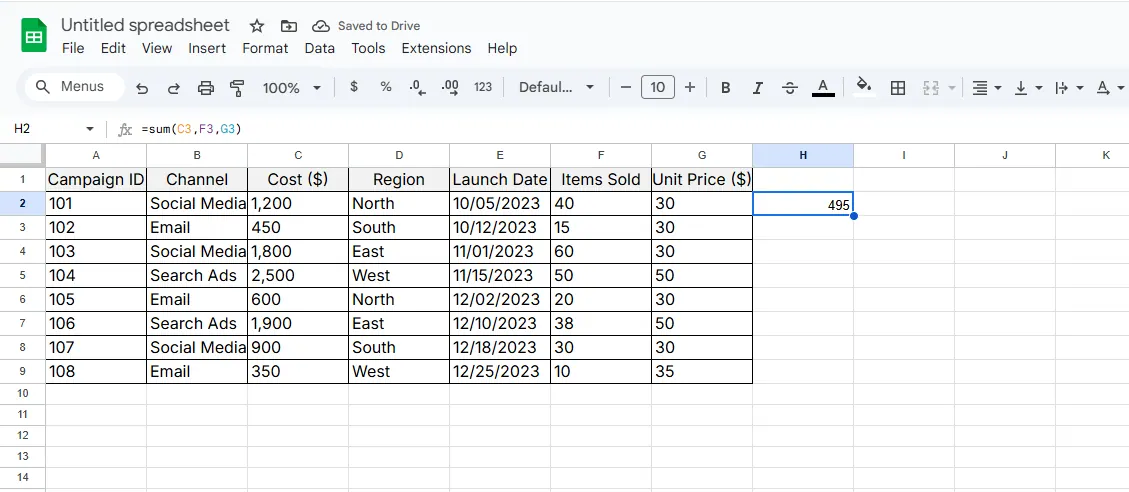
Got numbers scattered everywhere? No problem. Just separate them with commas:
=SUM(A1, C1, E1, G1)
Conditional Summing with SUMIF
This is where things get really powerful. Want to only sum sales over $500? Or expenses from a specific department? SUMIF has your back:
=SUMIF(B2:B10, ">500")
For multiple conditions, use SUMIFS:
=SUMIFS(SalesAmount, SalesPerson, "John", Region, "West")
Next-Level Summing: Across Sheets and Arrays
Summing Across Multiple Worksheets
Managing budgets across departments? Use 3D references to sum the same cell across sheets:
=SUM(Sheet1:Sheet3!A1)
Array Formulas for Power Users
Need to multiply-then-sum two ranges? Array formulas can do that:
=SUM(A1:A10*B1:B10)
Press Ctrl+Shift+Enter to make it work. In RowSpeak, we simplify this with our "Smart Arrays" feature that handles the complex parts for you.
Common Mistakes (And How to Avoid Them)
We've all seen those frustrating error messages. Here's how to fix them fast:
#VALUE!: Usually means you're trying to sum text with numbers#REF!: Happens when you delete a referenced cell#NAME?: You probably misspelled a function name
Pro Tips to Work Smarter
- Named Ranges: Turn
=SUM(A1:A100)into=SUM(Q1_Sales). So much clearer! - Tables: Convert ranges to tables (Ctrl+T) and your sums auto-update when new data is added
- Shortcuts: Alt+= for AutoSum, Ctrl+Shift+T for quick totals in RowSpeak