How to Add a Semicolon in Excel (3 Simple Methods + AI Shortcut)

We've all been there - staring at an Excel sheet realizing we need to add semicolons between hundreds of data points. Maybe you're preparing a CSV for import, or trying to make your data more readable. Whatever the reason, manually typing semicolons is about as fun as watching paint dry.

Here's the good news: Excel offers several ways to add semicolons, and we're about to show you the fastest methods - including how AI tools like RowSpeak can do this automatically while you grab coffee.

Method 1: The Basic Manual Approach

For quick one-off edits:

  1. Double-click the cell
  2. Place your cursor where the semicolon should go
  3. Type ";" and hit Enter

This works fine for small edits, but if you're dealing with more than 10 cells, you'll want something smarter.

Method 2: Formula Power (For Medium-Sized Datasets)

Excel formulas can add semicolons at scale. Here are two lifesavers:

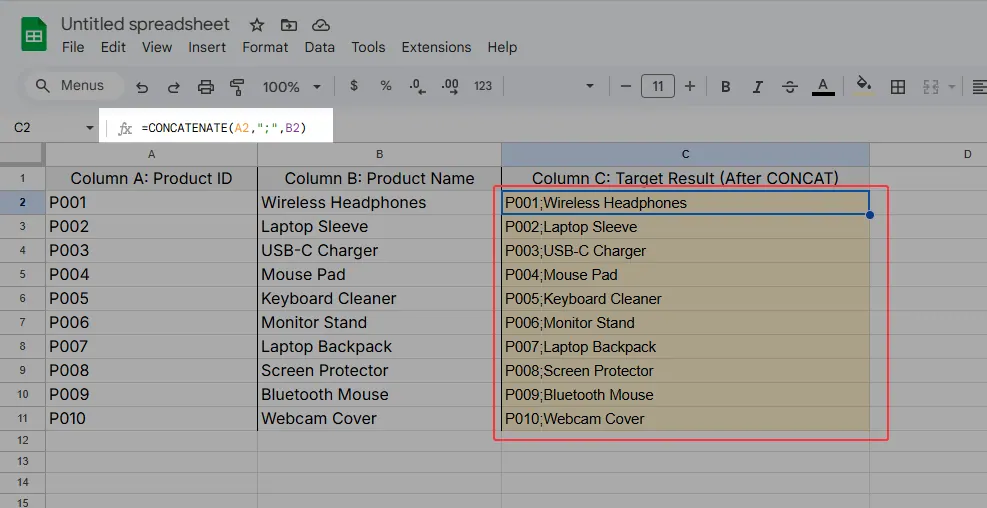
Option A: CONCATENATE/CONCAT
=CONCAT(A1,";",B1)
Joins cells with a semicolon in between
con

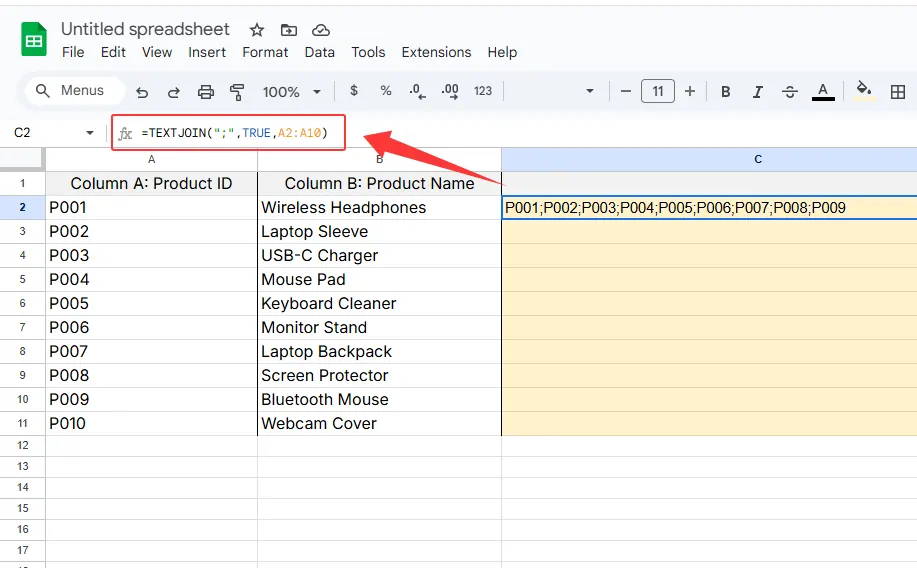
Option B: TEXTJOIN (Best for lists)
=TEXTJOIN(";",TRUE,A1:A10)
Merges a range with semicolons, skipping blanks
text

Pro tip: These formulas create new cells with semicolons - you'll need to copy and paste as values to replace the originals.

Method 3: Find & Replace (For Bulk Changes)

When you need to swap existing separators:

  1. Select your data range
  2. Press Ctrl+H
  3. Find: "," (or current separator)
  4. Replace with: ";"
  5. Click "Replace All"

This method is perfect when converting comma-separated data to semicolon format.

The AI Shortcut: Let RowSpeak Handle It

Here's where things get magical. With RowSpeak's AI:

  1. Upload your spreadsheet
  2. Type: "Add semicolons between all values in column B"
  3. Watch as it transforms your data instantly

No formulas to remember, no manual work. RowSpeak understands natural language commands and applies the changes while maintaining your original data structure.

Bonus: CSV Export with Semicolons

Need to save as CSV with semicolons? Here's the trick:

  1. Open Windows Control Panel > Region
  2. Click "Additional settings"
  3. Change "List separator" from comma to semicolon
  4. Now Excel will use semicolons in CSV exports

(Don't forget to change it back later!)

Why Stop at Semicolons?

While these methods work, they're just band-aids on a bigger productivity drain. Modern data work demands smarter solutions. That's where RowSpeak shines:

  • Automatically format data based on your verbal instructions
  • Handle complex separators and data transformations
  • Maintain consistency across all your spreadsheets
  • Free you from repetitive Excel chores

The next time you find yourself adding semicolons (or any repetitive data task), ask yourself: could an AI tool do this faster? Your future self will thank you for the hours saved.

Ready to work smarter? Try RowSpeak free and say goodbye to manual data formatting.

Ditch Complex Formulas – Get Insights Instantly

No VBA or function memorization needed. Tell RowSpeak what you need in plain English, and let AI handle data processing, analysis, and chart creation

Try RowSpeak Free Now

Recommended Posts

How to Add Text to Cells in Excel: 5 Simple Methods (+ AI Shortcut)
Excel Operation

How to Add Text to Cells in Excel: 5 Simple Methods (+ AI Shortcut)

Tired of manually editing hundreds of cells? Whether you need to add product codes, country prefixes, or status labels, we'll show you smarter ways to batch-edit text in Excel—including how RowSpeak can automate this in seconds.

Gianna
How to Add a Title to a Table in Excel (3 Simple Methods)
Excel Operation

How to Add a Title to a Table in Excel (3 Simple Methods)

Struggling with messy Excel tables? Discover foolproof methods to add clear titles—and how RowSpeak can do it for you in seconds.

Gianna
How to Add Quotation Marks in Excel (3 Simple Methods)
Excel Operation

How to Add Quotation Marks in Excel (3 Simple Methods)

Quotation marks in Excel shouldn't be this hard. Whether you're prepping data for reports or formatting text, these pro techniques (and one AI-powered solution) will save you hours.

Gianna
How to Add Quotes Around Text in Excel (3 Simple Methods)
Excel Operation

How to Add Quotes Around Text in Excel (3 Simple Methods)

Struggling to format text with quotes in Excel? Whether you're prepping data for import or ensuring consistency, these quick methods will save you hours.

Gianna
How to Add a Number to Multiple Cells in Excel (5 Simple Methods)
Excel Operation

How to Add a Number to Multiple Cells in Excel (5 Simple Methods)

Tired of manually updating hundreds of cells? Discover how RowSpeak and built-in Excel features can help you add numbers to multiple cells in seconds - no coding required.

Gianna
How to Add a Percentage to a Number in Excel (3 Simple Methods)
Excel Operation

How to Add a Percentage to a Number in Excel (3 Simple Methods)

Struggling with percentage calculations in Excel? Whether you're applying discounts or calculating taxes, this guide shows you multiple methods to get it right every time.

Gianna
How to Add a Line Break in Excel Cells (3 Simple Methods)
Excel Operation

How to Add a Line Break in Excel Cells (3 Simple Methods)

Struggling to fit multiple lines of text in a single Excel cell? This guide shows you three foolproof methods to add line breaks, plus how AI-powered RowSpeak can handle it automatically.

Gianna
How to Add a Row in Excel: 5 Simple Methods (+ Pro Tips)
Excel Operation

How to Add a Row in Excel: 5 Simple Methods (+ Pro Tips)

Adding rows in Excel seems basic, but knowing multiple methods can save you hours. Discover keyboard shortcuts, table tricks, and how to handle tricky situations like merged cells.

Gianna