Ever stared at a spreadsheet needing to add "Order-" before every ID or "(Confirmed)" after each status? Manual editing is soul-crushing when you've got 500+ rows. As a growth manager who lives in spreadsheets, I've tested every text-editing trick—here are the most efficient methods, plus how AI tools like RowSpeak can cut this work from minutes to milliseconds.
1. The Formula Power Duo: CONCATENATE & Ampersand
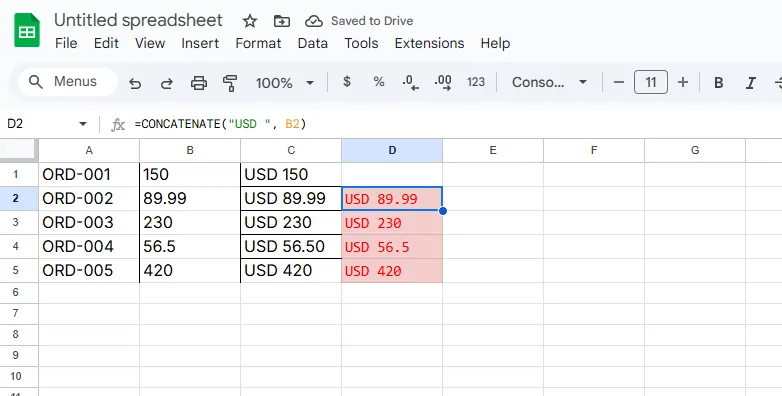
These are Excel's classic text-combining tools. Need to add "USD" before prices in Column B?
CONCATENATE method:
=CONCATENATE("USD ", B2)
Ampersand shortcut (my personal go-to):
= "USD " & B2
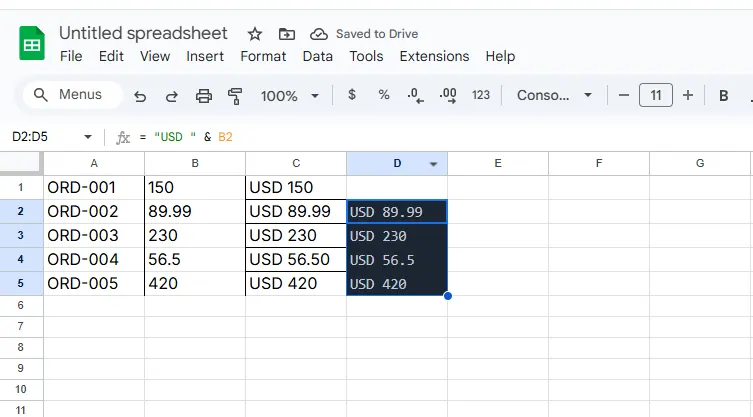
Pro tip: Double-click the cell's bottom-right corner to auto-fill down. But if your dataset keeps changing, maintaining these formulas gets messy. That's where...
2. Flash Fill: Excel's Pattern Wizard
Introduced in Excel 2013, this feature learns from your actions like magic:
- Type your desired output in the first cell (e.g., "Order-1001" next to original "1001")
- Press Ctrl+E
- Watch Excel replicate your pattern instantly
Downside: It struggles with complex patterns and breaks when source data changes.
3. Find & Replace Hack
Need to add "(Archived)" to 10,000 project names? Try this wildcard trick:
- Select your range
- Ctrl+H to open Find & Replace
- In "Find what":
*(asterisk wildcard) - In "Replace with":
* (Archived) - Click "Replace All"
Warning: This permanently overwrites original data—always duplicate first.
4. Power Query for Heavy Lifting
When dealing with 100K+ rows, Power Query is your best friend:
- Data tab > Get Data > From Table/Range
- Add Column > Custom Column
- Enter formula:
"INV-" & [OrderID] - Close & Load
This creates a dynamic connection that updates when source data changes.
5. VBA Macro for Power Users
For recurring tasks, a simple macro saves hours:
Sub AddTextPrefix()
Dim cell As Range
For Each cell In Selection
cell.Value = "Client: " & cell.Value
Next cell
End Sub
But let's be real—most of us don't have time to write and debug code.
The AI Shortcut: RowSpeak's Text Magic
Here's why I switched to RowSpeak for text transformations:
- Natural language processing: Type "add country code before phone numbers" and it handles the rest
- Template library: Save common edits like "Add invoice prefix" as one-click operations
- Live preview: See changes before applying
- Non-destructive: Original data stays intact in a backup sheet
Real-world example: Last quarter, I needed to:
- Add department codes to 8,000 employee IDs
- Append "(Remote)" to location fields
- Standardize date formats
With RowSpeak's AI assistant, this took 47 seconds versus 30+ minutes of manual work.
Which Method Should You Use?
- Small quick edits: Ampersand (&) or Flash Fill
- Large static datasets: Find & Replace
- Ongoing projects: Power Query or RowSpeak
- When accuracy matters most: RowSpeak's AI with human review
The game-changer? AI tools eliminate the formula maintenance headache. Instead of babysitting CONCATENATE formulas across sheets, I now use RowSpeak to:
- Automatically detect text patterns
- Apply changes consistently
- Update dynamically when source data changes
Try it yourself: RowSpeak's free plan lets you process 100 rows daily—perfect for testing these workflows.
What text-editing headaches are you facing? DM me @RowSpeakGrowth—I'll help you find the fastest solution!