Let's be real—manually typing the same text across hundreds of Excel cells is nobody's idea of fun. Whether you're labeling product codes, adding country prefixes, or creating standardized templates, there are smarter ways to get this done. Here are 7 game-changing methods (including some AI magic) to save your fingers from unnecessary typing.
1. The Drag-and-Drop Hero: Fill Handle
That tiny square in your cell's bottom-right corner? It's Excel's secret weapon.
- Type your text in the starting cell
- Hover until the cursor becomes a black cross
- Drag down/across to auto-fill other cells
Pro tip: Double-click the Fill Handle to instantly copy down to your last adjacent data point.
2. When You Need to Mix Text & Data: CONCAT/CONCATENATE
Need to combine existing cell values with new text? Try:
=CONCAT(A2," - ",B2) // Newer Excel versions
=CONCATENATE(A2," - ",B2) // Legacy versions
Drag the formula down to apply it to your entire column.
3. The Smarter Combiner: TEXTJOIN (Excel 2016+)
This upgraded function lets you:
- Set custom separators (commas, spaces, etc.)
- Skip empty cells automatically
=TEXTJOIN(" ",TRUE,A2:C2)
4. The Minimalist's Choice: Ampersand (&)
For quick text merges without function syntax:
=A2&" "&B2&" (New)"
5. Excel's Mind Reader: Flash Fill
Started in Excel 2013, this feature detects patterns after 2-3 examples:
- Type your desired format in the first cell
- Start typing in the next cell
- Press Ctrl+E to accept Excel's suggested pattern
Perfect for reformatting addresses or splitting names!
6. Bulk Edits Made Easy: Find & Replace
To add prefixes/suffixes en masse:
- Select your range
- Ctrl+H to open Find/Replace
- Leave "Find what" blank
- In "Replace with", enter:
- Prefix: "New-"&
- Suffix: &"-2024"
7. The Power User's Playground: VBA Macros
For recurring complex tasks, record or write simple macros:
Sub AddText()
For Each cell In Selection
cell.Value = "HQ-" & cell.Value
Next cell
End Sub
Bonus: Let AI Do the Heavy Lifting with RowSpeak
While these native Excel methods work, why not supercharge your workflow? RowSpeak transforms text manipulation with AI:
- Automatically standardizes entries across sheets
- Generates dynamic labels based on your data patterns
- Processes thousands of cells in seconds with natural language commands
Instead of memorizing formulas, just tell RowSpeak:
"Add 'Region-' before all values in Column B" or
"Combine first/last names with middle initials where available"
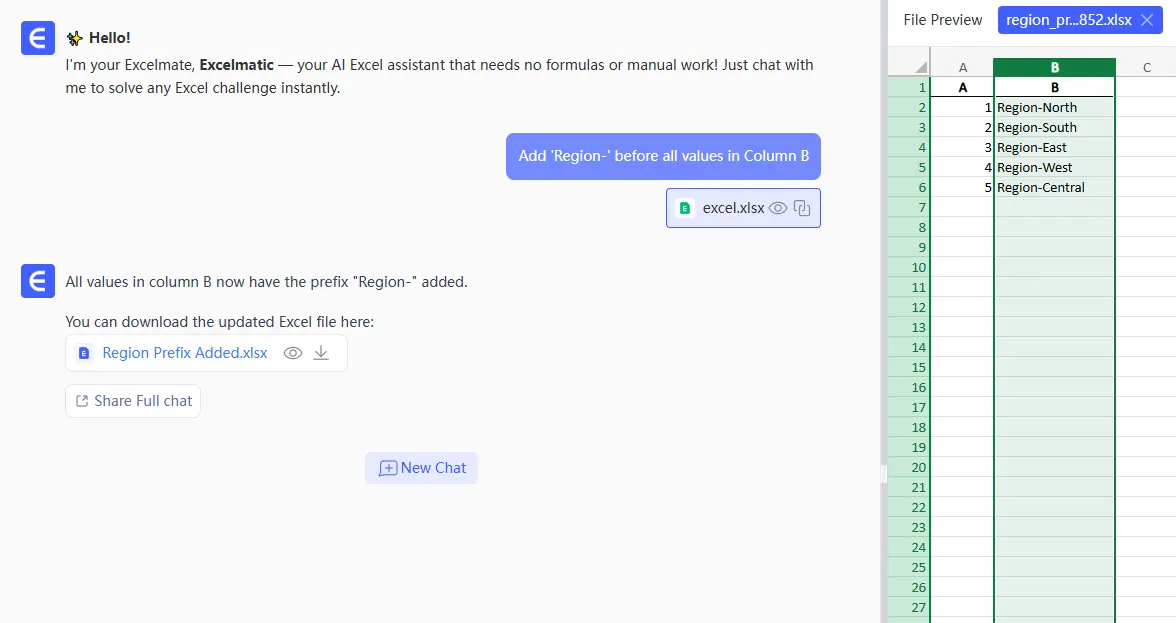
The AI handles the execution while you focus on higher-value work.
Which Method Wins?
- Quick one-time task? → Fill Handle or Flash Fill
- Combining existing data? → CONCAT/TEXTJOIN
- Monthly reports with the same edits? → VBA Macro
- Want to never manually format again? → RowSpeak AI
Pro Tip: For teams handling large datasets regularly, AI-powered tools like RowSpeak reduce errors and save 2-3 hours per week on average compared to manual methods.
Ready to upgrade your Excel game? The best solution depends on your specific needs—but with these 7 methods (especially #7), you'll never dread bulk text edits again.
P.S. Hate formula memorization? RowSpeak's natural language processing lets you perform all these tasks by just typing what you want in plain English. Try it free today!