How to Add Arrows in Google Sheets: 5 Simple Methods for Better Data Visualization

Let’s be real—staring at endless rows of numbers in Google Sheets can make anyone’s eyes glaze over. But what if you could make your data pop with simple visual cues? That’s where arrows come in.

As a growth manager at RowSpeak, I’ve seen how arrows can turn dry spreadsheets into dynamic dashboards. They’re perfect for:

  • Highlighting key metrics (📈 sales up? 📉 costs down?)
  • Creating easy-to-follow flowcharts
  • Guiding users through complex data

Here are 5 foolproof ways to add arrows in Google Sheets—no design degree required.


Method 1: The Quick Fix (Unicode Arrows)

Need an arrow right now? Unicode symbols are your best friend:

  1. Double-click any cell
  2. Press Ctrl+/ (Windows) or Cmd+/ (Mac)
  3. Search "arrow" → pick your favorite

Pro Tip: Copy-paste these for instant use:
→ Right arrow ()
↑ Up arrow ()
🔽 Down triangle (🔽)

Best for: Quick indicators in text-heavy sheets


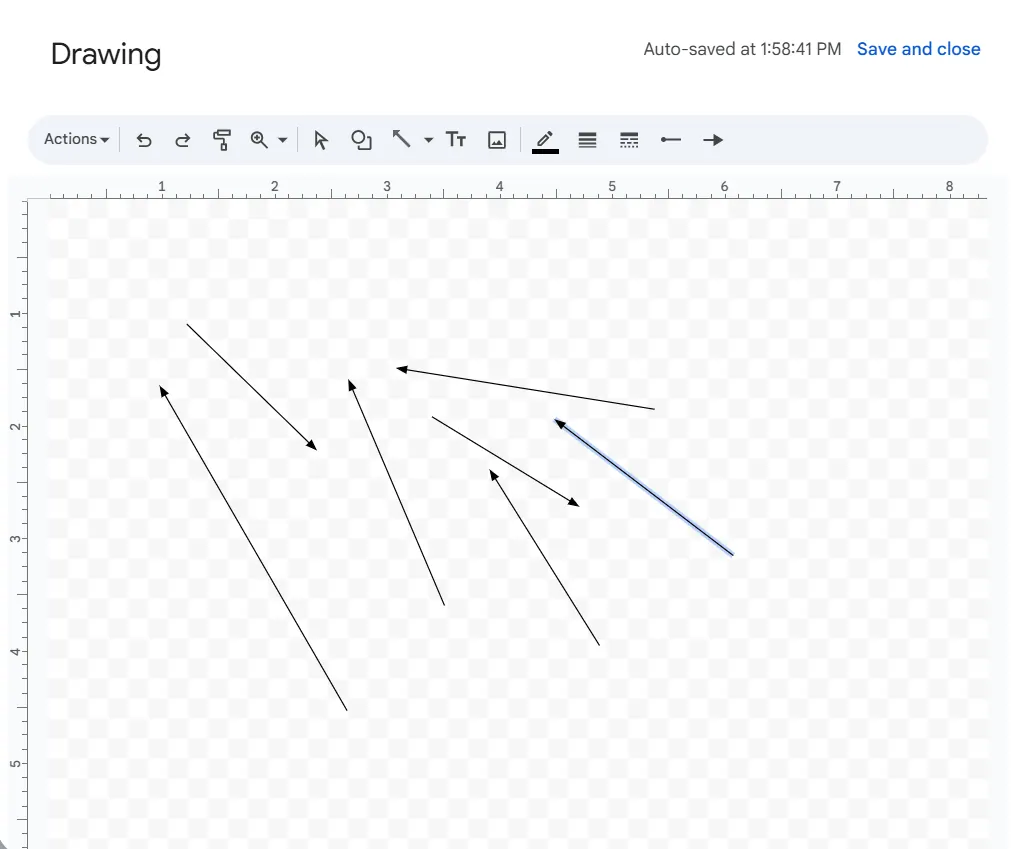
Method 2: Custom Arrows with Google Drawings

Want arrows that match your brand colors? Google Drawings has you covered:

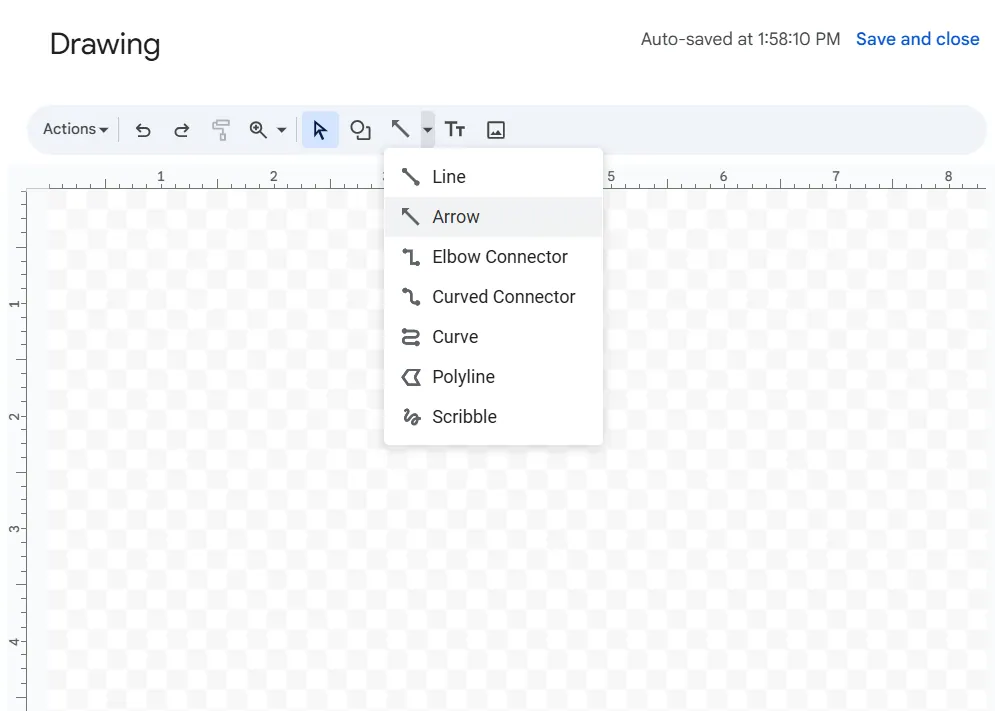
  1. Click InsertDrawing
  2. Use the Line tool → select an arrow style
a1

  1. Customize thickness/color like a pro

a2

Why it rocks: Perfect for presentations where visuals matter


Method 3: Auto-Updating Arrows (Conditional Formatting)

Tired of manually updating arrows? Let Google Sheets do the work:

  1. Select your data range
  2. Go to FormatConditional formatting
  3. Set rules like:
    • =A1>B1 → Green up arrow
    • =A1<B1 → Red down arrow

Real-world use: Monthly sales reports that update themselves


Method 4: Drag-and-Drop Arrow Images

Need something more stylish?

  1. Download arrow icons from Flaticon
  2. Click InsertImageUpload
  3. Resize over your data

Designer hack: Use PNGs with transparent backgrounds


Method 5: Next-Level Automation with RowSpeak

Here’s where things get exciting. While Google Sheets has basic tools, RowSpeak takes visual data storytelling to the next level with:

Smart auto-formatting that adds context-aware arrows
AI-powered charts that suggest optimal visual cues
One-click templates for flowcharts and dashboards

Why teams love it: No more wasting hours manually adding arrows—our AI handles the busywork while you focus on insights.


Pro Tips for Arrow Mastery

  1. Less is more – Use arrows sparingly to avoid "visual noise"
  2. Color code – Green = good, Red = needs attention
  3. Combine methods – Use Unicode for text, Drawings for diagrams

Ready to Upgrade Your Data Game?

Arrows are just the beginning. With tools like RowSpeak, you can:
✨ Automate repetitive formatting
✨ Generate AI-powered insights
✨ Build stunning dashboards in minutes

Try RowSpeak free today and turn your spreadsheets into data stories that actually get noticed.

About the author:
As RowSpeak’s Growth Manager, I help teams ditch spreadsheet frustration. When not geeking out over data viz, you’ll find me brewing pour-over coffee or explaining pivot tables to my cat. 🐱📊

Ditch Complex Formulas – Get Insights Instantly

No VBA or function memorization needed. Tell RowSpeak what you need in plain English, and let AI handle data processing, analysis, and chart creation

Try RowSpeak Free Now

Recommended Posts

How to Add Days to a Date in Google Sheets (3 Simple Methods)
Excel Operation

How to Add Days to a Date in Google Sheets (3 Simple Methods)

Struggling with date calculations in Google Sheets? Whether you're managing project timelines or tracking inventory, these simple formulas will save you hours of manual work.

Gianna
How to Add a Tick Mark in Excel: 7 Simple Methods for Better Data Visualization
Excel Operation

How to Add a Tick Mark in Excel: 7 Simple Methods for Better Data Visualization

Tick marks might seem small, but they can transform your Excel sheets from messy grids into clear, actionable dashboards. Here's how to add them like a pro.

Gianna
How to Add Sparklines in Google Sheets: A Quick Guide for Data Visualization
Excel Operation

How to Add Sparklines in Google Sheets: A Quick Guide for Data Visualization

Sparklines are tiny charts that fit in a single cell, giving you a visual snapshot of your data trends. Here's how to use them like a pro in Google Sheets.

Gianna
How to Add a Degree Symbol in Google Sheets (5 Simple Methods)
Excel Operation

How to Add a Degree Symbol in Google Sheets (5 Simple Methods)

Whether you're tracking weather data or creating scientific reports, that tiny ° symbol matters more than you think. Here's your ultimate guide to inserting degree symbols like a pro - no technical skills required!

Gianna
How to Add Page Breaks in Google Sheets for Better Data Organization
Excel Operation

How to Add Page Breaks in Google Sheets for Better Data Organization

Struggling with cluttered Google Sheets? This guide walks you through adding page breaks, line breaks, and formula breaks to organize your data effectively. We'll also show you how RowSpeak can simplify these processes with AI-powered automation.

Gianna
How to Add a Horizontal Line in Excel: 5 Simple Methods for Better Data Visualization
Excel Operation

How to Add a Horizontal Line in Excel: 5 Simple Methods for Better Data Visualization

Horizontal lines in Excel aren't just decorative - they're powerful visual cues. Discover multiple methods to add them, whether you're marking targets, separating sections, or improving readability.

Gianna
How to Add Divider Lines in Google Sheets for Better Data Organization
Excel Operation

How to Add Divider Lines in Google Sheets for Better Data Organization

Divider lines transform cluttered spreadsheets into organized, readable documents. This guide walks you through multiple techniques to separate your data effectively, plus how AI tools like RowSpeak can streamline the process.

Gianna
How to Sum Columns in Google Sheets: 5 Easy Methods for Better Data Analysis
Excel Operation

How to Sum Columns in Google Sheets: 5 Easy Methods for Better Data Analysis

Struggling with spreadsheet sums? This guide breaks down 5 simple methods to total columns in Google Sheets, with pro tips for faster analysis. See how AI tools like RowSpeak can do the math for you.

Gianna