How to Add Data Labels to Bar Graphs in Google Sheets (Step-by-Step Guide)

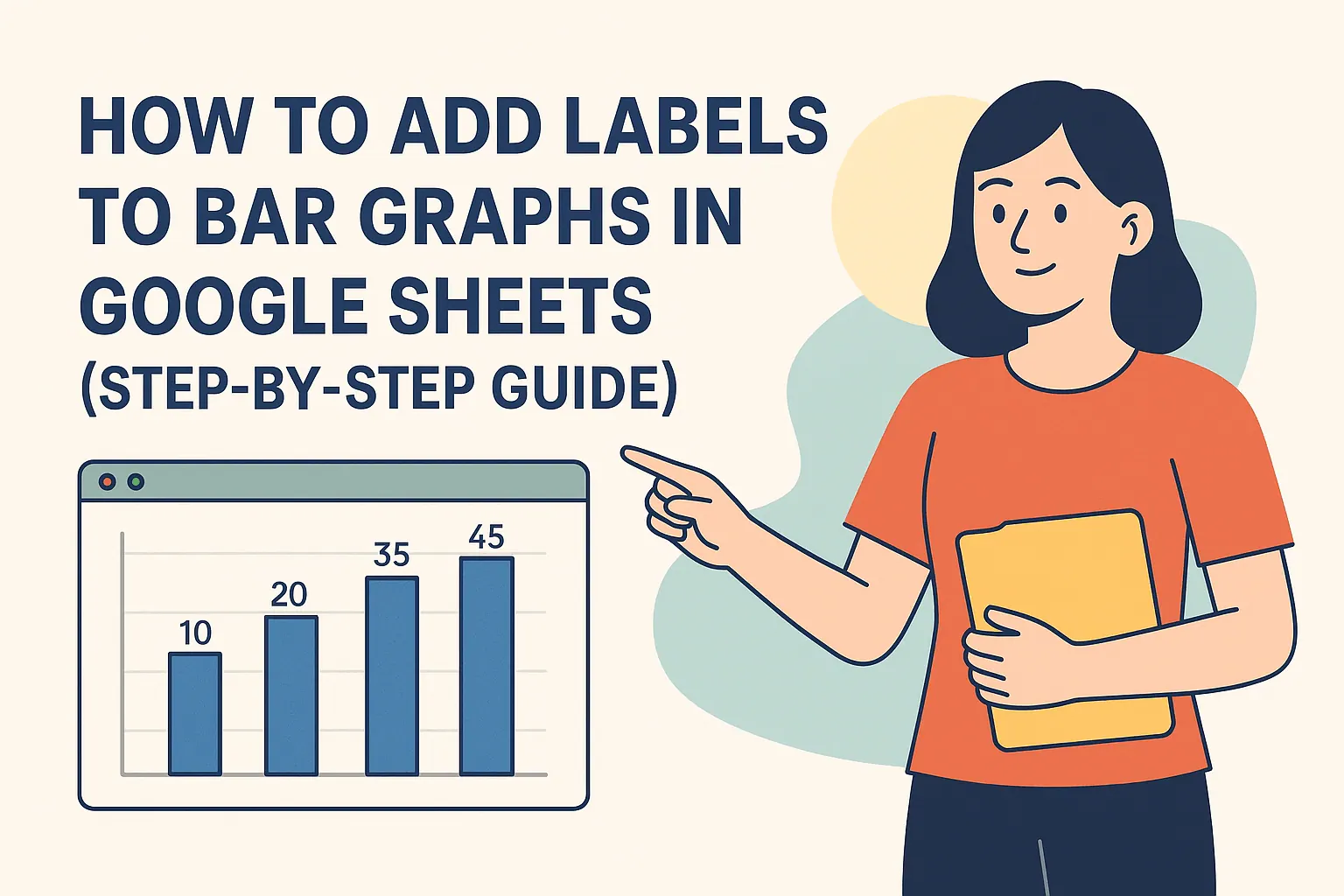
Bar graphs transform boring spreadsheets into visual stories anyone can understand. But here's the problem - without numbers directly on the bars, your audience is left guessing the exact values.

At RowSpeak, we help teams create smarter data visualizations daily. Today I'll show you the exact steps to add data labels that make your Google Sheets graphs crystal clear.

Step 1: Set Up Your Data Like a Pro

Before creating magic, you need organized data:

  1. Open a new Google Sheet
  2. Create two columns:
    • Column A: Categories (months, products, etc.)
    • Column B: Values (sales numbers, percentages)
  3. Keep it clean - no blank rows or merged cells

Pro tip: Freeze your header row (View > Freeze) so you never lose track of your labels when scrolling.

Step 2: Create Your Basic Bar Chart

Here's where the fun begins:

  1. Highlight your data range
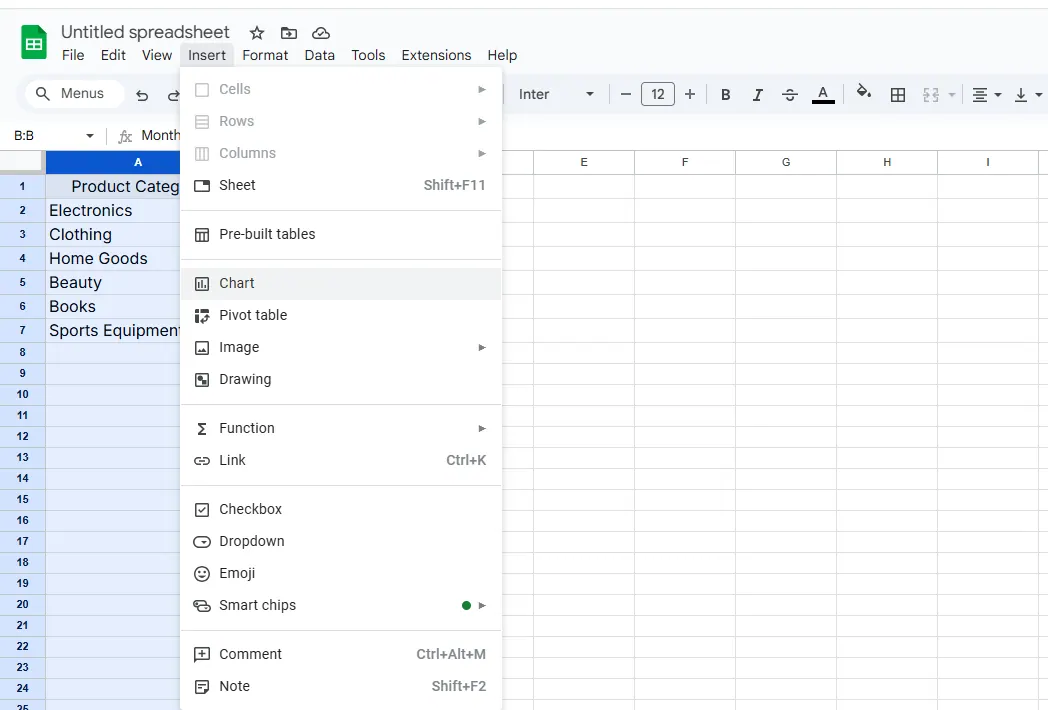
  2. Click Insert > Chart

insert

  1. In the Chart Editor sidebar:
    • Under "Chart type," select "Bar chart"
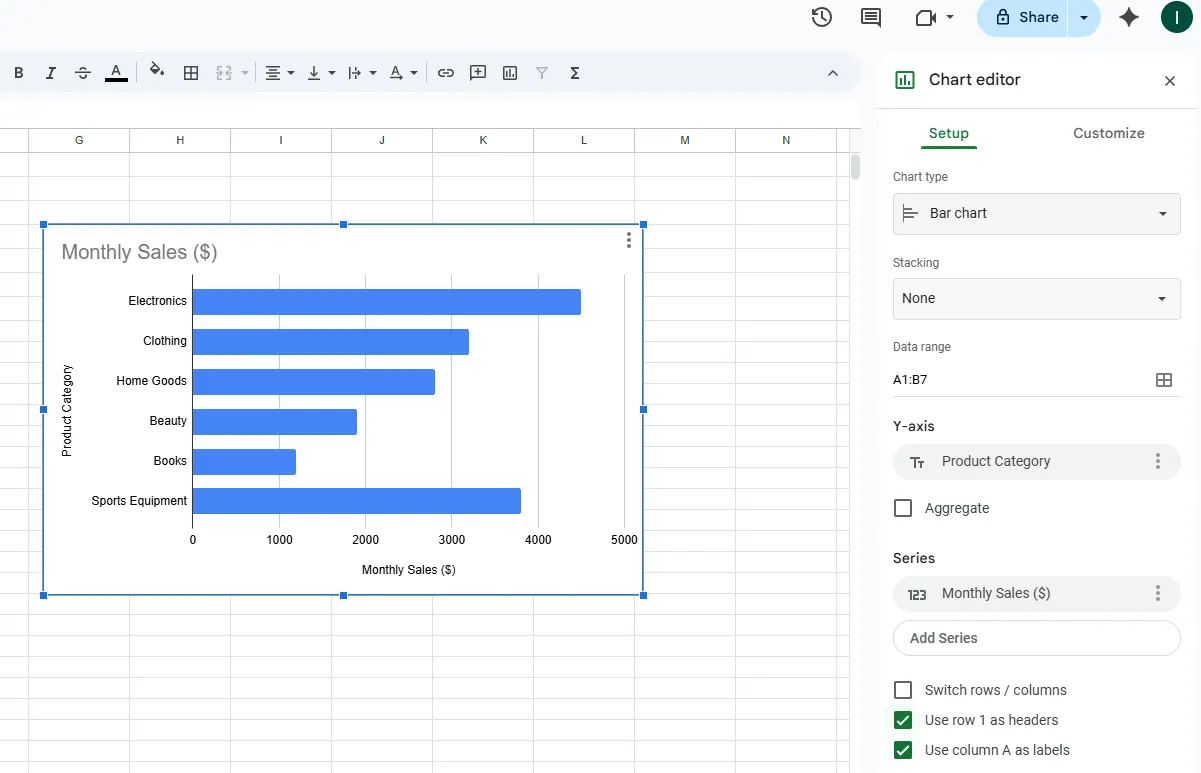
pick

Boom! You've got a basic bar graph. But we're just getting started.

Step 3: Add Those Game-Changing Data Labels

This is the secret sauce:

  1. Click on your chart
  2. Open the Chart Editor (three dots > Edit chart)
  3. Go to Customize > Series
  4. Check the "Data labels" box

Suddenly, your bars show exact values - no more guessing!

Level Up Your Labels

Make your labels pop with these tweaks:

  • Font size: Make them readable (but not obnoxious)
  • Color: Choose high-contrast colors
  • Position: Try inside or outside bars for best fit

Common Problems (And How to Fix Them)

🔴 Labels overlapping?

  • Reduce font size
  • Switch to horizontal bars

🔴 Graph not updating?

  • Check your data range includes new cells
  • Refresh the page

Why Stop at Google Sheets?

While Google Sheets works, imagine having AI do all this for you instantly. That's where RowSpeak shines:

  • Automatically suggests the best chart types
  • Adds smart data labels with one click
  • Updates visuals in real-time as data changes

No more manual tweaking - just beautiful, informative graphs that tell your data story perfectly.

Final Pro Tips

  1. Keep it simple - only highlight key data
  2. Use consistent colors that match your brand
  3. Always double-check label readability

Want to take your data viz to the next level? Try RowSpeak's AI-powered charts and see how much time you can save. Your future self (and your boss) will thank you!
Ditch Complex Formulas – Get Insights Instantly

No VBA or function memorization needed. Tell RowSpeak what you need in plain English, and let AI handle data processing, analysis, and chart creation

Try RowSpeak Free Now

Recommended Posts

How to Add Labels to Bar Graphs in Google Sheets (Step-by-Step Guide)
Excel Operation

How to Add Labels to Bar Graphs in Google Sheets (Step-by-Step Guide)

Struggling to make your bar graphs more readable? This step-by-step tutorial shows you how to add, customize, and troubleshoot labels in Google Sheets—no design skills needed!

Gianna
How to Add Labels to Charts in Google Sheets (Step-by-Step Guide)
Excel Operation

How to Add Labels to Charts in Google Sheets (Step-by-Step Guide)

Charts tell stories with data, but without proper labels, your audience might miss the plot. Here's how to add labels in Google Sheets like a pro.

Gianna
How to Add Labels to a Pie Chart in Google Sheets (Step-by-Step Guide)
Excel Operation

How to Add Labels to a Pie Chart in Google Sheets (Step-by-Step Guide)

Struggling to make your data pop? Our easy guide shows you how to add and customize labels in Google Sheets pie charts like a pro.

Gianna
How to Add Horizontal Axis Labels in Google Sheets (Step-by-Step Guide)
Excel Operation

How to Add Horizontal Axis Labels in Google Sheets (Step-by-Step Guide)

Struggling with confusing charts in Google Sheets? This step-by-step guide shows you how to add horizontal axis labels like a pro—plus how RowSpeak can automate the entire process for you.

Gianna
How to Add Data to Google Sheets: A Step-by-Step Guide for Smarter Workflows
Excel Operation

How to Add Data to Google Sheets: A Step-by-Step Guide for Smarter Workflows

Tired of manual data entry? Discover how to supercharge your Google Sheets workflow with both basic techniques and cutting-edge AI tools like RowSpeak.

Gianna
How to Plot Y=MX+B in Google Sheets: A Step-by-Step Guide for Data Visualization
Excel Operation

How to Plot Y=MX+B in Google Sheets: A Step-by-Step Guide for Data Visualization

Struggling to visualize linear relationships in your data? This step-by-step tutorial shows you how to plot y=mx+b equations in Google Sheets and take your data analysis to the next level.

Gianna
How to Add an Asterisk in Excel Graphs: A Step-by-Step Guide
Excel Operation

How to Add an Asterisk in Excel Graphs: A Step-by-Step Guide

Want to make your Excel graphs stand out? This guide shows you exactly how to add asterisks to highlight important data points - no design skills needed!

Gianna
How to Add a Column in Google Sheets: A Step-by-Step Guide for Smarter Data Management
Excel Operation

How to Add a Column in Google Sheets: A Step-by-Step Guide for Smarter Data Management

Mastering column management in Google Sheets is essential for dynamic data analysis. This guide walks you through insertion techniques while showcasing how AI-powered tools like RowSpeak can transform your workflow.

Gianna