How to Automate Excel Calculation Styles with AI (Plus a Better Solution)

Ever spent hours formatting Excel sheets, only to realize your formulas blend into the data? We've all been there. Calculation styles—Excel's way to highlight formula cells—can save the day, but applying them manually is tedious. Here's the good news: AI can automate this process, and tools like RowSpeak take it even further.

What Are Calculation Styles in Excel?

Think of calculation styles as highlighter pens for your formulas. They make cells with calculations stand out with custom fonts, colors, or borders. This is gold for:

  • Team collaborations (no more "Which cells contain formulas?")
  • Financial models (spot calculation errors faster)
  • Large datasets (quickly navigate complex sheets)

Traditional method? Right-click, format, repeat. Yawn. Let's upgrade to AI-powered automation.

ChatGPT for Excel Formatting: Helpful But Limited

ChatGPT can guide you through calculation style automation by:

  1. Generating VBA scripts to auto-format formula cells
    Example script it might suggest:

    Sub ApplyCalculationStyle()
        Dim cell As Range
        For Each cell In ActiveSheet.UsedRange
            If cell.HasFormula Then
                cell.Style = "Calculation"
            End If
        Next cell
    End Sub
    
  2. Suggesting conditional formatting rules

  3. Explaining best practices for formula visibility

But here's the catch—you still need to:

  • Copy/paste code into Excel
  • Debug scripts when they fail
  • Manually update when formulas change

RowSpeak: The Smarter AI Solution

While ChatGPT helps, RowSpeak eliminates the manual work entirely. Here's how it outperforms:

No-code automation - Formats formulas instantly without VBA
Live synchronization - Styles update automatically when formulas change
Team-friendly - Maintains consistent formatting across shared files
Beyond formatting - Also suggests formula optimizations and error checks

Try this in RowSpeak:

  1. Upload your spreadsheet

upload

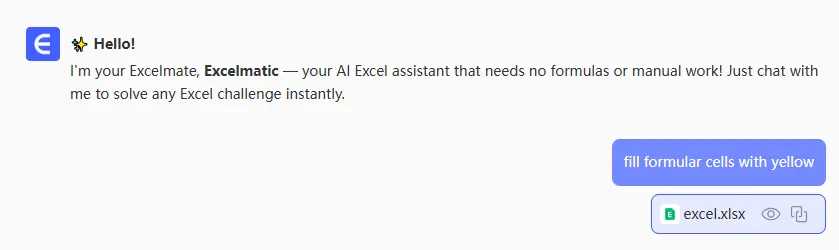
  1. Ask"fill formular cells with yellow"

ask

  1. Done—all formula cells are instantly highlighted
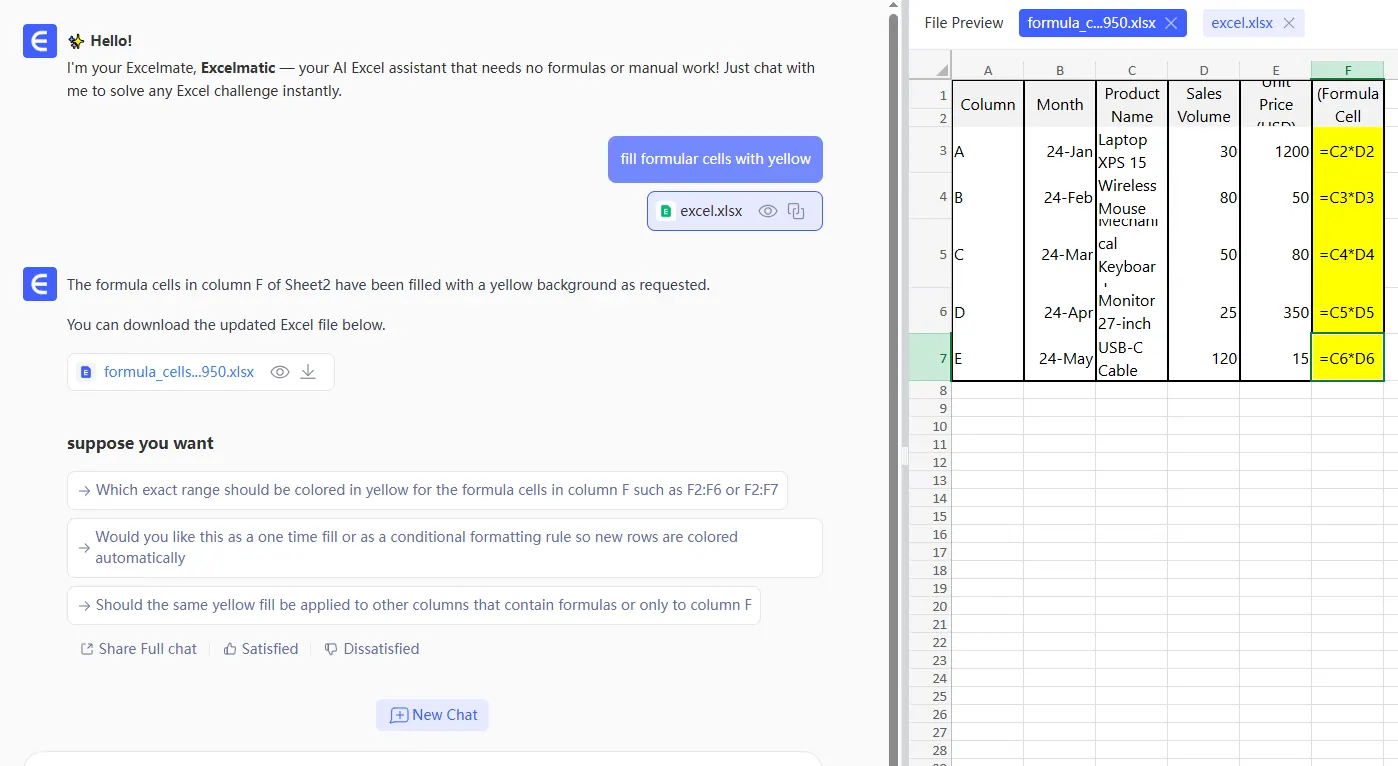
jieguo

Pro tip: Combine with RowSpeak's "Smart Cleanup" to auto-format your entire sheet in one click.

Best Practices for Formula Formatting

Whether using ChatGPT or RowSpeak:

  1. Color code wisely - Use subtle but distinct colors (we like light blue backgrounds)
  2. Layer formatting - Combine cell shading with italic fonts for extra clarity
  3. Document your system - Add a legend explaining your formatting choices
  4. Standardize across files - Use the same style in all related spreadsheets

Why Stop at Calculation Styles?

Modern data work demands more than basic formatting. With RowSpeak, you can:

  • Auto-generate charts from raw data
  • Clean messy datasets with AI
  • Build interactive dashboards without formulas
  • Get AI-powered insights on your numbers

The bottom line? While ChatGPT can help automate Excel tasks, dedicated AI tools like RowSpeak deliver complete, no-code solutions. Spend less time formatting, more time analyzing—that's the power of smart automation.

Ready to upgrade your Excel workflow? Try RowSpeak free and see how AI can transform your spreadsheets.

Ditch Complex Formulas – Get Insights Instantly

No VBA or function memorization needed. Tell RowSpeak what you need in plain English, and let AI handle data processing, analysis, and chart creation

Try RowSpeak Free Now

Recommended Posts

How to Apply AI-Powered Calculation Styles in Excel Like a Pro
Excel Operation

How to Apply AI-Powered Calculation Styles in Excel Like a Pro

Tired of manual Excel tasks? Learn how AI-powered calculation styles can automate your data analysis, making your spreadsheets smarter and your work easier.

Gianna
How to Create Lists in Excel Instantly with AI (RowSpeak Does It Better)
Excel Operation

How to Create Lists in Excel Instantly with AI (RowSpeak Does It Better)

Tired of manually typing lists in Excel? Learn how AI tools like RowSpeak can automate the process, saving you time and reducing errors.

Gianna
How to Add Numbers in Excel Faster with AI (2025 Guide)
Excel Operation

How to Add Numbers in Excel Faster with AI (2025 Guide)

Tired of manual SUM formulas? Learn how AI-powered tools like RowSpeak can automate calculations, analyze trends, and supercharge your Excel workflow.

Gianna
How to Add Dates in Excel Faster with AI (No More Manual Headaches!)
Excel Operation

How to Add Dates in Excel Faster with AI (No More Manual Headaches!)

Tired of wrestling with Excel date formulas? Discover how AI-powered solutions like RowSpeak can handle date calculations, series generation, and formatting in seconds—so you can focus on what really matters.

Gianna
How to Add Smart Notes in Excel with AI (Like a Pro)
Excel Operation

How to Add Smart Notes in Excel with AI (Like a Pro)

Tired of manually adding notes in Excel? Learn how AI transforms note-taking from a tedious chore into an automated, insightful process – with RowSpeak leading the way.

Gianna
How to Apply Functions to Columns in Excel Like a Pro
Excel Operation

How to Apply Functions to Columns in Excel Like a Pro

Tired of manually applying formulas in Excel? Learn how to work smarter with column functions, from basic sums to advanced array formulas - plus how RowSpeak can do it all for you automatically.

Gianna
How to Apply Calculation Styles in Google Sheets Like a Pro
Excel Operation

How to Apply Calculation Styles in Google Sheets Like a Pro

Tired of messy spreadsheets? Master Google Sheets' calculation styles to make your data pop. Plus, see how RowSpeak can handle the heavy lifting for you.

Gianna
How to Supercharge Your Google Sheets Data Analysis with AI (RowSpeak Does It Better)
Excel Operation

How to Supercharge Your Google Sheets Data Analysis with AI (RowSpeak Does It Better)

Tired of wrestling with spreadsheets? Learn how AI like ChatGPT can automate your Google Sheets analysis—but there's an even better way with RowSpeak's built-in AI power.

Gianna