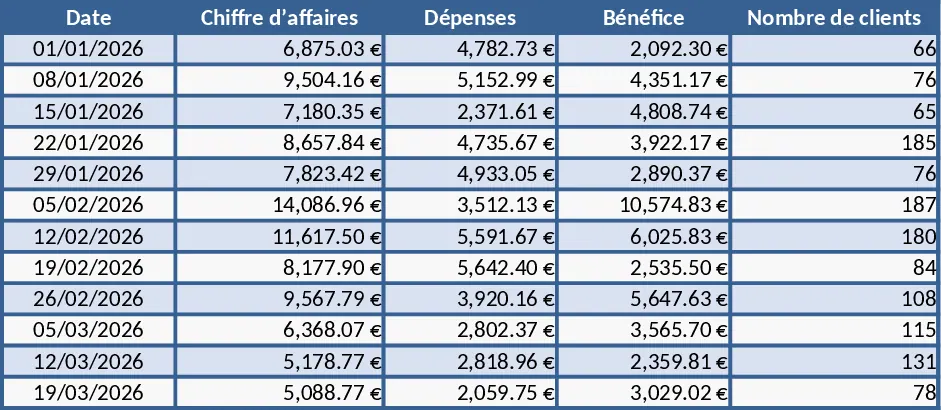
Interactive Data Dashboard with Charts Template
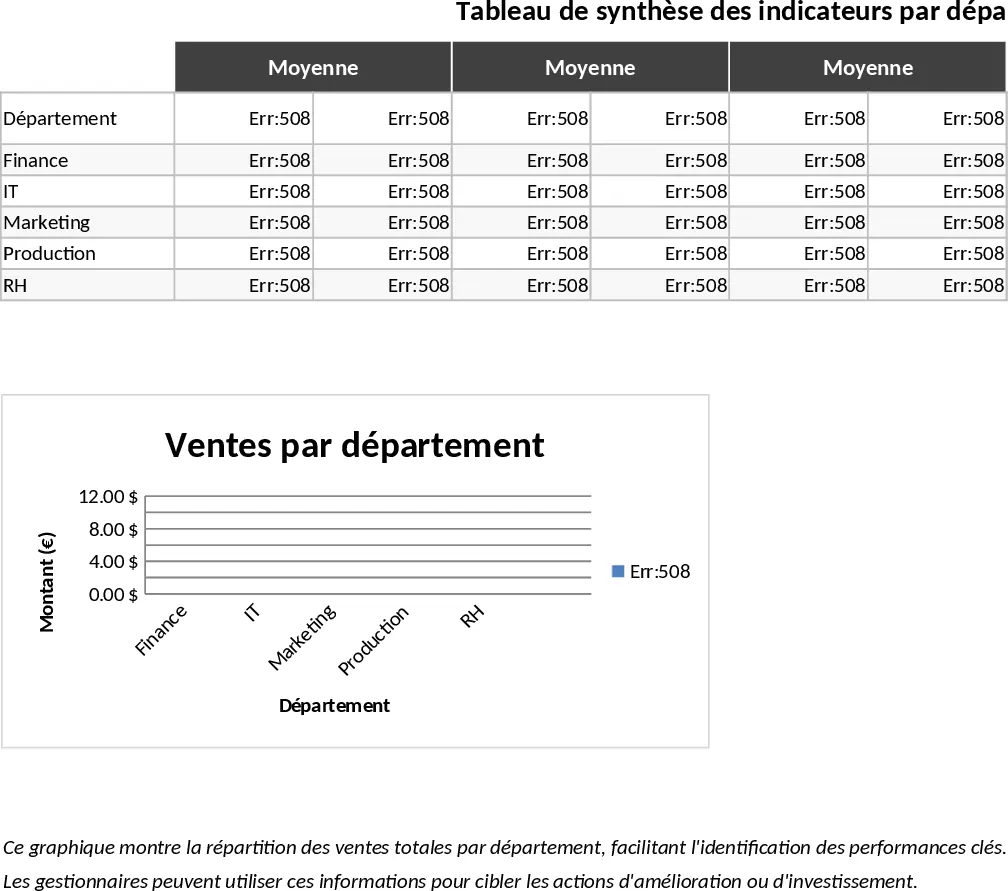
This versatile dashboard template is designed to transform your raw data into clear, actionable visual insights. Whether you are managing a small business, tracking project milestones, or monitoring personal finances, this tool provides a professional-grade interface to see the big picture at a glance. The template is structured into three primary sections: a dedicated data entry sheet, a configuration tab for custom categories, and a dynamic dashboard panel. Within the data entry area, you can input dates, descriptions, and numerical values, while the configuration tab allows you to define specific dropdown menus to ensure data consistency across your records.
The primary utility of this template lies in its ability to solve the problem of manual chart creation and fragmented data management. Instead of spending hours formatting graphs or manually updating tables, you simply enter your latest figures and let the built-in formulas do the heavy lifting. This automated approach ensures that your visual reports are always up-to-date, providing a reliable source of truth for your daily workflow. It is particularly useful for managers who need to present progress to stakeholders, analysts who require a quick way to spot outliers, and entrepreneurs who need to monitor their growth metrics without complex software.
By consolidating your information into one centralized view, the template helps you track performance over time, compare actual results against targets, and identify seasonal trends. The visual components include a mix of bar charts for categorical comparisons, line graphs for temporal trends, and summary cards that highlight total sums or averages. This multi-faceted view ensures that you don't just see the numbers, but you understand the story behind them, making it an essential tool for data-driven decision-making.
How to use this template:
- Start by navigating to the Settings or Configuration tab to define your specific categories, departments, or project names which will populate the dropdown menus.
- Enter your daily or monthly records into the Data Input sheet, selecting the appropriate categories and entering the relevant numerical values.
- Switch to the Dashboard tab to view your updated visualizations; use any available slicers or filters to drill down into specific timeframes or data segments.
- Use the generated charts for your weekly reports or presentations to provide a clear visual representation of your current status.
Expected benefits include significantly reduced time spent on manual reporting and a much lower risk of calculation errors, allowing you to focus more on strategy and less on spreadsheet maintenance.
Similar Templates Recommendation
Modern Style Dashboard Template
Visualize your key performance indicators with a sleek, modern dashboard designed for professional data presentation and real-time tracking.
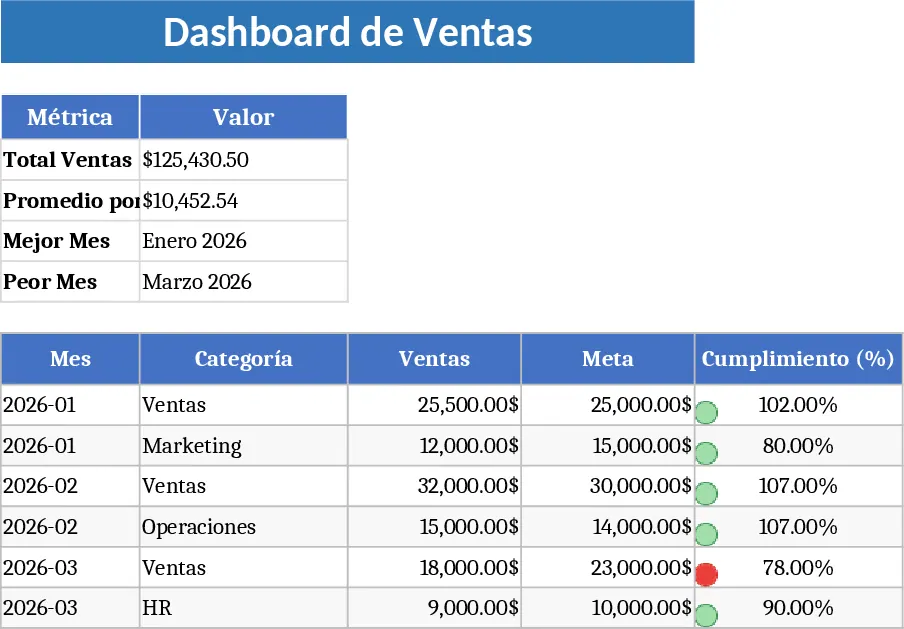
Professional Business Dashboard with Weekly Trends Template
Visualize your key performance indicators and business metrics in one centralized view to make data-driven decisions with ease.
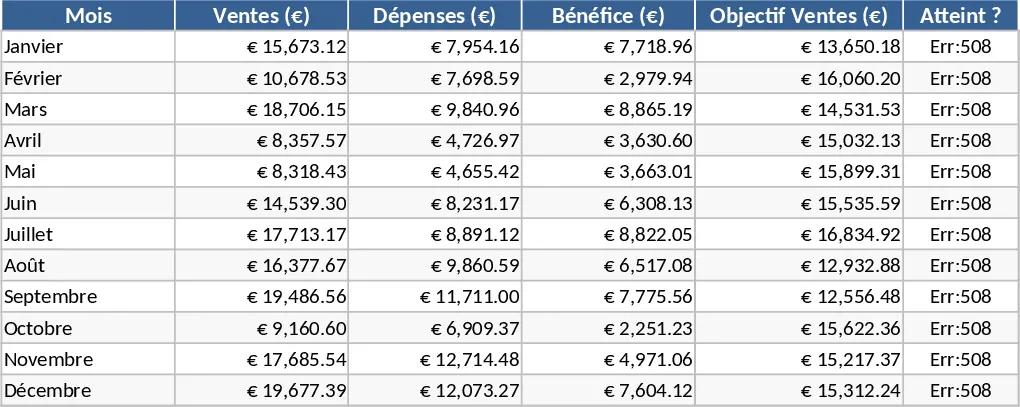
Professional Business Performance and KPI Dashboard Template
Monitor business performance with an automated dashboard featuring financial KPIs, trend charts, and streamlined data entry.