PRÁCTICO TEMA 12 Voto Verificación y Búsqueda Template
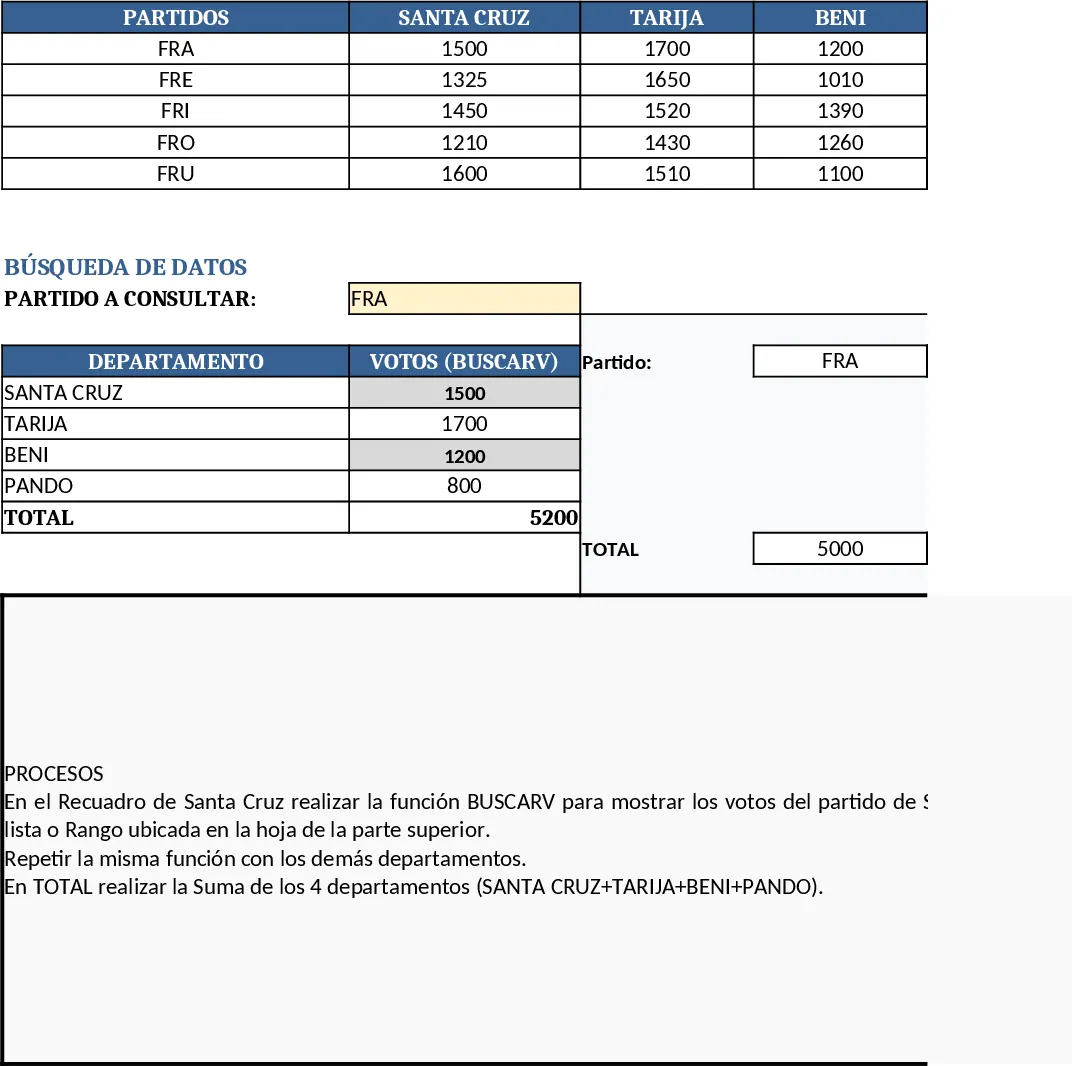
This template is built for a classroom exercise that mimics the "PRÁCTICO TEMA 12 (Ejercicio B)" from the Instituto Técnico Domingo Savio. The workbook is divided into three clear sections on a single sheet:
- Data Table (Top) – A compact table in the range B2:F7 holds the raw vote counts. Row 2 contains the headers PARTIDOS, SANTA CRUZ, TARIJA, BENI, and PANDO. Rows 3‑7 list the five parties (FRA, FRE, FRI, FRO, FRU) with their respective votes for each department.
- Verification Box (Center) – Below the data, a small form titled "VERIFICACIÓN DE VOTOS POR PARTIDO" lets you type a party name in cell D13 (default FRA). Four VLOOKUP formulas pull the corresponding vote numbers for Santa Cruz, Tarija, Beni, and Pando into cells C15, F15, C17, and F17. Cell D19 adds those four values to show the total votes for the selected party.
- Process Box (Bottom) – A text block explains the steps: use VLOOKUP in each department cell, then sum the results for the total. This narrative reinforces the learning objective and can be printed alongside the sheet.
The template solves the common classroom problem of teaching lookup functions and basic aggregation without overwhelming students with extra features. By providing a ready‑made layout, learners can focus on entering data and observing how formulas react, which speeds up the lesson and reduces setup time for instructors.
Anyone who needs to practice Excel fundamentals—teachers, students, or self‑learners—will find this sheet useful. It is especially handy in courses covering data manipulation, spreadsheet modeling, or introductory statistics, where the goal is to demonstrate how a single input (the party name) can drive multiple calculations and a final total.
How to use
- Open the template and replace the sample vote numbers in the data table (B3:F7) with your own figures if needed.
- In cell D13 type the abbreviation of the party you want to examine; the VLOOKUP formulas will instantly fill the department cells with the correct vote counts.
- Check the total in D19; it updates automatically as you change the party name.
- Review the explanatory text in the Process Box to understand the logic behind each formula and how the total is derived.
Expected benefits: students see immediate results from their inputs, reinforcing the concept of dynamic formulas and saving the instructor time on manual calculations.
Similar Templates Recommendation
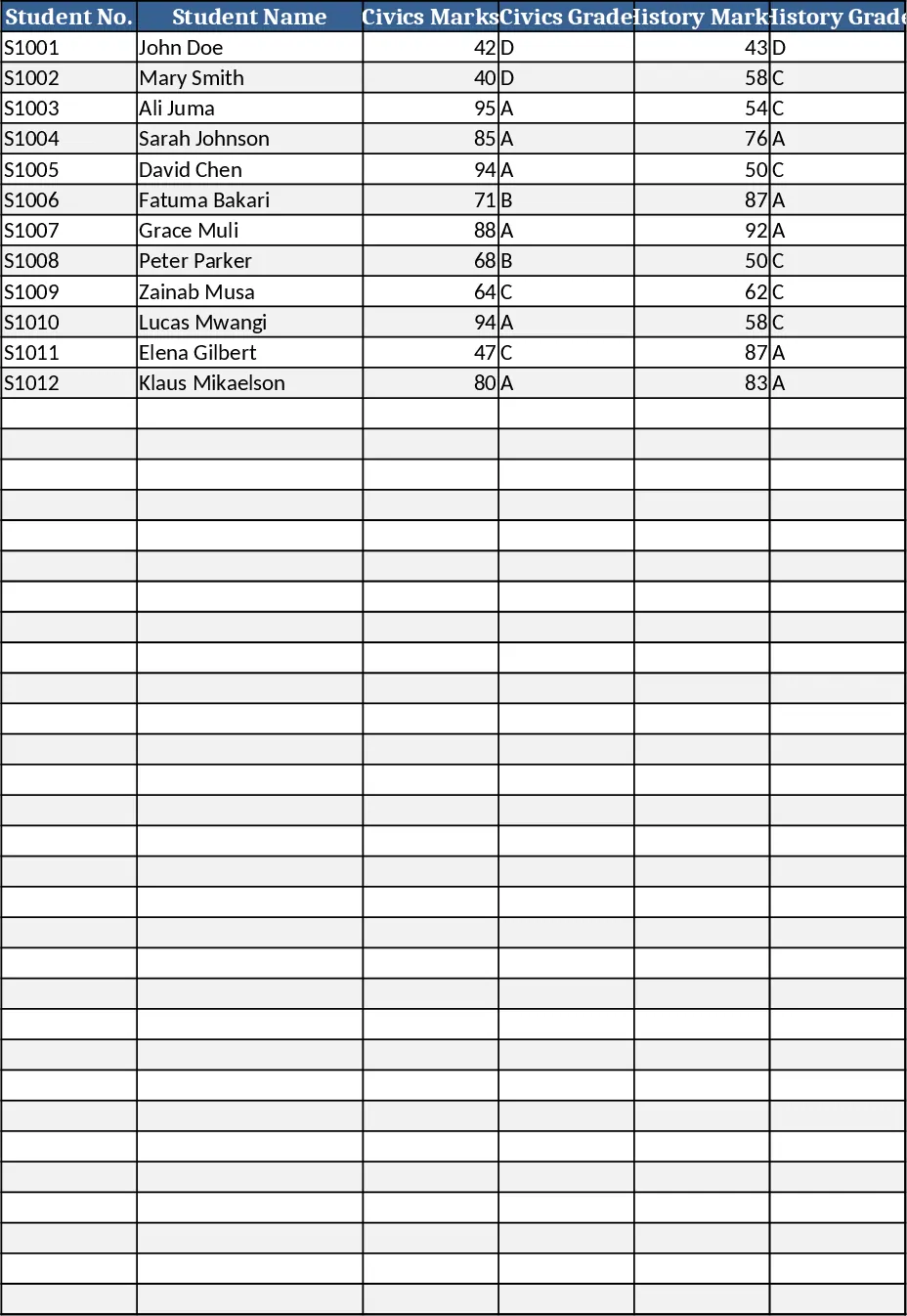
Secondary School Results and Ranking Template
Track up to 200 secondary students' marks, auto‑calculate grades, averages, divisions and rankings in a clear, formatted sheet.
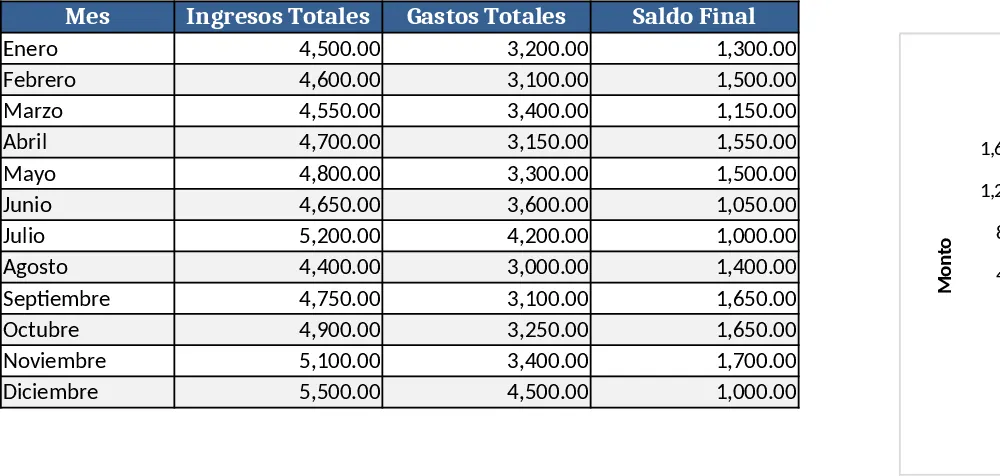
Couple Budget and Cash Flow Tracker Template
Track monthly income, expenses, and cash flow for a working couple, visualize budgets and savings goals in one spreadsheet.
Date Range and Internal Log Template
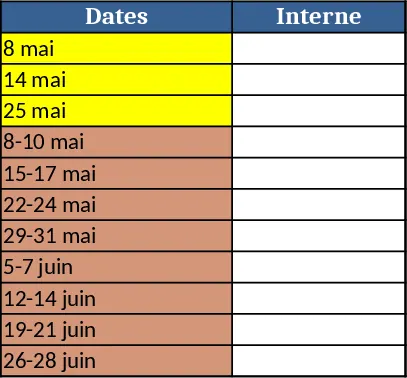
Create an Excel file with two columns for dates and internal notes, with colored rows for different date ranges.