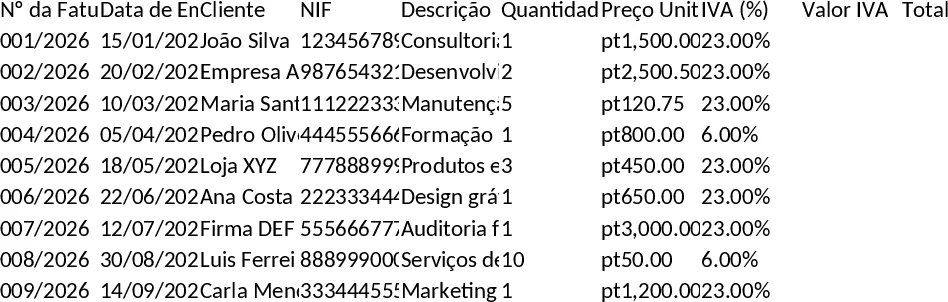
Spare Parts Multi‑Currency Invoice with Smart Product Lookup Template
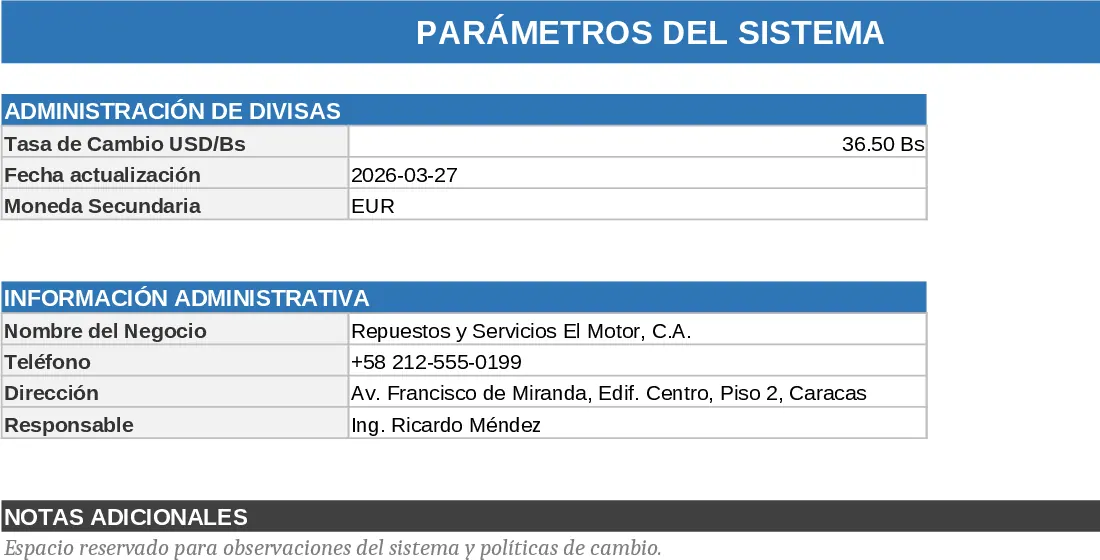
This Excel billing system is built for spare‑parts shops that need to issue invoices in both US dollars and Venezuelan bolívares. The workbook is organized into four main sheets: Products, where you store each item’s code, name, unit price in USD and optional description; ExchangeRates, where you enter the current USD‑to‑VES rate; Invoices, a table that captures invoice header data such as customer, date, chosen currency and auto‑calculates the conversion; and InvoiceLines, where you add each product line. In the InvoiceLines sheet a dynamic drop‑down powered by FILTER lets you type any part of a product name or code – typing “p” instantly shows all matching items – and once you select one, the price, description and converted amount are filled automatically. A summary section on the Invoices sheet shows subtotal, tax, total in the selected currency and the equivalent amount in the other currency, giving you a clear financial snapshot at a glance.
The template solves the common headache of manually converting prices and hunting down product codes. By centralizing product data and exchange rates, it eliminates calculation errors, speeds up data entry, and ensures every invoice looks professional. It’s especially useful for owners, sales staff, or accountants who need to generate accurate invoices quickly, keep track of sales in two currencies, and maintain an up‑to‑date product catalog without switching between multiple applications.
Anyone running a small auto‑parts or hardware store, a freelance reseller, or a boutique import‑export business will find this workbook valuable. It helps you track which items are sold, how much revenue is earned in each currency, and provides a ready‑to‑print invoice layout that can be customized with your logo. The intelligent search feature reduces the time spent scrolling through long product lists, while the automatic currency conversion keeps your pricing consistent even as rates fluctuate.
How to use
- Open the Products sheet and fill in each spare‑part’s code, name, and price in USD. Add any extra columns you need (e.g., stock level).
- In the ExchangeRates sheet, enter the current USD‑to‑VES rate; the workbook will use this value for all conversions.
- Start a new invoice on the Invoices sheet: select the customer, date, and whether the invoice is in USD or VES.
- Switch to InvoiceLines, type the product name or code in the search box, pick the correct item from the auto‑suggest list, enter quantity, and the sheet will auto‑populate unit price, calculate line total and convert it based on the rate you set. Review the totals on the summary area; print or export the invoice as needed.
Expected benefits: faster invoice creation, fewer manual conversion mistakes, and a single source of truth for product and pricing data, freeing up time for sales and service activities.
Similar Templates Recommendation
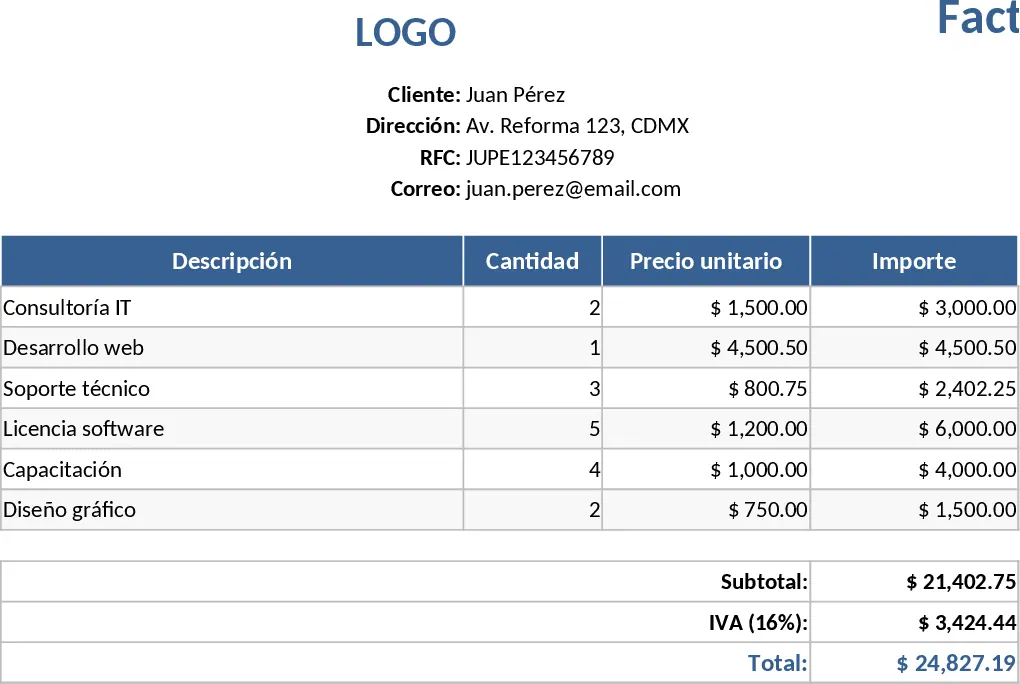
Automated Invoice Generator and Tracker Template
Create professional invoices instantly while maintaining a centralized database of all client transactions and billing history.
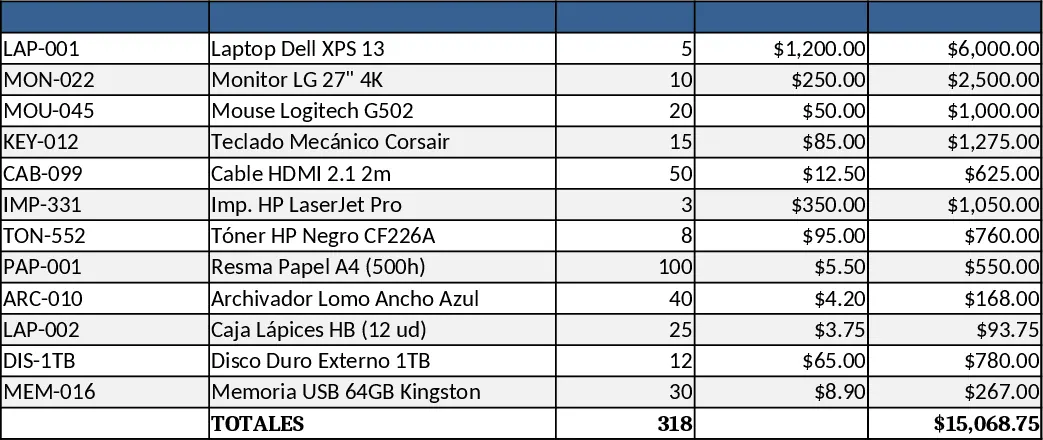
Inventory Invoice Tracker Template
Track stock levels, create invoices, auto‑calculate totals and deduct sold items from inventory—all within one Excel workbook.
Billing and Current Account Tracker Template
A ready‑to‑use Excel billing and current‑account tracker that lets you generate invoices, record payments, and monitor outstanding balances.