Physical Inventory Reconciliation and Discrepancy Tracker Template
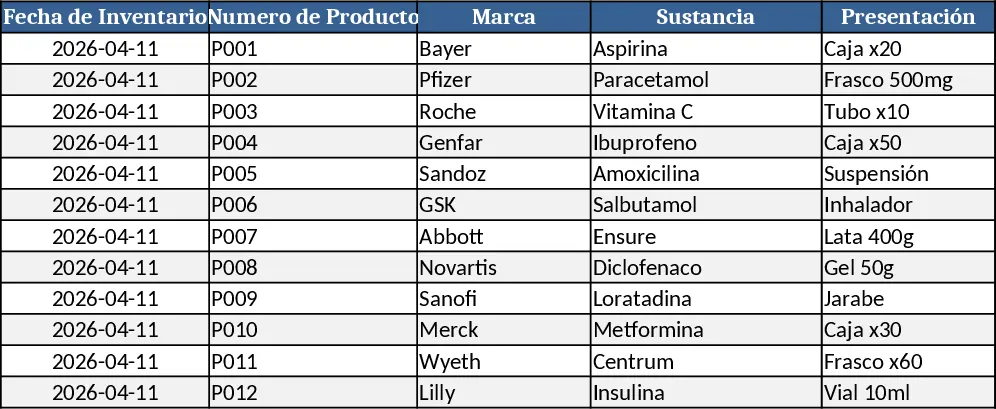
This Excel template lets you compare the quantities recorded in your ERP or inventory system with the numbers you count during a physical stock‑take. The workbook is split into three sheets: Data Entry, Analysis, and Action Plan. In the Data Entry sheet you list each product by its code, brand, substance, presentation and reference. Two columns capture the system‑recorded units and the physically counted units, plus a date field for the stock‑take. The Analysis sheet automatically calculates the difference, flags items that are missing or over‑stocked, and shows the percentage variance for each line and an overall discrepancy rate. Conditional formatting highlights shortages in red and surpluses in green, while a pivot‑style summary gives you quick totals by brand or category. The Action Plan sheet pulls the flagged items and provides ready‑to‑fill rows for corrective measures, responsible owners, and target dates.
The template solves the common headache of reconciling book inventory with reality. Instead of manually subtracting numbers and hunting for errors, the formulas do the heavy lifting, instantly revealing gaps that could affect cost of goods, order fulfillment or compliance. By visualising the variance percentage and summarising it at the top, managers can quickly assess the health of their stock and decide whether to investigate root causes, adjust reorder points, or initiate write‑offs. It is especially useful for warehouse supervisors, supply‑chain analysts, and small‑to‑mid‑size businesses that need a reliable audit trail without investing in expensive software.
Anyone who performs regular physical inventories—whether quarterly, monthly or ad‑hoc—will find this workbook valuable. It helps you keep a clear record of when each count was performed, what items were examined, and what actions were taken afterward. The built‑in action‑tracking section ensures that corrective steps are assigned and followed up, turning a one‑time count into a continuous improvement loop.
How to use
- Open the Data Entry sheet and fill in the product list or copy‑paste from your system export. Enter the system quantity, the counted quantity, and the inventory date for each line.
- Switch to the Analysis sheet; the template will instantly compute the difference, flag shortages/overages, and display the overall variance percentage.
- Review the highlighted rows and go to the Action Plan sheet. For each flagged item, describe the corrective action, assign a responsible person, and set a target completion date.
- Save the file after each stock‑take to maintain a historical log of discrepancies and actions taken.
Expected benefits include faster reconciliation, reduced manual errors, and a clearer view of inventory health, helping you allocate time to strategic decisions rather than endless spreadsheet gymnastics.
Similar Templates Recommendation
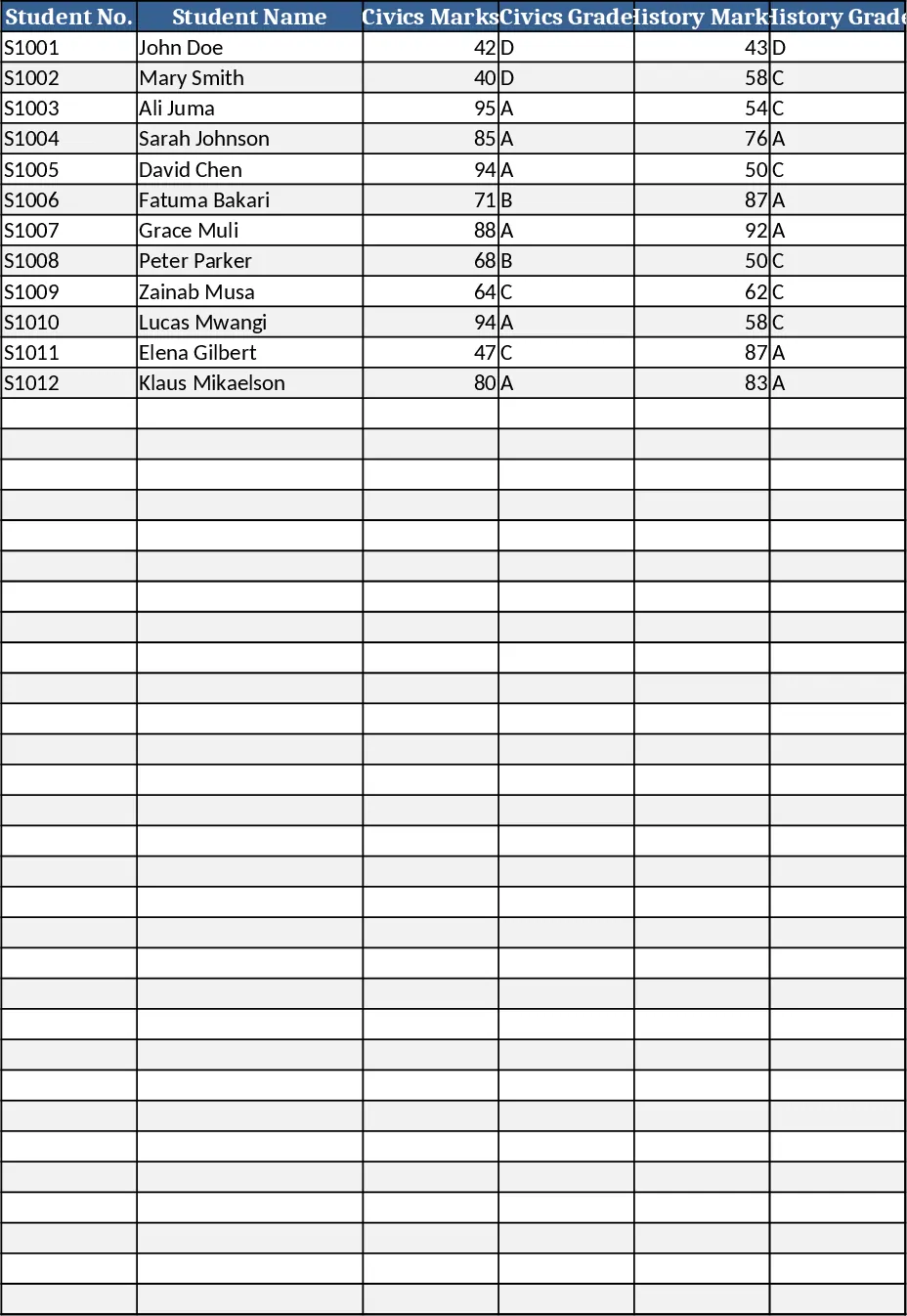
Secondary School Results and Ranking Template
Track up to 200 secondary students' marks, auto‑calculate grades, averages, divisions and rankings in a clear, formatted sheet.
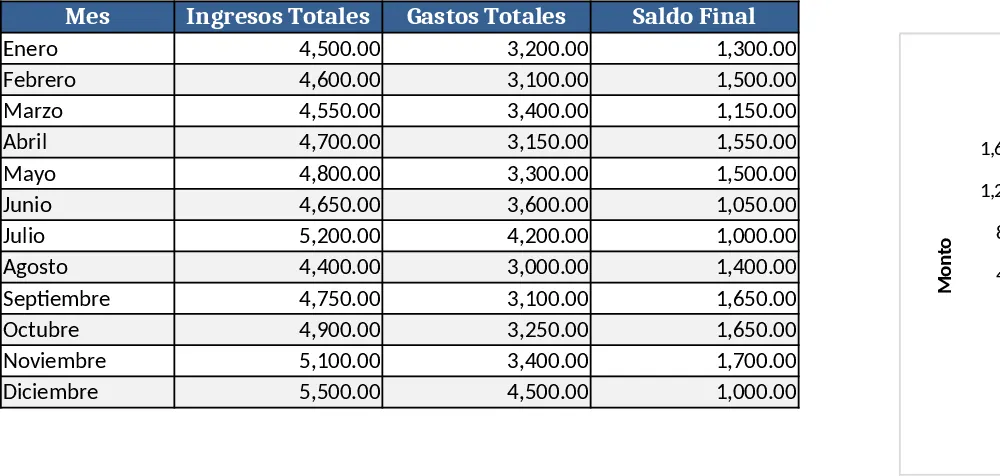
Couple Budget and Cash Flow Tracker Template
Track monthly income, expenses, and cash flow for a working couple, visualize budgets and savings goals in one spreadsheet.
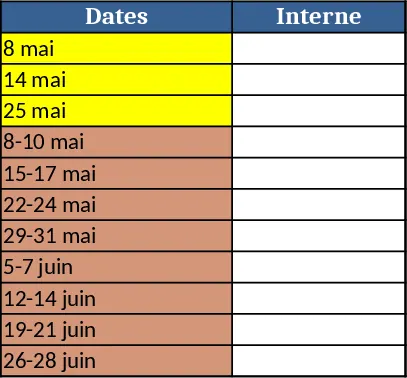
Date Range and Internal Log Template
Create an Excel file with two columns for dates and internal notes, with colored rows for different date ranges.