Checklist Item Tracker Template
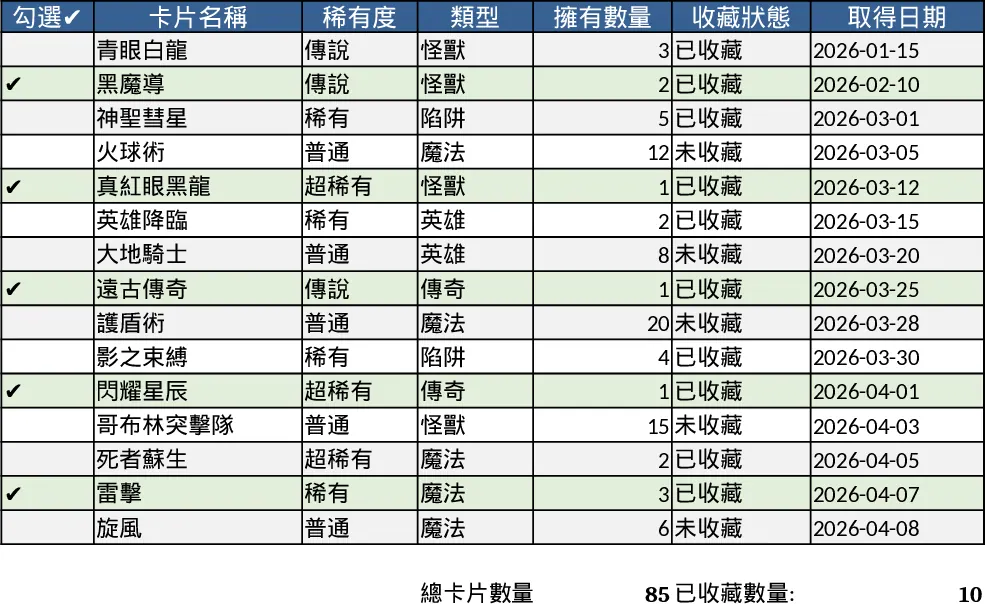
This template provides a clean, multi‑sheet checklist for managing any list of items—whether they are inventory pieces, daily tasks, or project deliverables. The main sheet displays each item with columns for description, responsible person, due date, and a checkbox to mark completion. A summary sheet automatically aggregates the total number of items, how many are completed, and the percentage finished, using simple formulas and conditional formatting to highlight overdue or pending items. Dropdown menus let you assign categories or priority levels, while the status column updates in real time as you tick the boxes.
The template solves the common problem of losing track of whether items have been finished, especially when multiple people are involved. By visualising progress instantly, teams can avoid duplicated effort, catch missed steps early, and keep stakeholders informed without manual reporting. It is especially useful for operations managers, warehouse supervisors, or any team that needs a reliable way to confirm that every item on a list has been addressed before moving on.
Anyone who regularly works with itemized lists—such as inventory clerks, event planners, maintenance crews, or project coordinators—will find this template handy. It works well in scenarios like daily equipment checks, pre‑shipment packing lists, office supply audits, or any situation where a simple tick‑box confirmation is needed to close a loop.
The checklist helps you track each item’s status, who is responsible, and when it should be done, turning a scattered set of notes into a structured, auditable record. The built‑in summary gives you a quick health check of the whole list, making it easy to spot bottlenecks or overdue tasks.
How to use
- Open the "Item List" sheet and enter each item’s details: name, assigned person, due date, and optional category or priority via the dropdowns.
- As work progresses, click the checkbox in the "Completed" column for each item you finish; the status column will change colour automatically.
- Switch to the "Summary" sheet to see total items, completed count, and completion percentage; overdue items will be highlighted for quick attention.
- Export or share the workbook with teammates to keep everyone aligned on what’s done and what still needs action.
Expected benefits include faster visual verification of completed work, reduced back‑and‑forth emails asking for status updates, and a clearer picture of overall progress, all without needing complex software.
Similar Templates Recommendation
Secondary School Results and Ranking Template
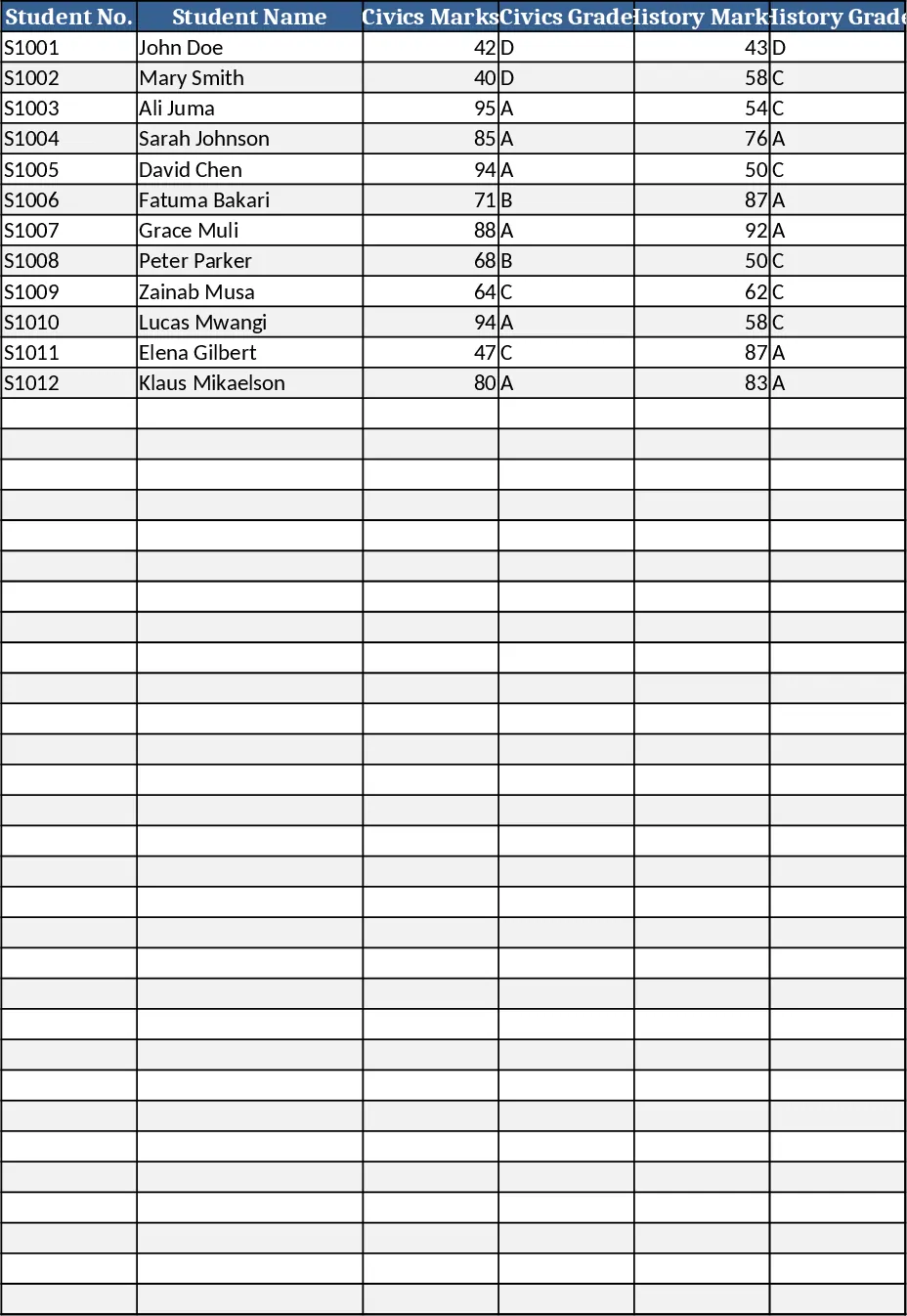
Track up to 200 secondary students' marks, auto‑calculate grades, averages, divisions and rankings in a clear, formatted sheet.
Couple Budget and Cash Flow Tracker Template
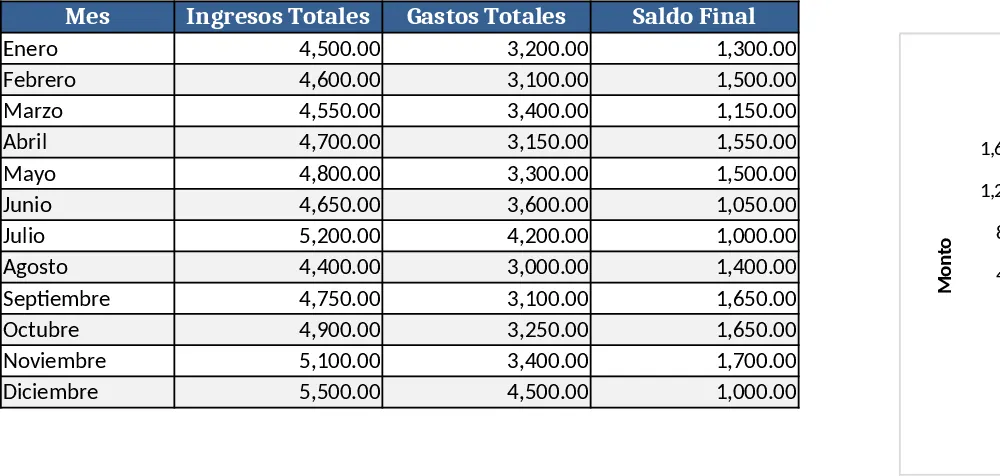
Track monthly income, expenses, and cash flow for a working couple, visualize budgets and savings goals in one spreadsheet.
Date Range and Internal Log Template
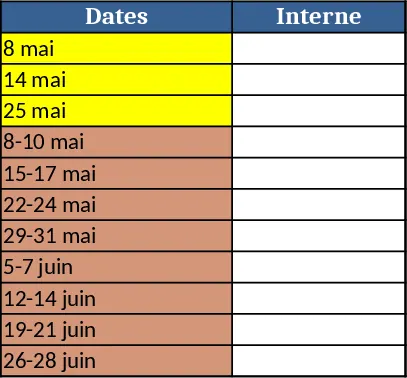
Create an Excel file with two columns for dates and internal notes, with colored rows for different date ranges.