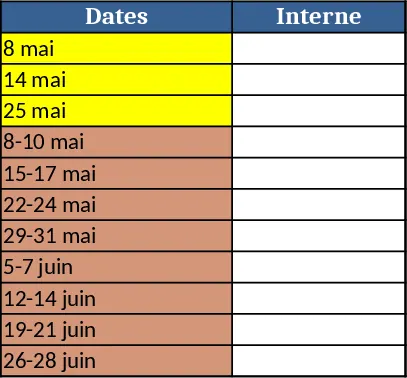
Weekly Staff Shift Schedule Template
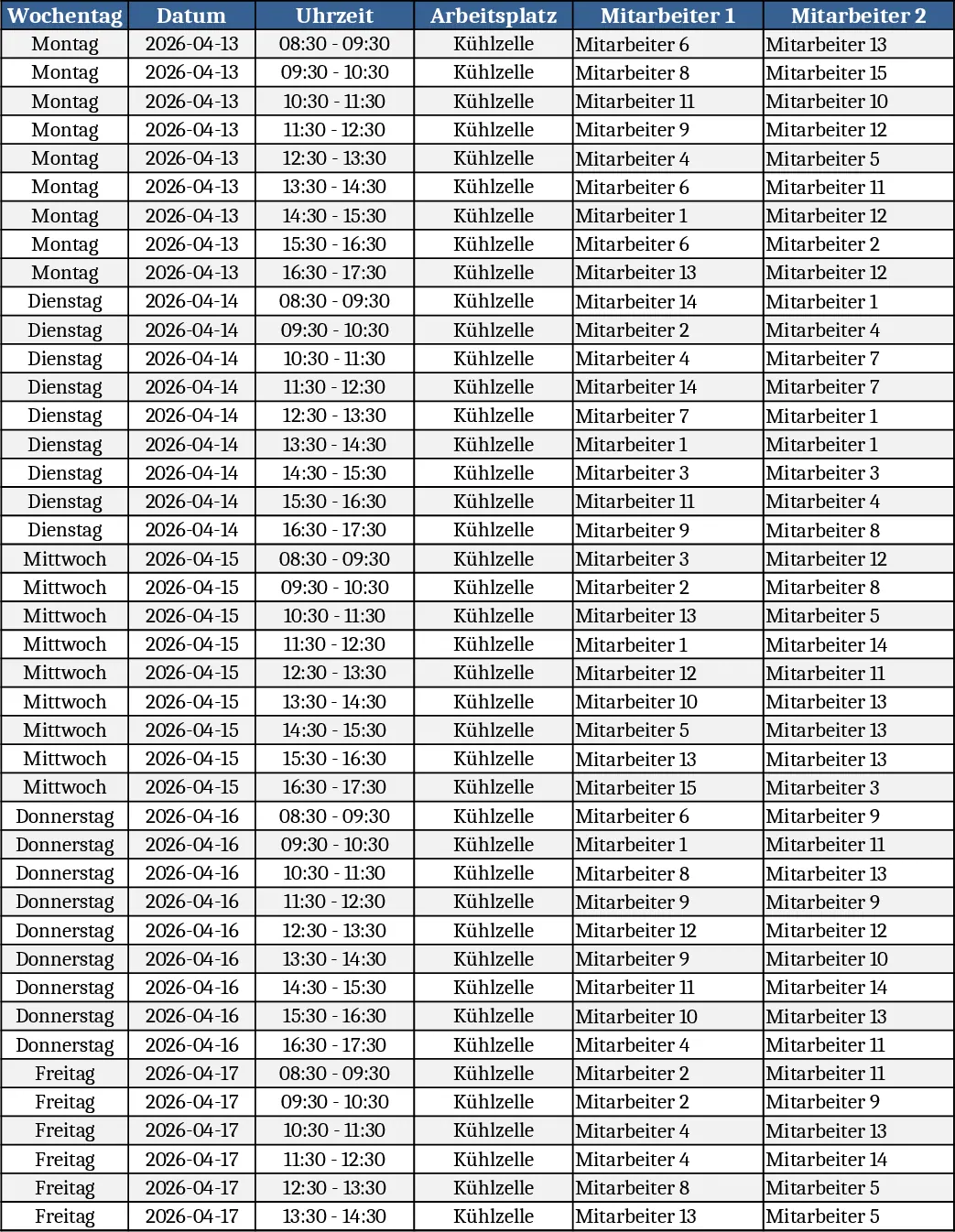
The Cold‑Room Weekly Staffing Template is a ready‑to‑use Excel workbook that lets you create a balanced, random schedule for a cold‑storage cell that holds up to four workers per shift. The file contains three sheets: Parameters, Randomizer, and Schedule. In the Parameters sheet you set the workday (8:30‑17:30), the days (Monday‑Friday), the maximum concurrent workers (4), and the list of 15 employees with their 40‑hour weekly quota. The Randomizer sheet uses Excel’s RAND and INDEX functions to shuffle the employee list and allocate each person to a shift while respecting the total hour limit. The Schedule sheet pulls the results into a clear table that shows, for each day and each hour block, which four staff members are assigned.
This template solves the common headache of manually juggling shift rosters, especially when you need to keep the workload evenly distributed and avoid bias. By automating the random assignment, you eliminate repetitive spreadsheet work, reduce the risk of over‑ or under‑staffing, and ensure every employee gets a fair share of the week’s hours. It’s especially useful for supervisors of temperature‑controlled areas, logistics managers, or any operation where a limited number of workstations must be shared among a larger team.
The primary users are shift supervisors, operations managers, and HR coordinators who need a quick, transparent way to plan weekly staffing for a confined workspace. It works best in environments where the same set of employees rotates through a fixed‑capacity area, such as cold rooms, clean rooms, or small production cells. The template tracks who works when, how many hours each employee has been assigned, and whether the 4‑person capacity is met for every shift.
How to use
- Open the workbook and go to the Parameters sheet. Enter the names of your 15 employees in column A and confirm the weekly hour limit (default 40 h). Adjust the start/end times or days if needed.
- Switch to the Randomizer sheet and press F9 (or click the calculate button) to generate a new random order. The sheet will automatically distribute the employees across the 20 shift slots (4 people × 5 days).
- Review the generated list on the Schedule sheet. If any employee exceeds the hour limit, tweak the parameters or re‑run the randomizer until the distribution looks fair.
- Save the file and share the Schedule sheet with your team. You can also copy the table into a printable format for the break‑room.
Expected benefits: saves hours of manual roster building, reduces scheduling bias, and provides a clear visual of daily capacity usage.
Similar Templates Recommendation
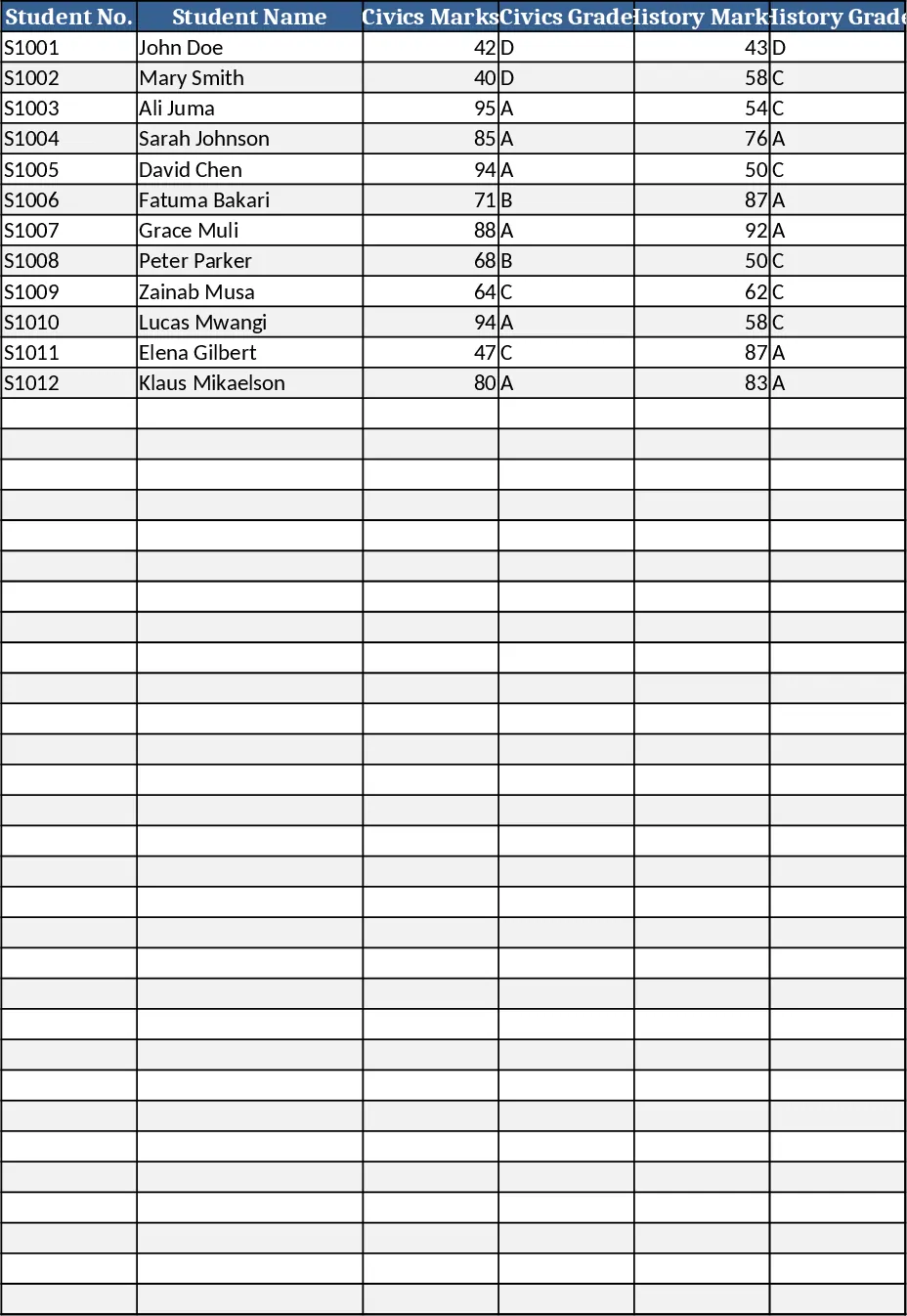
Secondary School Results and Ranking Template
Track up to 200 secondary students' marks, auto‑calculate grades, averages, divisions and rankings in a clear, formatted sheet.
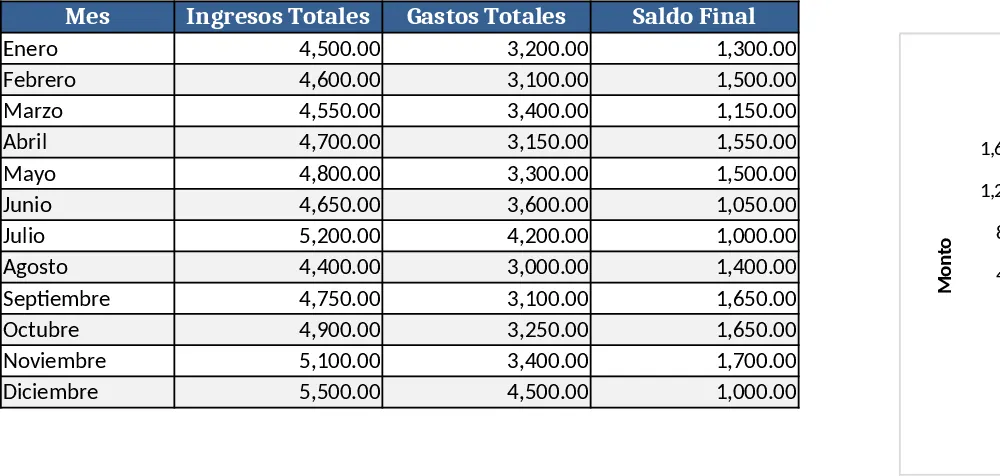
Couple Budget and Cash Flow Tracker Template
Track monthly income, expenses, and cash flow for a working couple, visualize budgets and savings goals in one spreadsheet.
Date Range and Internal Log Template
Create an Excel file with two columns for dates and internal notes, with colored rows for different date ranges.