Vehicle Management List PDF Extraction Template
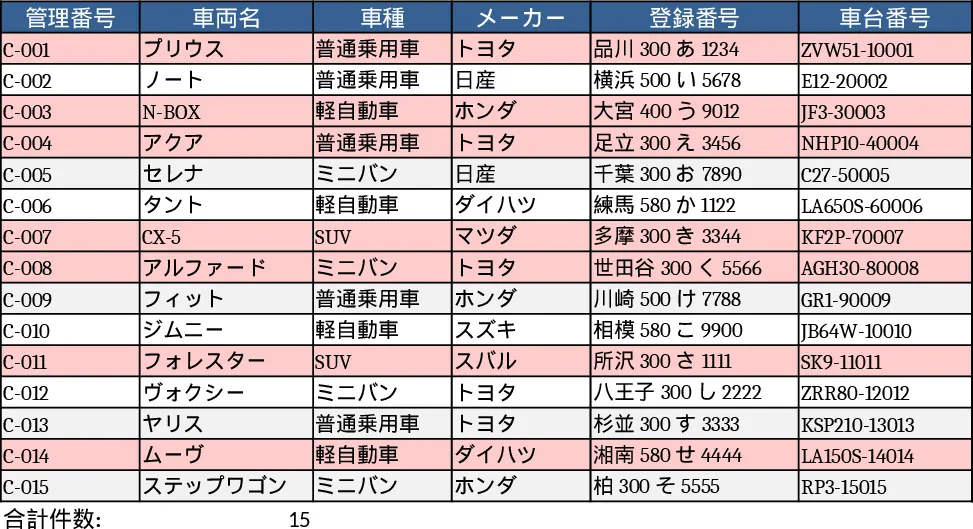
This template streamlines the creation and upkeep of a vehicle management list by pulling key information straight from PDF files. The workbook is divided into three main sheets: Data Import, where you drop the raw PDF or run the built‑in extraction macro; Vehicle List, a structured table that holds fields such as Vehicle ID, License Plate, Model, Year, Owner, Status (with dropdown options like Active, In Service, Retired), Last Service Date, Mileage, and Notes; and Summary, which aggregates totals, groups vehicles by status, highlights upcoming service dates, and visualises fleet composition with simple charts.
By automating the PDF‑to‑Excel workflow, the template eliminates the tedious copy‑paste steps that often introduce errors. It is especially useful for fleet managers, logistics coordinators, or office administrators who need a reliable, real‑time view of every vehicle in the organization. Instead of manually transcribing data after each vehicle acquisition, lease renewal, or service event, you simply feed the latest PDF report into the workbook and let the extraction engine fill the rows. The result is a consistently accurate inventory that supports scheduling, budgeting, compliance checks, and quick decision‑making.
The template helps you track the full lifecycle of each asset: from acquisition details to maintenance history and eventual disposal. With built‑in dropdowns and data validation, you keep entries uniform, making downstream analysis in the Summary sheet trustworthy. The Summary sheet instantly shows how many vehicles are active, how many are due for service within the next 30 days, and which models dominate your fleet, giving you actionable insights without extra effort.
How to use
- Open the workbook and go to the Data Import sheet. Click the "Upload PDF" button and select the latest vehicle report PDF.
- Press the "Extract Data" button; the macro reads the PDF, parses the relevant fields, and populates the Vehicle List table with new rows or updates existing ones based on Vehicle ID.
- Review the imported rows for any special cases, correct them directly in the Vehicle List, and ensure the dropdowns reflect the correct status.
- Switch to the Summary sheet to see refreshed totals, service alerts, and charts that reflect the current state of your fleet.
Expected benefits include a noticeable reduction in manual data‑entry time, fewer transcription errors, and a single source of truth for vehicle information that can be shared across departments. This makes daily fleet oversight smoother and frees up staff to focus on higher‑value tasks like route optimisation and cost analysis.
Similar Templates Recommendation
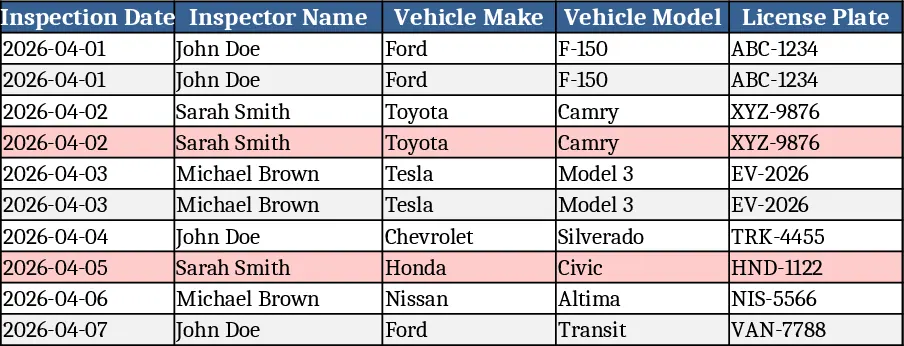
Vehicle Inspection Checklist Template
A ready‑to‑use vehicle inspection checklist template to record condition, safety items, and maintenance needs for each vehicle.
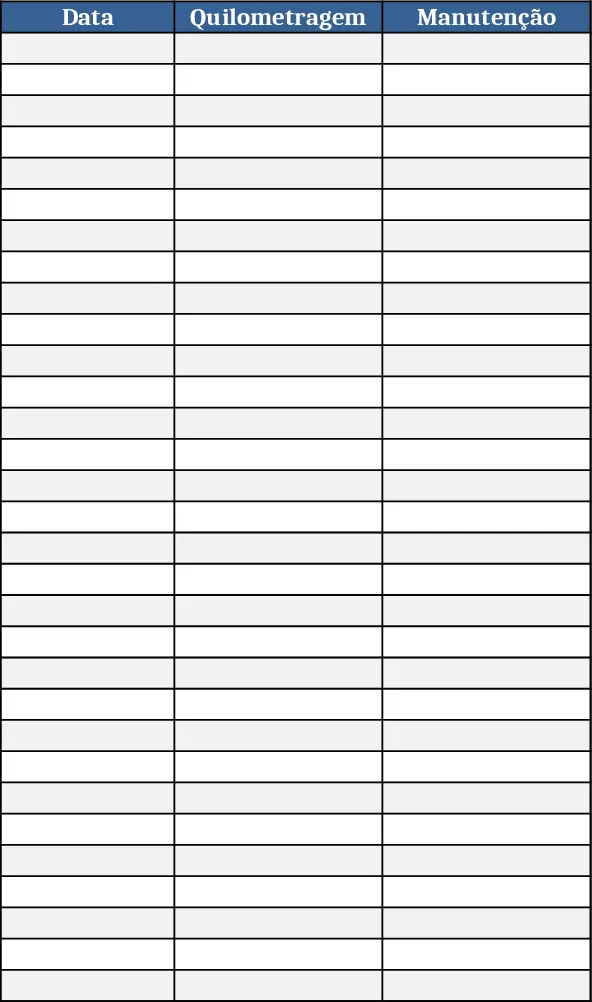
Vehicle KPI Dashboard and Maintenance Tracker Template
Track each vehicle’s mileage, daily maintenance, fuel usage and monthly KPIs on a dedicated sheet with built-in dashboard and summary.
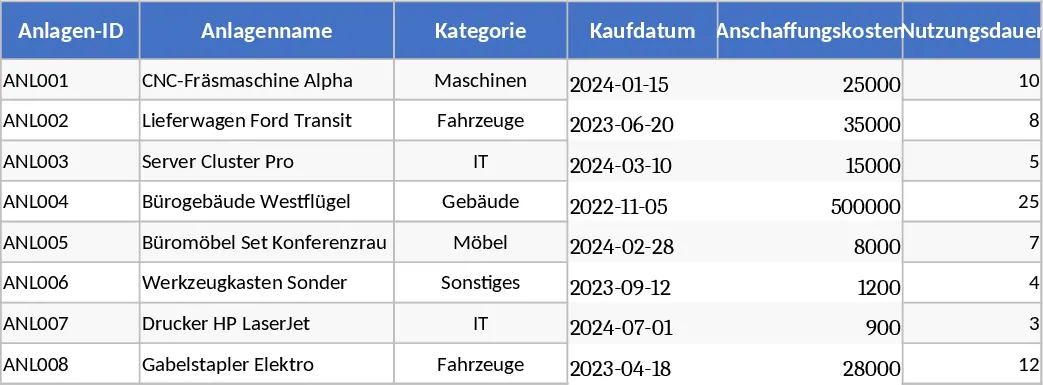
Comprehensive Asset Register & Depreciation Schedule Template
Track assets, calculate yearly depreciation, monitor maintenance schedules and warranty alerts in one organized workbook.