SR Number Guest Name Lookup Template
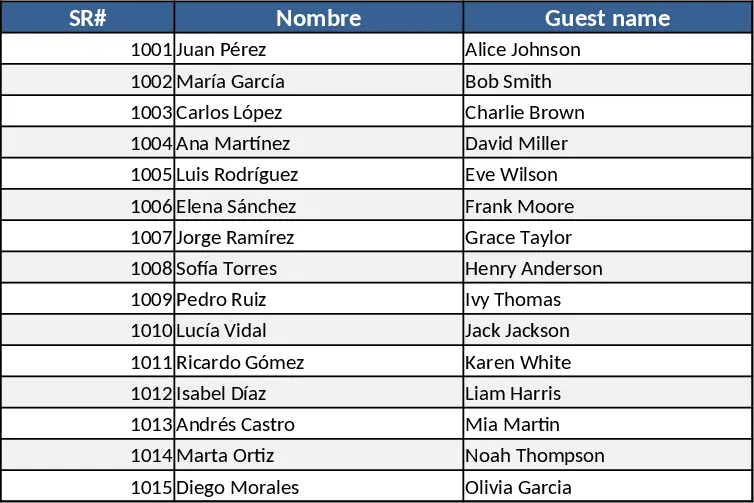
This Excel template is built around a simple SR# (Service Request) index that lives on a master sheet and feeds the correct name into any number of related pages. The workbook contains three main tabs: Master List, where you enter each SR# alongside the person’s full name; Reference Pages, a set of duplicate‑style sheets (e.g., Orlando, Cozumel, Costa Maya) that all contain a cell for the SR#; and Summary, which aggregates all entries and shows a quick view of SR#‑to‑name mappings. Each reference page has a dropdown list of SR# values pulled from the Master List, and a VLOOKUP (or XLOOKUP) formula that instantly displays the matching name as soon as the SR# is selected. No manual copy‑pasting is required, and the name updates automatically if you edit the master record.
The template solves the common headache of maintaining consistent naming across many project or location‑specific sheets. Instead of hunting through dozens of pages to correct a typo or update a name, you change it once in the Master List and every linked page reflects the change instantly. This reduces errors, saves time, and ensures that reports, schedules, or checklists always show the correct person associated with each SR#.
It is ideal for project coordinators, operations managers, or any team that works with multiple site‑specific worksheets but wants a single source of truth for personnel identifiers. Whether you’re tracking field staff across several resort locations, managing service tickets for different departments, or simply keeping a clean record of who is responsible for each SR#, this template keeps everything synchronized.
The workbook helps you track SR# → person name relationships, provides a quick lookup on any page, and produces a consolidated summary that can be exported for reporting or shared with stakeholders. By centralising the data, you avoid duplicate entries and keep your documentation tidy.
How to use
- Open the Master List tab and fill in each SR# in column A and the corresponding person’s name in column B.
- Go to any Reference Page (e.g., Orlando) and select the SR# from the dropdown in the highlighted cell; the adjacent cell will automatically show the person’s name.
- If you need to add a new location page, copy an existing reference sheet, rename it, and the dropdown will already pull from the Master List.
- Review the Summary tab to see a full table of all SR#‑name pairs and any missing entries.
Expected benefits: you’ll spend far less time hunting for names across sheets, reduce mismatches, and keep your project documentation consistently up‑to‑date.
Similar Templates Recommendation
Formula-Enabled Data Table Template
A ready‑to‑use Excel workbook where you paste your data and built‑in formulas instantly calculate key metrics and insights.
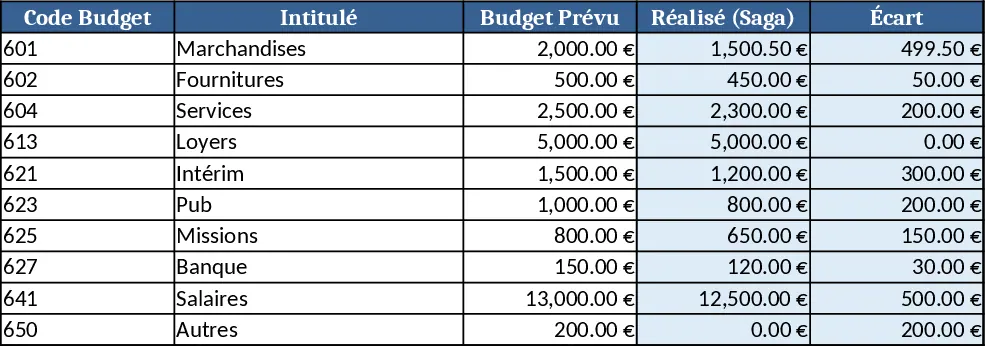
Image-Based Excel Replication Template
Create an Excel template that mirrors the layout and data structure of any uploaded image, turning visual designs into ready‑to‑use spreadsheets.