Key takeaways:
- Traditional methods for splitting cell data (like "City, Country") in Excel, such as Text to Columns or complex formulas (
LEFT,FIND), are manual, error-prone, and not easily repeatable. - Excel AI tools like RowSpeak automate this process. You can simply ask in plain language, "Split the 'City, Country' column into two separate columns for City and Country," and the AI handles the extraction.
- Using RowSpeak not only splits the data in seconds but also allows for instant multi-level sorting and other follow-up analysis, drastically improving efficiency and reducing the need for formula expertise.
The Problem: Data Crammed into a Single Cell
Have you ever downloaded a report or received a spreadsheet where crucial information is frustratingly combined into a single column? It's a common data headache. Imagine you have a list of the world's most populous cities. The data looks clean at first glance, but there's a catch: the city name and its two-letter country code are merged in one cell, like Tokyo, JP or Delhi, IN.
This format immediately creates roadblocks for any meaningful analysis. You can't:
- Sort the list by country to see which nations have the most populous cities.
- Filter the data to show only cities in a specific country.
- Use this column as a field in a PivotTable to summarize data by country.
- Easily join this data with another table using the country code as a key.
For a small list of 20 rows, you might consider fixing it by hand. But for a real-world dataset with hundreds or thousands of rows, manual correction is not just tedious—it's a recipe for typos, inconsistencies, and wasted hours. You need to split that single column into two, and you need a reliable way to do it.
The Traditional Excel Fix: Steps and Limitations
For years, seasoned Excel users have relied on a few standard methods to tackle this problem. While they get the job done, each comes with its own set of complexities and limitations.
Method 1: The 'Text to Columns' Wizard
This is often the first tool people reach for. It's a built-in feature designed specifically for this task.
The Steps:
- Select the column containing the combined data (e.g.,
Tokyo, JP). - Go to the Data tab on the ribbon and click Text to Columns.
- In the wizard, choose Delimited because your data is separated by a character (a comma).
- On the next screen, check the box for Comma as your delimiter. You'll see a preview of how the data will be split.
- Finally, choose a destination for your new columns and click Finish.
The Limitations:
- Static and Manual: Text to Columns is a one-time operation. If you add new rows to your source data, you must repeat the entire process manually.
- Destructive: If you're not careful about choosing a destination, it can overwrite adjacent columns.
- Inflexible: It struggles with inconsistent data. If some rows use a comma, others a hyphen, and some have no delimiter, the wizard fails without pre-cleaning the data.
Method 2: The Formulaic Approach (LEFT, RIGHT, FIND)
For a more dynamic solution, you can use a combination of text functions to extract the data.
The Steps:
To get the city name (the text before the comma), you'd use a formula like this in a new column:
=LEFT(A2, FIND(",", A2) - 1)
FIND(",", A2)locates the position of the comma in cell A2.LEFT(...)extracts the characters from the left of the cell, up to one character before the comma.
To get the country code (the two characters after the space), you could use:
=RIGHT(A2, 2)
This formula simply grabs the last two characters from the right of the cell.
The Limitations:
- High Learning Curve: You need to understand how
LEFT,RIGHT,FIND,LEN, and other text functions work and how to nest them. For a beginner,LEFT(A2, FIND(",", A2) - 1)is intimidating. - Brittle Formulas: The
RIGHT(A2, 2)formula only works because we know all country codes are two letters. If you had codes of varying lengths, you'd need a much more complex formula involvingLENandFIND. - Maintenance Nightmare: These formulas make the spreadsheet heavy and hard for colleagues to understand or debug. If the data pattern changes, you have to rewrite the formulas.
The Final Hurdle: Sorting
After successfully splitting the columns, you still have to perform the second part of the task: sorting. This requires using Excel's multi-level sort feature:
- Go to Data > Sort.
- Set the first level to
Sort byCountryA to Z. - Click Add Level.
- Set the second level to
Then byCityA to Z.
It's more clicks and more manual steps in a process that's already taken too much time.
The New Solution: Using an Excel AI Agent (RowSpeak)
What if you could skip the wizards and the complex formulas? What if you could just tell Excel what you want to do in plain language? That's exactly what Excel AI agents like RowSpeak are designed for.

Instead of figuring out how to perform the steps in Excel, you simply describe the what—the end result you want.
Step-by-Step: Splitting and Sorting with RowSpeak
Let's solve the same problem in a fraction of the time.
1. Upload Your Data
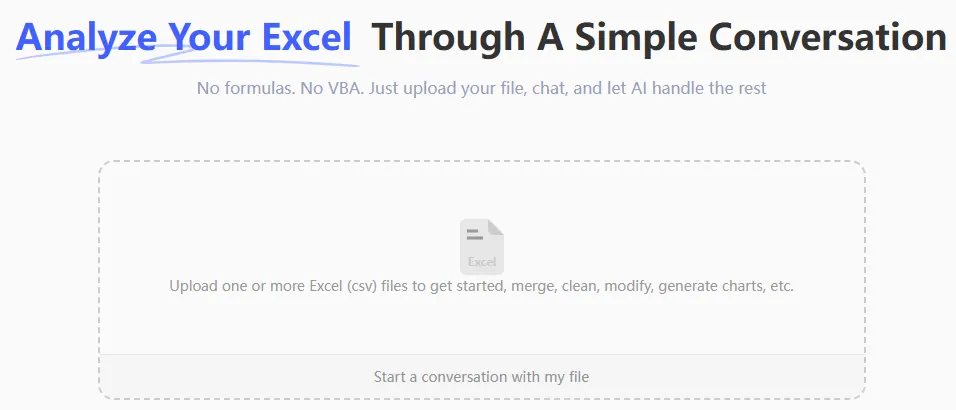
First, sign in to RowSpeak and upload your spreadsheet (Excel or CSV) containing the "City, Country" data. The AI will read your file and show you a preview.
2. Describe Your Goal in Plain Language
Now, instead of clicking through menus, you just type your request into the chatbox. You can be direct and specific.
For splitting the column, you could ask:
Split the 'Location' column by the comma into two new columns named 'City' and 'Country Code'.
Or, for the sorting:
Now sort the data first by 'Country Code' ascending, and then by 'City' ascending.
You can even combine the requests into a single, more complex instruction:
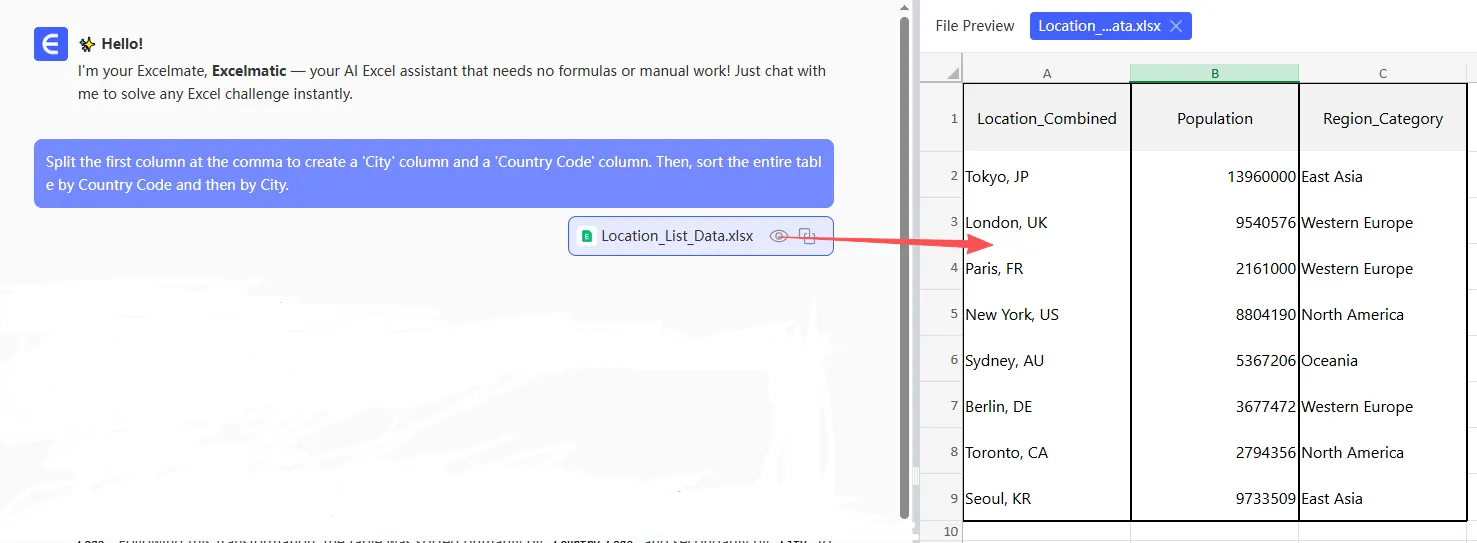
Split the first column at the comma to create a 'City' column and a 'Country Code' column. Then, sort the entire table by Country Code and then by City.
3. Review and Iterate
RowSpeak will process your request and instantly generate the result—a new table with the columns split and sorted exactly as you asked.
The best part is the conversational flow. If you want to make a change, you don't start over. You just continue the conversation.
- "Great. Now remove the original 'Location' column."
- "Filter this table to only show me cities in Japan ('JP')."
- "Create a bar chart showing the population for the top 5 cities."
This iterative process of refining your analysis is impossible with traditional, static methods like Text to Columns.
4. Export Your Results
Once you're happy with the cleaned and sorted data, you can download it as a new, perfectly formatted Excel file with a single click. No formulas to copy, no risk of errors.
A Sample Conversation with RowSpeak
Here’s what that entire workflow might look like in a real conversation:
User: I have a column named 'Location' with data like 'Tokyo, JP' and 'Delhi, IN'. Can you split this into separate 'City' and 'Country Code' columns?
RowSpeak: Done. I have created two new columns, 'City' and 'Country Code', by splitting the 'Location' column at the comma and trimming any extra spaces.
User: Perfect. Now please sort the data by 'Country Code' alphabetically, and then by 'City' for any ties.
RowSpeak: The data has been sorted as requested. Countries are now grouped together, and cities within each country are alphabetized. Would you like to visualize this data or perform any other analysis?
Traditional vs. RowSpeak: A Quick Comparison
| Aspect | Traditional Excel Methods | RowSpeak (Excel AI) |
|---|---|---|
| Time Taken | 5-15 minutes (more for complex data) | Under 60 seconds |
| Skill Required | Knowledge of Text to Columns wizard or functions like LEFT, FIND, RIGHT. |
Ability to describe your goal in language. |
| Flexibility | Low. Changes require re-doing the entire process. | High. Easily refine or change requests in conversation. |
| Error-Proneness | High. Risk of formula errors, incorrect ranges, or overwriting data. | Low. The AI handles the logic, ensuring consistency. |
FAQ
1. Do I need to know any Excel formulas to use RowSpeak? No, not at all. The core idea is to replace formula-writing with natural language instructions. You just describe the outcome you want, and the AI generates the result.
2. Will RowSpeak modify my original Excel file? No. RowSpeak works on a copy of your data in a secure environment. Your original file remains untouched on your computer.
3. Is my company's data safe if I upload it to RowSpeak? Data privacy and security are top priorities. RowSpeak is designed with enterprise-grade security protocols to ensure your data is handled responsibly. For detailed information, always refer to the official privacy policy on the website.
4. What if my data is messier, with inconsistent delimiters? RowSpeak is great at handling messy data. You can be more specific in your prompt, such as, "Split the column by either a comma or a hyphen." The AI can often infer patterns even with some inconsistencies.
5. Can I use the results from RowSpeak back in my own spreadsheet? Absolutely. You can download the final, cleaned data as a new Excel file and continue your work from there, or copy-paste the results into an existing workbook.
6. Is RowSpeak only for splitting text? No, this is just one of thousands of tasks it can handle. You can use it to generate complex formulas, create PivotTables, build charts and dashboards, merge files, clean data, and write summary reports—all using natural language.
Get Started: Upgrade Your Excel Workflow Today
Think about the last time you wrestled with a poorly formatted spreadsheet. How much time could you have saved by simply describing your goal and letting an AI handle the tedious steps?
Manual data cleaning is a bottleneck that costs professionals hours every week. By embracing an Excel AI agent, you're not just getting a tool; you're getting back your time to focus on what truly matters: analyzing the data and making decisions.
Stop fighting with formulas and wizards. Try RowSpeak for free today and see how a simple conversation can transform your most challenging Excel tasks.