How to Add 100 Columns in Google Sheets (Fast & Efficient)

As a User Growth Manager at RowSpeak, I've seen countless professionals struggle with spreadsheet expansion tasks. While Google Sheets offers decent column management features, manually adding 100+ columns remains unnecessarily time-consuming. Here's how to streamline the process - and how next-gen AI tools like RowSpeak are revolutionizing this workflow entirely.

The Manual Approach: Google Sheets Column Shortcuts

For those needing to expand spreadsheets manually, Google Sheets provides several methods:

1. Single Column Insertion (Basic Method)

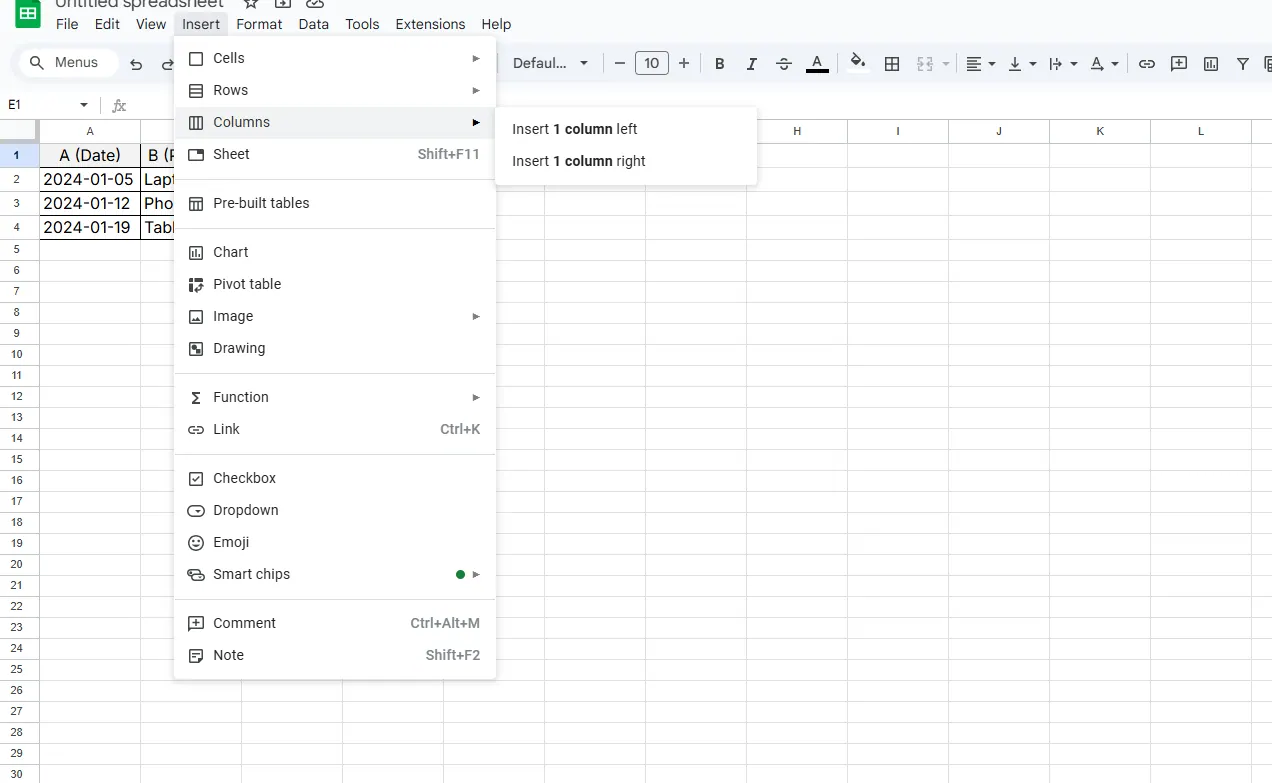
  1. Right-click any column header
  2. Select "Insert 1 column left/right"
  3. Repeat 99 more times (not ideal)

1

2. Bulk Column Addition (Better Approach)

  1. Select 100 existing columns by shift-clicking headers
  2. Right-click > "Insert 100 columns right"
  3. Format new columns using the paint roller tool

3. Keyboard Shortcuts (For Power Users)

  • Windows: Ctrl+Alt+=
  • Mac: Cmd+Option+= (Still requires multiple repetitions)
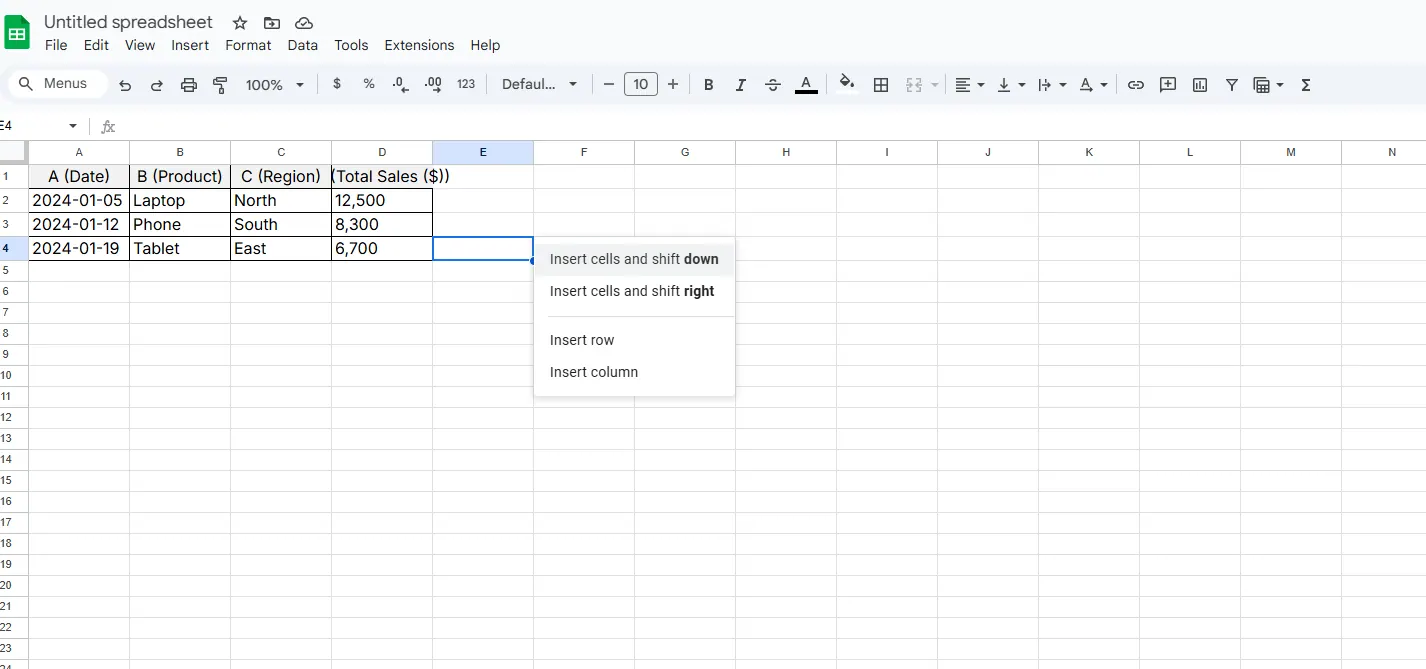
3

While these methods work, they highlight Google Sheets' limitations in handling large-scale spreadsheet modifications efficiently.

The AI-Powered Alternative: RowSpeak

This is where modern AI spreadsheet tools like RowSpeak transform the workflow entirely. Instead of manual column management:

  1. Describe Your Needs: Simply state "Add 100 columns after Column D"
  2. AI Execution: RowSpeak instantly modifies your spreadsheet
  3. Auto-Formatting: New columns inherit existing styles automatically

RowSpeak eliminates the repetitive clicks and potential errors of manual column addition, especially valuable when:

  • Working with datasets requiring frequent expansion
  • Needing consistent formatting across hundreds of columns
  • Collaborating on complex financial models or reports

Pro Tips for Large-Scale Spreadsheet Management

Whether using Google Sheets or RowSpeak, these best practices ensure smooth operations:

  1. Labeling System: Use clear headers like "Q1_Sales_01" through "Q1_Sales_100"
  2. Structural Planning: Add columns in logical groups (by month, department, etc.)
  3. Version Control: Create backups before major structural changes

For teams regularly working with expansive datasets, the time savings from AI-powered solutions like RowSpeak quickly justify the investment. What used to take 15 minutes of manual work now happens in seconds with natural language commands.

The Future of Spreadsheet Management

While Google Sheets' column addition methods serve basic needs, forward-thinking professionals are adopting AI tools that:

  • Understand natural language requests
  • Automate repetitive structural changes
  • Maintain data integrity during modifications

The question isn't just "how to add columns" anymore - it's "how to work smarter with your data." That's the transformation RowSpeak delivers for modern data teams.


Ditch Complex Formulas – Get Insights Instantly

No VBA or function memorization needed. Tell RowSpeak what you need in plain English, and let AI handle data processing, analysis, and chart creation

Try RowSpeak Free Now

Recommended Posts

How to Add Multiple Columns in Google Sheets (3 Easy Methods)
Excel Operation

How to Add Multiple Columns in Google Sheets (3 Easy Methods)

Struggling with cramped spreadsheets? Discover three simple methods to add multiple columns in Google Sheets - from basic clicks to pro shortcuts.

Gianna
How to Add Columns in Google Sheets Instantly with AI (No More Manual Work!)
Excel Operation

How to Add Columns in Google Sheets Instantly with AI (No More Manual Work!)

Tired of manually adding columns in Google Sheets? Learn how AI tools like RowSpeak can handle this task instantly while you focus on what matters most.

Gianna
How to Add a Filter in Google Sheets
Excel Operation

How to Add a Filter in Google Sheets

Filters in Google Sheets are game-changers for data analysis. Whether you're managing budgets, sales pipelines, or project tasks, mastering filters will save you hours. Here's your complete guide - and why RowSpeak's AI-powered features make filtering even smarter.

Gianna
How to Add a Percentage to a Number in Google Sheets (The Smart Way)
Excel Operation

How to Add a Percentage to a Number in Google Sheets (The Smart Way)

Tired of manual percentage calculations? Discover Google Sheets formulas and how RowSpeak's AI-powered spreadsheets can do the math for you automatically.

Gianna
How to Add Columns in Google Sheets Instantly with AI (2025 Guide)
Excel Operation

How to Add Columns in Google Sheets Instantly with AI (2025 Guide)

Tired of manually adding columns in Google Sheets? AI-powered tools like RowSpeak can do it in seconds. Here's your complete guide to smarter spreadsheet workflows.

Gianna
How to Add Hours in Google Sheets Like a Pro (With AI Help)
Excel Operation

How to Add Hours in Google Sheets Like a Pro (With AI Help)

Tired of manual time tracking? Discover how AI can simplify adding hours in Google Sheets, saving you hours of spreadsheet headaches.

Gianna
How to Add a Column in Google Sheets Instantly with AI (No Formulas Needed)
Excel Operation

How to Add a Column in Google Sheets Instantly with AI (No Formulas Needed)

Spreadsheets don't have to be tedious. Discover how AI tools like RowSpeak can transform your Google Sheets workflow by adding entire columns with a single command.

Gianna
How to Add a Y-Axis Label in Google Sheets Using AI
Excel Operation

How to Add a Y-Axis Label in Google Sheets Using AI

Struggling with chart labels in Google Sheets? Discover how to add Y-axis labels like a pro - from basic manual methods to AI-powered automation that saves you hours.

Gianna