How to Add a Degree Symbol in Excel (5 Quick Methods)

Ever stared at your Excel sheet, fingers hovering over the keyboard, wondering how to type that perfect little ° for your temperature data? You're not alone - this tiny symbol trips up even seasoned spreadsheet warriors.

Good news: Excel offers multiple ways to crack this code. Better news? With tools like RowSpeak, you can automate symbol insertion across entire datasets. Let's break down the simplest methods.

Why the Degree Symbol Matters

That unassuming circle (°) transforms "37C" into "37°C" - instantly making your data look professional. Whether you're tracking:

  • Weather data
  • Engineering angles
  • Scientific measurements
    ...proper formatting matters.

Method 1: The Lightning-Fast Keyboard Shortcut

Windows Users:

  1. Click your target cell
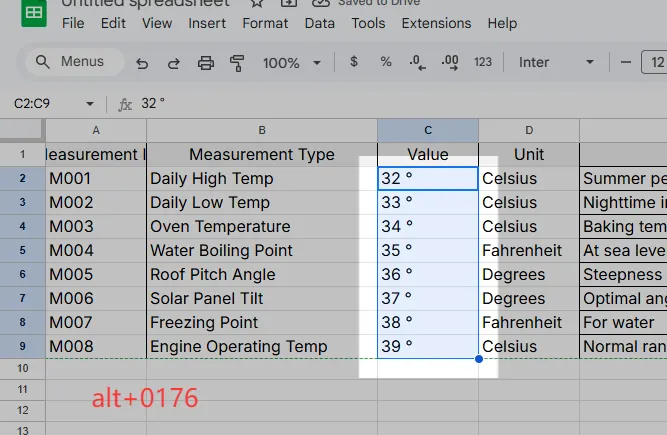
  2. Hold Alt + type 0176 on the numeric keypad
  3. Release Alt - poof! ° appears

alt

Mac Users:

  1. Click your target cell
  2. Press Option + Shift + 8

Pro Tip: Laptop without numpad? Enable NumLock or use RowSpeak's symbol palette for one-click inserts.

Method 2: Symbol Menu (For Visual Learners)

  1. Navigate to Insert > Symbol
  2. Set font to (normal text)
  3. Type 00B0 in Character Code box
  4. Click Insert

This method shines when you need multiple special symbols.

Method 3: Formula Magic with CHAR()

For bulk operations, use:

=CHAR(176)

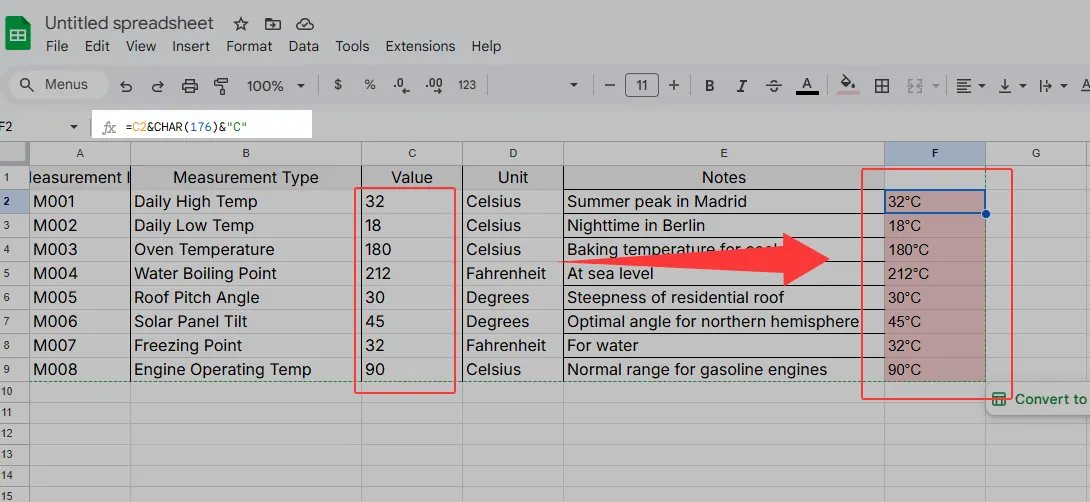
Combine it with other data:

=C2&CHAR(176)&"C"
gs

RowSpeak Bonus: Our AI formula generator can auto-create these patterns across your entire dataset.

Method 4: Set It & Forget It with AutoCorrect

  1. File > Options > Proofing > AutoCorrect
  2. Set "deg" to convert to °

Now typing "deg" automatically becomes ° - perfect for frequent use.

Method 5: Custom Formatting (For Number Cells)

  1. Select cells
  2. Ctrl+1 > Custom
  3. Enter in Type field

This keeps numbers calculable while displaying the symbol.

Level Up with RowSpeak

Why manually insert symbols when AI can do it? RowSpeak automatically:

  • Detects temperature/angle data
  • Applies consistent formatting
  • Updates symbols across sheets

Try our free template that pre-formats degree symbols based on your data type.

Pro Tips for Flawless Sheets

  • Consistency is key: Pick one method per project
  • Document your approach: Add a comment explaining your symbol method
  • Test printing: Some fonts display ° differently on paper

Remember: A well-formatted spreadsheet isn't just pretty - it prevents costly miscommunication. Whether you choose manual methods or let RowSpeak handle the heavy lifting, those perfect little ° symbols are now at your fingertips.

Struggling with other Excel symbols? Check out our guide to inserting special characters with AI assistance.


Ditch Complex Formulas – Get Insights Instantly

No VBA or function memorization needed. Tell RowSpeak what you need in plain English, and let AI handle data processing, analysis, and chart creation

Try RowSpeak Free Now

Recommended Posts

How to Add a Degree Symbol in Google Sheets (5 Simple Methods)
Excel Operation

How to Add a Degree Symbol in Google Sheets (5 Simple Methods)

Whether you're tracking weather data or creating scientific reports, that tiny ° symbol matters more than you think. Here's your ultimate guide to inserting degree symbols like a pro - no technical skills required!

Gianna
How to Add Numbers in Excel: Quick & Easy Methods for Busy Professionals
Excel Operation

How to Add Numbers in Excel: Quick & Easy Methods for Busy Professionals

Tired of manual number crunching in Excel? Whether you're summing expenses or analyzing sales data, we'll show you smarter ways to add numbers—and how AI can do it for you instantly.

Gianna
How to Add a Semicolon in Excel (3 Simple Methods + AI Shortcut)
Excel Operation

How to Add a Semicolon in Excel (3 Simple Methods + AI Shortcut)

Tired of manually adding semicolons in Excel? Whether you're prepping CSV files or organizing data, we'll show you manual methods, formulas, and how RowSpeak's AI can handle it automatically.

Gianna
How to Add a Title to a Table in Excel (3 Simple Methods)
Excel Operation

How to Add a Title to a Table in Excel (3 Simple Methods)

Struggling with messy Excel tables? Discover foolproof methods to add clear titles—and how RowSpeak can do it for you in seconds.

Gianna
How to Add 3 Years to a Date in Excel: 4 Reliable Methods
Excel Operation

How to Add 3 Years to a Date in Excel: 4 Reliable Methods

Manipulating dates in Excel doesn't have to be complicated. Discover the most accurate methods to add 3 years to any date, whether you're a beginner or power user. Plus, see how RowSpeak can automate these calculations for you.

Gianna
How to Add Sequential Numbers in Excel: 5 Quick Methods for Any User
Excel Operation

How to Add Sequential Numbers in Excel: 5 Quick Methods for Any User

Tired of manually numbering rows in Excel? Discover 5 proven methods to generate sequences instantly, including how RowSpeak's AI can automate this task for you.

Gianna
How to Add 7 Days to a Date in Excel: 4 Simple Methods
Excel Operation

How to Add 7 Days to a Date in Excel: 4 Simple Methods

Master date calculations in Excel with this step-by-step guide. Discover how to add 7 days to any date using different methods, plus how RowSpeak can automate these tasks for you.

Gianna
How to Add a Percentage to a Number in Excel (3 Simple Methods)
Excel Operation

How to Add a Percentage to a Number in Excel (3 Simple Methods)

Struggling with percentage calculations in Excel? Whether you're applying discounts or calculating taxes, this guide shows you multiple methods to get it right every time.

Gianna