How to Add Spaces in Google Sheets for Better Data Readability

We’ve all been there—staring at a Google Sheet so packed with data it looks like alphabet soup. As a growth manager at RowSpeak, I see firsthand how proper spacing can turn chaotic spreadsheets into crystal-clear reports. Let’s break down the smartest ways to add breathing room to your data.

Why Spacing Matters More Than You Think

Cluttered spreadsheets don’t just hurt your eyes—they cost you time and mistakes. Here’s why spacing is your secret weapon:

  • Readability: 1,000,000 is easier to scan than 1000000
  • Professionalism: Clients notice clean formatting
  • Formula safety: Extra spaces prevent calculation errors

3 Essential Space-Adding Techniques

1. The Text Connection Trick

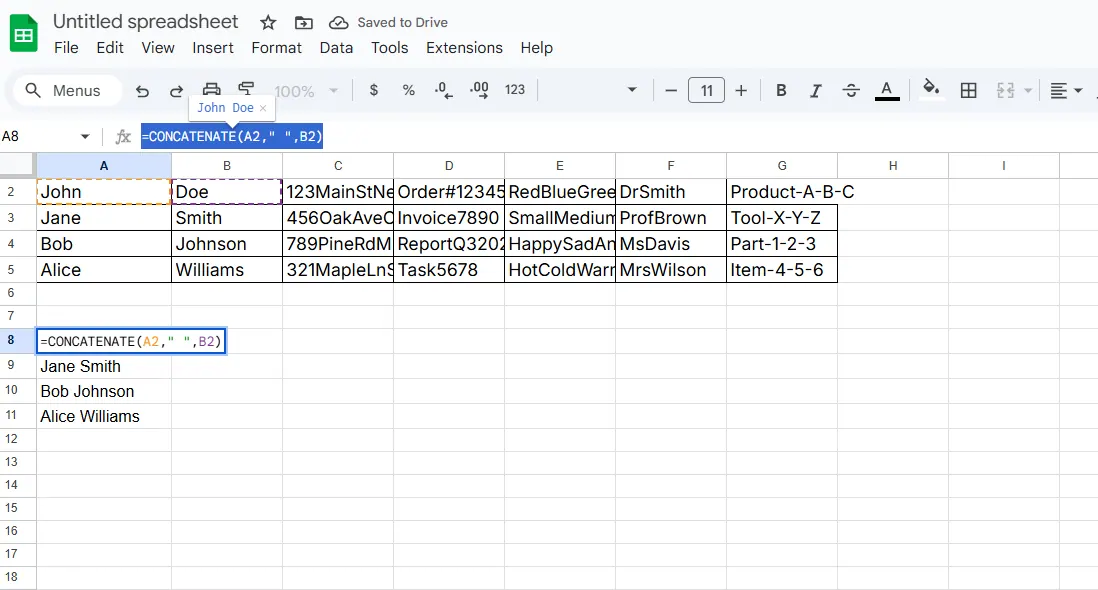
Need space between first and last names? Use:

=CONCATENATE(A2, "   ", B2)  
1

Pro tip: RowSpeak’s Smart Merge feature does this automatically across entire columns.

2. Number Spacing Magic

Make large numbers digestible with custom formatting:

  1. Select your cells
  2. Go to Format > Number > Custom number format
  3. Enter # ##0 for thousand separators

Now 2500000 becomes 2 500 000—no formulas needed.

3. The REPT Function Hack

Need to indent text? Try:

=REPT(" ", 5)&A2  // Adds 5 spaces before cell content

Advanced Space Management

Insert Blank Rows Like a Wizard

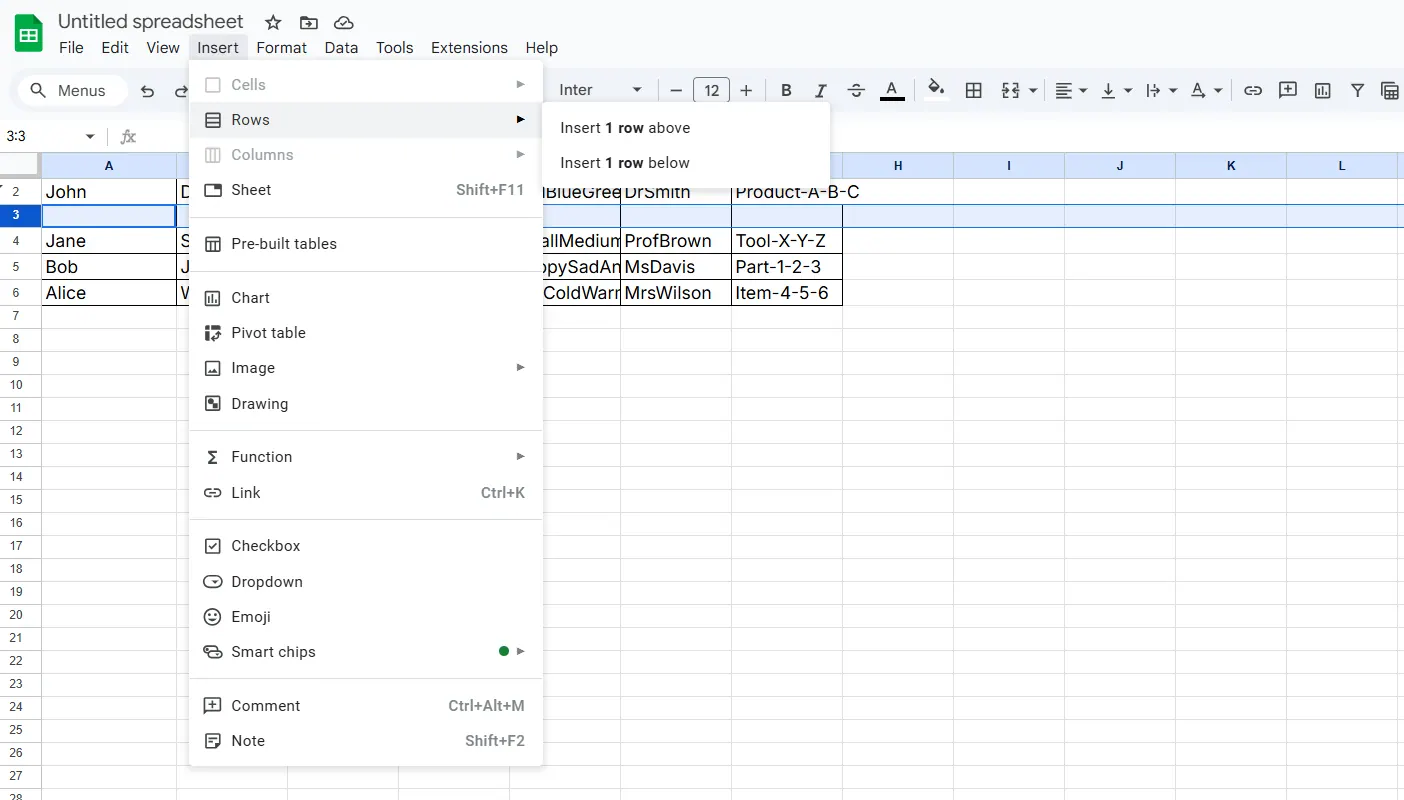
Right-click any row number and select "Insert 1 above/below." For bulk inserts:

  1. Highlight multiple rows
  2. Right-click > Insert X rows

insert

RowSpeak users can automate this with our "Space Builder" template.

CSV Import Fixes

When importing messy data:

=SPLIT(A2, ",")  // Then apply spacing formulas

The Smart Alternative

While these tricks work, they eat up time. That’s why our users love RowSpeak’s:

✅ Auto-spacing for imported data
✅ One-click number formatting
✅ Smart row insertion

Try pasting your data into RowSpeak—watch it automatically apply perfect spacing while you grab coffee.

Final Pro Tip

Use conditional formatting to create visual space:

  1. Select your range
  2. Format > Conditional formatting
  3. Set rules like "Format cells if text contains [keyword]"

This highlights important data without physically moving cells—great for team dashboards.

From Cramped to Crisp

Whether you’re manually adding spaces or letting RowSpeak handle it, proper spacing transforms your sheets from overwhelming to organized. Start with the CONCATENATE trick for text, customize number formats, and remember—the right tools turn formatting from chore to checkbox.

P.S. Want to see how RowSpeak automates all these spacing tricks? Our free template library includes pre-built solutions for common formatting headaches.
Ditch Complex Formulas – Get Insights Instantly

No VBA or function memorization needed. Tell RowSpeak what you need in plain English, and let AI handle data processing, analysis, and chart creation

Try RowSpeak Free Now

Recommended Posts

How to Add Files to Google Sheets: A Complete Guide for Better Data Management
Excel Operation

How to Add Files to Google Sheets: A Complete Guide for Better Data Management

Struggling to keep your files and data in sync? Discover the best methods to add files to Google Sheets and transform your workflow with RowSpeak's AI-powered solutions.

Gianna
How to Add Tags in Google Sheets for Smarter Data Organization
Excel Operation

How to Add Tags in Google Sheets for Smarter Data Organization

Tags turn messy spreadsheets into organized databases. Here's how to implement them in Google Sheets—and how RowSpeak can take your data organization to the next level.

Gianna
How to Add Page Breaks in Google Sheets for Better Data Organization
Excel Operation

How to Add Page Breaks in Google Sheets for Better Data Organization

Struggling with cluttered Google Sheets? This guide walks you through adding page breaks, line breaks, and formula breaks to organize your data effectively. We'll also show you how RowSpeak can simplify these processes with AI-powered automation.

Gianna
How to Add Characters in Excel: 7 Smart Methods for Better Data Formatting
Excel Operation

How to Add Characters in Excel: 7 Smart Methods for Better Data Formatting

Struggling with messy Excel data? Discover how to easily add characters between text, format phone numbers, and create professional-looking spreadsheets with these simple techniques.

Gianna
How to Add Divider Lines in Google Sheets for Better Data Organization
Excel Operation

How to Add Divider Lines in Google Sheets for Better Data Organization

Divider lines transform cluttered spreadsheets into organized, readable documents. This guide walks you through multiple techniques to separate your data effectively, plus how AI tools like RowSpeak can streamline the process.

Gianna
How to Add Lines in Google Sheets: A Step-by-Step Guide for Better Data Organization
Excel Operation

How to Add Lines in Google Sheets: A Step-by-Step Guide for Better Data Organization

Struggling to keep your Google Sheets organized? Discover how to add lines effortlessly, whether you're inserting single rows or automating the process with scripts.

Gianna
How to Add Spaces in Google Sheets Concatenate (The Smart AI Way)
Excel Operation

How to Add Spaces in Google Sheets Concatenate (The Smart AI Way)

Struggling with messy concatenated text in Google Sheets? This guide shows you multiple methods to add spaces between combined text, plus how AI can handle it automatically.

Gianna
How to Add Space in Google Sheets Cells: 7 Simple Methods
Excel Operation

How to Add Space in Google Sheets Cells: 7 Simple Methods

Struggling with cramped data in Google Sheets? Discover simple tricks to add breathing room between text and numbers - from keyboard shortcuts to powerful formulas.

Gianna