How to Combine Cells in Excel with Spaces (3 Simple Methods)

Combining cells in Excel seems easy - until you need to insert spaces between them. Whether you're merging first/last names or assembling addresses, that tiny space makes all the difference for readability. As someone who's wrestled with messy concatenated data, I'll share the methods that actually work.

Why Proper Spacing Matters in Excel Merges

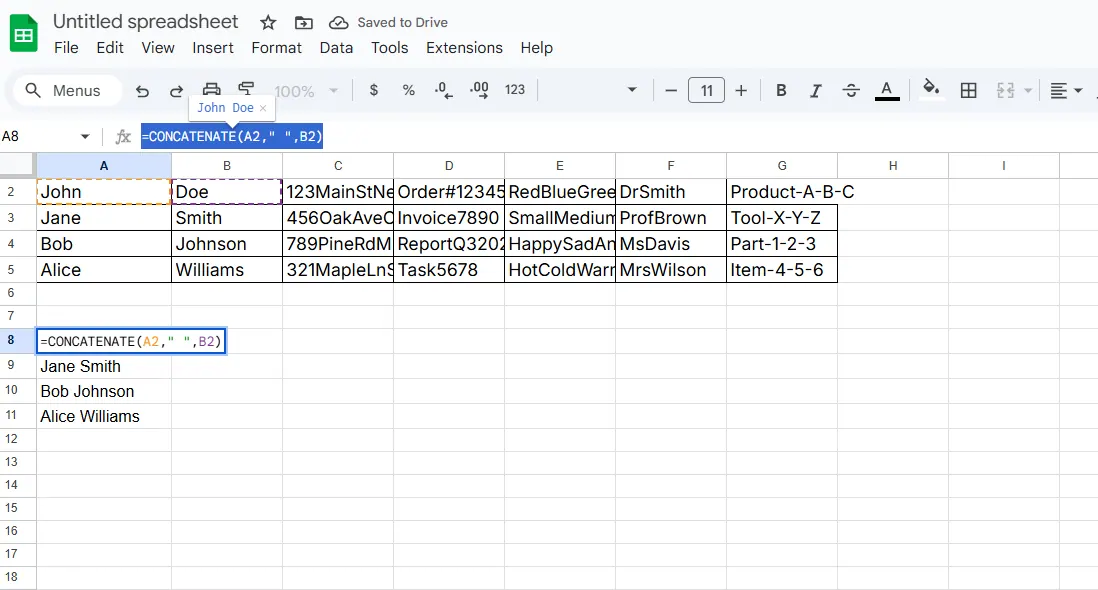
We've all been there - you combine "John" and "Doe" only to get "JohnDoe". Not exactly professional. Proper spacing:

  • Makes merged data instantly readable
  • Prevents errors in mail merges or exports
  • Saves time on manual cleanup

While Excel doesn't auto-space merged cells, these methods solve the problem elegantly.

Method 1: The Space-Savvy CONCAT Function

For Excel 2016+ users, CONCAT is your new best friend:

  1. Click your target cell
  2. Type =CONCAT(A2," ",B2)
  3. Hit Enter - voilà! Perfect spacing

1

Pro tip: RowSpeak's AI formula generator can write these concatenation formulas for you automatically - just describe what you need.

2

Method 2: TEXTJOIN for Advanced Merging

When dealing with multiple cells or potential blanks, TEXTJOIN shines:

=TEXTJOIN(" ",TRUE,A2:C2)

This:

  • Uses space (" ") as delimiter
  • Skips empty cells (TRUE parameter)
  • Handles entire ranges effortlessly

Method 3: Flash Fill Magic

For visual learners, Flash Fill is golden:

  1. Manually type your first merged+spaced example
  2. Start typing the second - Excel predicts the pattern
  3. Press Enter to auto-fill the column

Bonus: RowSpeak's Automated Solution

While these methods work, they still require manual setup. RowSpeak changes the game by:

  • Automatically detecting when to add spaces
  • Handling complex merges with one click
  • Maintaining spacing consistency across datasets

Instead of writing formulas, simply select your data and let RowSpeak's AI handle the merging intelligently.

Pro Tips for Flawless Merges

  • Always check for trailing spaces using TRIM()
  • Use named ranges for complex projects
  • Test merged data with sample exports
  • For bulk operations, RowSpeak processes thousands of merges in seconds

Common Pitfalls (And How to Avoid Them)

Watch out for:

  • #VALUE! errors (check cell formats)
  • Inconsistent spacing (use TEXTJOIN's delimiter)
  • Lost leading zeros (prefix with apostrophe)

The Smart Way Forward

While Excel's built-in tools get the job done, AI-powered solutions like RowSpeak transform cell merging from a chore into a one-click operation. Whether you're cleaning customer databases or prepping reports, proper spacing shouldn't require formula acrobatics.

Ready to upgrade your Excel workflow? Try RowSpeak free and experience AI-powered data merging that just works.

Ditch Complex Formulas – Get Insights Instantly

No VBA or function memorization needed. Tell RowSpeak what you need in plain English, and let AI handle data processing, analysis, and chart creation

Try RowSpeak Free Now

Recommended Posts

How to Add a Number to Multiple Cells in Excel (5 Simple Methods)
Excel Operation

How to Add a Number to Multiple Cells in Excel (5 Simple Methods)

Tired of manually updating hundreds of cells? Discover how RowSpeak and built-in Excel features can help you add numbers to multiple cells in seconds - no coding required.

Gianna
How to Add an Apostrophe to All Cells in Excel (3 Simple Methods)
Excel Operation

How to Add an Apostrophe to All Cells in Excel (3 Simple Methods)

Struggling with data formatting in Excel? Discover how to quickly add apostrophes to all cells using formulas, Find & Replace, and VBA—plus how RowSpeak automates this process with AI.

Gianna
How to Add Text to Cells in Excel: 5 Simple Methods (+ AI Shortcut)
Excel Operation

How to Add Text to Cells in Excel: 5 Simple Methods (+ AI Shortcut)

Tired of manually editing hundreds of cells? Whether you need to add product codes, country prefixes, or status labels, we'll show you smarter ways to batch-edit text in Excel—including how RowSpeak can automate this in seconds.

Gianna
How to Add a Line Break in Excel Cells (3 Simple Methods)
Excel Operation

How to Add a Line Break in Excel Cells (3 Simple Methods)

Struggling to fit multiple lines of text in a single Excel cell? This guide shows you three foolproof methods to add line breaks, plus how AI-powered RowSpeak can handle it automatically.

Gianna
How to Combine First and Last Names in Excel (3 Simple Methods)
Excel Operation

How to Combine First and Last Names in Excel (3 Simple Methods)

Tired of manually merging names in Excel? Discover how to combine first and last names effortlessly using formulas, and how RowSpeak can automate this task completely.

Gianna
How to Add Spaces Between Text in Excel: 7 Simple Methods
Excel Operation

How to Add Spaces Between Text in Excel: 7 Simple Methods

Tired of squinting at messy Excel data? Discover simple formulas, functions, and tricks to add spaces between text—making your spreadsheets instantly more professional and easier to work with.

Gianna
How to Add a Semicolon in Excel (3 Simple Methods + AI Shortcut)
Excel Operation

How to Add a Semicolon in Excel (3 Simple Methods + AI Shortcut)

Tired of manually adding semicolons in Excel? Whether you're prepping CSV files or organizing data, we'll show you manual methods, formulas, and how RowSpeak's AI can handle it automatically.

Gianna
How to Add Yes or No Options in Excel (3 Simple Methods)
Excel Operation

How to Add Yes or No Options in Excel (3 Simple Methods)

Tracking tasks, approvals, or inventory? Yes/No fields make Excel sheets clearer. Discover dropdowns, checkboxes, and conditional formatting tricks, plus how RowSpeak handles it all instantly.

Gianna