
We've all been there - you carefully enter "0012345678" into Excel, only to watch helplessly as it transforms into "12345678". Those missing zeros might seem small, but they can cause major headaches when working with product SKUs, employee IDs, or account numbers that require exact 10-digit formatting.
At RowSpeak, we help teams automate these frustrating Excel tasks every day. Let me share the most effective ways to keep your leading zeros right where they belong.
Why Excel Hates Your Zeros (And How to Fix It)
Excel treats numbers differently than text. When it sees "0012345678", it thinks: "That's just 12345678 with extra stuff in front." By default, Excel strips away what it considers unnecessary leading zeros.
This becomes problematic when:
- Your inventory system requires 10-digit SKUs
- Bank account numbers must maintain exact formatting
- Government forms demand fixed-length identifiers
Here are seven bulletproof methods to preserve your zeros, ranked from simplest to most advanced.
Method 1: The TEXT Function (Our Favorite)
The TEXT function is like giving Excel explicit formatting instructions. Here's the magic formula:
=TEXT(A1,"0000000000")
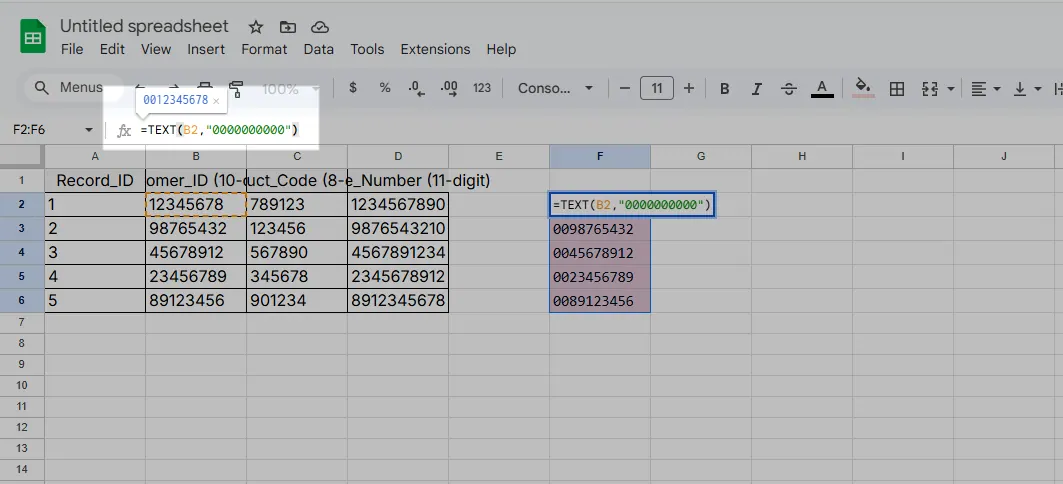
This tells Excel: "Take the value in cell A1 and display it as exactly 10 digits, padding with zeros if needed."
Pro Tip: In RowSpeak, you can automate this transformation across entire datasets with just one click - no formulas needed.
Method 2: Custom Number Formatting
Want to keep values as numbers but display zeros? Custom formatting has your back:
- Select your cells
- Right-click → Format Cells
- Under Number → Custom, enter:
0000000000
Now your numbers show zeros while remaining calculable - perfect for financial reports.
Method 3: The CONCATENATE Trick
For older Excel versions, this combo works wonders:
=CONCATENATE(REPT("0",10-LEN(B2)),B2)
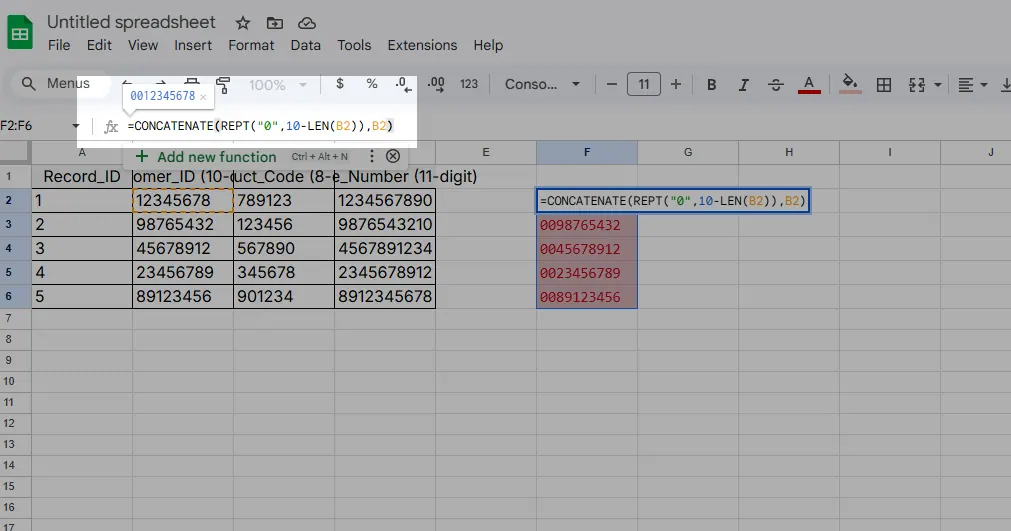
It calculates how many zeros are needed to reach 10 digits, then attaches them to your number.
Method 4: The Quick & Dirty Apostrophe Method
Need a temporary fix? Type an apostrophe before your number:
'0012345678
Excel will treat it as text, preserving all characters. Simple but not scalable for large datasets.
Method 5: Flash Fill (Excel's Secret Weapon)
Excel can learn your formatting patterns:
- Manually type one correctly formatted number
- Start typing the next - Excel will suggest the pattern
- Press Enter to accept
Great for one-time fixes without formulas.
Method 6: VBA for Power Users
For recurring tasks, this VBA script automates zero-padding:
Sub AddZeros()
    For Each cell In Selection
        cell.Value = Format(cell.Value, "0000000000")
    Next cell
End Sub
Method 7: Importing Data Correctly
Prevent problems at the source by importing CSV/text files with:
- Data → From Text/CSV
- Select your file
- Set problematic columns to "Text" format
Stop Fighting Excel - Let AI Handle It
While these methods work, they require constant maintenance. RowSpeak eliminates the hassle by:
- Automatically detecting and fixing number formats
- Applying consistent formatting across all your files
- Updating dynamically when source data changes
Instead of memorizing formulas, you get perfect formatting with zero effort.
Final Thoughts
Whether you choose simple text conversion or advanced VBA, maintaining leading zeros doesn't have to be painful. For teams dealing with this daily, consider upgrading to AI-powered tools that handle formatting automatically - because you've got more important work to do than babysitting zeros.
Need help with your specific zero-padding challenge? RowSpeak's AI can analyze your spreadsheet and recommend the perfect solution in seconds.