How to Add Totals in Google Sheets: A Complete Guide for Smarter Data Analysis

Let's be real - nobody enjoys manually adding up endless rows of data. Whether you're tracking sales, managing budgets, or analyzing project costs, knowing how to quickly calculate totals in Google Sheets is a game-changer.

The best part? You don't need to be a spreadsheet wizard. With these simple techniques (and a little help from RowSpeak's AI magic), you'll be crunching numbers like a finance pro in no time.

The Quickest Way: SUM Function

Meet your new best friend - the SUM function. It's the easiest way to add numbers without breaking a sweat.

Here's how it works:

  1. Click where you want your total
  2. Type =SUM(
  3. Highlight the cells you want to add
  4. Close with ) and hit Enter

For example, =SUM(A1:A5) adds everything from cell A1 to A10. Simple, right?
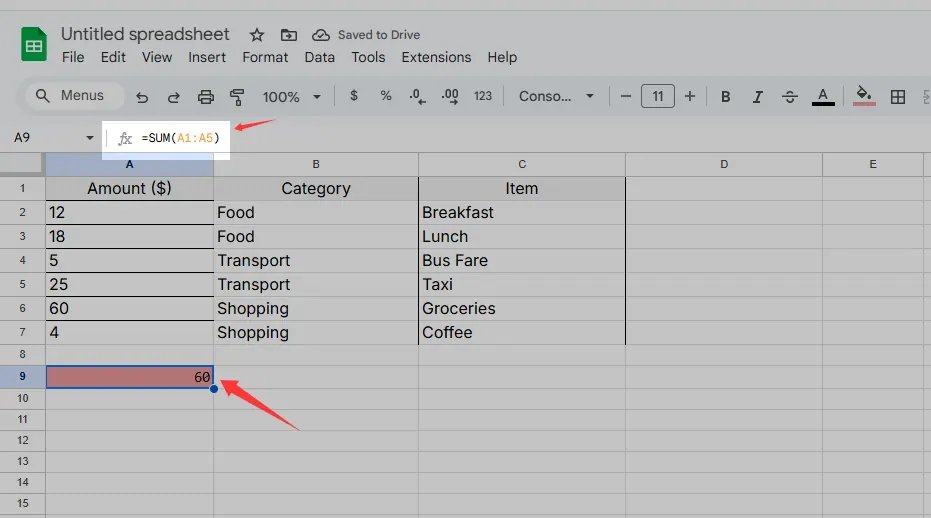
sum

But what if your data isn't perfectly organized? That's where RowSpeak shines. Instead of manually selecting ranges, just describe what you need ("add sales from Q1 to Q4") and let the AI handle the rest.

AutoSum: Your Speedy Assistant

Google Sheets has a handy shortcut called AutoSum:

  1. Click below your number column
  2. Find the Σ symbol in the toolbar
  3. Select SUM
  4. Press Enter

It's perfect for quick totals, but limited to single columns. For more complex data, you'll need...

Smarter Sums with SUMIF and SUMIFS

These functions are lifesavers when you only want to add specific data:

  • SUMIF adds numbers that meet one condition
    =SUMIF(A1:A10, ">1000") (adds values over 1000)

  • SUMIFS handles multiple conditions
    =SUMIFS(Sales, Region, "West", Month, "June")

With RowSpeak, you can skip memorizing formulas. Just type "show me total West region June sales" and get instant results.

Pro Tips for Power Users

  1. Cross-sheet totals: Combine data from multiple tabs with =SUM(Sheet1!A1, Sheet2!A1)

  2. Array formulas: Crunch multiple calculations at once with =ARRAYFORMULA(SUM(A1:A10+B1:B10))

  3. Visual totals: Turn numbers into charts (Insert > Chart) for clearer insights

The Future of Spreadsheet Math

While these methods work, they still require manual setup. That's why forward-thinking teams use RowSpeak to:

  • Automatically detect and calculate totals
  • Generate dynamic dashboards from raw data
  • Update calculations in real-time
  • Explain results in plain English

Imagine pasting your sales data and instantly seeing totals, trends, and insights - no formulas needed. That's the power of AI-driven analysis.

Wrapping Up

From basic sums to conditional calculations, Google Sheets offers plenty of ways to add totals. But if you're tired of formula headaches, give RowSpeak a try. Our AI handles the number-crunching so you can focus on what matters - making smarter business decisions.

Ready to upgrade your data game? RowSpeak turns your spreadsheets into intelligent dashboards that work for you. Try it free today and say goodbye to manual math forever.
Ditch Complex Formulas – Get Insights Instantly

No VBA or function memorization needed. Tell RowSpeak what you need in plain English, and let AI handle data processing, analysis, and chart creation

Try RowSpeak Free Now

Recommended Posts

How to Add Text to Cells in Google Sheets: A Complete Guide for Smarter Data Management
Excel Operation

How to Add Text to Cells in Google Sheets: A Complete Guide for Smarter Data Management

Tired of manually editing cells? Discover how to bulk-add text in Google Sheets using formulas, array functions, and AI tools like RowSpeak that do the heavy lifting for you.

Gianna
How to Add Equations in Google Sheets: A Step-by-Step Guide for Smarter Data
Excel Operation

How to Add Equations in Google Sheets: A Step-by-Step Guide for Smarter Data

Tired of manual calculations? This guide shows you how to use Google Sheets equations like SUM, AVERAGE, and VLOOKUP to turn raw data into actionable insights.

Gianna
How to Add Files to Google Sheets: A Complete Guide for Better Data Management
Excel Operation

How to Add Files to Google Sheets: A Complete Guide for Better Data Management

Struggling to keep your files and data in sync? Discover the best methods to add files to Google Sheets and transform your workflow with RowSpeak's AI-powered solutions.

Gianna
How to Add Cells in Google Sheets: A Step-by-Step Guide for Smarter Data Management
Excel Operation

How to Add Cells in Google Sheets: A Step-by-Step Guide for Smarter Data Management

Struggling to insert cells without breaking your spreadsheet? This practical guide walks you through Google Sheets cell insertion while introducing RowSpeak's AI-powered automation for effortless data management.

Gianna
Mastering Dates in Google Sheets: A Complete Guide for Smarter Workflows
Excel Operation

Mastering Dates in Google Sheets: A Complete Guide for Smarter Workflows

Dates are the backbone of any data-driven workflow. Whether you're tracking deadlines or analyzing trends, this guide will transform how you work with dates in Google Sheets - and show you how RowSpeak makes it even easier.

Gianna
How to Add a Column in Google Sheets: A Step-by-Step Guide for Smarter Data Management
Excel Operation

How to Add a Column in Google Sheets: A Step-by-Step Guide for Smarter Data Management

Mastering column management in Google Sheets is essential for dynamic data analysis. This guide walks you through insertion techniques while showcasing how AI-powered tools like RowSpeak can transform your workflow.

Gianna
How to Sum Values in Google Sheets: A Complete Guide for Business Users
Excel Operation

How to Sum Values in Google Sheets: A Complete Guide for Business Users

Tired of manual number crunching? This guide walks you through every way to sum values in Google Sheets, with pro tips to save time. See how RowSpeak makes data analysis smarter than ever.

Gianna
How to Add Page Breaks in Google Sheets for Better Data Organization
Excel Operation

How to Add Page Breaks in Google Sheets for Better Data Organization

Struggling with cluttered Google Sheets? This guide walks you through adding page breaks, line breaks, and formula breaks to organize your data effectively. We'll also show you how RowSpeak can simplify these processes with AI-powered automation.

Gianna