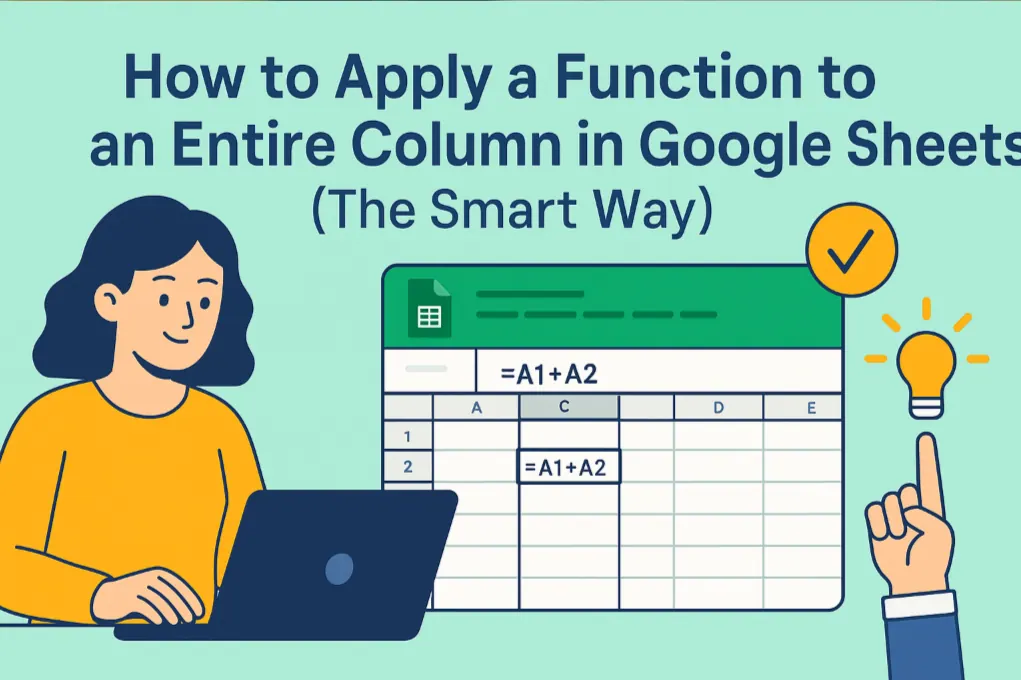
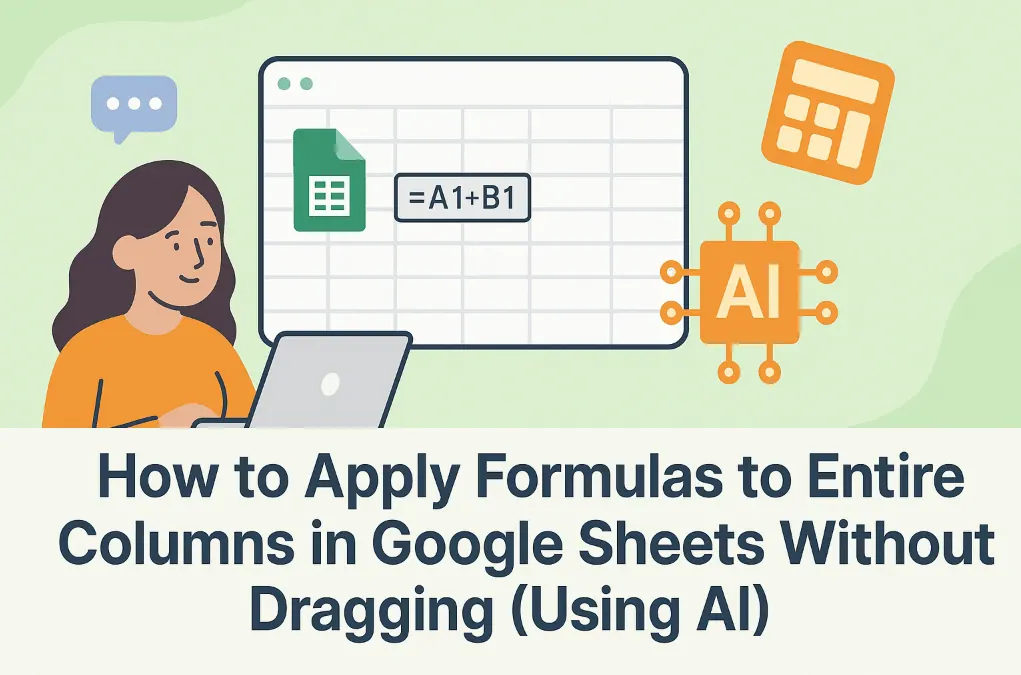
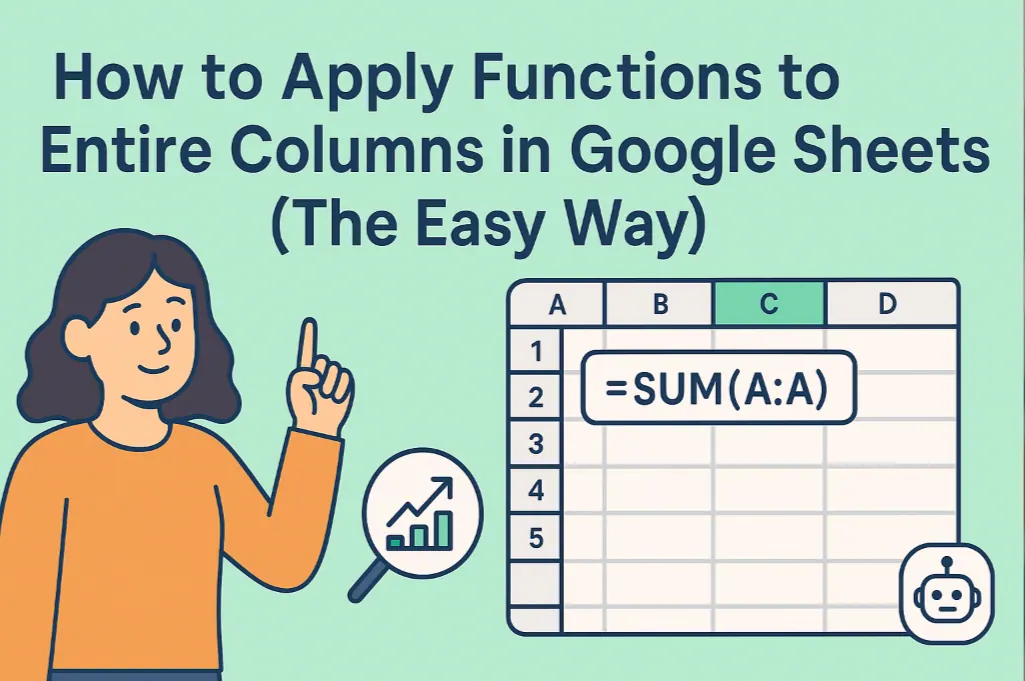
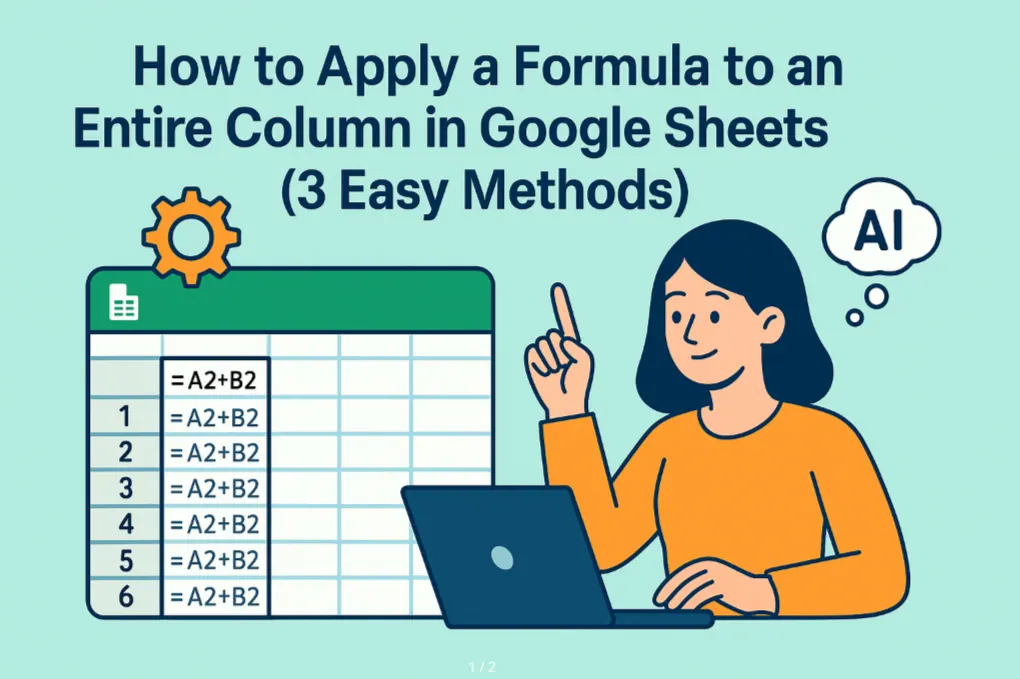
Let's be real - nobody enjoys manually dragging formulas down thousand-row spreadsheets. It's tedious, error-prone, and frankly, a waste of your precious time. As someone who's battled this spreadsheet struggle daily, I can tell you there's a smarter way. AI has completely transformed how we work with formulas in Google Sheets.
The Old-School Struggle: Why Manual Formula Application Sucks
Remember the classic method? Type your formula in the first cell, grab that tiny blue square, and drag... and drag... and drag some more. It works, but come on - we're in 2025! This approach has three major flaws:
- Time vampire: Wastes hours on repetitive work
- Error magnet: Easy to miss cells or drag too far
- Maintenance nightmare: Adding new rows? Better remember to extend your formulas
Enter AI: Your Spreadsheet Superpower
This is where game-changers like RowSpeak come in. Instead of manual dragging, imagine:
- Typing your formula once
- Having AI instantly recognize the pattern
- Watching your entire column populate automatically
RowSpeak's Secret Sauce: Smarter Than Smart Fill
While Google Sheets' built-in Smart Fill is helpful, RowSpeak takes it to the next level with:
- Pattern recognition: Understands complex formula relationships instantly
- Dynamic adjustment: Automatically updates formulas when new data appears
- Error detection: Flags potential mistakes before they mess up your data
How to Apply Formulas to Entire Columns (The AI Way)
Here's your step-by-step guide to working smarter:
Basic Method (Using Google Sheets Smart Fill):
- Enter your formula in the first cell (e.g.,
=A2*B2) - Start typing the same formula in the next cell
- Accept the Smart Fill suggestion (press Tab)
Pro Method (Using RowSpeak):
- Install the RowSpeak add-on
- Enter your formula in the first cell
- Click "Apply to Column" in the RowSpeak sidebar
- Watch as AI handles the rest - including future rows!
Real-World Examples (Where AI Shines)
Case 1: Sales Commission Calculator
Old way: Manually drag =B2*0.05 down 500 rows
RowSpeak way: Apply once, AI handles all current and future entries
Case 2: Data Cleaning
Old way: Painstakingly extract domains from emails
RowSpeak way: AI detects the pattern after 2-3 examples and completes the column
Why Stop at Formulas? RowSpeak Does More
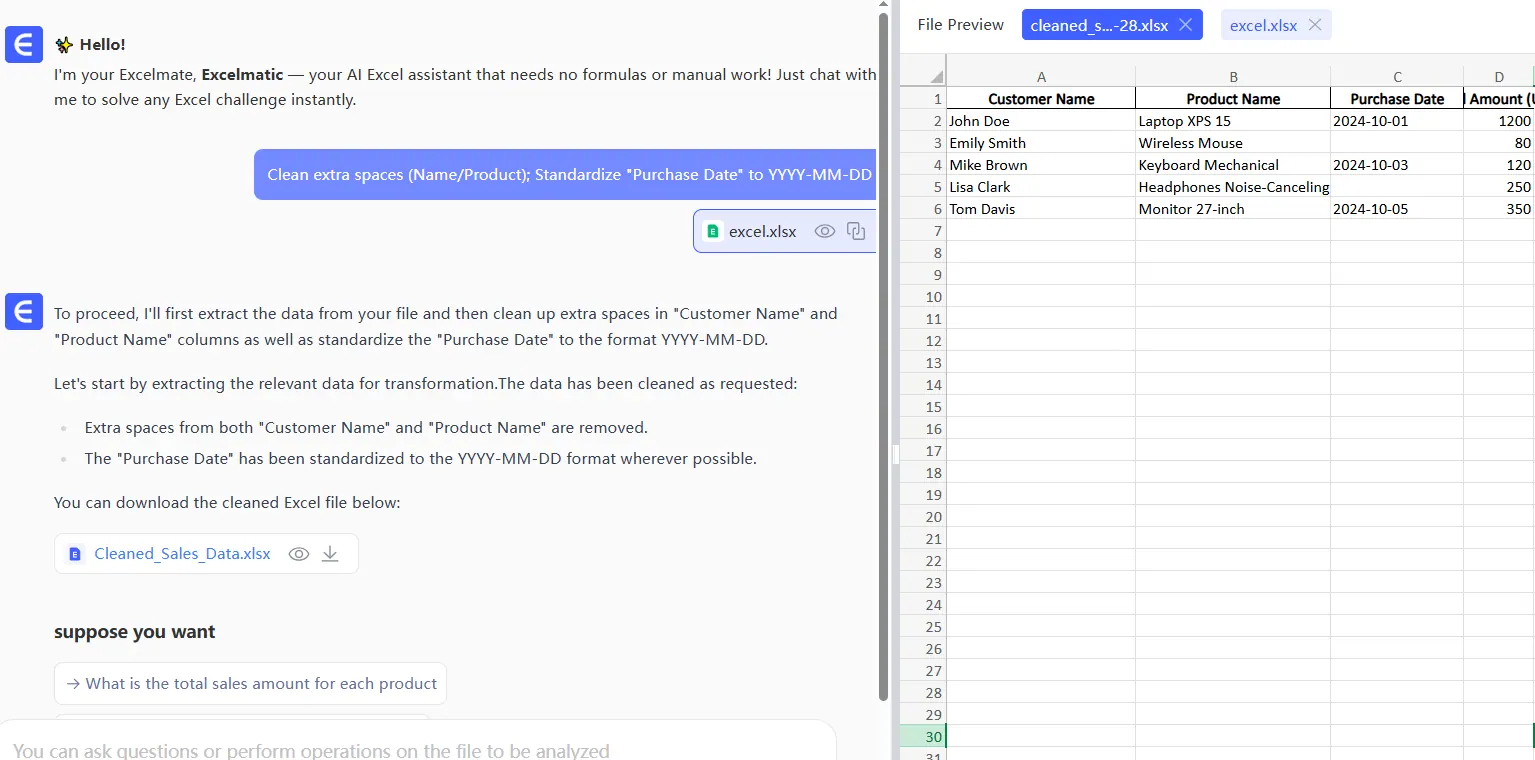
While we're focusing on formula application here, RowSpeak is your all-in-one AI spreadsheet assistant that can:
- Generate complex formulas from plain English
- Clean and organize messy data
- Create stunning visualizations automatically
- Detect anomalies and suggest improvements
Your Turn to Work Smarter
Next time you catch yourself reaching for that fill handle, pause. Ask yourself: "Should I really be doing this manually in 2025?" Give RowSpeak a try and experience how AI can transform your spreadsheet workflow from tedious to terrific.
Ready to stop wasting time on spreadsheet busywork? Try RowSpeak free today and see how much time you can save. Your future self (and your mouse hand) will thank you.