Master Excel Date Formats: A Step-by-Step Guide for Smarter Data Analysis

Let's be real - dates in Excel can be weird. One minute they're numbers, the next they're showing up as random codes. But here's the good news: once you understand Excel's date formatting system, you'll never struggle with timelines, deadlines, or date calculations again.

As someone who's analyzed countless spreadsheets, I can tell you that proper date formatting is the secret sauce for clean data analysis. Whether you're tracking project milestones or analyzing sales trends, getting your dates right makes everything else easier.

Why Excel Dates Are Actually Numbers in Disguise

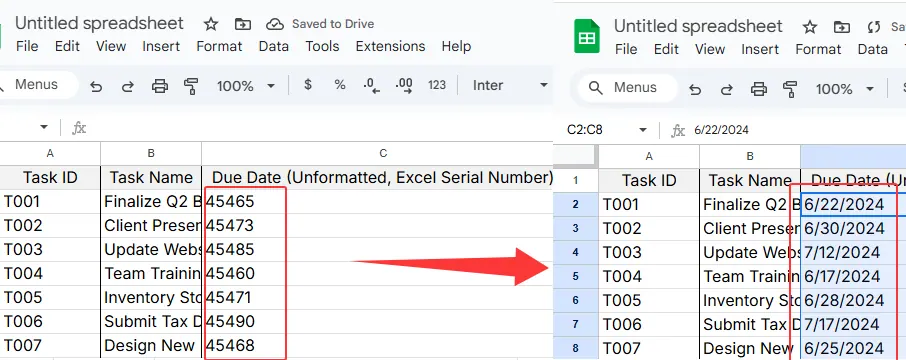
Here's the cool thing: Excel stores dates as serial numbers. January 1, 1900 is day 1, January 2 is day 2, and so on. This means March 1, 2021 is actually number 44220 in Excel's world.

This numbering system lets you:

  • Calculate time between dates
  • Add/subtract days from dates
  • Sort chronologically with perfect accuracy

The Fastest Way to Format Dates

  1. Select your date cells
  2. Right-click → "Format Cells"
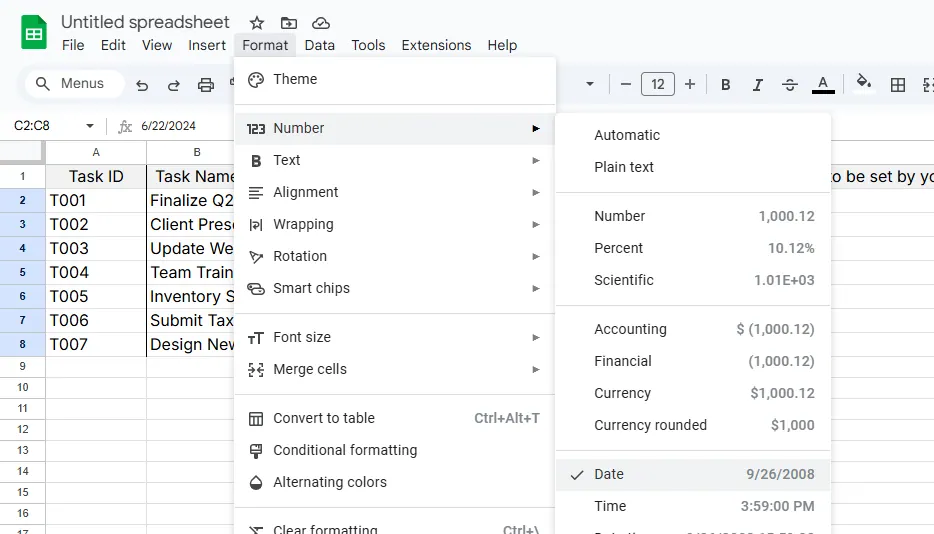
  3. Choose "Date" from the Number tab

date

  1. Pick your preferred format (like MM/DD/YYYY)
  2. Click OK

date1

Boom - your numbers instantly transform into recognizable dates.

Custom Date Formats for When Standard Options Don't Cut It

Sometimes you need dates to look specific ways for reports or dashboards. Here's how to create custom formats:

  1. Follow steps 1-2 above
  2. Select "Custom" instead of "Date"
  3. Enter format codes like:
    • dd/mm/yyyy → 01/03/2023
    • dddd, mmmm dd → Wednesday, March 01
    • mmm-yy → Mar-23

Pro tip: RowSpeak's AI can automatically detect and apply the perfect date format for your data - no manual setup needed.

Smart Date Tricks Every Analyst Should Know

1. Conditional Formatting for Deadlines

Highlight overdue tasks or upcoming deadlines automatically:

  • Select your dates
  • Home → Conditional Formatting
  • Set rules like "Date is before TODAY()"

2. Essential Date Functions

  • DATEDIF(): Calculate time between dates
  • EDATE(): Add months to a date
  • WORKDAY(): Skip weekends in date calculations

3. Fixing Common Date Problems

  • Dates showing as numbers? Change format to Date
  • Excel not recognizing dates? Try =DATEVALUE()
  • Wrong regional format? Adjust in File → Options

The Future of Date Formatting: Let AI Do It

Manually formatting dates works, but why waste time when tools like RowSpeak can:

  • Auto-detect date formats in your data
  • Apply consistent formatting across all sheets
  • Generate time-based insights automatically

Imagine pasting raw data and having perfectly formatted dates, calculated time periods, and visual timelines ready in seconds. That's the power of AI-driven data analysis.

Best Practices for Date Management

  1. Be consistent - pick one format and stick with it
  2. Document any custom formats you create
  3. Use RowSpeak's AI to handle regional format differences
  4. Always verify date calculations (even AI makes mistakes sometimes)

From Frustration to Mastery

Dates don't have to be Excel's most confusing feature. With these techniques, you'll:

  • Spend less time fixing formats
  • Avoid calculation errors
  • Present cleaner reports

And if you really want to level up? Try RowSpeak. Our AI doesn't just format dates - it analyzes them to find patterns, predict trends, and turn raw dates into actionable business insights. Because in today's fast-moving world, understanding time is everything.

Ready to work smarter with dates? RowSpeak's free trial lets you experience AI-powered date analysis today. No more manual formatting - just accurate, insightful data at your fingertips.

Ditch Complex Formulas – Get Insights Instantly

No VBA or function memorization needed. Tell RowSpeak what you need in plain English, and let AI handle data processing, analysis, and chart creation

Try RowSpeak Free Now

Recommended Posts

How to Add Data to Excel's Data Model: A Step-by-Step Guide for Smarter Analysis
Excel Operation

How to Add Data to Excel's Data Model: A Step-by-Step Guide for Smarter Analysis

Excel's data model transforms how you analyze data, but manual setup can be tricky. Here's a clear guide to adding data—and how AI tools like RowSpeak make it effortless.

Gianna
How to Add a Filter in Excel: A Step-by-Step Guide for Smarter Data Analysis
Excel Operation

How to Add a Filter in Excel: A Step-by-Step Guide for Smarter Data Analysis

Struggling to make sense of messy spreadsheets? Excel filters are your secret weapon. This step-by-step guide shows you how to slice and dice your data effortlessly - plus we'll share how RowSpeak can take your analysis to the next level.

Gianna
How to Add a Comma in Excel: A Step-by-Step Guide for Better Data Readability
Excel Operation

How to Add a Comma in Excel: A Step-by-Step Guide for Better Data Readability

Struggling with unformatted Excel data? Discover how to add commas to numbers and text strings using Excel's built-in features and formulas—plus how RowSpeak can automate this process for you.

Gianna
How to Add Business Days in Excel: A Step-by-Step Guide for Smarter Scheduling
Excel Operation

How to Add Business Days in Excel: A Step-by-Step Guide for Smarter Scheduling

Tired of manual date calculations? Discover how Excel's business day functions can automate your scheduling and save you hours—plus how RowSpeak takes this efficiency to the next level.

Gianna
How to Alphabetize in Excel: A Step-by-Step Guide for Smarter Data Sorting
Excel Operation

How to Alphabetize in Excel: A Step-by-Step Guide for Smarter Data Sorting

Tired of messy spreadsheets? This guide breaks down Excel’s sorting features with clear steps and pro tips. We’ll also show how RowSpeak’s AI tools can transform chaotic data into organized insights instantly.

Gianna
How to Add More Cells in Excel: A Step-by-Step Guide for Smarter Data Management
Excel Operation

How to Add More Cells in Excel: A Step-by-Step Guide for Smarter Data Management

Expanding your Excel spreadsheet shouldn't feel like solving a Rubik's cube. Whether you're inserting single cells or entire columns, our guide makes it simple. And for those who want to work smarter, we'll show how RowSpeak's AI can handle these adjustments automatically.

Gianna
How to Add a Professional Border to Excel Charts (Step-by-Step Guide)
Excel Operation

How to Add a Professional Border to Excel Charts (Step-by-Step Guide)

Discover the step-by-step process to add and customize borders in Excel charts, plus how AI tools like RowSpeak can automate this and other data presentation tasks effortlessly.

Gianna
How to Add 3 Months to a Date in Excel: A Step-by-Step Guide for Business Users
Excel Operation

How to Add 3 Months to a Date in Excel: A Step-by-Step Guide for Business Users

Managing timelines, expiration dates, or project schedules? This guide walks you through foolproof methods to add 3 months to dates in Excel—plus how RowSpeak automates these tasks with AI-powered precision.

Gianna