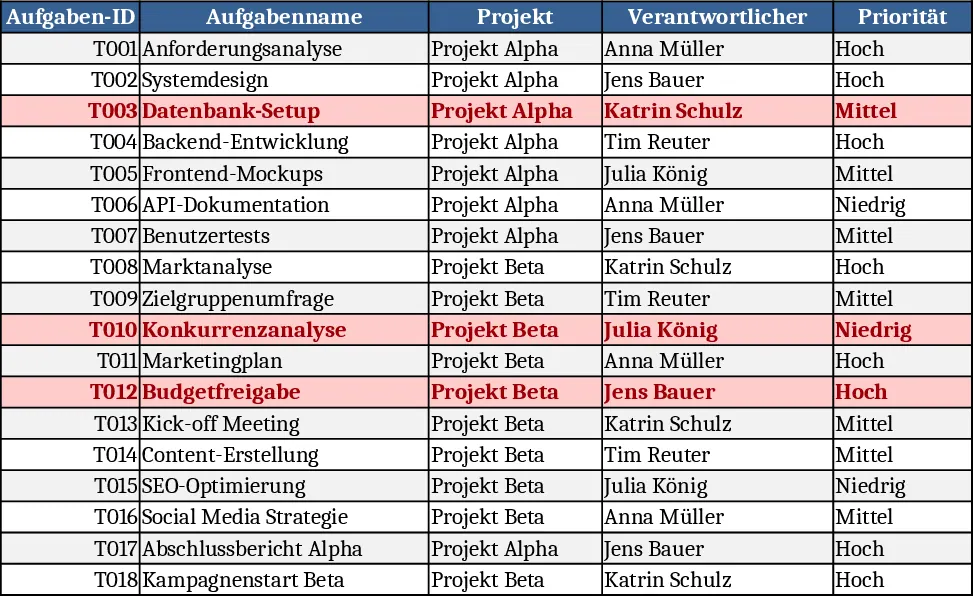
Project Task Tracker & Owner Overview Template
The Project Task Tracker Excel template comes with two worksheets designed for clear, end‑to‑end task management. The Task List sheet holds a detailed table where each row represents a single task. Columns include Task ID, Task Name, Project, Owner (chosen from a dropdown of team members), Priority (High, Medium, Low), Status (Not Started, In Progress, Blocked, Completed), Start Date, Due Date, Estimated Hours, Actual Hours, Dependent Task, and Notes. The Due Date column is mandatory, and both Priority and Status are enforced with dropdown lists to keep data consistent. Conditional formatting automatically paints overdue tasks (Due Date earlier than today and not marked Completed) in red, making them instantly visible.
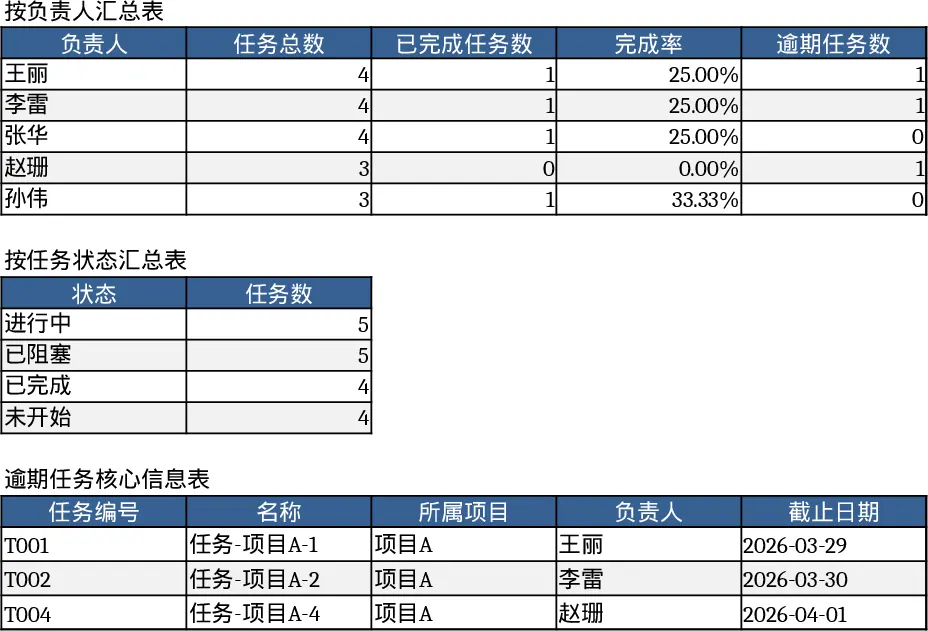
The second sheet, Project Overview, aggregates the raw data into concise dashboards. It groups tasks by Owner, showing total tasks, completed tasks, completion rate, and overdue count per person. A separate summary breaks down the number of tasks by Status, giving a quick health check of the whole project. An additional table lists the core details of all overdue tasks (ID, Name, Owner, Due Date, and Status) so managers can focus on the most critical items.
This template solves the common pain of scattered task information and manual status reporting. By centralising every task in one sheet and providing instant visual cues for delays, teams reduce the time spent hunting for overdue items and avoid duplicate data entry. Project managers gain a real‑time snapshot of progress, resource allocation, and bottlenecks, enabling faster decision‑making and better workload balancing.
Who benefits? Team leads, project coordinators, and anyone responsible for delivering multiple tasks across one or more projects. It works best for small‑to‑medium teams that need a lightweight, no‑software‑install solution for daily task tracking.
How to use
- Open the workbook and fill the Owner dropdown list on the "Task List" sheet with your team members.
- Enter each task row, selecting the appropriate Priority and Status from the dropdowns and ensuring the Due Date is filled.
- The template will automatically colour overdue tasks red and update the summary tables on the "Project Overview" sheet.
- Review the overview tables and the overdue task list to prioritise work and re‑assign resources as needed.
Expected benefits: quicker identification of bottlenecks, less time spent on manual reporting, and a clearer picture of each owner’s workload, helping the team stay on schedule with minimal effort.
Similar Templates Recommendation
Project Task Tracker with Overview and Dashboard Template
Track project tasks in Excel, assign owners, set priorities and deadlines, monitor real‑time status, and view summary dashboards by assignee and status.
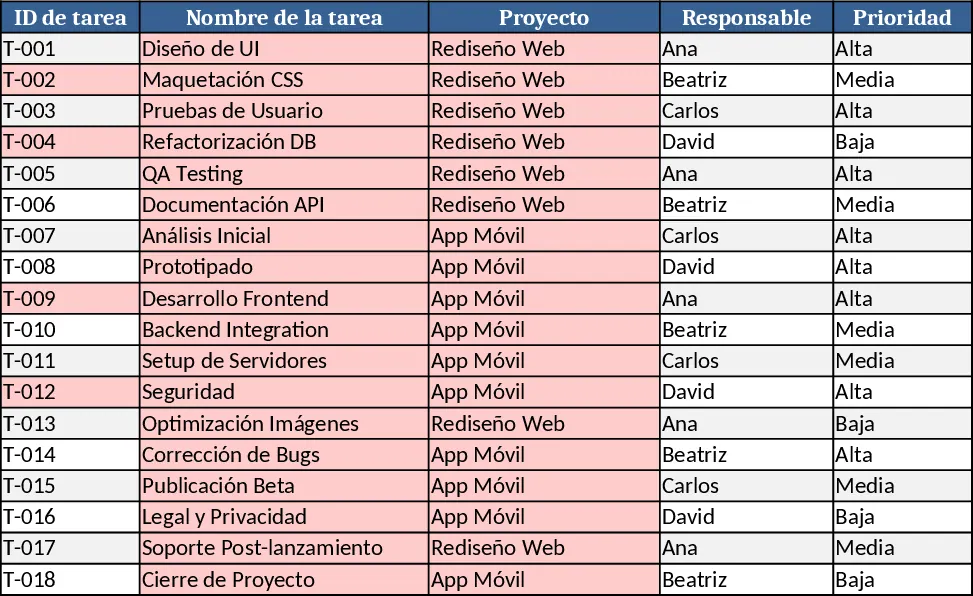
Project Task Tracker & Overview with Task Status Template
Track, prioritize, and monitor project tasks across multiple projects, with status, deadlines, and workload summaries per assignee.
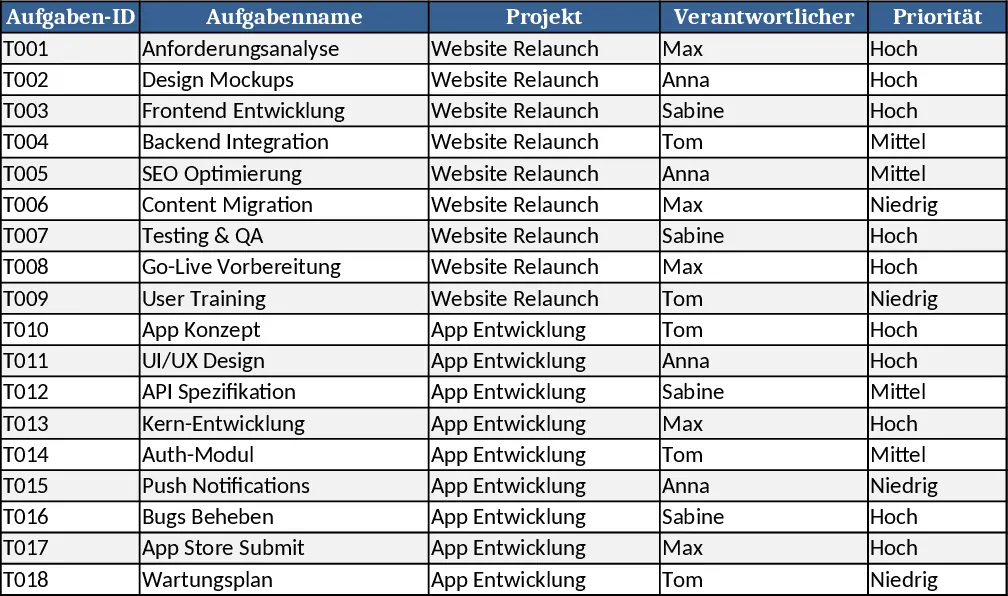
Project Task Tracker with Overview and Conditional Formatting Template
Track and manage project tasks with status, priority, deadlines, and responsible owners, plus summary dashboards per assignee and status.