Track Your Average Order Value with Excel AI Line Charts

You might know your revenue is increasing—but do you know why?

One of the smartest metrics you can track is AOV (Average Order Value). It tells you:

  • Are customers buying more per order?
  • Are your upsell strategies working?
  • Is that free shipping threshold finally paying off?

And the best way to see AOV trends? A good old line chart—AI-generated, of course.


Traditional Approach: So Much Manual Work

To track AOV in Excel, you'd normally:

  1. Calculate Revenue / Number of Orders
  2. Do it by day/week/month (that’s 3 pivot tables already )
  3. Plot the result in a line chart
  4. Format axis, labels, titles manually
  5. Spot errors, redo steps 1–3

That's a lot of spreadsheet muscle just to answer:

Are customers spending more per order lately?


With RowSpeak, Just Ask:

Ask RowSpeak:

Show a line chart of average order value by month

Create a table of monthly AOV with percentage change

What was the highest average order value this year?
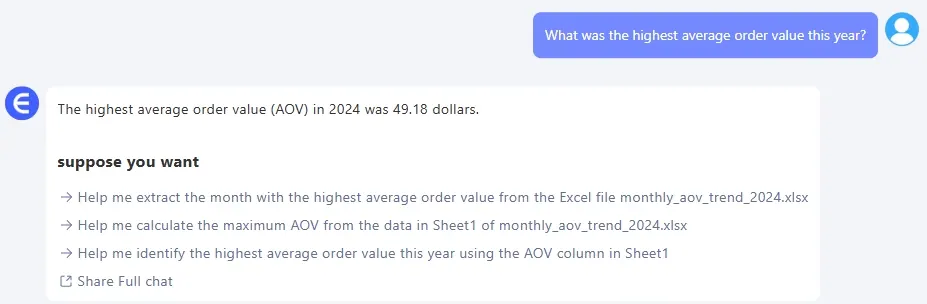
depart

With one prompt, RowSpeak gives you:

  • Time-based grouping (weekly/monthly)
  • Optional table view with % change MoM
  • Instant visual for trendspotting

When to Track AOV

  • After launching bundling or upsell campaigns
  • Before and after promotions or discounts
  • Across different sales channels (web, app, marketplace)
  • To evaluate free shipping thresholds

Manual vs RowSpeak

Step Traditional Excel RowSpeak AI
AOV calculation Formula + grouping Auto-calculated
Time-based aggregation Pivot tables needed One-line query
Line chart formatting Manual styling Clean & automatic
% Change vs previous Custom formula Optional with prompt
Time to complete 30–40 mins Under 1 minute

Pro Tips

  • Add annotations where AOV spikes (new product launch, holiday, etc.)
  • Compare with conversion rate for deeper insight
  • Filter by region/channel if you want extra depth

Final Words

Average Order Value is like your store’s heartbeat. If it’s going up, you’re growing smart. If not, something might be off.

With RowSpeak, you get the full picture in seconds—no spreadsheets harmed.

👉 Try RowSpeak now >>

If you are interested in Excel AI charts, you may also like the following articles:

How to Instantly Create Bar Chart with Excel AI (No Manual Work Needed)

Compare Ad Channel Sales with a Bar Chart in Excel AI

Track Monthly Sales Trends in Seconds with Excel AI Line Chart

Compare Brand Sales Trends with Multi-Line Chart in Excel AI

Visualize Category Sales by Region with Donut Charts in Excel AI
Ditch Complex Formulas – Get Insights Instantly

No VBA or function memorization needed. Tell RowSpeak what you need in plain English, and let AI handle data processing, analysis, and chart creation

Try RowSpeak Free Now

Recommended Posts

Compare Brand Sales Trends with Multi-Line Charts in Excel AI
Data Visualization

Compare Brand Sales Trends with Multi-Line Charts in Excel AI

Want to track your brand against competitors over time? Multi-line charts in Excel AI let you compare monthly sales trends instantly—no formulas, no formatting headaches.

Sally
Compare Seasonal Sales Trends with Multi-Line Excel AI Charts
Data Visualization

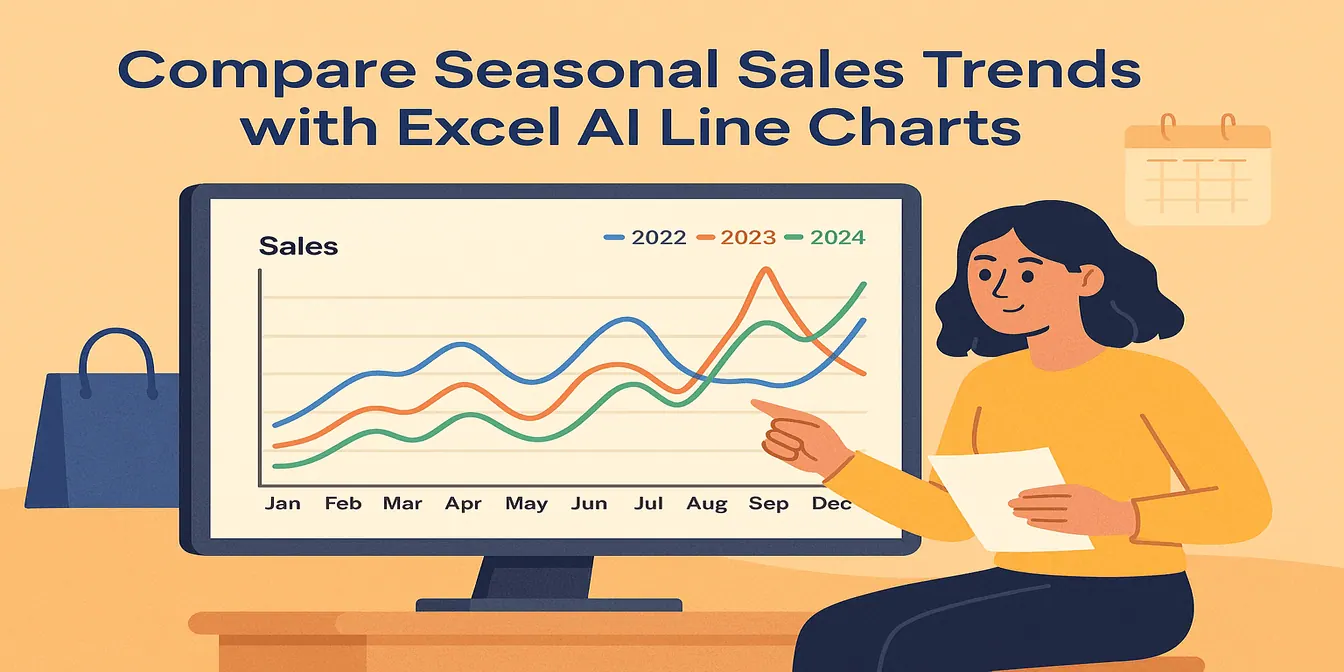
Compare Seasonal Sales Trends with Multi-Line Excel AI Charts

Track sales across multiple years and reveal your seasonality trends with just one Excel AI prompt. RowSpeak makes comparing monthly sales easy and accurate.

Sally
Stop Wasting Time on Manual Charts: Create Excel Line Graphs Instantly with AI
Data Visualization

Stop Wasting Time on Manual Charts: Create Excel Line Graphs Instantly with AI

Tired of endlessly clicking through Excel menus to create a simple line graph? Discover how to visualize trends instantly. This guide contrasts the slow, manual method with a new AI-powered approach using RowSpeak, turning your raw data into insightful charts with just a few words.

Ruby
How to Create a Line Chart Instantly Using Excel AI Tools
Data Visualization

How to Create a Line Chart Instantly Using Excel AI Tools

Forget manual formatting—learn how Excel AI can create clear, clean line charts in one simple step.

Sally
Track Monthly Sales Trends in Seconds with Excel AI Line Charts
Data Visualization

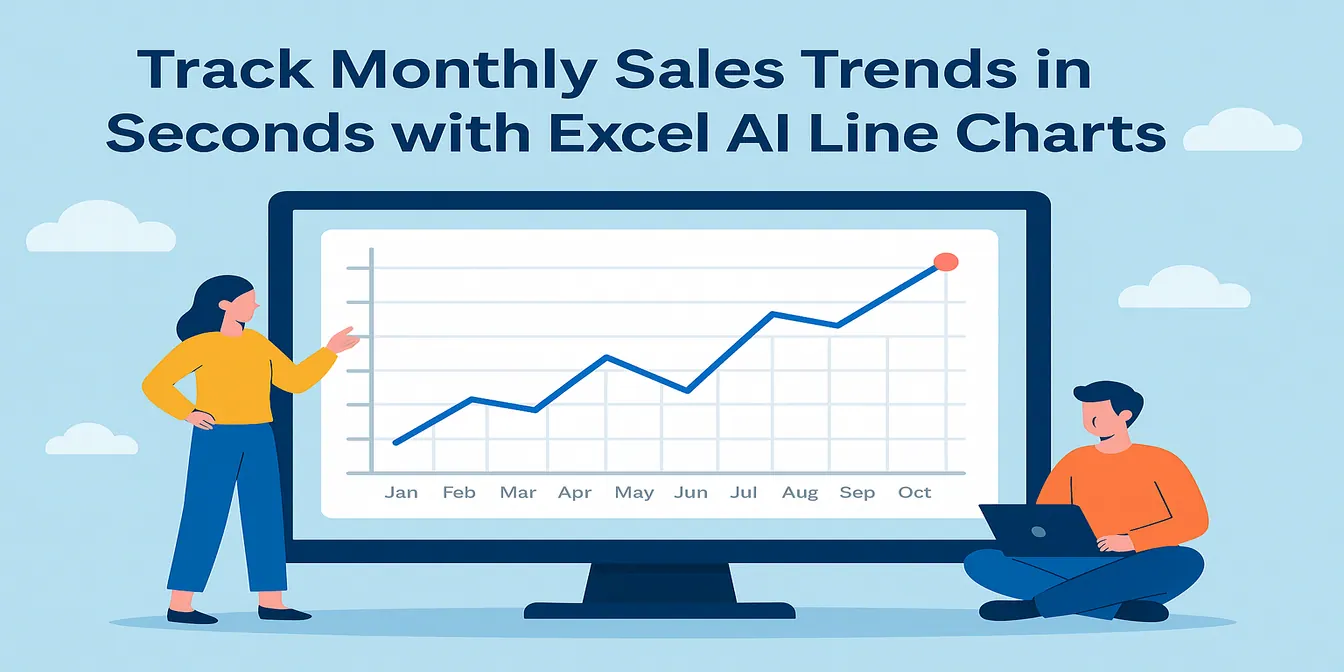
Track Monthly Sales Trends in Seconds with Excel AI Line Charts

Ditch manual work and discover how Excel AI tools like RowSpeak can create dynamic, trend-focused line charts from your raw data. Analyze monthly changes with zero stress.

Sally
Compare New vs Old Product Sales with Dual-Line Excel AI Charts
Data Visualization

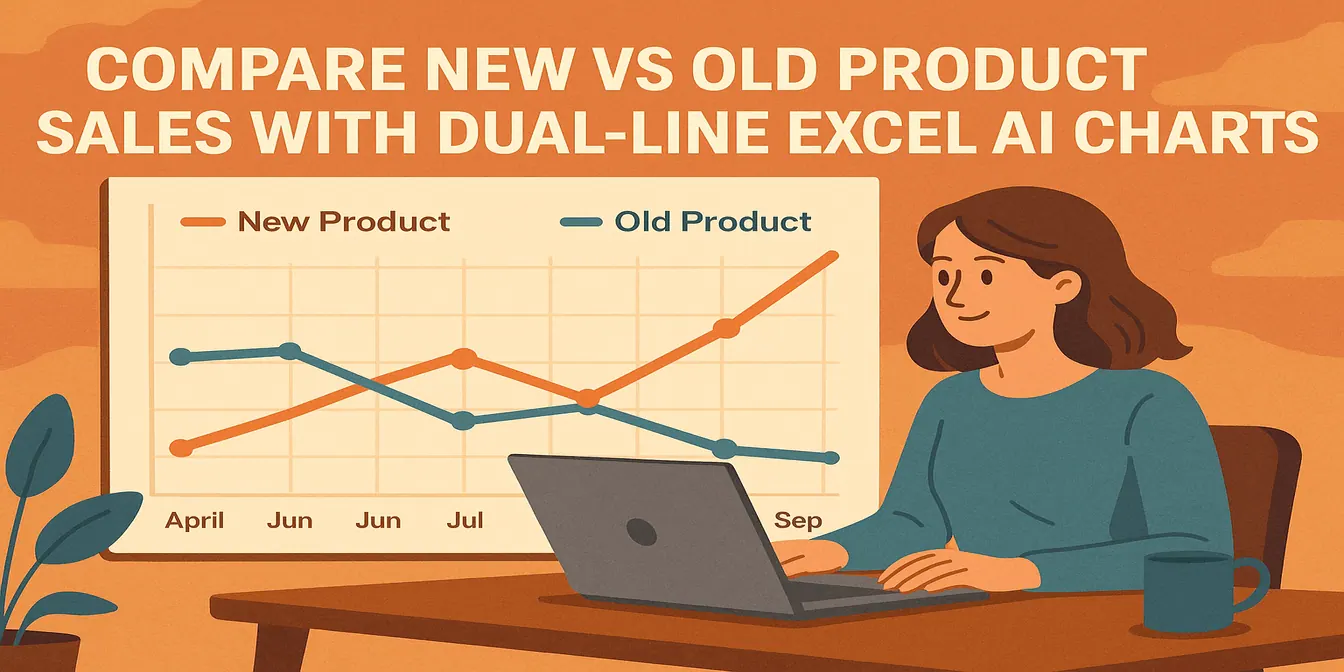
Compare New vs Old Product Sales with Dual-Line Excel AI Charts

Want to know if your new product is helping or hurting your old one? Use Excel AI dual-line charts to reveal growth, cannibalization, and revenue shifts with crystal clarity.

Sally
Stop Fighting with Excel: Create Advanced Combination Charts in Seconds with AI
Data Visualization

Stop Fighting with Excel: Create Advanced Combination Charts in Seconds with AI

Tired of wrestling with Excel's frustrating chart options? Creating a combination chart to compare subscribers and open rates is a classic headache. Discover how Excel AI tools like RowSpeak let you build these advanced charts with a single sentence, saving you time and effort.

Ruby
Stop Wasting Time on Excel Charts: Create Them Instantly with AI
Data Visualization

Stop Wasting Time on Excel Charts: Create Them Instantly with AI

Tired of the endless clicking and formatting required to create the perfect Excel chart? Discover how to move from the tedious manual process to a simple, conversational approach with Excel AI, generating stunning data visualizations instantly.

Ruby