Combo charts—those neat blends of column bars and line graphs—are the power couples of the Excel world. They’re perfect when you need to compare different metrics on the same chart, like total sales and profit goals, or revenue vs. customer growth.
For the visualization step, RowSpeak's graph generation workflow can turn spreadsheet data into charts without rebuilding visuals by hand.
But here’s the truth: while combo charts are powerful, building them manually is no picnic. Most of us have gone through the struggle of aligning axes, selecting data twice, and trying to make it look less like a chaotic spaghetti graph.
So let’s take a trip through the manual method, and then flip the script with RowSpeak—your Excel AI charting sidekick.
The Traditional Way: Building a Combo Chart in Excel (And Crying a Little)
You have monthly data showing:
- Total Sales
- Actual Profit
- Target Profit
Your goal? Show sales as bars and overlay profit vs. target as lines. Here's what you have to do manually:
- Select your range. Oops—you forget to include the “Month” column as X-axis.
- Insert → Chart → Combo Chart → Custom Combination Chart
- Set one series (Sales) as Clustered Column. Set the other two (Profit and Target) as Lines, and send them to the secondary axis if needed.
- Fix the vertical scales so the bar height doesn't dwarf the lines.
- Add data labels—but not too many, or it becomes unreadable.
- Align colors for consistency. Red for target, green for actual? Good luck.
- Try making it presentable. Add a clean legend. Resize everything.
Oh and don’t forget:
Can we add a moving average to the profit line too?
By the time you’re done, you’ve built a semi-readable Frankenstein that took 25 minutes and a strong will.
With RowSpeak: One Prompt, Perfect Combo Chart
Say hello to how it should be.
Upload your dataset—like this one—and type:
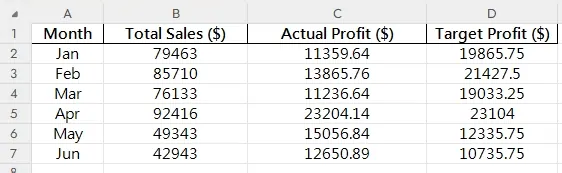
Create a column and line combo chart showing monthly sales and profit.
RowSpeak does it all:
- Bar Chart for sales revenue
- Line chart overlay for actual vs. target profit
- Dual axis if necessary
- Smart legend, readable labels, auto-aligned color scheme
- PLUS: a quick insight like “the peak profit in April despite fluctuating sales figures.”
Need to show completion rate too?
Compare actual profit to target profit with line overlay.
Want to show performance over time?
Plot monthly sales as columns with trendline of profit margin.
No axis matching. No format struggles. Just clean, clear visual storytelling.
3 RowSpeak Prompt Ideas for Combo Charts
Try these real-world prompts to generate smart combo charts in seconds:
"Create a column chart of total sales with a line chart of actual profit."
→ Best for business performance at a glance.
"Show sales bars with profit vs. target as line overlays."
→ Great for goal tracking across months.
"Display sales and profit trends with a dual-axis combo chart."
→ Perfect for seeing scale difference clearly.
Manual Combo Charts vs Excel AI: Big Energy Shift
| Feature | Traditional Excel | RowSpeak AI |
|---|---|---|
| Dual data series setup | Manual + tedious | Automatic |
| Axis alignment | Tricky & error-prone | Smart defaults |
| Chart type mixing | Requires customization | Natural understanding |
| Formatting + color scheme | Needs tweaking | Clean & consistent |
| Adding insights | Manual interpretation | AI-generated summary |
| Total time to finish | 20–30 mins | < 1 min |
Why Combo Charts Deserve More Love
They’re underused—but wildly effective. When you need to compare:
- Actual vs. Target
- Revenue vs. ROI
- Budget vs. Spending
Combo charts give you depth and dimension—if they’re done right.
Thanks to Excel AI tools like RowSpeak, now they finally are.
So next time someone says, “Can you show both KPIs in one chart?” You say: “Sure. Just give me 10 seconds.”
Ready to try it yourself?Try RowSpeak now >>