Key takeaways:
- To highlight duplicates in Excel, use Home > Conditional Formatting > Highlight Cells Rules > Duplicate Values for a fast one-range check.
- Use
COUNTIFwhen you need to highlight only the second and later duplicate values, or use custom rules for one or two columns. - Use Power Query when the duplicate check is large, repeatable, or needs cleanup before review.
- Use RowSpeak when duplicates span multiple files, mixed
.xlsxand.csvexports, messy values, or business rules that are hard to express in one Excel formula.
To highlight duplicates in Excel, select your range, go to Home > Conditional Formatting > Highlight Cells Rules > Duplicate Values, choose a format, and click OK.
That is the fastest answer when you need to highlight duplicate values in one column or one selected range. It is also non-destructive: Excel colors the duplicate cells so you can review them before deciding whether to keep, merge, or remove duplicates in Excel.
The harder cases start when your file is not clean. You may need to highlight duplicate rows, compare two columns, ignore case, trim spaces, compare an Excel workbook with a CSV export, or find the same customer across several files. In those cases, RowSpeak can help you upload the files, describe the duplicate rule in plain English, review the highlighted results, and export a new Excel file.
Quick Decision Tree
| Your duplicate problem | Best starting point |
|---|---|
| One column, exact same visible value | Conditional Formatting |
| Keep the first record unmarked and flag later repeats | COUNTIF |
| Duplicate means two or more columns match | COUNTIFS |
| 50,000+ rows, recurring imports, or heavy cleanup | Power Query, RowSpeak |
| Excel says nothing is duplicated, but the values look the same | RowSpeak |
Multiple files, mixed .xlsx and .csv, fuzzy rules, or source-file tracking |
RowSpeak |
Want to test the edge cases instead of using a clean toy sheet? Download the messy duplicate sample TSV. Excel can open it directly, and it includes trailing spaces, casing differences, phone-number punctuation, mixed date formats, leading zeros, and vendor suffix variations.
Have more than one file or a messy duplicate rule? Highlight duplicates with RowSpeak.
Quick Answer: How to Highlight Duplicates in Excel
If you only need the standard Excel workflow, do this:
- Select the cells you want to check.
- Go to Home > Conditional Formatting > Highlight Cells Rules > Duplicate Values.
- In the dialog box, choose Duplicate.
- Pick a fill or text color.
- Click OK.
If you prefer to see the basic menu path first, this short YouTube walkthrough shows the same Conditional Formatting workflow in Excel:
Excel will highlight duplicate cells in the selected range. This works well for simple checks such as duplicate emails, order IDs, invoice numbers, product names, or customer IDs in one sheet.
Method 1: Highlight Duplicate Values with Conditional Formatting
Conditional Formatting is the best starting point for most Excel users because it is built in, quick, and easy to reverse.
Select the range of cells you want to check.
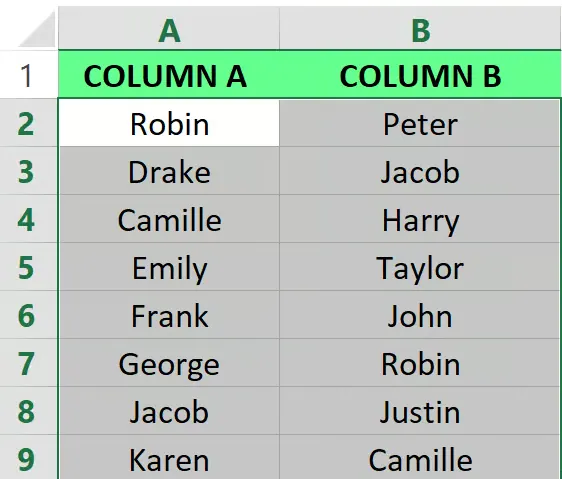
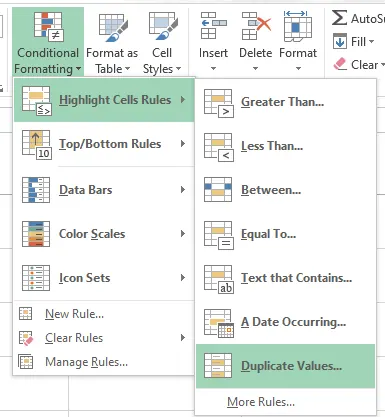
Go to Home > Conditional Formatting > Highlight Cells Rules > Duplicate Values.
Choose how Excel should format the duplicate values. For example, you can use Green Fill with Dark Green Text.
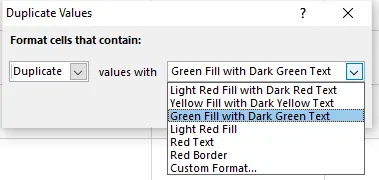
Click OK. Excel highlights the duplicate values in the range.
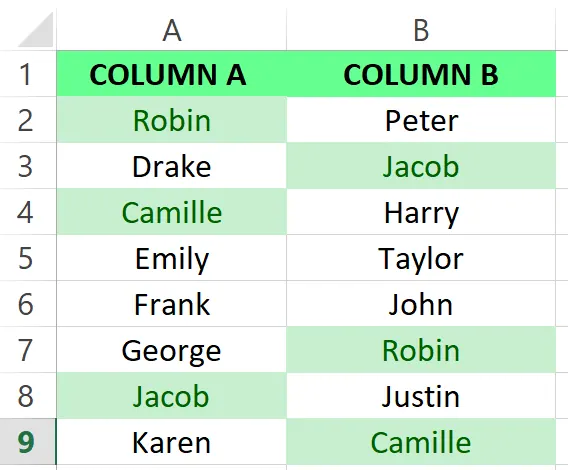
Use this method when your rule is simple: the exact same value appears more than once in the selected range.
Use something else when your definition of duplicate is more specific. Conditional Formatting will not automatically understand that ACME Inc, Acme, Inc., and ACME Incorporated may be the same account. It also does not solve cross-file checks by itself.
Method 2: Highlight Only the Second and Later Duplicates with COUNTIF
Excel's built-in duplicate rule highlights all repeated values, including the first occurrence. If you want to keep the first record unmarked and highlight only the second and later occurrences, use a formula rule.
Select your range, then go to Home > Conditional Formatting > New Rule.
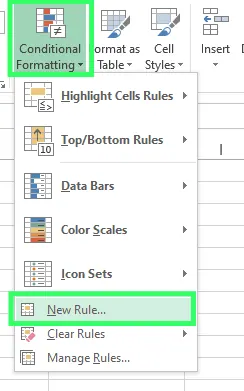
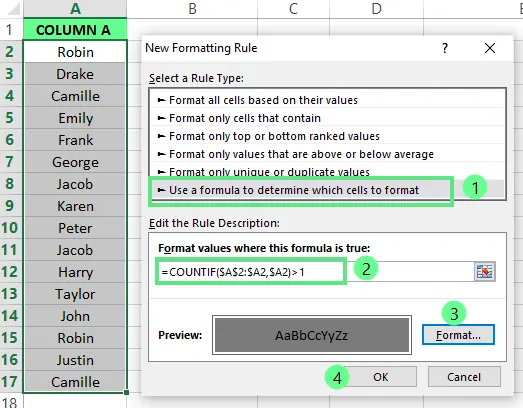
Choose Use a formula to determine which cells to format. If your data starts in A2, use:
=COUNTIF($A$2:$A2,$A2)>1
Then choose your format and click OK.
Excel now highlights only the repeated occurrences after the first value.
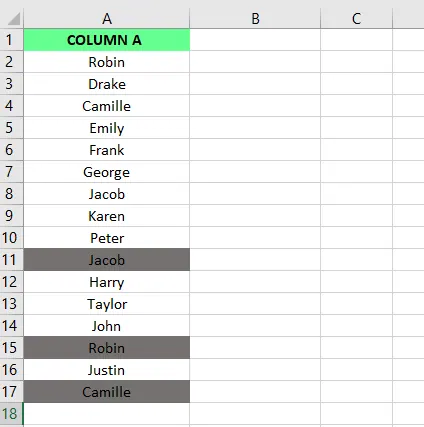
This is useful for lists where the first entry should remain the primary record, such as the first customer registration, first invoice number, or first lead record.
If your data is in a table or a different starting row, adjust the formula so the first reference locks the start of the range and the second reference expands as Excel evaluates each row.
Performance tip: avoid full-column formula rules on very large sheets unless you have to. On 50,000+ rows, expanding COUNTIF rules can make recalculation noticeably slower; on 100,000+ rows with multiple rules, Power Query or a review workflow in RowSpeak is usually easier to maintain. If you stay in Excel formulas, use a bounded range or an Excel Table instead of $A:$A.
Method 3: Highlight Duplicate Rows or Two-Column Duplicates
Many business duplicate checks are not about one cell. You may need to find rows where two or more fields match, such as:
- First Name + Last Name
- Customer ID + Order Date
- Vendor Name + Invoice Number
- Email + Phone
- SKU + Warehouse
For two columns, create a formula-based conditional formatting rule. Suppose your data starts on row 2 and you want to highlight duplicate combinations of columns A and B. Select the rows or columns you want to format, then use:
=COUNTIFS($A:$A,$A2,$B:$B,$B2)>1
This tells Excel to highlight a row when the same pair of values appears more than once.
To highlight only the second and later duplicate row combinations, use an expanding range:
=COUNTIFS($A$2:$A2,$A2,$B$2:$B2,$B2)>1
This method is flexible, but the formula must match your real rule. If a duplicate customer can be matched by email first, then phone if email is missing, or by a normalized company name, the formula becomes harder to maintain. That is where a plain-language workflow can be faster.
Performance tip: COUNTIFS across full columns is convenient, but it is expensive when the file has many rows and several duplicate rules. For large order exports, AP ledgers, or SKU masters, limit the formula to the actual data range or move the repeatable check into Power Query.
Method 4: Use Power Query for Large or Repeatable Files
Power Query is useful when the duplicate check is part of a recurring data-cleaning workflow. It can import data, transform columns, keep duplicate rows, and load the result into a new sheet.
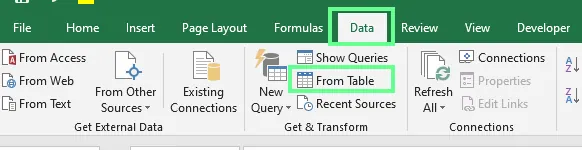
Select a cell or range, then go to Data > Get & Transform Data > From Table/Range.
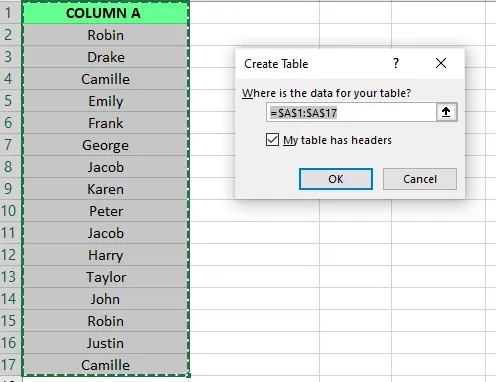
Confirm the table range and whether your data has headers.
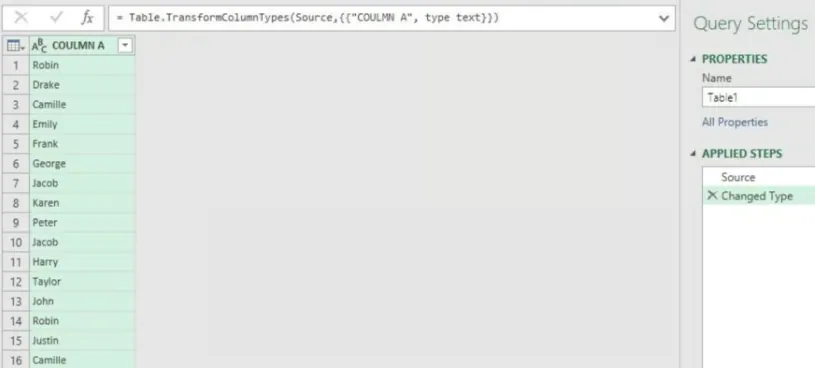
In Power Query Editor, select the column or columns you want to check.
Then go to Home > Keep Rows > Keep Duplicates.
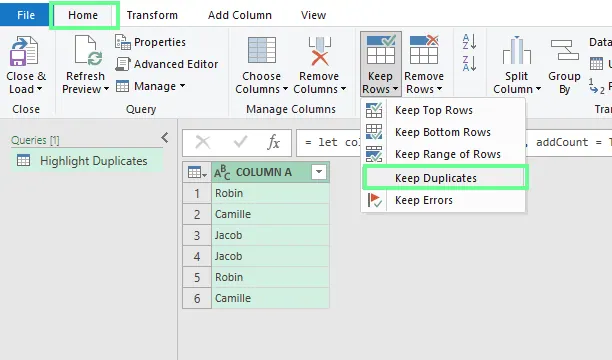
Click Close & Load to return the results to Excel.
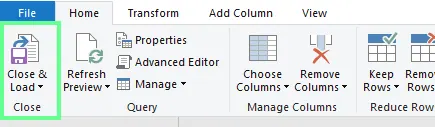
Power Query is a strong option for large files and repeatable cleanup, but it usually creates a duplicate-only table instead of simply highlighting the original records. It also expects the user to understand the query steps. If the business rule changes every week, the setup can become slower than the review itself.
If you do not want to maintain formulas or query steps, you can use RowSpeak to describe the rule, ask for a review sheet, and export the result as an Excel workbook.
Method 5: Use RowSpeak AI for Real-World Duplicate Checks

RowSpeak is useful when the duplicate task is bigger than one Excel menu click. Instead of building a chain of formulas, imports, helper columns, and manual checks, you can describe the rule you want and ask for a reviewable output.
A typical RowSpeak workflow looks like this:
- Upload the spreadsheet, CSV export, or set of files you want to check.
- Tell RowSpeak which fields define a duplicate.
- Ask it to keep the original data unchanged and create a duplicate review sheet.
- Review the highlighted records, match rule, and recommended action.
- Export the result as an
.xlsxfile.
Example command:
Using olist_customers_dataset.csv, highlight customer_unique_id values that appear under more than one customer_id. Keep the first occurrence unmarked, highlight later occurrences, and create a Duplicate Review sheet with customer_unique_id, customer_id, customer_city, customer_state, and duplicate_group_id.
This is especially helpful when you already know the business rule but do not want to translate it into nested formulas. For more examples, see the RowSpeak command writing guide.
RowSpeak Scenarios: Multi-File, Mixed Format, Complex Rules
For the examples below, you can use the public Olist e-commerce dataset hosted on Hugging Face. Download these three files before testing:
| Test file | Why it is useful | Download |
|---|---|---|
olist_customers_dataset.csv |
Customer identity fields such as customer_id, customer_unique_id, city, and state |
Download customers CSV |
olist_orders_dataset.csv |
Order-level records with order_id, customer_id, status, and timestamps |
Download orders CSV |
olist_order_items_dataset.csv |
Item-level rows with order_id, product_id, seller_id, price, and freight |
Download order items CSV |
You can also open the Olist dataset file list if you want to inspect the source page before downloading.
1. Find duplicates across multiple Excel files
If the same customer or order appears across several exports, highlighting one sheet is not enough. You first need to combine the files, align the columns, preserve source context, and then run the duplicate rule. For a real test, use the public Olist e-commerce files: olist_customers_dataset.csv, olist_orders_dataset.csv, and olist_order_items_dataset.csv.
Use RowSpeak when you need a review workbook that shows where each duplicate came from:
Compare olist_customers_dataset.csv and olist_orders_dataset.csv. Find customer_unique_id values that map to multiple customer_id values and show which orders belong to each duplicate customer group. Create a Duplicate Review sheet with customer_unique_id, customer_id, order_id, order_status, customer_city, customer_state, source_file, and recommended_action.
Compare olist_orders_dataset.csv and olist_order_items_dataset.csv. Highlight order_id values that appear in both files and flag order_id + product_id + seller_id combinations that appear more than once in order_items. Create a review sheet that separates normal multi-item orders from possible duplicate item rows.
The goal is a non-destructive review: original records preserved, duplicate groups labeled, and source files visible before anyone deletes or merges data.
2. Compare .xlsx and .csv files for duplicates
Duplicate checks often cross file formats. One team sends an Excel workbook, another system exports a CSV, and the column names do not match perfectly. RowSpeak supports common spreadsheet formats including .xlsx, .xls, and .csv, so it can fit workflows where you would otherwise import, reformat, and combine files manually. See the supported file formats reference for the full list.
For your own test, save olist_orders_dataset.csv as olist_orders_dataset.xlsx, then upload it with olist_customers_dataset.csv and olist_order_items_dataset.csv.
Use a command that maps the fields explicitly:
Compare olist_orders_dataset.xlsx with olist_order_items_dataset.csv. Use order_id as the join key. Highlight order_id values with multiple item rows, and create a summary showing item_count, seller_count, and product_count for each order.
Compare olist_customers_dataset.csv with olist_orders_dataset.xlsx. Use customer_id as the join key, then group by customer_unique_id to show customers with more than one order or more than one customer_id. Keep source_file in the output.
This helps with CRM exports, ecommerce orders, finance files, ad platform exports, and other workflows where the duplicate risk lives between systems.
3. Use complex duplicate rules
A duplicate is not always an exact match. In real files, the same person or household may appear under more than one customer record, and the same order may have several item rows that are legitimate, not duplicates. With the Olist files, customer_unique_id is useful for finding repeated customer identities, while order_id + product_id + seller_id is better for detecting suspicious repeated item rows.
Instead of forcing all of that into one formula, state the rule:
In olist_customers_dataset.csv, find customer_unique_id values that appear more than once. Treat those as repeat customer identities, not rows to delete automatically. Highlight the later customer_id records and create a review sheet with city, state, and linked order count.
In olist_order_items_dataset.csv, flag possible duplicate item rows only when order_id, product_id, seller_id, price, and freight_value all match. Do not flag an order_id as a duplicate only because the order has multiple products.
Join olist_orders_dataset.csv and olist_order_items_dataset.csv by order_id. For each order, count item rows and distinct products. Highlight orders where the same product_id appears more than once with the same seller_id and price.
For sensitive finance, HR, or customer data, use anonymized samples for testing and follow your organization's data-handling rules. If you need controlled deployment boundaries, review RowSpeak's private deployment options.
4. Clean the data before checking duplicates
Many duplicate misses happen because values only look the same. Excel may not treat them as equal if there are hidden characters, inconsistent case, dates stored as text, or phone numbers written in different formats.
RowSpeak can fit a combined data cleaning and duplicate review workflow:
Clean the Olist customer and order files before checking duplicates. Trim text fields, standardize city and state casing, confirm order_id and customer_id are treated as text, then find customer_unique_id values linked to multiple customer_id records.
Before checking duplicate item rows, clean olist_order_items_dataset.csv by treating order_item_id as a number and order_id, product_id, and seller_id as text. Then highlight repeated order_id + product_id + seller_id + price combinations and create a summary of how many possible duplicate item rows were found.
Ask for a separate review sheet so you can inspect the result before changing your working file.
Prompt Examples You Can Copy
Use these prompts as starting points and replace the column names with your real headers.
Using olist_customers_dataset.csv, highlight customer_unique_id values that appear under more than one customer_id. Keep the first customer_id unmarked and highlight the later customer_id records for review.
Compare olist_customers_dataset.csv and olist_orders_dataset.csv. Join on customer_id, group by customer_unique_id, and create a review sheet showing repeat customers, order_count, order_status values, customer_city, and customer_state.
Compare olist_orders_dataset.csv and olist_order_items_dataset.csv. Highlight order_id values with multiple item rows, but separate normal multi-product orders from possible duplicate rows where order_id + product_id + seller_id + price are identical.
Use olist_order_items_dataset.csv to find possible duplicate order item records. Treat rows as possible duplicates only when order_id, product_id, seller_id, price, and freight_value all match. Highlight exact duplicate item rows in red and normal multi-item orders in blue.
Create a Duplicate Review sheet with duplicate_group_id, matched_fields, match_rule, source_file, confidence, and recommended_action. Keep the original sheet unchanged.
Comparing the Methods
| Method | Best for | Strength | Limitation |
|---|---|---|---|
| Conditional Formatting | Simple duplicate cells in one range | Fastest built-in answer | Limited for multi-column, messy, or cross-file rules |
| COUNTIF / COUNTIFS | Custom formulas and second-occurrence rules | Good control inside Excel | Fragile when rules get complex |
| Power Query | Large or repeatable cleanup workflows | Strong import and transformation tools | More setup, steeper learning curve |
| RowSpeak | Multi-file, mixed-format, messy, or rule-based duplicate checks | Plain-language rules and reviewable outputs | You still need to review results before deleting or merging records |
Excel Conditional Formatting is enough for simple one-column checks. Use RowSpeak when the work becomes a file-based review problem rather than a single formatting rule.
Troubleshooting: Why Excel Is Not Highlighting Duplicates
The values have extra spaces
"Acme" and "Acme " look similar, but they are not the same value. Use TRIM() in Excel or ask RowSpeak to trim spaces before checking duplicates.
The values contain hidden characters
Copied data from PDFs, websites, CRM exports, and accounting systems can contain non-printing characters. In Excel, try CLEAN() and TRIM(). In RowSpeak, ask for a cleaning step before duplicate detection.
Dates or numbers are stored as text
Excel may treat 00123, 123, and a text-formatted 123 differently depending on the column format and rule. Standardize the field before checking duplicates.
The duplicate rule needs more than one column
If the duplicate definition is "same email and same order date," the basic Duplicate Values rule is too broad. Use COUNTIFS, Power Query, or a RowSpeak prompt that names the fields.
You need to find duplicates before removing them
Highlight first, review second, delete or merge last. Removing duplicates can permanently delete rows from the active dataset, so keep a backup or create a review sheet first. If you are ready for the deletion workflow, read the guide to remove duplicates with AI.
FAQ
How do I highlight duplicate values in Excel?
Select the range, then go to Home > Conditional Formatting > Highlight Cells Rules > Duplicate Values. Choose a format and click OK.
How do I highlight duplicate cells in one column in Excel?
Select the column cells you want to check, then apply the Duplicate Values conditional formatting rule. If you do not want to include the header, select only the data cells.
How do I highlight duplicate rows in Excel?
Use a formula-based conditional formatting rule with COUNTIFS. For example, if columns A and B define a duplicate row, use =COUNTIFS($A:$A,$A2,$B:$B,$B2)>1.
How do I highlight duplicates in two columns in Excel?
If you want duplicate combinations, use COUNTIFS across both columns. If you want to find values that appear in either column, use a separate formula that checks each value against the combined range.
How do I highlight duplicates except the first occurrence?
Use an expanding COUNTIF formula such as =COUNTIF($A$2:$A2,$A2)>1. This keeps the first value unmarked and highlights later repeats.
Can I compare a CSV and Excel file for duplicates?
Yes. You can import the CSV into Excel and build a formula or Power Query workflow. If the files have different column names or need cleanup first, upload them to RowSpeak and describe how the fields should map.
Can RowSpeak remove duplicates instead of only highlighting them?
Yes, you can ask RowSpeak to create a cleaned output, but the safer workflow is to highlight duplicates and create a review sheet before deleting anything. Use wording such as: "Do not delete rows until I review the duplicate groups."
Final Thoughts
If you only need to highlight duplicate cells in one Excel range, Conditional Formatting is the right tool. It is fast, free, and already inside Excel.
If your duplicate check involves multiple columns, multiple files, mixed .xlsx and .csv exports, hidden spaces, inconsistent casing, or business rules that need review, use RowSpeak as the next step. Upload the file, state the rule, ask for a non-destructive review sheet, and export a workbook your team can inspect.
Have more than one file or a messy duplicate rule? Highlight duplicates with RowSpeak and create a reviewable Excel output before you delete anything.