Let's be real - staring at rows of marketing data in Excel can feel overwhelming. But what if I told you those numbers hold the secrets to crushing your next campaign? As a growth manager who's analyzed thousands of spreadsheets, I'll show you exactly how to turn raw data into actionable insights.
For campaign, channel, ROI, or customer reporting, RowSpeak's AI marketing analytics workflow connects raw marketing files to a reviewable analysis workflow.
Pro tip: While Excel works, I'll also share how our team uses RowSpeak to automate 80% of this process. Because let's face it - you'd rather be optimizing campaigns than wrestling with pivot tables.
Step 1: Clean Your Data Like a Pro
Messy data = misleading insights. Before any analysis, follow this checklist:
- Headers that actually make sense (not "Column1")
- Consistent formatting (all dates as MM/DD/YYYY)
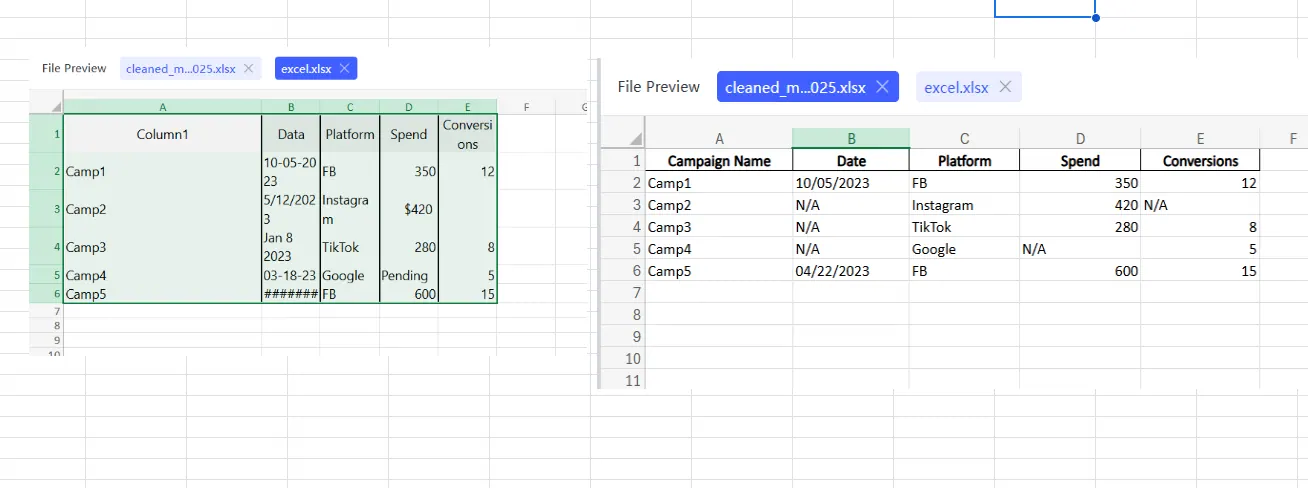
- No blank cells - use "N/A" for missing data
- One data type per column (no numbers mixed with text)
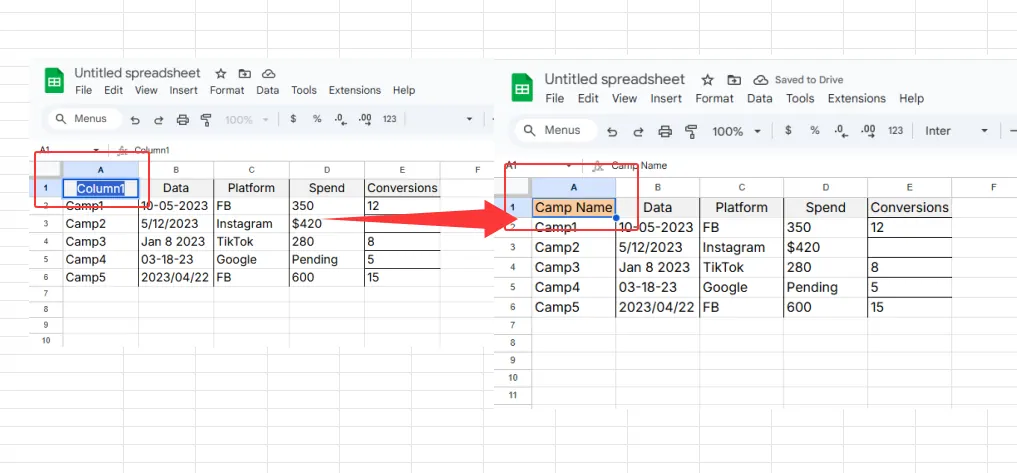
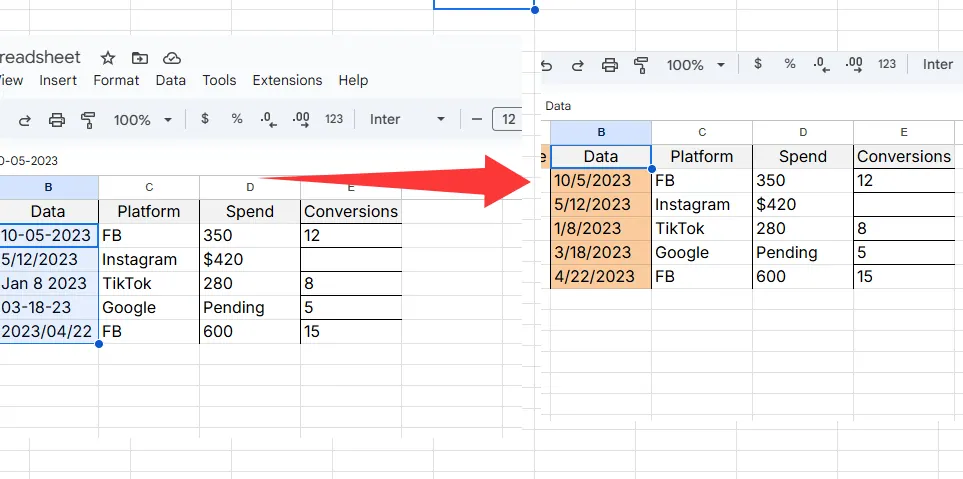
RowSpeak shortcut: Our AI automatically detects and fixes formatting issues as soon as you upload data. No more manual cleanup.
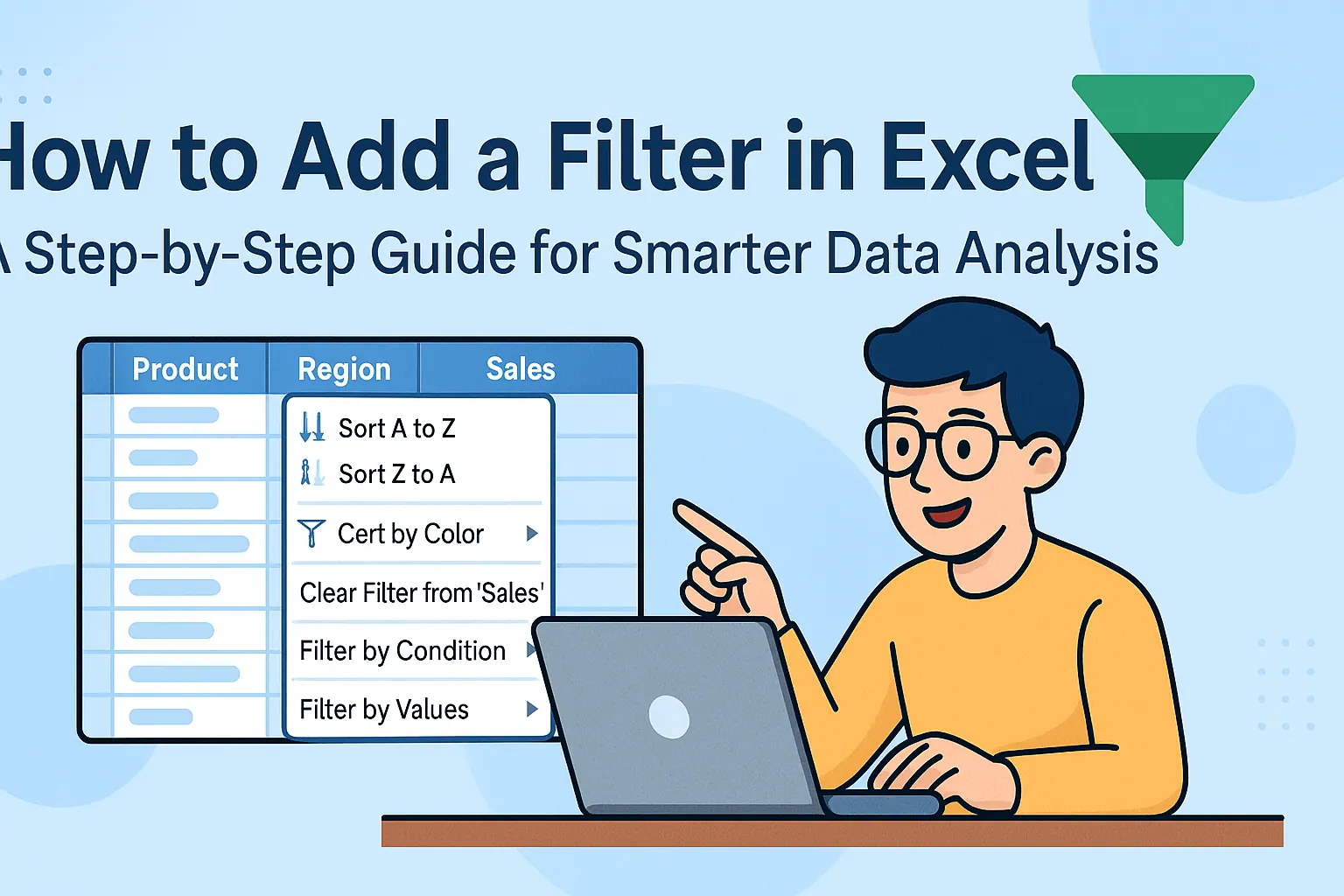
Step 2: Sort and Filter Like a Growth Hacker
These basic tools help spot trends instantly:
Sorting example:
Want to see top-performing campaigns? Sort your "Conversions" column descending.
Filtering example:
Only want Q3 Facebook ad data? Filter by date range and platform.
Why this matters: Last month, filtering revealed our underperforming ad sets - we reallocated that budget to 2X ROAS.
Step 3: Pivot Tables (Your New Best Friend)
Pivot tables transform chaos into clarity:
- Select your data
- Insert > PivotTable
- Drag fields to analyze (e.g., "Campaign" to rows, "Spend" to values)
Game-changing insight: We discovered our blog content drove 60% of signups - now it gets 80% of our content budget.
RowSpeak advantage: Describe what you need ("show spend by channel") and our AI builds the perfect pivot table instantly.
Step 4: Visuals That Actually Tell a Story
The right chart makes insights pop:
- Bar charts: Compare campaign performance
- Line graphs: Spot monthly trends
- Pie charts: Show budget allocation
Pro tip: Always add clear titles and axis labels. No one should need to decode your chart.
In RowSpeak: Our AI suggests the best chart type based on your data. One click and it's done.
Step 5: Must-Know Formulas for Marketers
These formulas saved me hours last quarter:
- =SUMIFS() - Total conversions for specific campaigns
- =AVERAGE() - Find typical CTR across ads
- =VLOOKUP() - Match customer IDs to their LTV
RowSpeak does this better: Just type "what's the average conversion rate for paid search" and get the answer instantly.
Level Up: From Spreadsheets to Smart Insights
While Excel works, our team switched to RowSpeak because:
✅ AI analyzes data in plain English - no formulas needed
✅ Auto-generates dashboards in seconds
✅ Detects trends we might miss
✅ Collaborates in real-time with stakeholders
Last month, RowSpeak spotted an underperforming geo-targeting setting we'd missed for weeks. That fix alone paid for the tool.
Ready to Work Smarter?
You now have two paths:
- The manual way: Follow these Excel steps (it works)
- The growth hacker way: Try RowSpeak free and let AI do the heavy lifting
Either way, you're now equipped to turn marketing data into growth. What insight will you uncover first?
About the author:
As RowSpeak's Growth Manager, I've analyzed over 10,000 marketing datasets. My mission? Help teams spend less time in spreadsheets and more time driving results.