If you've ever had to manually check invoices in Excel, you already know: it's a minefield.
Vendors change names slightly, currencies are inconsistent, dates are all over the place, and someone always forgets to mark the status column. The result? A report full of duplicates, mismatches, and a finance team that loses half a day just trying to find which invoices are still unpaid.
Let’s walk through what it actually takes to analyze an invoice log manually in Excel—and how using AI can cut that time from hours to seconds.
The Traditional Excel Way: Tedious but Familiar
Let’s say you're handed a spreadsheet with 30+ invoices.
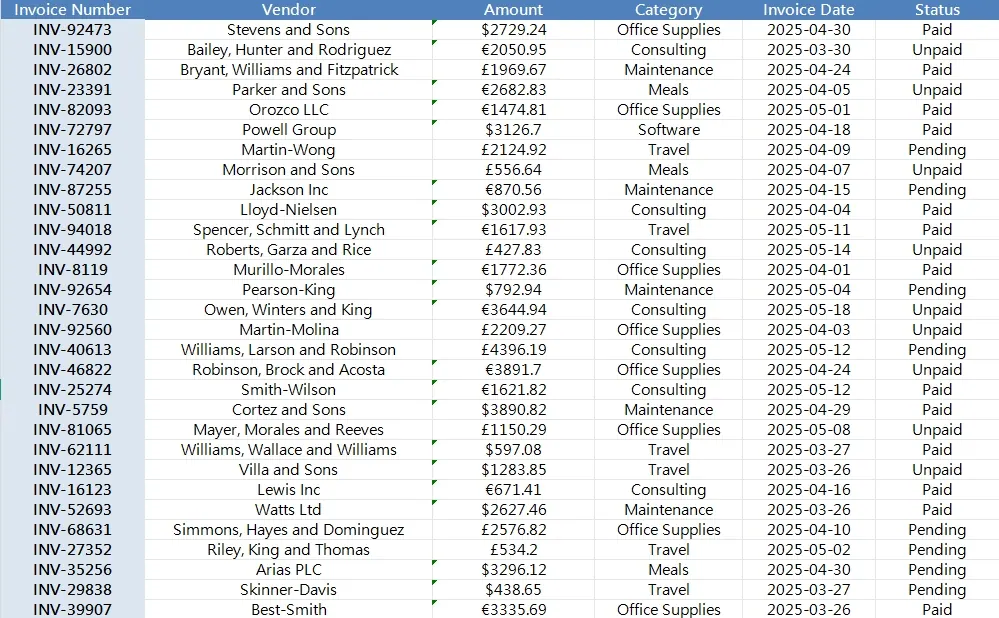
You need to:
- Clean the currency formatting so $2,100 and €2100 aren’t treated the same
- Split the currency symbol from the amount for calculations
- Check for duplicate invoice numbers
- Filter unpaid or pending invoices by date
- Group spending by category to catch overused cost buckets
- Flag invoices above $1000 in “Office Supplies” (because something’s fishy)
Here's what the traditional process looks like:
Step 1: Currency cleanup
Use LEFT, RIGHT, or MID to extract currency symbols and numeric amounts.
Or worse: manually type them out in two columns.
Step 2: Convert text to numbers
Because $2,100 is stored as a string, you’ll need to SUBSTITUTE() commas, wrap in VALUE(), and test it all with ISNUMBER().
Step 3: Check for duplicates
Use COUNTIF() or =IF(COUNTIF(A:A,A2)>1,"DUPLICATE","OK") on invoice numbers.
Step 4: Categorize and filter
Create pivot tables or SUMIFS() for category totals. Apply filters for statuses, dates, and conditions.
Step 5: Format and present Insert Bar Charts, color-code outliers, and cross-check totals with vendor reports.
Now repeat this for five different departments. Every month. In a rush.
The RowSpeak Way: Three Questions and Done
Now imagine uploading that same spreadsheet into RowSpeak, and simply asking:
“List all invoice numbers along with a column indicating whether they are unique or duplicated.”
→ RowSpeak Instant list output - no formulas, no filtering, just answers.
“Generate a summary of total expenses grouped by category, including currency breakdown.”
→ Within seconds, you get a clean table: categories, totals, currency details. Perfect for team budget reviews.
“Help me filter invoices issued in the last 30 days with Status set to Unpaid.”
→ You get a filtered, audit-ready list. Ready to email. Ready to act on.
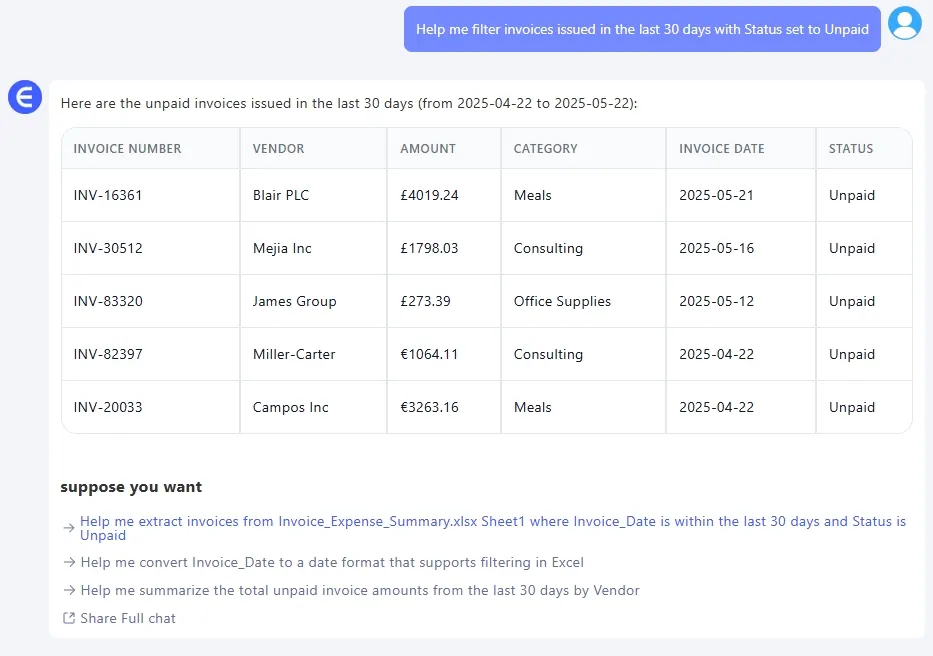
No formulas. No manual steps. Just structured answers, visual summaries, and peace of mind.
Why This Matters
Most finance teams don’t struggle with Excel because it’s too complex. They struggle because it’s too manual.
AI tools like RowSpeak don’t change the data. They change the relationship you have with it.
Instead of formatting columns and guessing which filter to apply, you just ask. And you get answers in seconds.
Manual vs RowSpeak – Quick Comparison
| Task | Traditional Excel | RowSpeak |
|---|---|---|
| Clean currency/amount fields | SUBSTITUTE, VALUE, etc. |
Done automatically |
| Group totals by category | Pivot Table / SUMIFS() |
One prompt, one summary |
| Find duplicates | COUNTIF() |
Direct result, no formulas |
| Filter unpaid large invoices | Custom filter logic | Ask in plain English |
| Time spent | 30–60 minutes | < 2 minutes |
Final Thoughts: Better Data, Better Decisions
If you're still managing invoices the old way, you're not alone. But you’re also working harder than necessary.
Tools like RowSpeak don’t replace your finance brain—they just speed it up. You still run the show. The AI just gets the boring stuff out of the way.
So next time you’re handed a messy invoice tracker, don’t open a blank sheet and sigh. Upload it, ask smart questions, and move on to something that actually deserves your brainpower.Try RowSpeak FREE now!