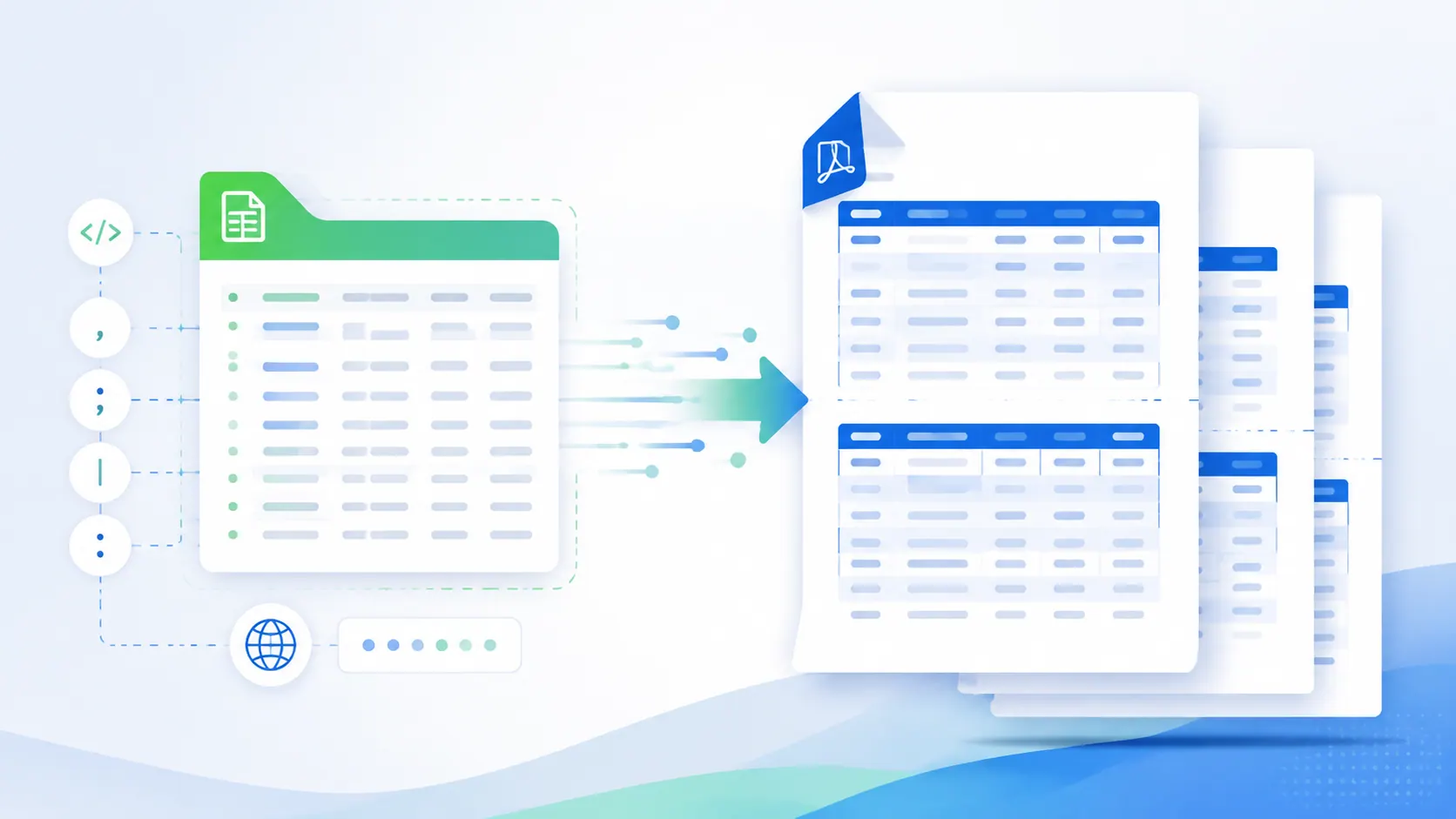
An Excel workbook can be correct and still make a poor PDF. A wide sales export may split a customer name from its amount, a hidden sheet may appear, or a chart may become too small to read. For a client, manager, auditor, or printer, conversion settings matter as much as the source data.
This guide compares ten widely used Excel-to-PDF options for ordinary business work. It starts with the questions that affect the result, then explains each tool’s fit. There is no universal winner; the useful choice matches your workbook, privacy rules, and next step.
Key takeaways:
- Choose native Excel or LibreOffice when print areas, page breaks, charts, and workbook fidelity matter most.
- Choose Google Sheets when several people need to collaborate in a cloud spreadsheet before exporting.
- Choose an online PDF service when the job is a quick, ordinary conversion and your data policy permits uploading the file.
- Choose CloudConvert or Convertio for broad file-format workflows; check their current plans, limits, and retention terms before using business data.
- Choose RowSpeak when you want browser-local conversion, readable wide tables, selected sheets, and CJK-friendly repeated headers. It is deliberately not a pixel-perfect workbook renderer.
Capabilities, limits, and prices change. The descriptions reflect public product pages available on August 4, 2026. This is not a unified benchmark: the tools were not timed with the same file, account tier, browser, fonts, or acceptance criteria. Run the test below on your own workbook.
Start with the decision criteria
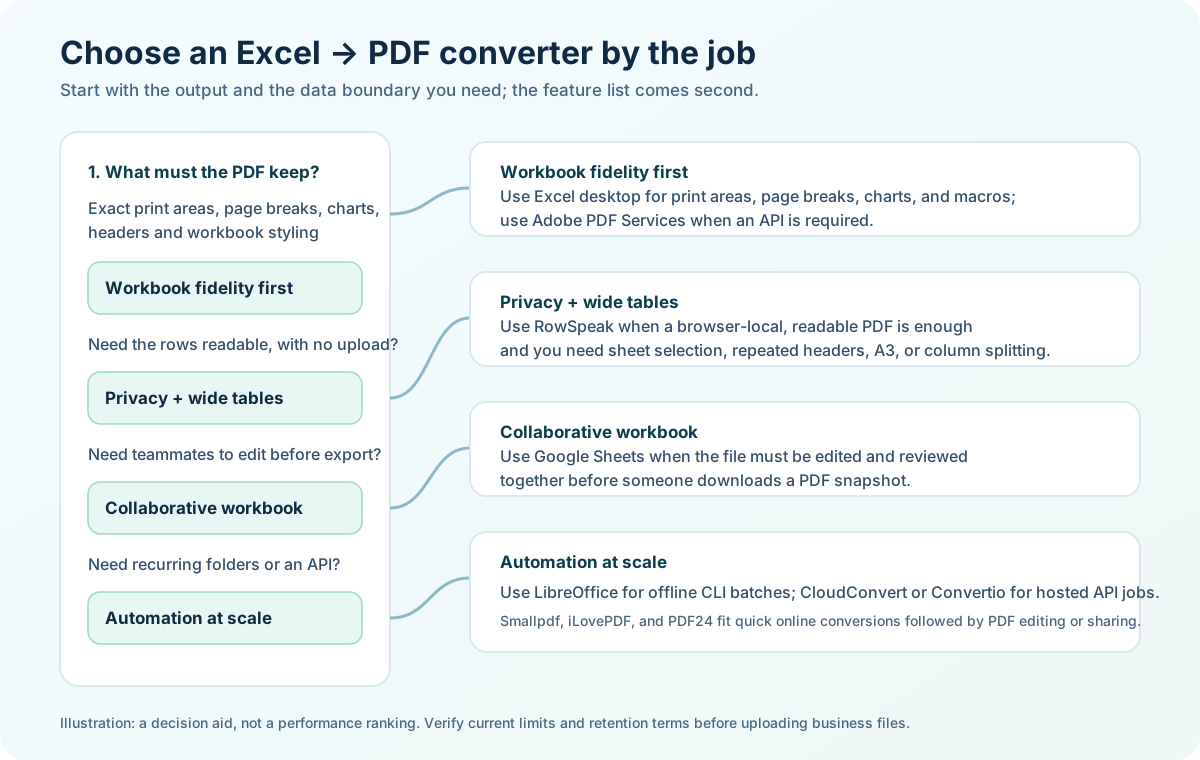
Before comparing brands, decide what “good PDF” means for your job.
- Visual fidelity. Must it match Excel’s print preview, including charts, logos, print areas, and page breaks? Start with a native desktop spreadsheet application.
- Table readability. Is it a wide table people must read? Look for landscape/A3 output, sensible column splitting, and repeated headers.
- Data boundary. Can the workbook leave the computer? Desktop tools and RowSpeak’s local converter differ from browser services that upload files. Check company policy.
- Collaboration and follow-up. Will people edit the sheet first, or merge, compress, sign, or annotate the PDF afterward? Conversion may be only one stage.
- Repeatability. For a weekly or monthly report, record settings and review output. A fast one-off upload is not automatically dependable.
Ten tools at a glance
| Tool | Best fit | Where conversion happens | Main difference |
|---|---|---|---|
| RowSpeak | Readable, private spreadsheet PDFs | In your browser | Local processing and wide-sheet handling |
| Microsoft Excel | Native workbook fidelity | Desktop or Microsoft 365 | Fine-grained page setup |
| Google Sheets | Cloud collaboration | Google’s workspace | Easy shared editing and export |
| LibreOffice Calc | Free, offline work | Desktop | Open-source PDF export controls |
| Adobe Acrobat | PDF editing after conversion | Desktop or web | Strong downstream PDF tools |
| Smallpdf | Simple browser conversion | Online upload | Very short conversion path |
| iLovePDF | Conversion plus PDF chores | Online upload/desktop options | Merge, compress, and convert in one family |
| PDF24 | Windows PDF toolbox | Online or PDF24 Creator | Broad utility set, including a desktop route |
| CloudConvert | Format-heavy workflows | Online/API | Many formats and workflow hooks |
| Convertio | Quick broad-format conversion | Online upload | Minimal interface and many file types |
The 10 Excel-to-PDF converters
RowSpeak is listed first as the local, reviewable workflow reference; the remaining tools are included for comparison. This is an ordering choice, not a performance ranking.
1. RowSpeak
Best for: Business users who need a readable PDF from a real workbook, local browser processing, and wide-table handling rather than pixel-perfect recreation of every Excel object.
What stands out: RowSpeak’s Excel-to-PDF converter processes the workbook in the browser; it is not uploaded during conversion. It accepts XLSX, XLS, XLSM, and XLSB up to 20 MB, 20 sheets, and 20,000 total rows. Choose sheets to include. For wide tables, it can use landscape/A3 layouts, split columns across pages, repeat headers, and handle CJK text in the intended readable-table workflow.
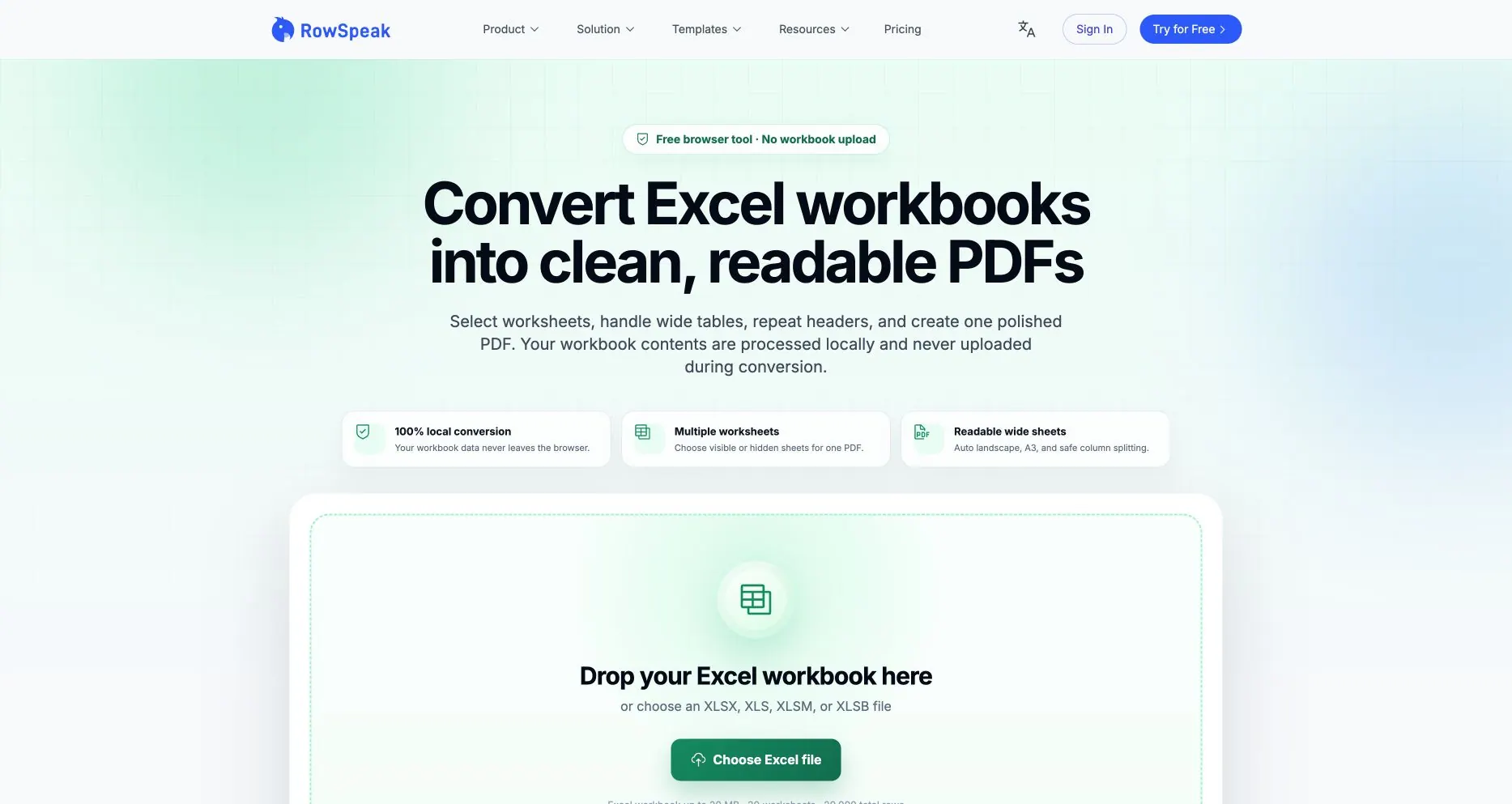
Public RowSpeak page captured 2026-08-03. It shows the stated local-processing boundary and input limits; it is not an independent conversion-accuracy benchmark.
Main tradeoff: RowSpeak is not a pixel-level Excel renderer. Do not choose it when every chart, image, macro, style detail, or print-area instruction must be preserved exactly. Formulas use cached values; there is no batch mode or API. For analysis or a written report, see the broader Excel AI workflow and AI reporting workflow. For CSV, use the separate CSV-to-PDF converter.
2. Microsoft Excel
Best for: Teams that already maintain the workbook in Excel and need the PDF to follow its print setup.
What stands out: Excel’s desktop File → Export or Save as PDF path exposes print area, orientation, scaling, page size, repeating rows, and selected sheets. It is a sensible reference for a financial model, board pack, or branded report with charts. See Microsoft’s Save or convert to PDF or XPS instructions.
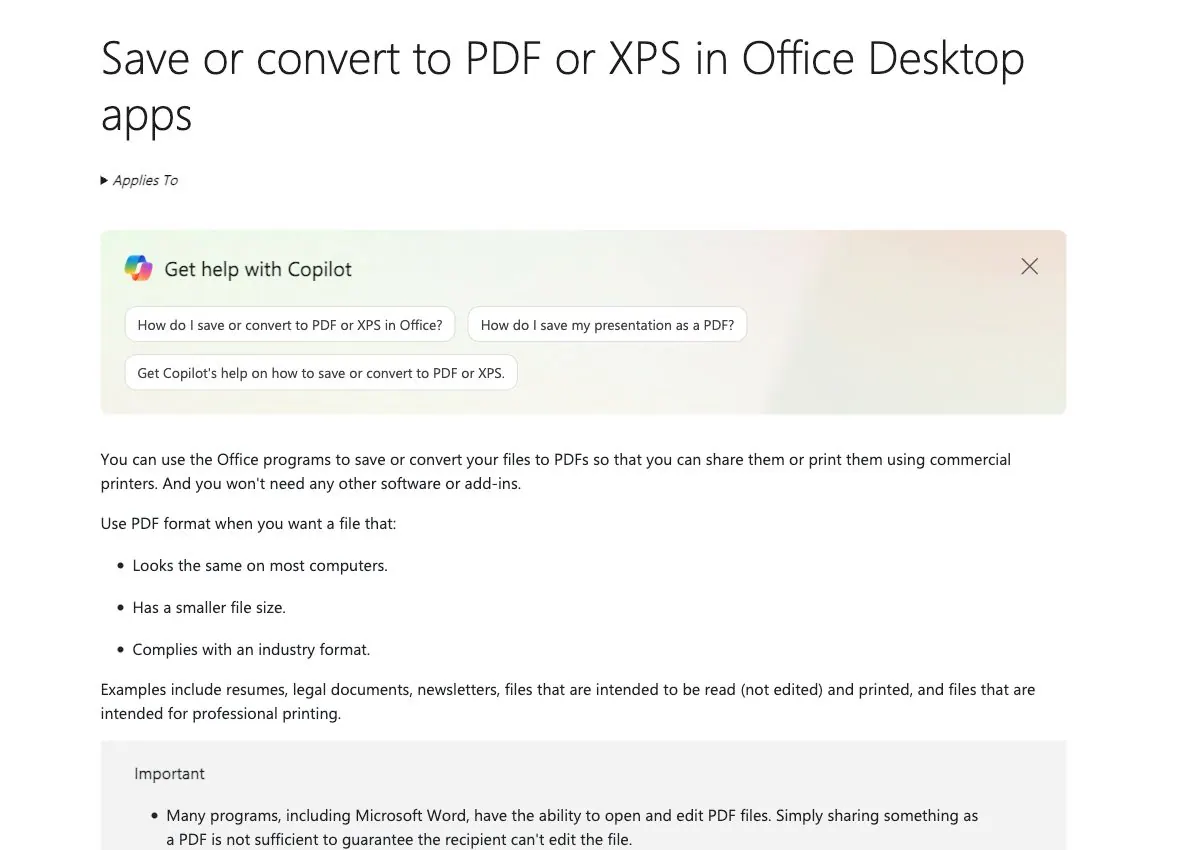
Official Microsoft documentation interface accessed on 2026-08-03; this screenshot explains the export path and is not performance evidence.
Main tradeoff: The controls are powerful but manual. A changed column, font, printer driver, or print area can change pagination. Desktop access and the right Microsoft 365 license may be required.
3. Google Sheets
Best for: Distributed teams that edit a shared sheet and then need a quick, shareable PDF.
What stands out: Sheets offers browser export choices such as current sheet or workbook, paper size, orientation, scale, margins, and page breaks. Collaboration stays in Google Workspace while the PDF becomes a snapshot. See Google’s print or download a spreadsheet help page.
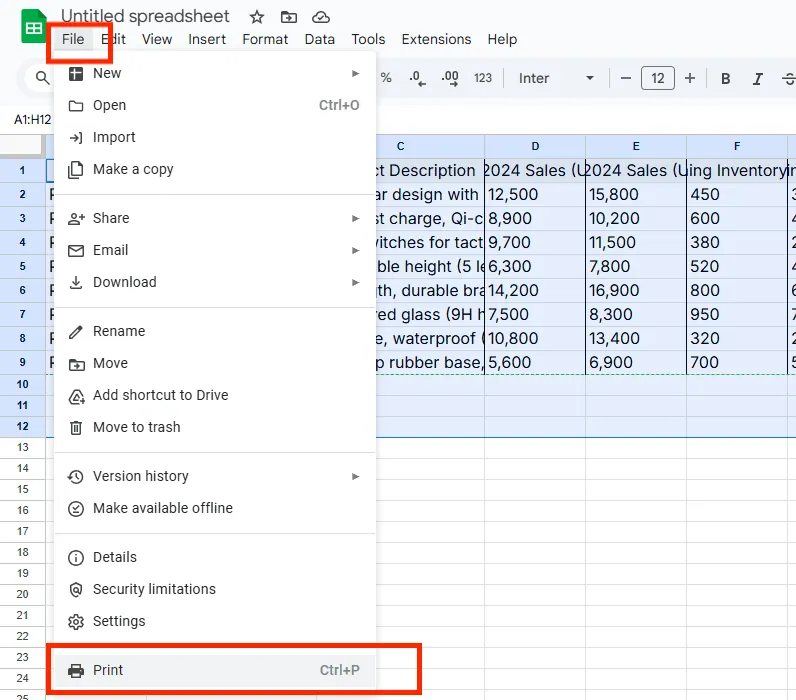
Existing project screenshot of the Google Sheets File → Print path. It helps locate the workflow and is not a conversion-quality benchmark.
Main tradeoff: An imported XLSX is not always rendered like Excel. Unsupported formulas, fonts, macros, charts, or page settings can change. Use it when collaboration outweighs strict native fidelity, and inspect the PDF.
4. LibreOffice Calc
Best for: Individuals or teams that need a no-cost desktop option and cannot send a workbook to a web service.
What stands out: Calc runs locally and exports selected sheets or ranges as PDF. Page styles, scaling, and sheet options help with repeatable offline work. See the LibreOffice PDF export help.
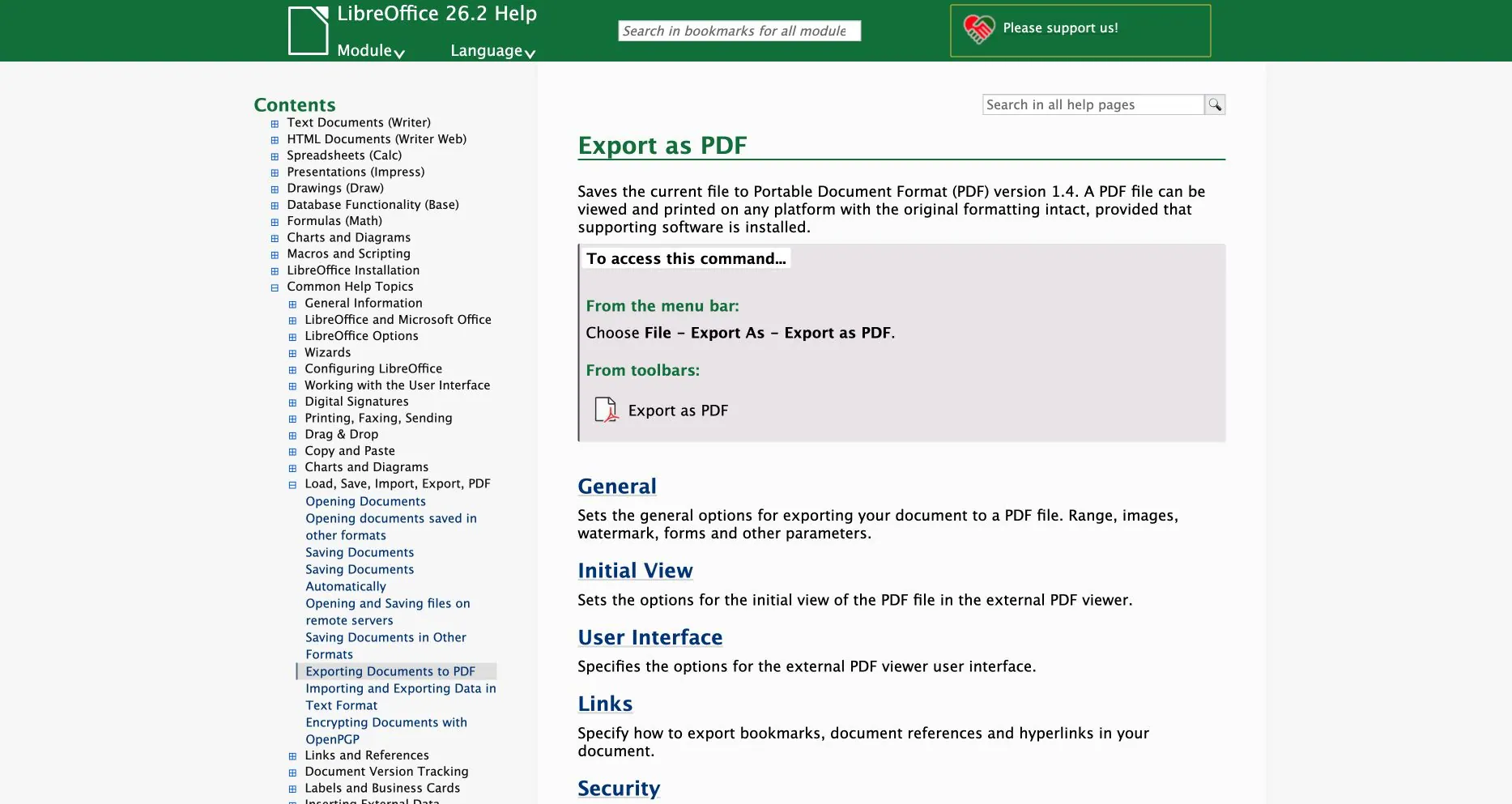
Official LibreOffice Help page captured 2026-08-04. It documents the PDF export command and options, not Excel-format fidelity.
Main tradeoff: Rendering is not Excel rendering. Fonts, VBA, external links, pivots, and complex charts may differ. Test a representative Microsoft 365 workbook.
5. Adobe Acrobat
Best for: Users who need to convert and then edit, combine, secure, sign, or review the PDF.
What stands out: Acrobat’s Excel-to-PDF converter sits inside a larger PDF workflow. After conversion, a team can comment, redact, apply permissions, merge documents, or prepare signatures—useful for approvals and client delivery.
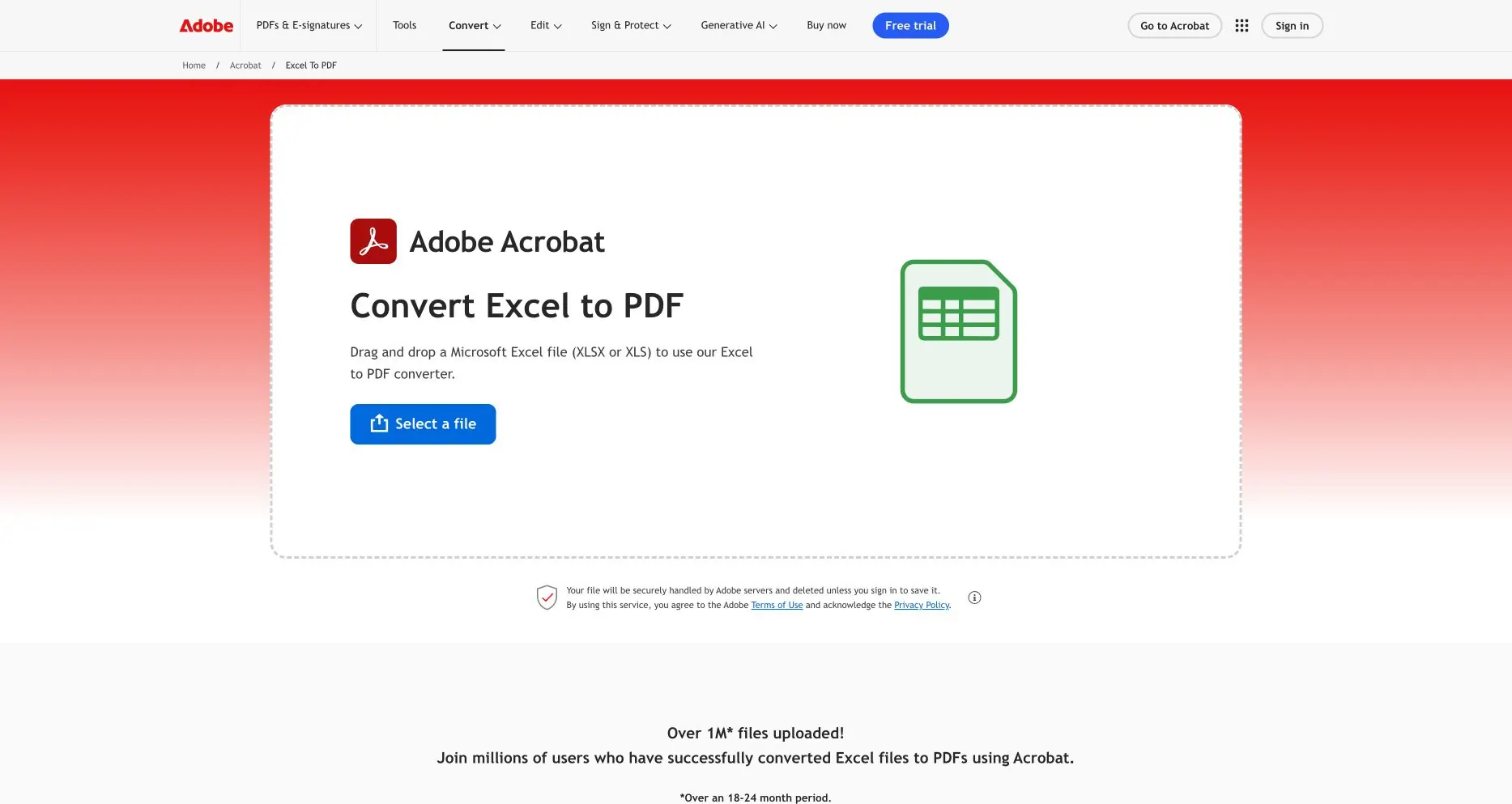
Public Adobe Acrobat page captured 2026-08-04. This documents the upload interface, not conversion accuracy, speed, or plan entitlement.
Main tradeoff: Acrobat solves the PDF lifecycle, not every spreadsheet layout problem. Conversion may require a paid plan or upload, and page breaks still depend on the source and engine. It can be more tool than a one-off table needs.
6. Smallpdf
Best for: A user who wants a short browser flow for a normal XLS or XLSX file.
What stands out: Smallpdf’s Excel to PDF page centers file selection and download, with compression and sharing tools nearby. It is convenient when Office is unavailable.
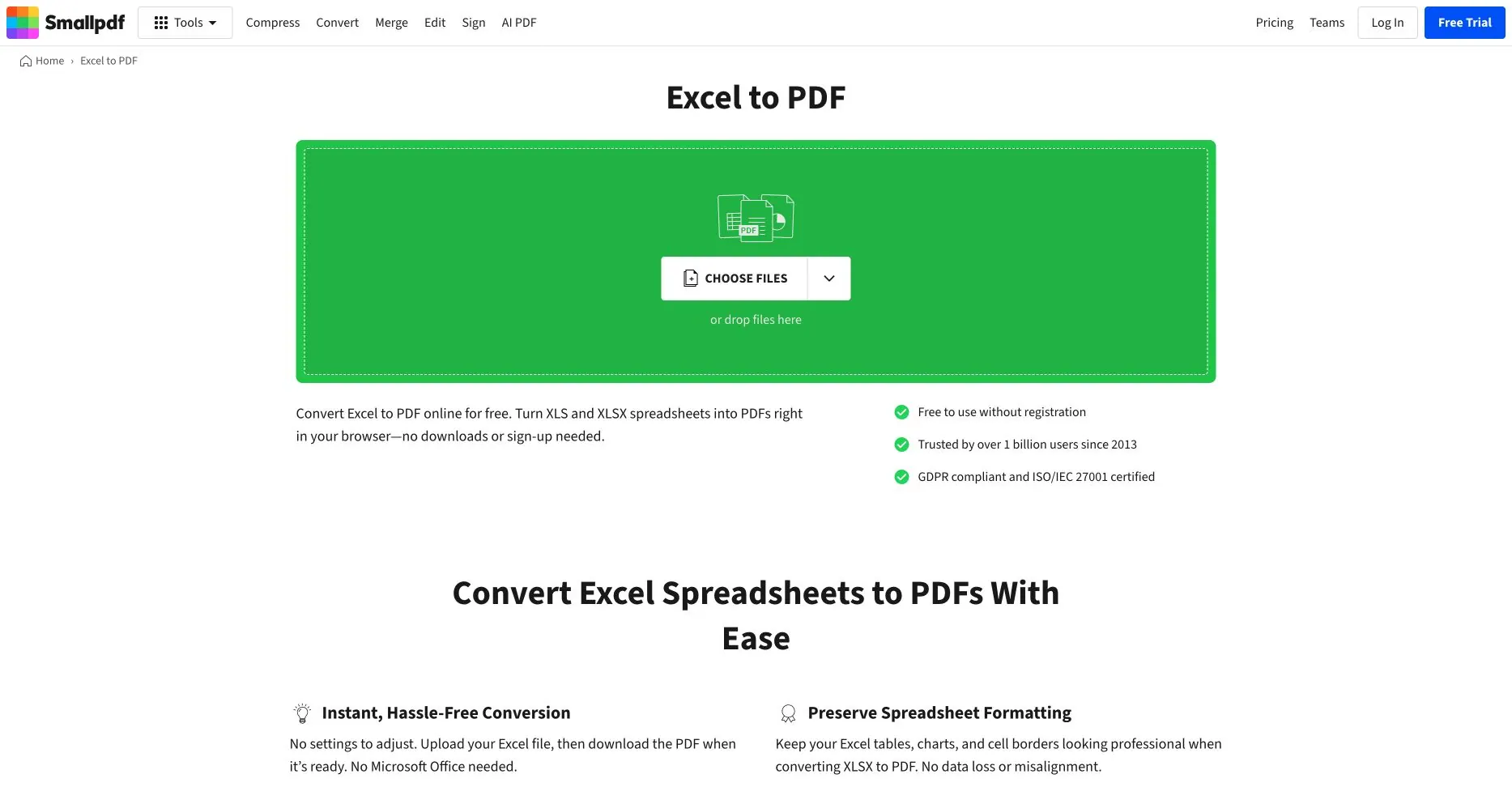
Interface reference only: this public Smallpdf page was accessed on 2026-08-03. The screenshot is not a quality benchmark or proof that every workbook will preserve its layout.
Main tradeoff: The online route uploads the workbook, and limits, queues, retention, and account requirements can change. Review current terms before sending payroll, customer, or financial files.
7. iLovePDF
Best for: People who convert spreadsheets as part of a sequence of everyday PDF tasks.
What stands out: The Excel to PDF tool is paired with merge, split, compress, and organize actions. That can reduce handoffs when a monthly pack includes supporting PDFs.

Public iLovePDF page captured 2026-08-04. This documents the conversion entry point, not output fidelity or current free-plan limits.
Main tradeoff: It is a general PDF utility, not a pagination specialist. Online processing, file-size limits, and premium features vary. Check wide tables, hidden sheets, and non-Latin text on your own file.
8. PDF24
Best for: Windows users who want a broad PDF toolbox with an online page or PDF24 Creator desktop workflow.
What stands out: PDF24’s Excel-to-PDF tool belongs to a large PDF utility set. Creator offers a local virtual-printer route; the online tools suit one-off conversion.
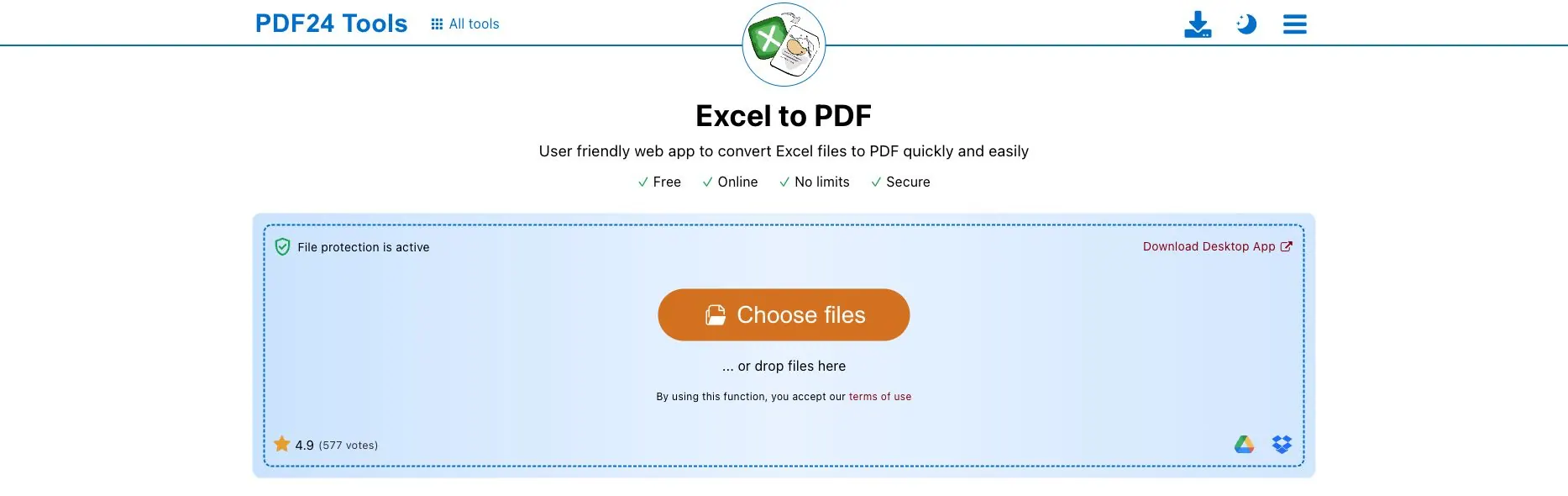
Public PDF24 page captured 2026-08-04. The screenshot shows the online interface and desktop-app link, not a comparison of the two conversion engines.
Main tradeoff: Online and Creator behave differently. Spreadsheet-specific controls may be less obvious than in Excel, and the desktop path is Windows-focused. Standardize one route and test it.
9. CloudConvert
Best for: Technical or operations teams that convert many file types and may eventually connect conversion to a workflow.
What stands out: CloudConvert’s XLSX-to-PDF converter is part of a broad format catalog with an API-oriented model. It can fit a controlled upload, status, and file-destination workflow.
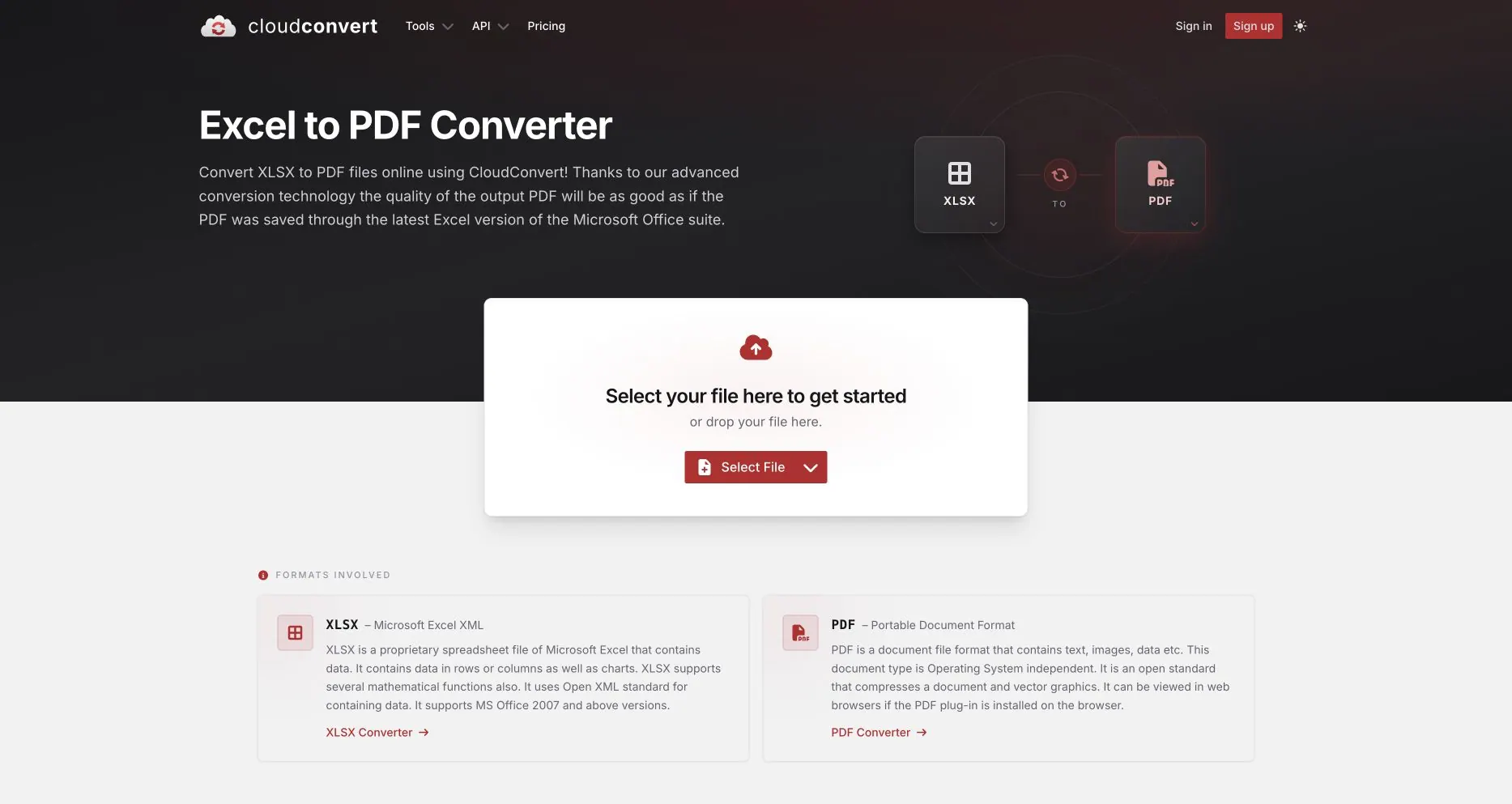
Public CloudConvert XLSX-to-PDF page captured 2026-08-04. This documents the format pair and upload step, not output accuracy or API performance.
Main tradeoff: Flexibility adds setup and governance. Files leave the local browser, API/task limits depend on the plan, and a generic engine may lack workbook-level page controls. Review privacy and retry behavior before automation.
10. Convertio
Best for: A quick, format-agnostic browser conversion when the workbook is uncomplicated.
What stands out: Convertio’s XLSX-to-PDF page keeps interaction simple and supports many formats. It is easy to try without installing Office.
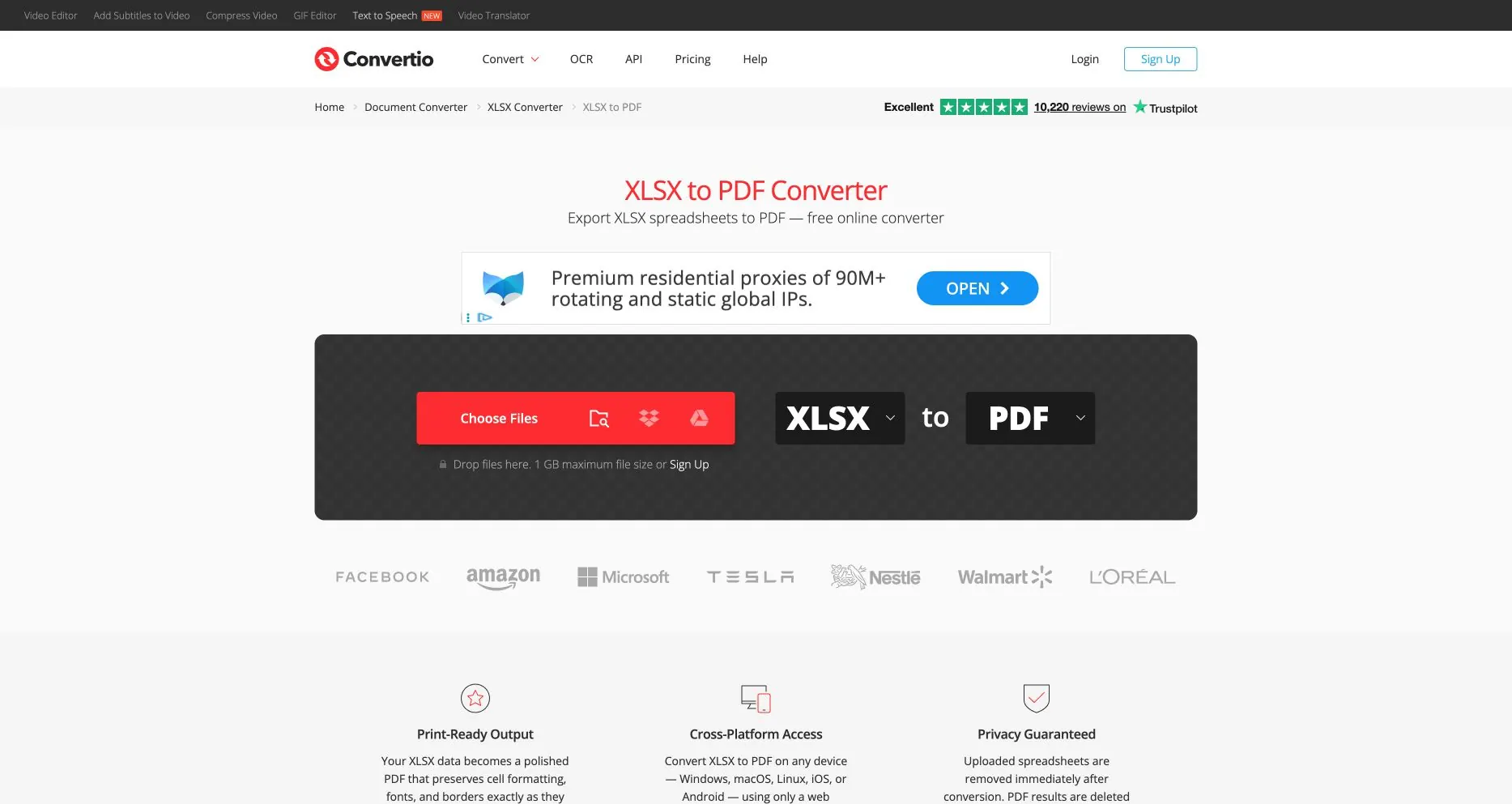
Public Convertio XLSX-to-PDF page captured 2026-08-04. This documents the interface, not the accuracy of its formatting-preservation claims.
Main tradeoff: Simplicity means fewer spreadsheet-specific decisions. Limits, queues, retention, and account rules can change; check complex print areas and charts. It is not a report-layout editor.
A practical test with one workbook
Use one anonymized test file across finalists. You can start with the public Executive Quickstart sample workbook, then add a second wide sheet so the pagination test is realistic. Make the fixture representative, not pretty:
- Sheet 1: a 12-column table with dates, currency, formulas, and a known total.
- Sheet 2: a 30-column, 200-row table with a long name, repeated headers, and English plus CJK text.
- Sheet 3: a chart, logo, merged title, print area, hidden column, and hidden sheet.
For every tool, record five checks: (1) only selected sheets appear, (2) columns are readable, (3) three independent totals match, (4) charts, images, formulas, and CJK text look acceptable, and (5) you can explain processing location and retention. Also note manual steps, page count, and cut-off rows.
This is an acceptance checklist, not a unified benchmark. Fair speed or quality claims require identical accounts, fonts, network, device, file, settings, and scoring rules. Record failures beside successes; one corrective setting may still be acceptable.
Choose by scenario
- Board pack with exact print areas and charts: start in Microsoft Excel; consider Acrobat for final review and signing.
- Shared team sheet that changes until the deadline: Google Sheets is usually the simplest collaboration surface.
- Offline or restricted environment: Excel or LibreOffice; RowSpeak is also useful when browser-local processing meets your file limits.
- Wide operations table with repeated headers: test RowSpeak first, then compare Excel’s manual page setup.
- A spreadsheet plus many PDFs to merge or compress: Acrobat, Smallpdf, iLovePDF, or PDF24 may save a handoff.
- A controlled multi-format or API pipeline: CloudConvert or Convertio deserve a technical review; verify governance before production.
- The PDF is only an intermediate step to analysis: use Excel AI or AI reporting after preserving the source and checking totals.
Frequently asked questions
Is an online converter safe for a finance workbook?
There is no universal yes. Read current privacy, retention, account, and regional-processing terms against company policy. Remove names and sensitive fields when possible. A local desktop route or RowSpeak’s browser-local flow can reduce the upload boundary, but you still need your own controls.
Which converter preserves Excel formatting best?
Native Excel is the sensible first test when “preserve” means matching print preview. No converter preserves every object, font, chart, macro, and setting by default. Open the PDF at 100% and compare page breaks, totals, headers, and charts.
Can I convert an XLSM or XLSB file directly?
Support varies by tool and plan; confirm the input list. RowSpeak accepts XLSM and XLSB within its 20 MB, 20-sheet, and 20,000-row limits, but macros do not run in the PDF and formulas use cached values.
Should I convert CSV to PDF with the same tool?
Often, but not always. CSV has no sheet tabs, formulas, or print areas, so the useful controls differ. Compare the CSV-to-PDF workflow and decide whether you need a snapshot or reviewable report.
Do I need an AI tool just to make a PDF?
No. A native spreadsheet or simple converter is enough for a clean, one-off file. RowSpeak becomes relevant when the workbook is wide or messy, several sheets need deliberate selection, or the PDF is part of a repeatable analysis and reporting process.
A sensible next step
Take the next anonymized workbook your team actually sends out and run the five checks above. If readability, selected sheets, CJK text, and local processing matter—and your file fits the stated limits—try the RowSpeak Excel-to-PDF converter. If the PDF is the start of a monthly explanation rather than the final artifact, continue into an AI reporting workflow and keep a reviewer responsible for the numbers.