A CSV can contain the right rows and still turn into a poor PDF. A delimiter can be read as part of a value, a long account ID can lose its leading zeros, and a wide table can be split so that the headers no longer make sense. The right converter depends on what you need to preserve and what happens after the PDF is created.
This guide compares ten commonly considered CSV-to-PDF tools by workflow. It is not a universal market-share ranking or a shared accuracy benchmark. Vendor limits, prices, retention policies, and plan access change, so use the links as starting points and verify the current terms before a production upload.
Key takeaways:
- Use Excel, Google Sheets, or LibreOffice when the CSV needs cleaning, formulas, or charts before you publish a PDF.
- Use a hosted converter for a quick one-off export, but check where the file is processed, how long it is kept, and whether the layout options are enough for a wide table.
- Use CoolUtils or LibreOffice for local batch work, and use an API product such as Aspose, GroupDocs, CloudConvert, Convertio, or Zamzar when a system must create PDFs repeatedly.
- RowSpeak is a strong fit when a sensitive CSV must stay in the browser while you preserve encoding, delimiters, long IDs, CJK text, repeated headers, and readable wide-table pages. The converter is not a spreadsheet editor, batch queue, or API.
- Test every candidate with known row counts, totals, negative values, dates, and leading zeros. A PDF that looks polished is not proof that the data was interpreted correctly.
The short answer: which CSV to PDF tool should you choose?
Start with the output your team needs:
| If your main need is… | Start by testing… | Why |
|---|---|---|
| A private, readable PDF from one business export | RowSpeak | The conversion runs locally in the browser and handles wide tables and text-safe IDs. |
| Edit, clean, calculate, then export | Excel, Google Sheets, or LibreOffice Calc | You can inspect the rows before creating a fixed snapshot. |
| A quick cloud conversion with no setup | CloudConvert, Convertio, Zamzar, or GroupDocs | Upload, convert, and download in a few steps. |
| Scaling, watermarking, or a developer integration | Aspose.Cells or an API from CloudConvert, Convertio, GroupDocs, or Zamzar | These products expose programmatic jobs or additional output controls. |
| Offline folder or scheduled batch conversion | LibreOffice CLI or CoolUtils Total CSV Converter | The files can stay on a local machine or server. |
The decision map below turns those rules into a quick starting point. It is a selection aid, not a claim that one product wins every test.
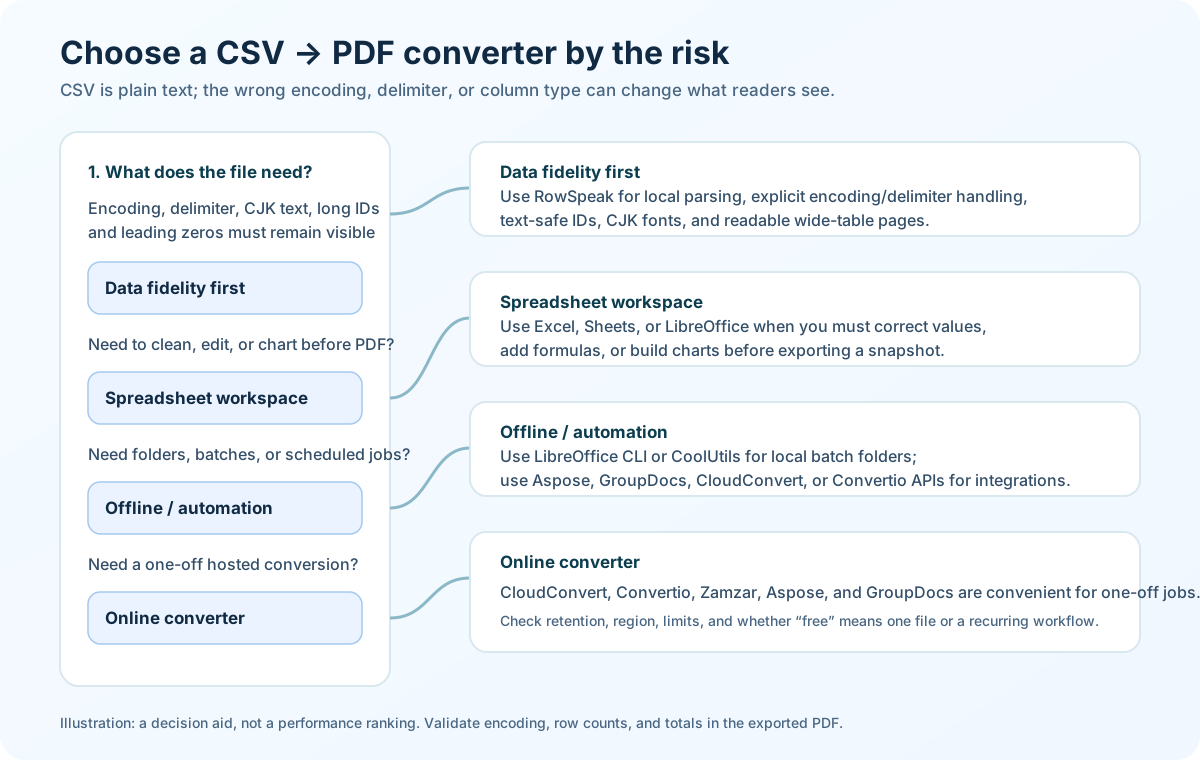
Use this diagram to choose a first test. Confirm current limits and retention terms on the vendor page before uploading business data.
What matters before you compare tools
1. Does the converter read the file the way you do?
CSV does not carry a universal visual layout. The file may be comma-, semicolon-, tab-, or pipe-delimited. It may use UTF-8, UTF-16, Windows-1252, or a regional encoding. A value such as 000123 is an identifier, not the number 123. A date such as 08/01/2026 can mean different days in different locales.
Ask the tool to show or let you confirm the encoding, delimiter, header row, and text columns before you trust the PDF. If it silently guesses, compare the imported row count and a few control values with the source.
2. Can the PDF be read on paper and on a screen?
For wide exports, look for landscape or A3 options, sensible column splitting, repeated table headers, page numbers, and a minimum font size. “Conversion succeeded” is not enough if the last six columns are cut off or appear on a page without their labels.
3. What happens to the source file?
Online tools require an upload, even when the interface feels simple. Check the vendor’s current retention and deletion statement, processing region, account requirements, and whether a free plan changes those terms. For payroll, customer, or financial exports, use an anonymized fixture first and follow your organization’s data policy.
4. Is this a one-off or a recurring workflow?
A one-time PDF needs a convenient interface. A weekly or nightly PDF needs a stable import rule, a repeatable layout, an audit trail, and often an API or command-line path. Choose for the next ten runs, not only the first click.
10 CSV to PDF converters to consider
RowSpeak is listed first as the browser-local reference for readable business exports; the remaining tools follow the workflow categories above. This is an ordering choice, not a score from one to ten.
1. RowSpeak
Best for: A sensitive or messy business CSV that needs a readable PDF without sending the source file to a conversion server.
What stands out: RowSpeak’s CSV to PDF tool reads the file in the browser. The current page states a 10 MB and 10,000-data-row limit and supports UTF-8, UTF-16, GB18030, and Windows-1252, plus comma, semicolon, tab, and pipe delimiters. It keeps long IDs and leading zeros as text, supports CJK fonts, repeats headers, and can use landscape/A3 and safe column splitting for wide tables. Three visual themes let you choose a calmer, finance-oriented, or minimal result.
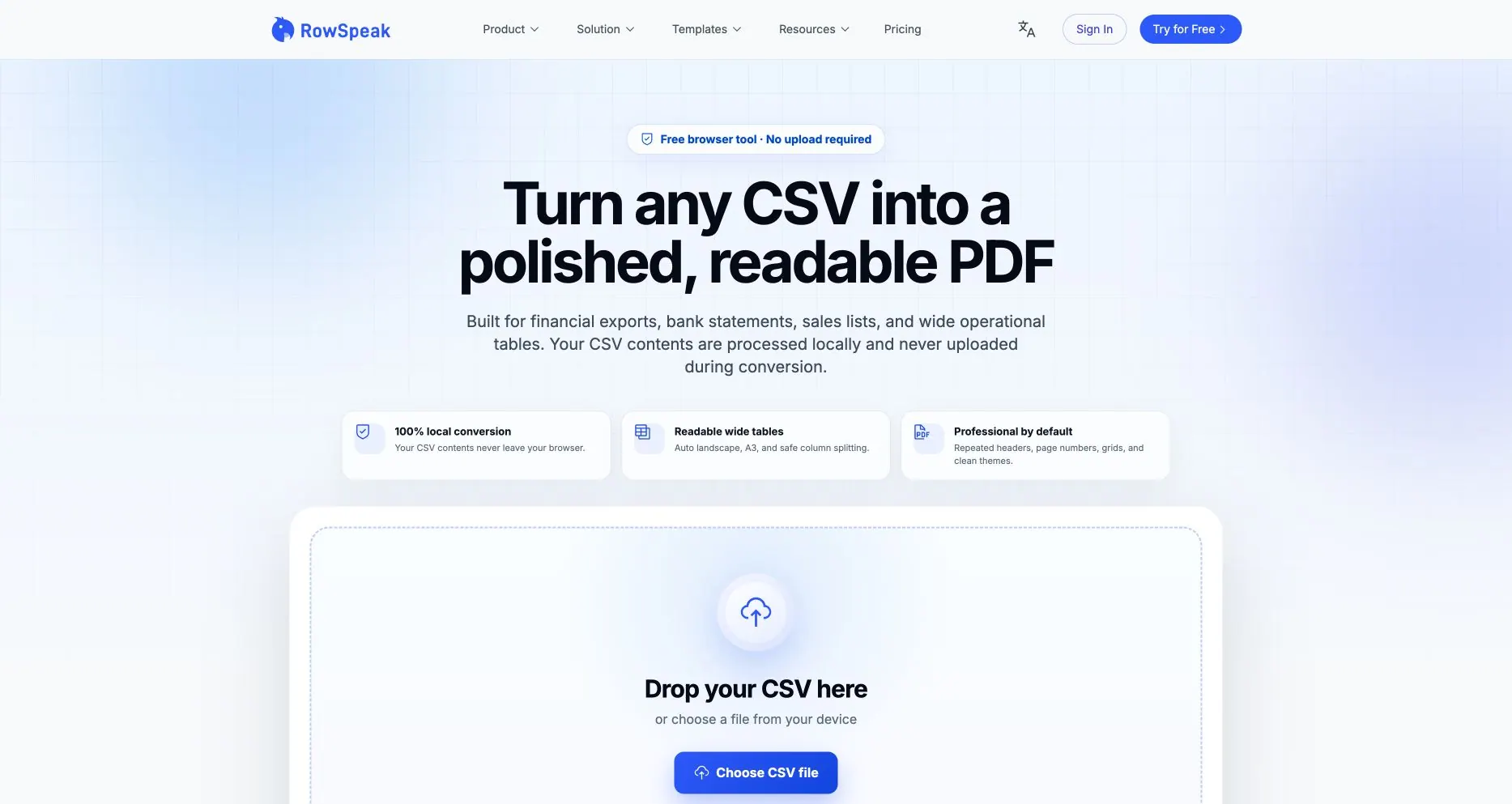
Public RowSpeak page captured 2026-08-03. It shows the tool’s stated interface and limits; it is not an independent accuracy benchmark.
Main tradeoff: This converter is deliberately focused. It does not edit cells, queue a folder, or expose a conversion API. It also standardizes PDF presentation rather than promising pixel-for-pixel reproduction of an existing spreadsheet. If the CSV needs interpretation, recurring analysis, or a management narrative after conversion, continue with RowSpeak’s AI reporting workflow or a monthly CSV reporting workflow. For the reverse direction, use PDF to Excel.
2. Microsoft Excel
Best for: Teams that already own the workbook workflow and need to clean or format the CSV before exporting.
What stands out: Excel lets you inspect the imported data, set column types, format dates and numbers, define a print area, and use the desktop Save As → PDF path. Microsoft’s official PDF guidance also explains that PDF is a fixed sharing/printing format and that internal spreadsheet links are lost during conversion. VBA can automate repeated exports when the workbook is controlled.
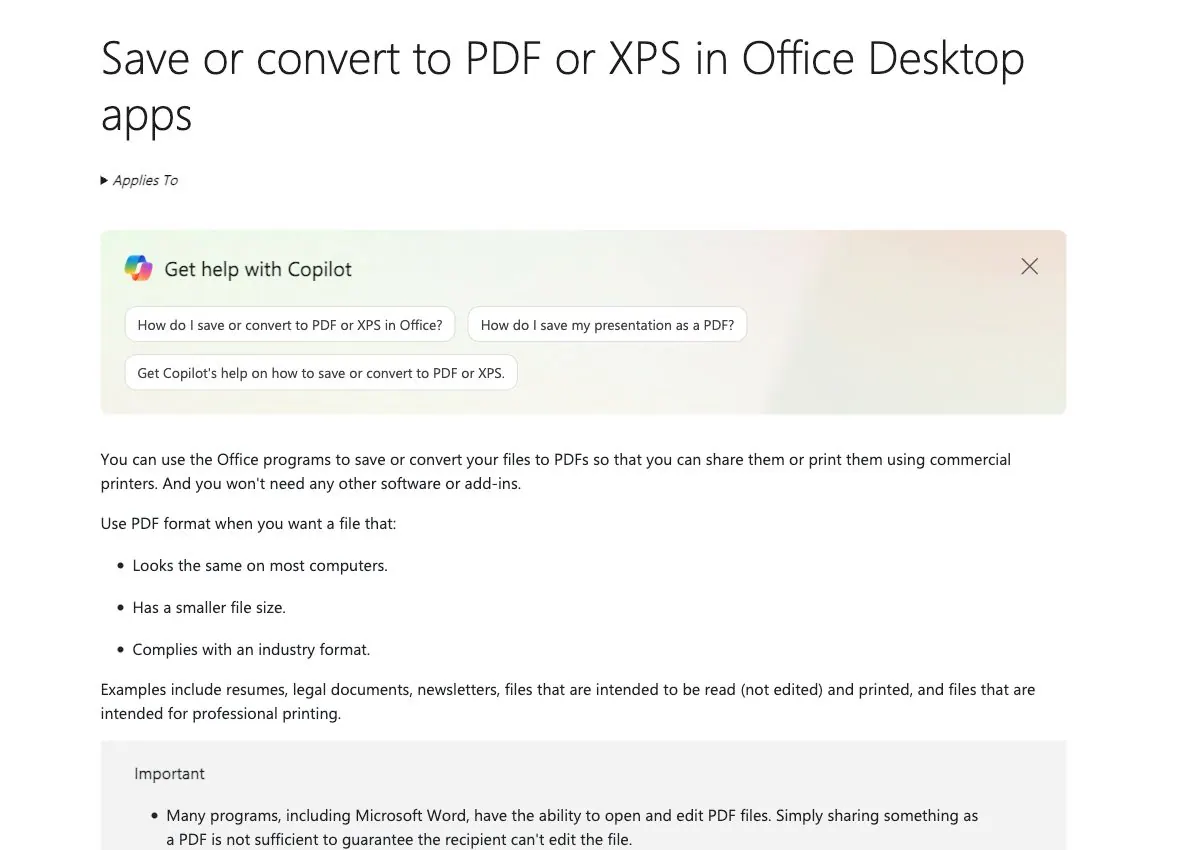
Official Microsoft documentation screenshot from the project. It explains the native Office export route and is not evidence that CSV import types were interpreted correctly.
Main tradeoff: Excel is powerful, but the import step can silently infer a type that is wrong for an ID or date. It is also easy for a manual print setting to drift between people or months. Re-open the exported PDF and reconcile it with the source.
3. Google Sheets
Best for: Teams that need collaborative edits and comments before downloading a PDF.
What stands out: You can import a CSV into Sheets, adjust the sheet and print settings, then use the documented download-as-PDF workflow. Comments, sharing, and version history are useful when several people review the same export.
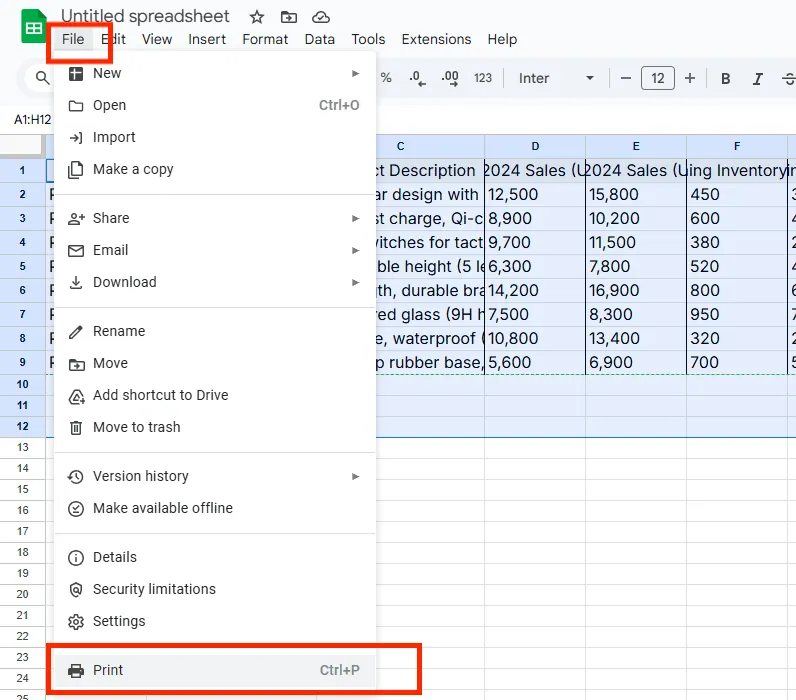
Existing project screenshot of the Google Sheets File → Print path. It helps locate the PDF workflow and is not proof that CSV dates, IDs, or delimiters were imported correctly.
Main tradeoff: The CSV is uploaded to Google’s environment and may be reinterpreted during import. Check locale, date parsing, and long identifiers before sharing the PDF. Sheets is a collaborative spreadsheet, not a purpose-built wide-table typesetting tool.
4. LibreOffice Calc
Best for: Users who want a free, local desktop workflow or a scriptable batch process.
What stands out: Calc’s text-import dialog exposes character set, delimiter, and column type controls. Set identifier columns to Text so leading zeros survive. LibreOffice also documents --convert-to pdf and --outdir for command-line conversion, which is useful for a local folder or scheduled job.
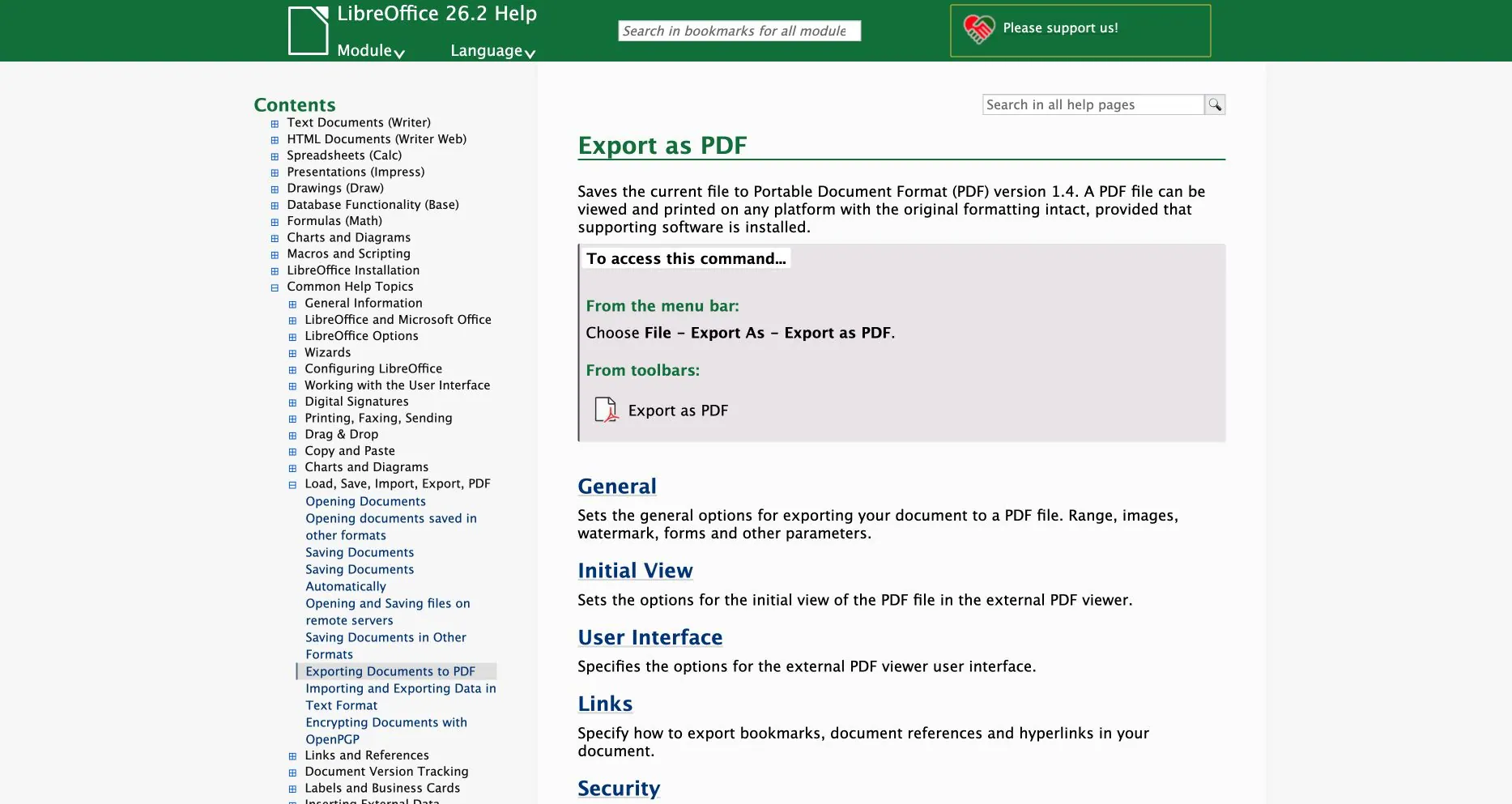
Official LibreOffice Help page captured 2026-08-04. It documents the final PDF export command; verify CSV delimiter, encoding, and text-column choices separately during import.
Main tradeoff: PDF layout can differ from Excel, especially when the source relies on complex formatting. Test page breaks, fonts, and formulas on the operating system that will run the batch.
5. CloudConvert
Best for: A convenient online conversion or a developer workflow built around conversion jobs.
What stands out: The CSV to PDF page makes the input and output formats explicit and CloudConvert offers a jobs/tasks API. It supports many file formats, so it is useful when CSV is one step in a broader file pipeline.
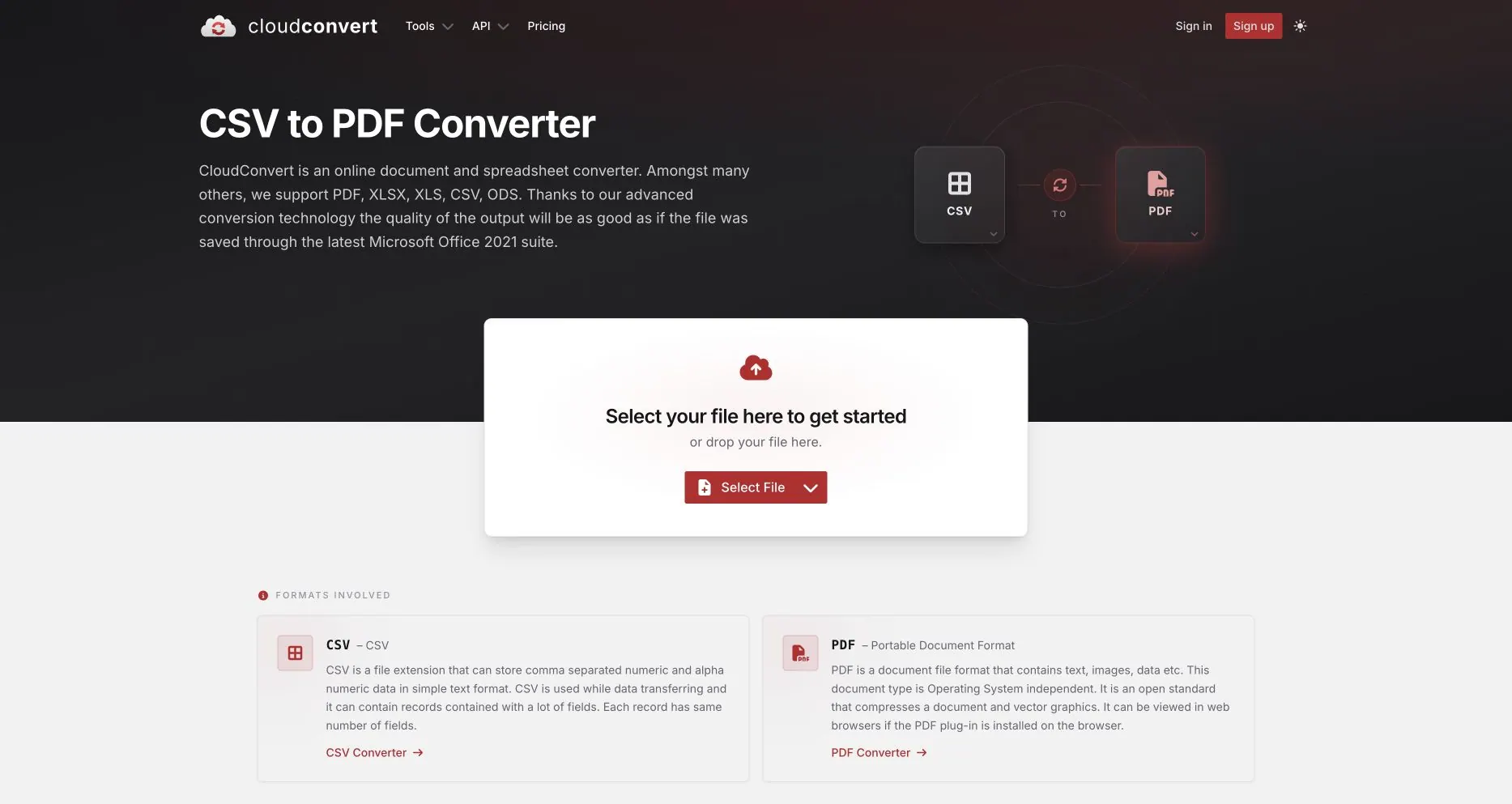
Public CloudConvert page captured 2026-08-03. The screenshot documents the interface and stated workflow, not output accuracy or service-level performance.
Main tradeoff: The source must leave the browser. It is a converter, not a data-cleaning workspace: validate encoding and totals before upload, and check the current security, region, and deletion terms for your plan.
6. Convertio
Best for: Quick browser conversions from a computer, cloud drive, or URL, with an API option for developers.
What stands out: Convertio’s CSV to PDF converter is simple for one-off files, while its API documentation describes programmatic conversion and status handling. This can be a practical bridge from a manual test to a small integration.
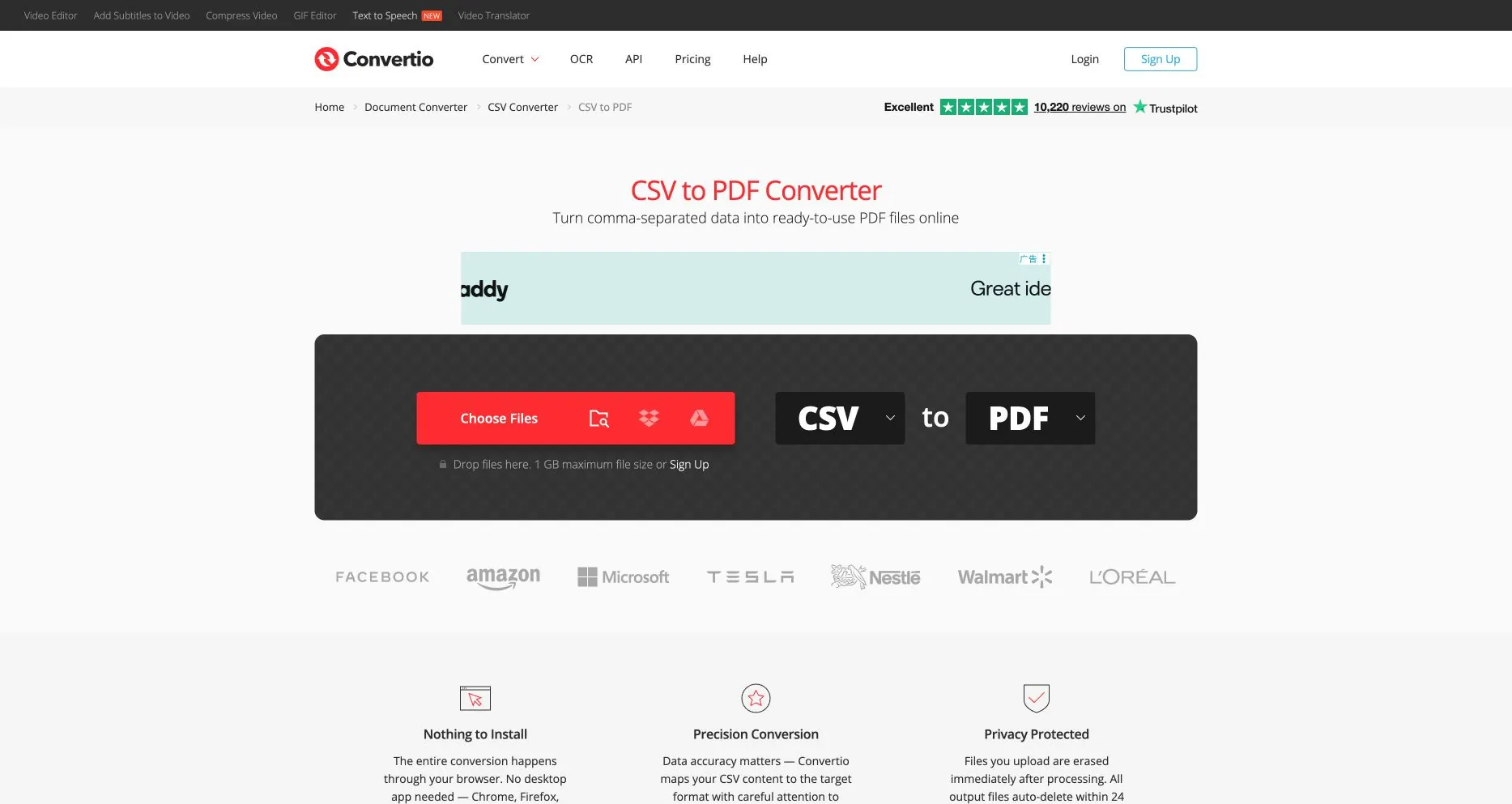
Public Convertio CSV-to-PDF page captured 2026-08-04. This documents the upload interface, not delimiter detection, output accuracy, or API throughput.
Main tradeoff: The interface offers less spreadsheet-style inspection than Excel or Calc. File-size, queue, and result-retention rules vary by plan, so record the exact account and date when you test it.
7. Zamzar
Best for: Occasional conversions where a short upload → convert → download flow matters, including more than one CSV.
What stands out: The Zamzar CSV converter presents a clear three-step workflow and supports multiple input files. Zamzar also publishes an API for teams that later need a service call.
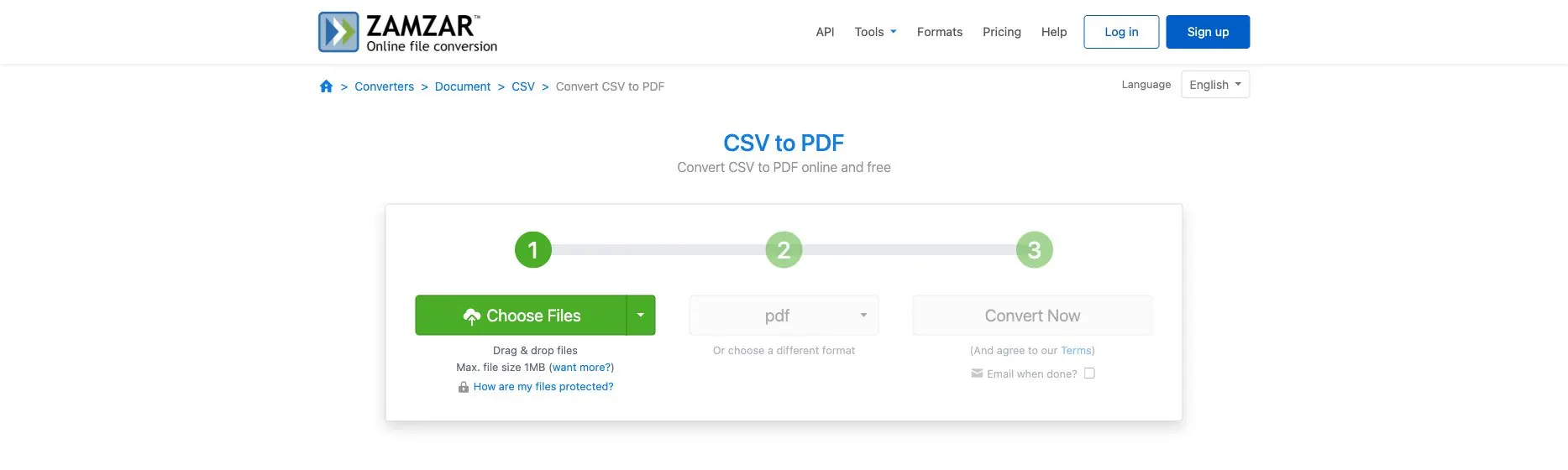
Public Zamzar CSV-to-PDF page captured 2026-08-04. This documents the workflow and visible free-file limit, not consistent layout across multiple files.
Main tradeoff: Free limits and the window in which results remain available are plan-dependent. A multi-file button does not automatically mean the PDFs use the same layout or have been reconciled with one another.
8. Aspose.Cells
Best for: Teams that need conversion settings, broad format support, or an online/on-premise developer route.
What stands out: The Aspose CSV-to-PDF page exposes scaling, orientation, compatibility, password, and watermark controls. Aspose also publishes Cloud and on-premise APIs, so it can sit inside a controlled document pipeline.
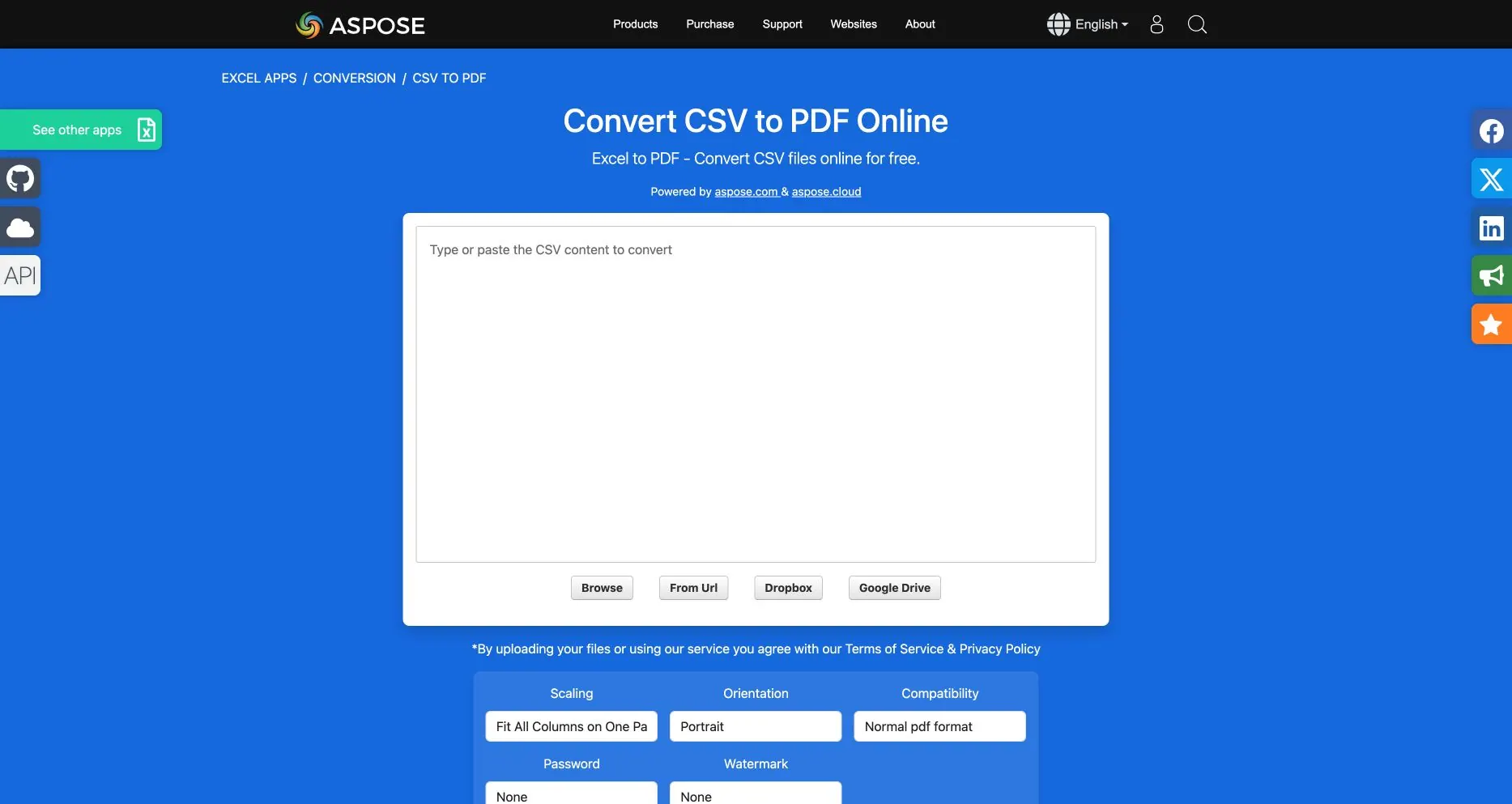
Public Aspose page captured 2026-08-03. Settings shown are visible product controls, not a claim that every plan or API exposes the same defaults.
Main tradeoff: More controls mean more decisions to own. The online app states that uploaded files and download links are removed after a period; confirm the current policy and select a deployment that matches your data boundary.
9. GroupDocs
Best for: Developers who want a hosted converter plus .NET, Java, Python, or Node integration options.
What stands out: The GroupDocs CSV-to-PDF app is straightforward for a small test, and the GroupDocs.Conversion APIs are designed for application workflows. It is worth considering when conversion is part of a larger document service.
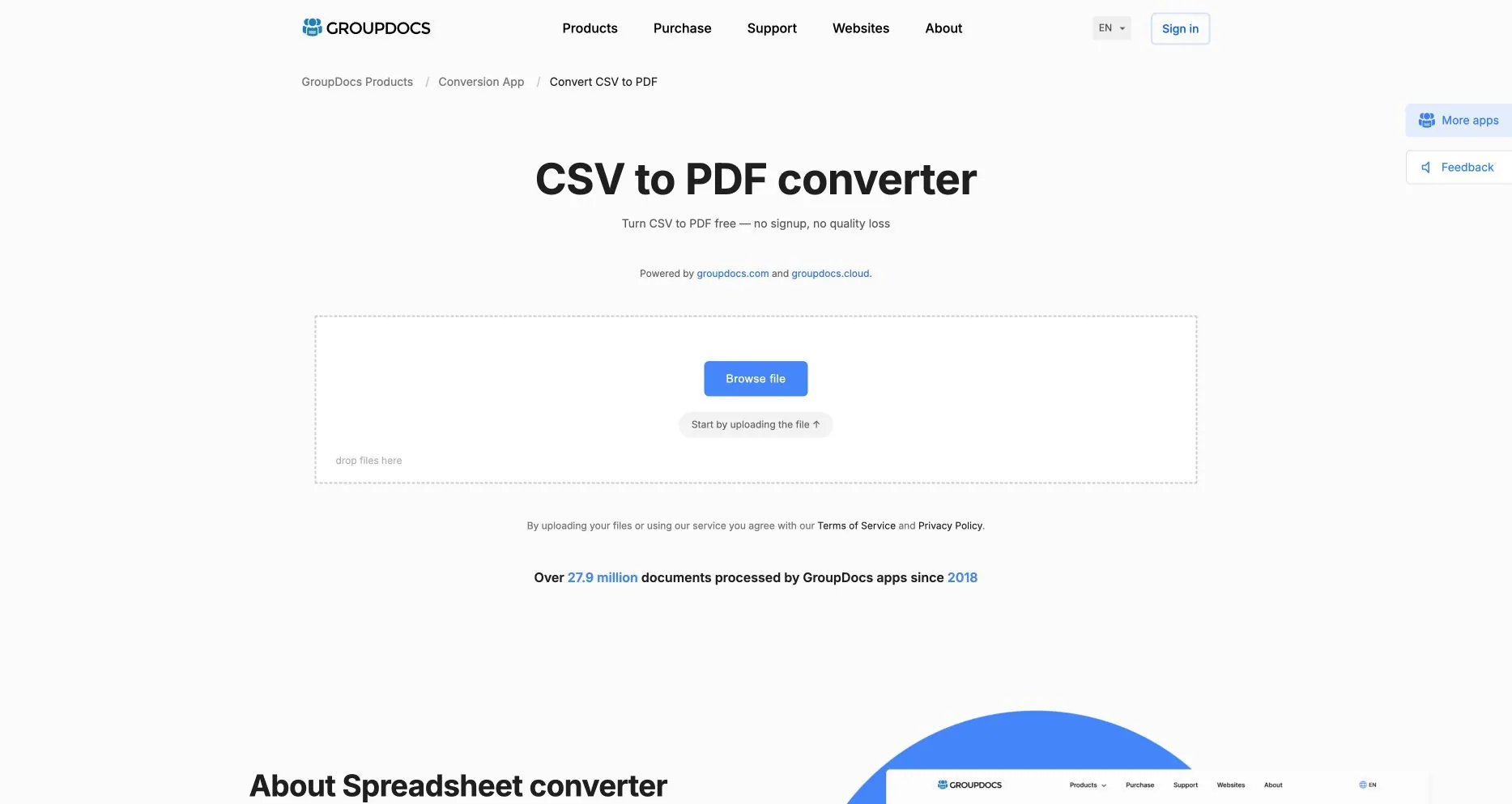
Public GroupDocs CSV-to-PDF page captured 2026-08-04. This documents the web proof-of-concept interface, not API concurrency, encoding coverage, or retention behavior.
Main tradeoff: Free web quotas and batch limits can be restrictive and can change. Treat the online page as a proof of concept, then test the API with your expected concurrency, encoding mix, and retention requirements.
10. CoolUtils Total CSV Converter
Best for: Windows teams converting local folders of CSV, TSV, or TAB files on a schedule.
What stands out: The Total CSV Converter desktop product advertises batch conversion, delimiter and encoding controls, column filtering, saved profiles, command-line use, and a server edition. Those controls are valuable when the same export arrives every day.
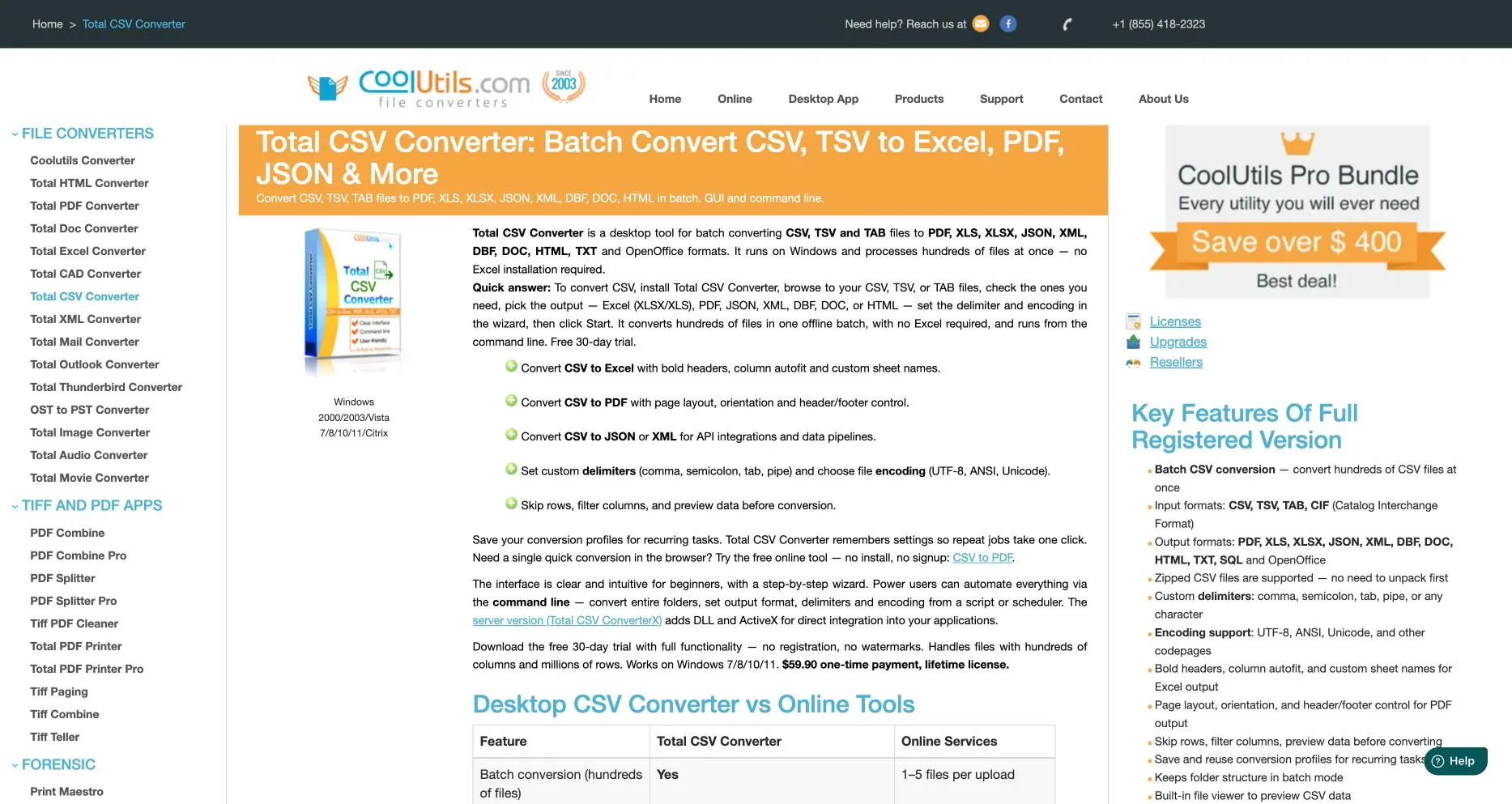
Public CoolUtils product page captured 2026-08-04. This documents the advertised desktop workflow and features, not a hands-on batch-performance benchmark.
Main tradeoff: It is Windows-focused and is a paid desktop product after its trial. You own the installation, profile maintenance, and PDF review; the workflow is less convenient for a distributed team that only needs an occasional file.
A fair test you can run in 15 minutes
Use the same file and acceptance checks for every tool. The small CSV conversion comparison fixture includes eight data rows, Chinese/Japanese/Korean text, a negative value, mixed date styles, quoted punctuation, leading-zero IDs, and a long reference number. Its expected revenue total is 72,830.50.
Before you convert, record:
- The source row count (eight data rows, plus one header).
- The control total (
72,830.50) and the negative row (-150.00). - The exact text values
000123,00123456789012345678, and the CJK names. - The date convention you expect in the final PDF.
- The tool name, plan, date, file size, and any upload or retention message.
Then use this request in a spreadsheet workspace when the tool supports instructions:
Profile this CSV before exporting it. Confirm the delimiter, encoding, header row,
data-row count, and column types. Keep Order ID and Long Reference as text. Do not
change the negative Revenue value. Create a readable PDF with repeated headers,
landscape orientation when needed, and a note listing any assumptions or rows that
need review. Reconcile Revenue to 72830.50 before you call the export complete.
After the PDF is created, check the result rather than trusting the download toast:
- Are there still eight data rows, with no blank or duplicated record added?
- Does the total still equal 72,830.50?
- Are the leading zeros and long IDs intact?
- Can a reader see every column and its header on the page where it appears?
- Does Chinese, Japanese, or Korean text render with a usable font?
- Are dates consistent, and are negative values visibly negative?
- If the tool was online, can you explain its retention and deletion boundary?
For a recurring report, repeat the same test after renaming a column and after receiving a second export. A converter that succeeds once may still be a poor monthly process if a small schema change silently shifts the output.
Choose by workflow, not by a feature checklist
The CSV is still a working file
Choose Excel, Sheets, or Calc when people need to fix values, add formulas, or build a chart before the PDF becomes a snapshot. The extra editing step is useful when the source is not yet agreed upon.
The CSV is sensitive and the PDF is the deliverable
Choose RowSpeak or an offline desktop workflow such as Calc or CoolUtils. Use a redacted fixture first, then confirm that the local-processing claim and your organization’s policy match the file you plan to use. If the export belongs to finance or contains employee-level information, a controlled private deployment may be the better product conversation.
The job is one-off and non-sensitive
CloudConvert, Convertio, Zamzar, GroupDocs, or Aspose can be faster than installing software. The convenience is real, but upload and deletion terms are part of the decision, not footnotes.
A system must create PDFs repeatedly
Compare API authentication, retry behavior, concurrency, output naming, logs, and data residency—not just whether a demo file converts. Aspose, GroupDocs, CloudConvert, Convertio, Zamzar, and PDF-focused APIs can fit this path; involve the owner of the source system before you commit.
Common mistakes
- Opening a CSV by double-clicking and assuming the spreadsheet guessed the encoding correctly.
- Letting an identifier column become a number, which removes leading zeros.
- Checking only the first PDF page and missing cut-off columns on later pages.
- Treating a PDF as tamper-proof. It is a fixed view, not automatically a digital signature or an audit control.
- Comparing a local desktop export with an online converter using different print areas, fonts, or input files.
- Sharing the PDF without recording the date range, exclusions, or total that a reviewer should reconcile.
Frequently asked questions
Does a CSV-to-PDF converter preserve formulas?
CSV stores values and text, not workbook formulas or chart objects. If the formula logic matters, calculate and review it in Excel, Sheets, Calc, or a reporting workflow before exporting the final PDF.
What is the safest way to keep leading zeros?
Treat the column as text during import and verify a known ID in the PDF. Never accept a visually neat result until you have checked both a leading-zero value and a long numeric-looking value.
Is an online CSV converter safe for customer or finance data?
That depends on your policy, vendor terms, plan, and region. Check retention and deletion statements at the time of use, remove names where possible, and use a local workflow when the file cannot leave your environment.
Which tool is best for a very wide CSV?
Test the tool’s landscape/A3 behavior, repeated headers, column splitting, and minimum font size. RowSpeak is designed for this kind of readable, browser-local output; a spreadsheet or desktop batch tool may be better if the file also needs editing.
Can RowSpeak analyze the CSV as well as convert it?
The free converter creates the PDF locally. RowSpeak’s broader workspace can analyze Excel, CSV, PDF, screenshots, and other business files and turn them into reviewable answers, reports, or dashboards. Keep the conversion step and the analysis step explicit so reviewers know which output they are checking.
Final recommendation
If you need to edit the data, start with a spreadsheet. If you need an online one-off, test a hosted converter. If you need a local batch or an API, evaluate the automation path. If you need a readable PDF from a sensitive, wide, multilingual CSV without uploading it, start with RowSpeak’s CSV to PDF tool and run the fixture checks above.
The useful question is not “Which converter has the most features?” It is “Which workflow lets my team verify the rows, explain the assumptions, and share the same PDF with confidence?”