How to Compare Sales vs Target and Visualize Product Performance in Excel

Managing sales performance is essential for any business, but analyzing sales data, comparing actual vs target goals, and creating meaningful reports can take time and effort—especially when you’re dealing with large amounts of product data.

In this post, I’ll show you how to use RowSpeak, a smart Excel tool, to streamline your sales tracking. With just three simple questions, you’ll compare actual sales with target goals, generate visual reports, and calculate key metrics like revenue-to-sales ratios—no formulas needed.


The Dataset: Product Sales Data

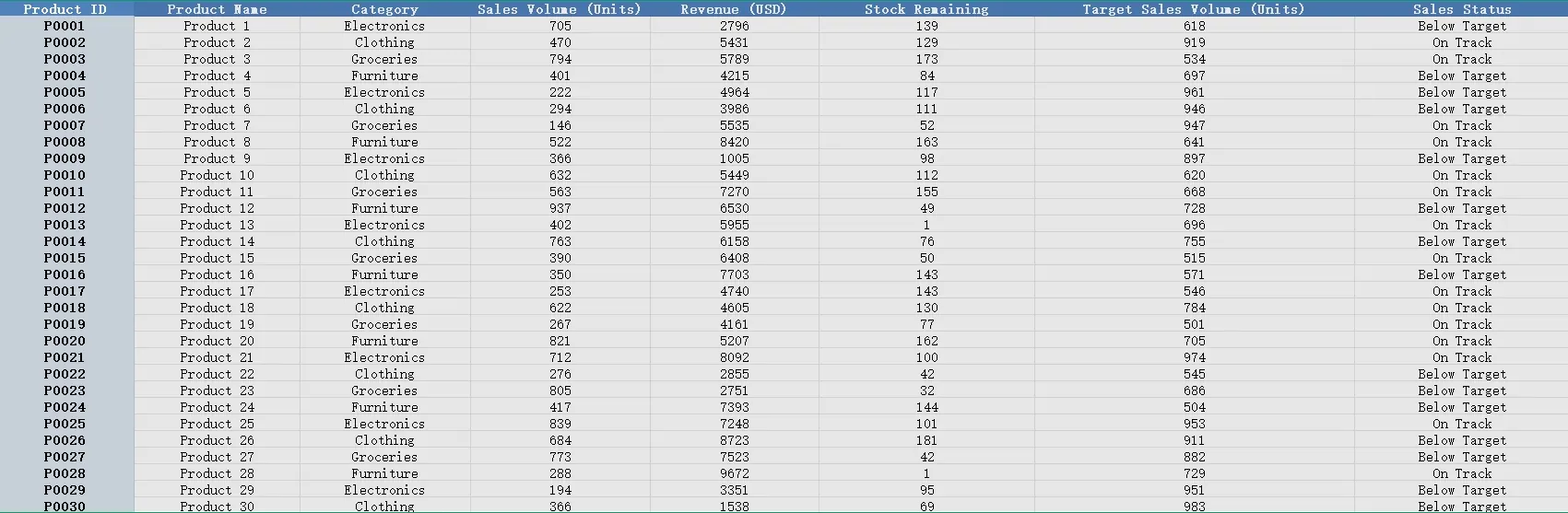
Here’s the dataset that we’ll be working with:
depart


✅ RowSpeak in Action: 3 Prompts for Product Performance

1️⃣ Compare Actual Sales vs Target

Prompt: Please calculate the sales performance (Actual vs Target) for each product.

💡 Result: RowSpeak calculates the sales performance as follows:

Now you can instantly spot which products are on track to meet their sales targets and which are falling short.


2️⃣ Visualize Sales Volume vs Target for Each Product

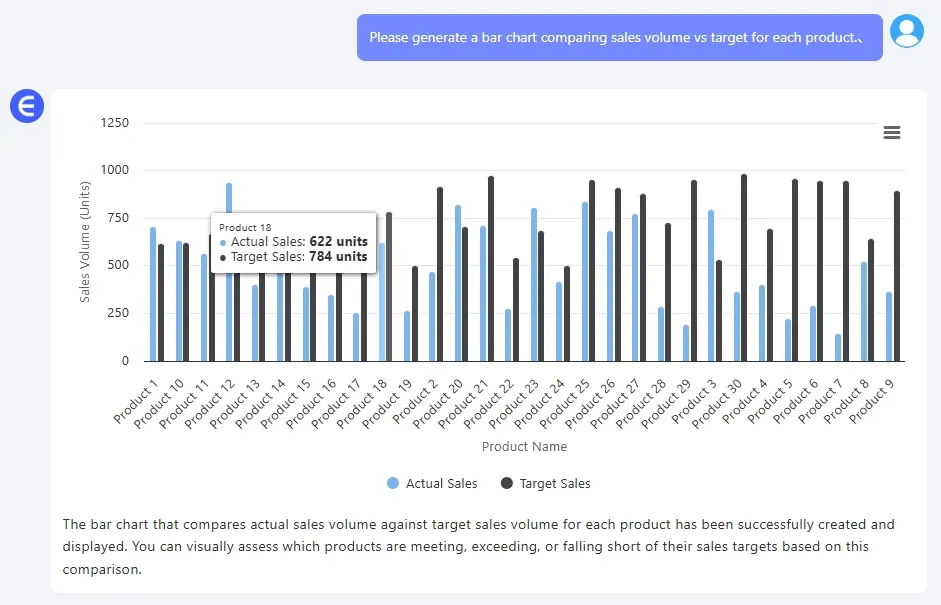
Prompt: Please generate a Bar Chart comparing sales volume vs target for each product.

💡 Result: RowSpeak generates a clean Bar Chart, which helps you easily visualize how well each product is performing:
depart

  • Compare actual sales volume against target goals for each product category.
  • Spot products that need more attention or promotion.

3️⃣ Calculate Revenue to Sales Ratio for Each Product

Prompt: Please calculate the revenue to sales ratio for each product.

💡 Result: RowSpeak calculates the revenue-to-sales ratio for each product:

This metric is valuable for understanding how well each product is generating revenue relative to the units sold.


What You Can Do With These Results

  • Identify underperforming products: Quickly spot which products need more marketing or adjustments to their sales strategy.
  • Create performance dashboards: Use the Bar Chart and performance tables to create easy-to-read dashboards for your team or executives.
  • Optimize inventory and stock levels: By comparing actual sales with targets, you can adjust inventory levels to match demand.
  • Measure profitability: With the revenue-to-sales ratio, you can identify high-performing products with the best return on sales.

Final Thoughts

Tracking product performance doesn’t need to involve endless formulas and manual calculations. With RowSpeak, you can instantly calculate sales performance, compare targets, and visualize key data points with just a few simple prompts.

No formulas, no pivot tables—just insights that matter.

Want to track your product performance? >>

Upload your file and start analyzing sales data like a pro: Try RowSpeak Now >>
Ditch Complex Formulas – Get Insights Instantly

No VBA or function memorization needed. Tell RowSpeak what you need in plain English, and let AI handle data processing, analysis, and chart creation

Try RowSpeak Free Now

Recommended Posts

How to Analyze Daily Sales Data and Track Targets Using Excel
Excel Tips

How to Analyze Daily Sales Data and Track Targets Using Excel

Use Excel to track daily sales, visualize performance vs target, and identify underperforming days. No formulas required.

Sally
Track Sales KPIs Smarter: How Excel AI Tools Simplify Performance Analysis
Excel Tips

Track Sales KPIs Smarter: How Excel AI Tools Simplify Performance Analysis

Still tracking KPIs with manual formulas and pivot tables? Learn how RowSpeak makes sales performance analysis faster, simpler, and more accurate—no coding required.

Sally
Stop Spreadsheet Errors :How to Lock Cells in Excel (And When to Let AI Do It)
Excel Tips

Stop Spreadsheet Errors :How to Lock Cells in Excel (And When to Let AI Do It)

Unlock the power of fixed cell references in Excel to prevent errors in your spreadsheets. This guide covers absolute, relative, and mixed references, and introduces a game-changing AI approach to automate these tasks, saving you time and effort.

Ruby
Excel Grade Analysis Made Simple: Visualize Student Performance with Excel AI
Excel Tips

Excel Grade Analysis Made Simple: Visualize Student Performance with Excel AI

RowSpeak turns clunky grade spreadsheets into smart visual dashboards—no formulas, just plain English.

Sally
How to Analyze KPI Achievement Rates Across Departments Using Excel AI
Excel Tips

How to Analyze KPI Achievement Rates Across Departments Using Excel AI

Track KPI achievement rates across departments using RowSpeak. Visualize performance and detect gaps with three easy prompts—no pivot tables required.

Sally
RowSpeak vs ChatGPT: Which AI Assistant Works Better for Excel Analysis?
Excel Tips

RowSpeak vs ChatGPT: Which AI Assistant Works Better for Excel Analysis?

Inject super efficiency into Excel with AI: automate repetitive tasks, perform advanced analysis, and easily gain insights through natural language.

Sally
Monthly Order Analysis Made Easy: RowSpeak AI Report Generator
Excel Tips

Monthly Order Analysis Made Easy: RowSpeak AI Report Generator

Automate your monthly Excel order analysis with AI. RowSpeak lets you generate clean reports, visual charts, and summaries using just one sentence—no Excel skills required.

Sally
RowSpeak: The Best AI Grading Assistant for Teachers
Excel Tips

RowSpeak: The Best AI Grading Assistant for Teachers

With RowSpeak, teachers can analyze student grades, rank performance, and compare classes—all without formulas. Save hours and simplify reporting using natural language prompts.

Sally