In this tutorial, I explain how I used RowSpeak (https://rowspeak.ai) to communicate with an Excel file and extract actionable insights.
Scenario Overview
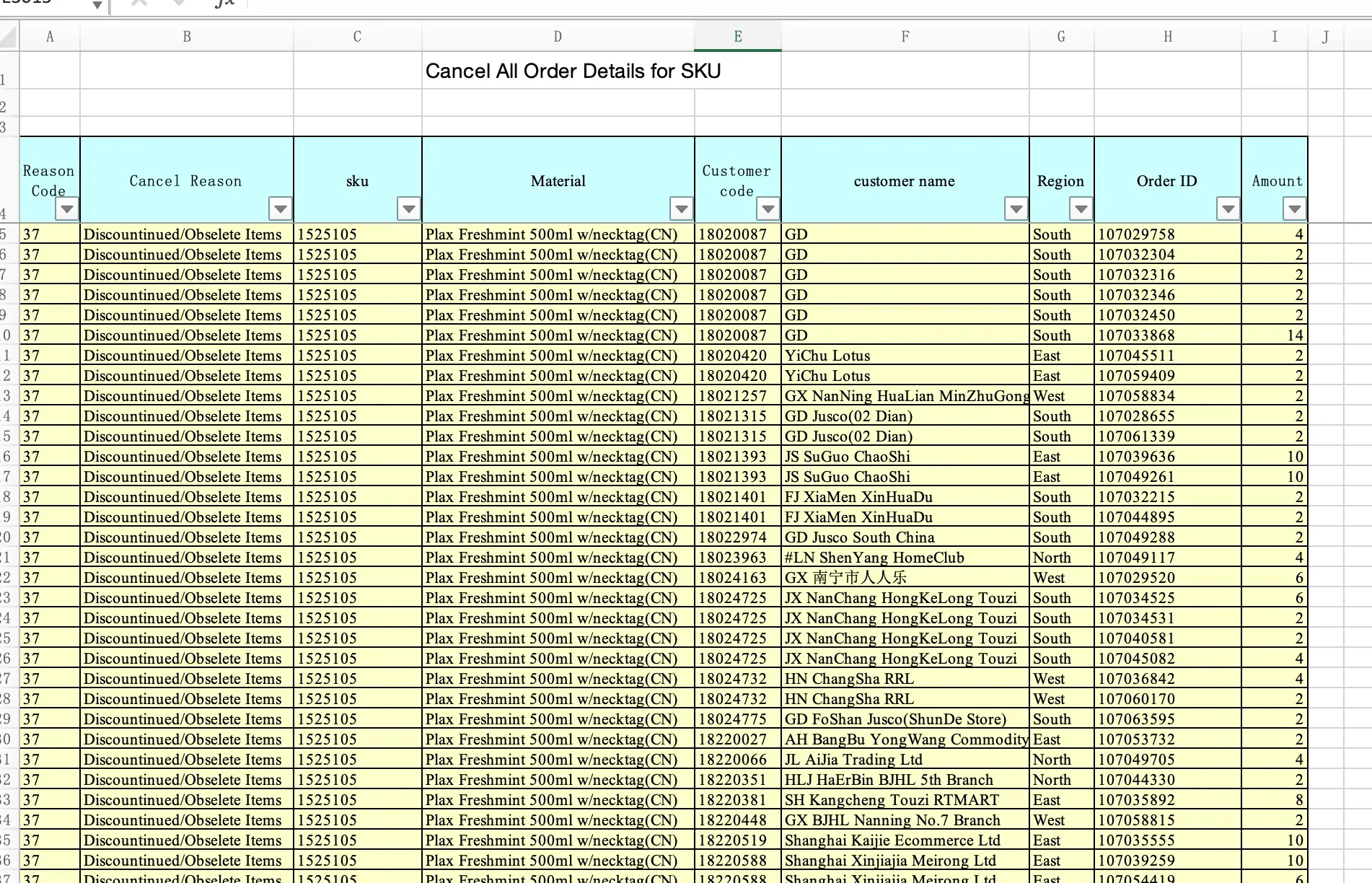
I had an Excel file titled "Cancel All Order Details for SKU" containing detailed data on canceled orders. My goal was to analyze this data, determine which SKUs had the highest cancellation counts, list the top 10, and generate a Bar Chart for visualization.
My Approach using RowSpeak
Upload the Excel File:
I logged into RowSpeak and uploaded the "Cancel All Order Details for SKU" file.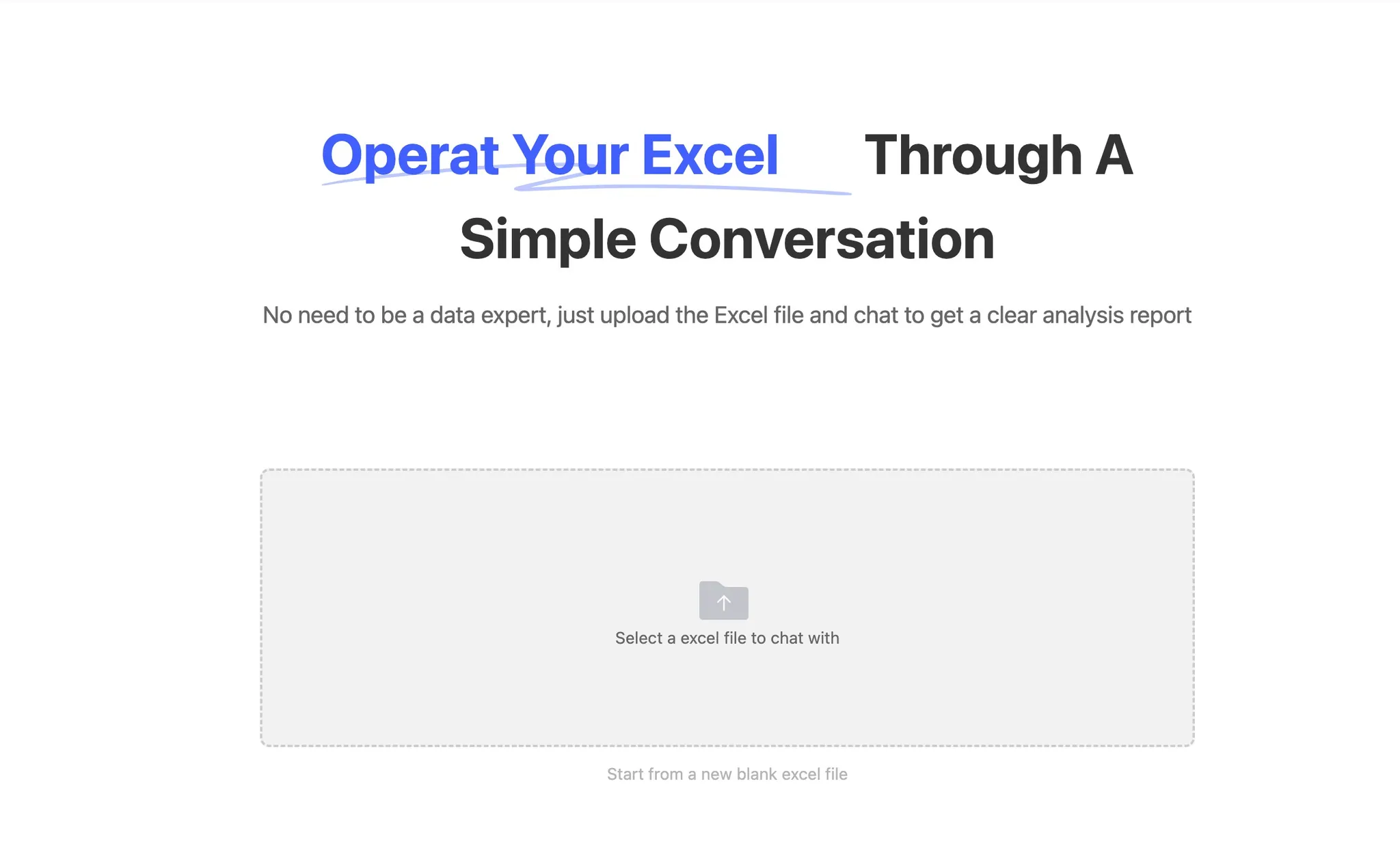
Retrieve Top 10 Canceled SKUs:
Once the file was uploaded, I asked RowSpeak:Please calculate the top 10 canceled SKUs for me
RowSpeak processed the Excel data and returned a list of the top 10 canceled SKUs.
Note: I attached a screenshot of the result for clarity.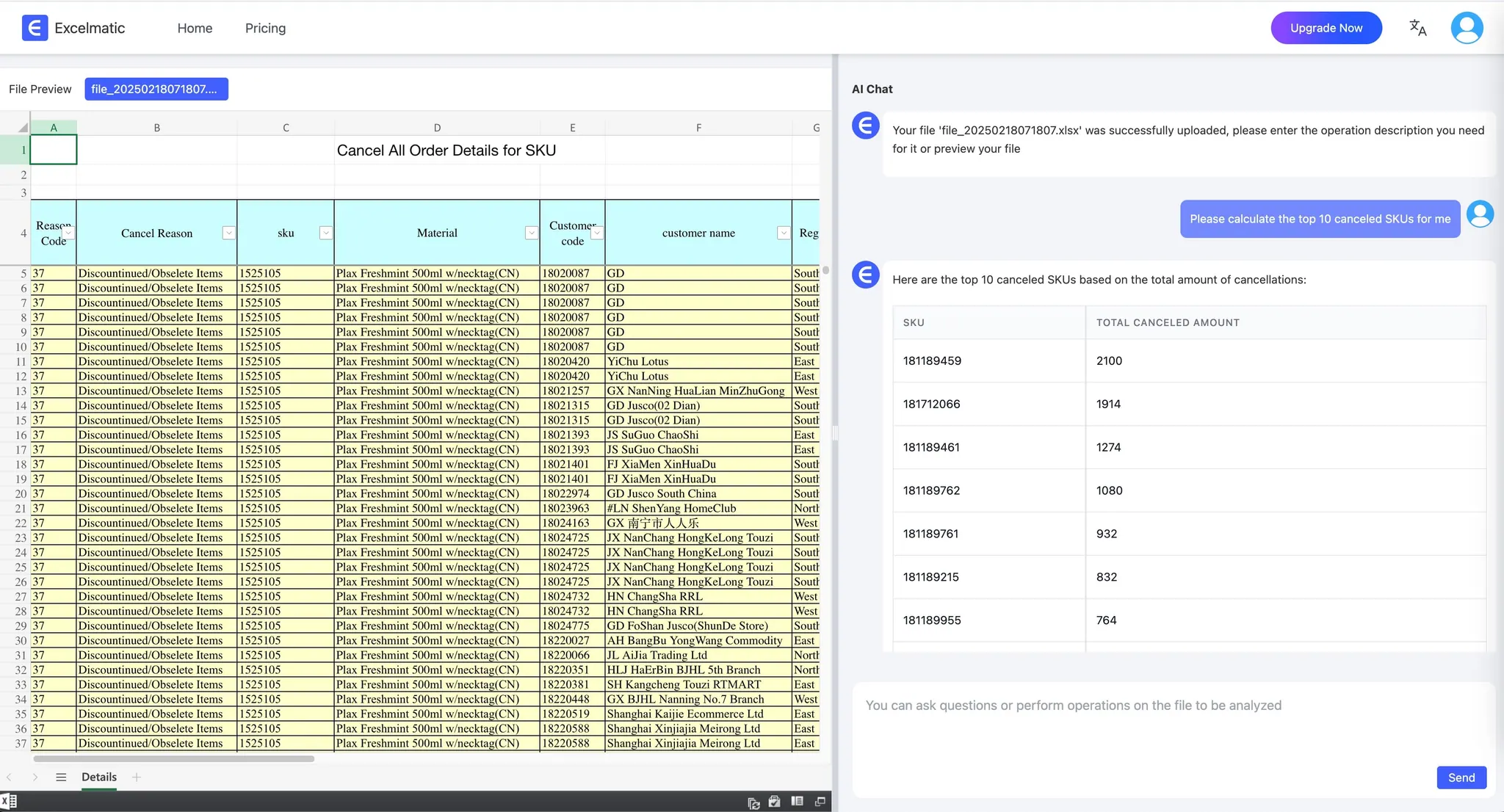
Generate a Bar Chart:
I then instructed RowSpeak by saying:Place these top 10 SKUs data in a Bar Chart
RowSpeak generated a Bar Chart visualization based on the top 10 data.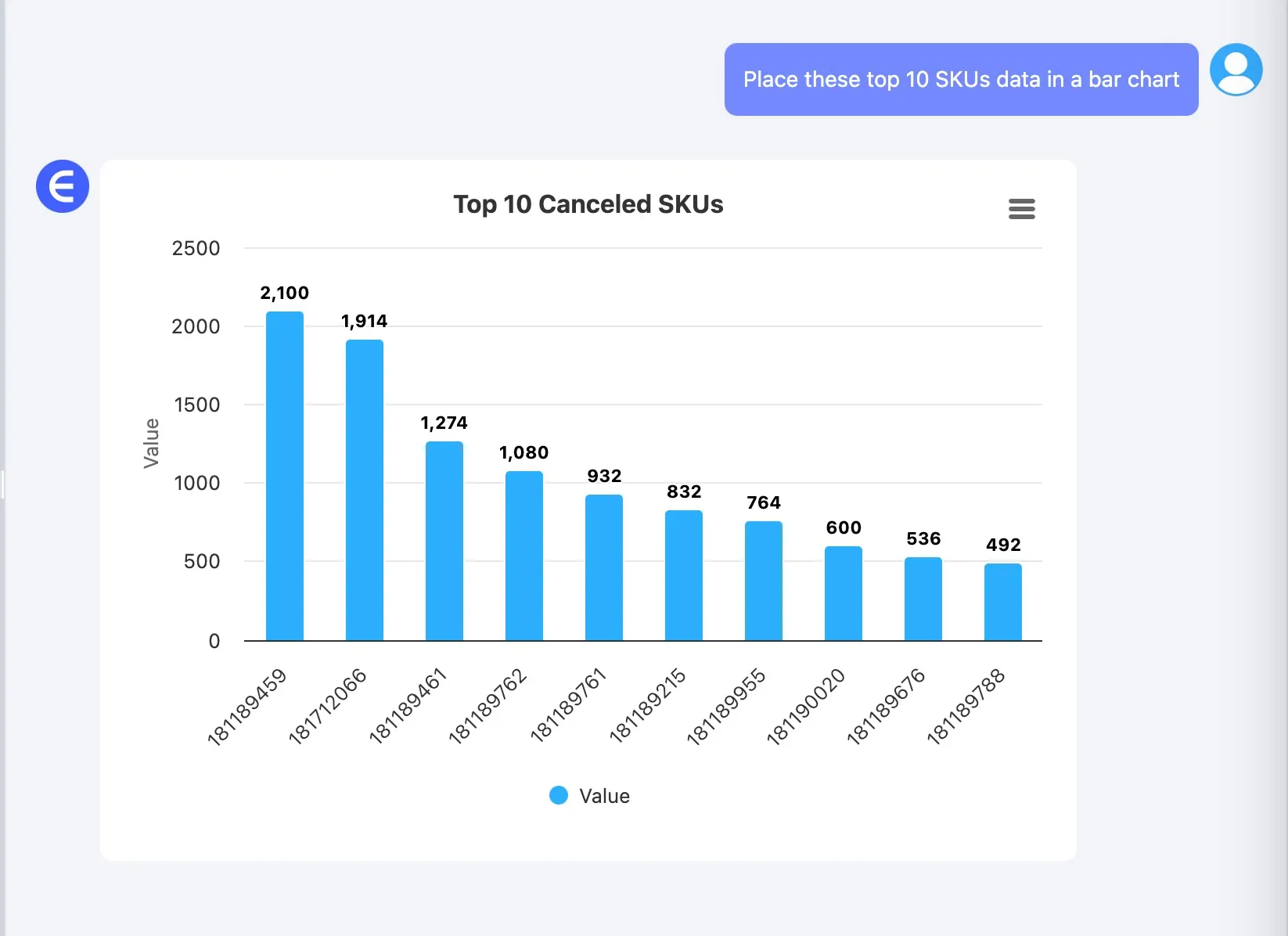
Presentation to My Boss:
Finally, I shared both the top 10 data and the generated Bar Chart with my boss, who was very impressed with the results.
About RowSpeak
RowSpeak is a cutting-edge AI agent specifically designed to interact with Excel files. Its key features include:
- Intelligent data parsing and analysis.
- Natural language query processing to extract insights effortlessly.
- Automated visualization tools for charts and graphs.
- Efficient handling of larger datasets.
Whether you're a beginner or an advanced user, RowSpeak simplifies data workflows and enables you to focus on decision-making while it takes care of the heavy lifting.
Comparison: Traditional Excel vs. RowSpeak
Without an AI Agent like RowSpeak, working with Excel directly can be challenging:
- Manual handling of complex formulas and functions often leads to errors.
- Time-consuming data filtering and sorting, especially with large datasets.
- Difficulties in setting up automated charts and visualizations.
- Requires advanced Excel skills to achieve similar insights.
- Limited natural language interaction means that non-experts struggle to extract insights.
Using RowSpeak, however:
- Natural language instructions simplify data querying and analysis.
- RowSpeak automates routine tasks—reducing manual errors and saving time.
- Instant visualizations like Bar Charts are generated with simple commands.
- Even users with basic Excel knowledge can get advanced insights effortlessly.
- Seamless integration allows for quick decision-making and enhanced productivity.
Conclusion
By using RowSpeak’s conversational interface, I was able to effortlessly analyze the cancellation data from the Excel file and produce meaningful visual insights. This process not only saved time but also demonstrated the power of leveraging AI agents specialized in Excel data processing. If you're struggling with complex Excel analyses, give RowSpeak a try and experience a seamless, interactive approach to data insights!