Excel is a powerful tool for managing and analyzing data, but working with large datasets—like daily/hourly records—can sometimes feel overwhelming. Tasks like calculating hourly totals from mixed daily and hourly data often require complex formulas or pivot tables, which can be time-consuming to set up. Fortunately, with the rise of AI tools like RowSpeak (https://rowspeak.ai), you can streamline this process in just a few clicks. In this tutorial, I’ll walk you through how to use RowSpeak to calculate hourly totals effortlessly—no advanced Excel skills required!
What You’ll Need
- An Excel file containing daily and hourly data (e.g., timestamps and values like sales, energy usage, or hours worked).
- Access to RowSpeak (visit https://rowspeak.ai and sign up if needed).
- A basic understanding of your dataset’s structure.
For this example, let’s assume you have an Excel file with at least two key columns
- Column A: "Date and Time" (e.g., "3/1/2025 1:00", "3/1/2025 2:00", etc.).
- Column B: "Value" (e.g., sales amounts, energy readings, or other metrics).
Our goal is to calculate the total values for each hour across all days.
Step-by-Step Process
Step 1: Prepare Your Excel File
Before using RowSpeak, ensure your data is well-organized. Here’s a sample dataset to illustrate:
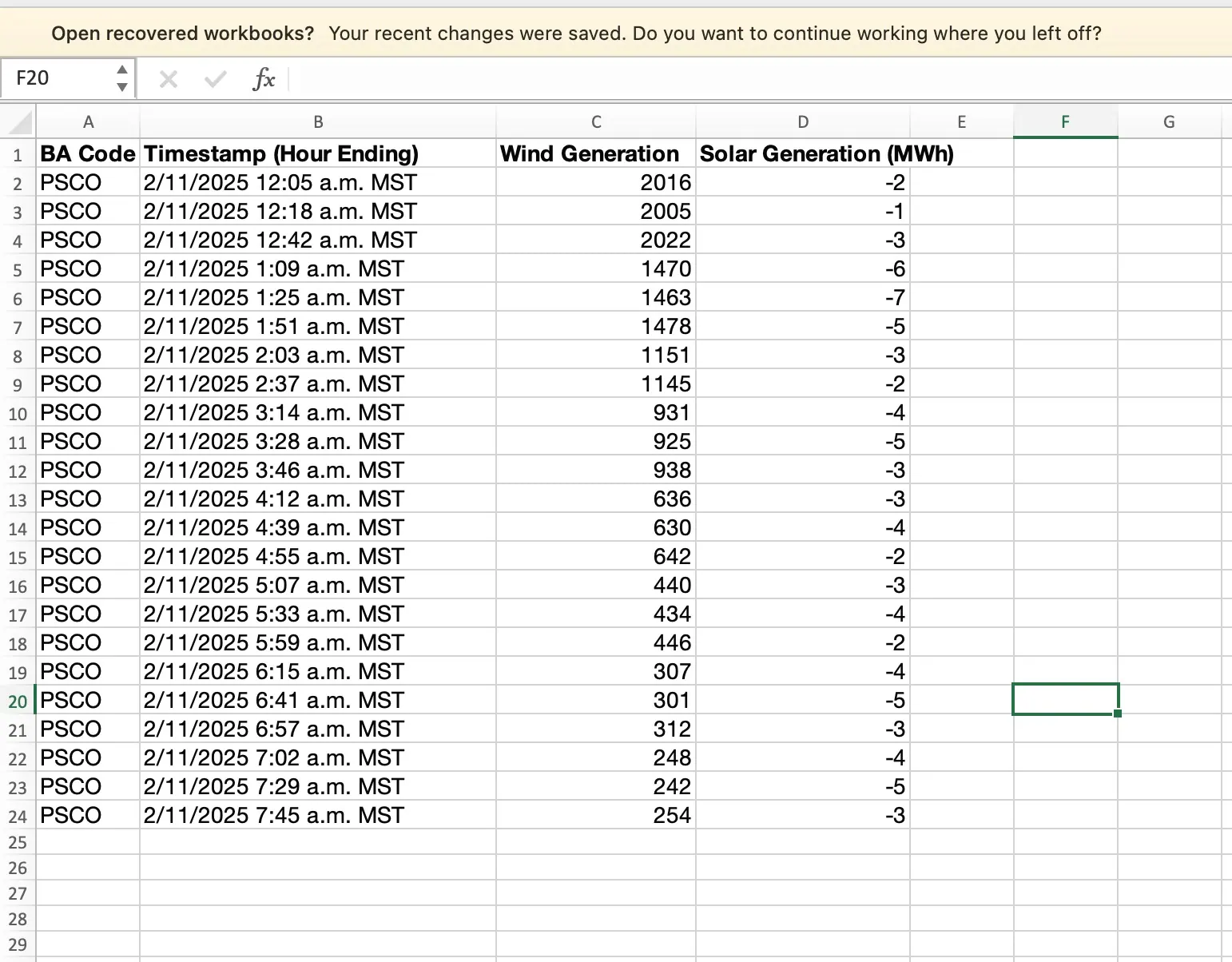
In this example, we have timestamps with values recorded at different hours. Save your file (e.g., as "HourlyData.xlsx"). What we want is the total for each hour for the wind & solar each. In other words we will end up with:
| Timestamp | Wind | Solar |
|---|---|---|
| 12:00 a.m. | 60,153 | -31 |
| 1:00 a.m. | 59,123 | -29 |
Step 2: Upload Your Excel File to RowSpeak
- Open your browser and go to https://rowspeak.ai.
- Sign in or create an account if you haven’t already.
- Once logged in, look for the option to upload a file (usually a button like “Upload” or “Import”).

- Select your prepared Excel file ("HourlyData.xlsx") and upload it. RowSpeak will process the file and display its contents.
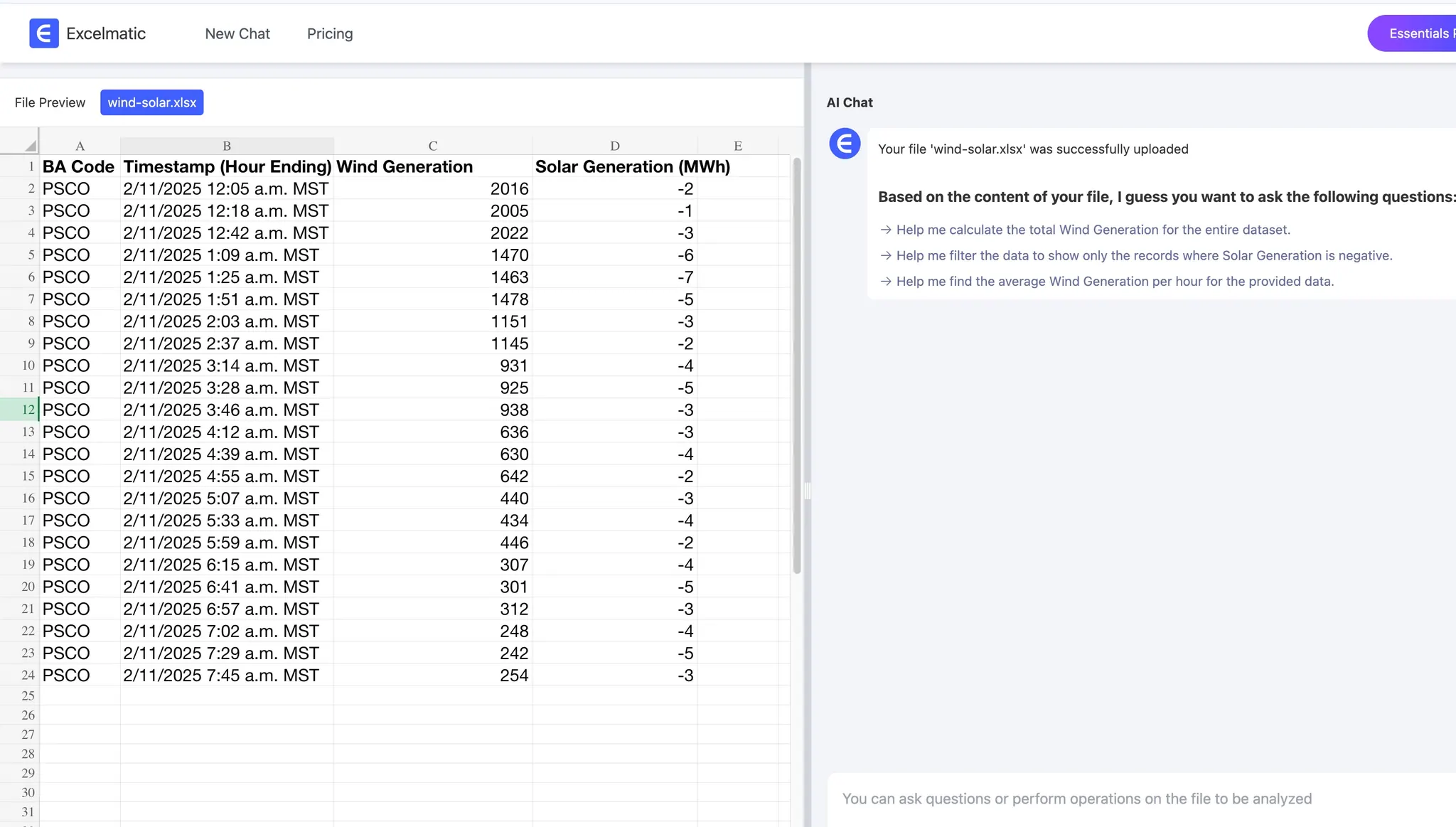
Step 3: Write the AI Command
RowSpeak uses natural language commands to perform calculations, making it incredibly user-friendly. After uploading your file:
- At the buttom right corner there is the command input area.
- Type the following command:
- "Calculate the total of the 'Wind generation' and 'Solar generation' columns by hour from the 'Timestamp' column and show the result."
- Press Enter or click the “Run” button (depending on RowSpeak’s interface).
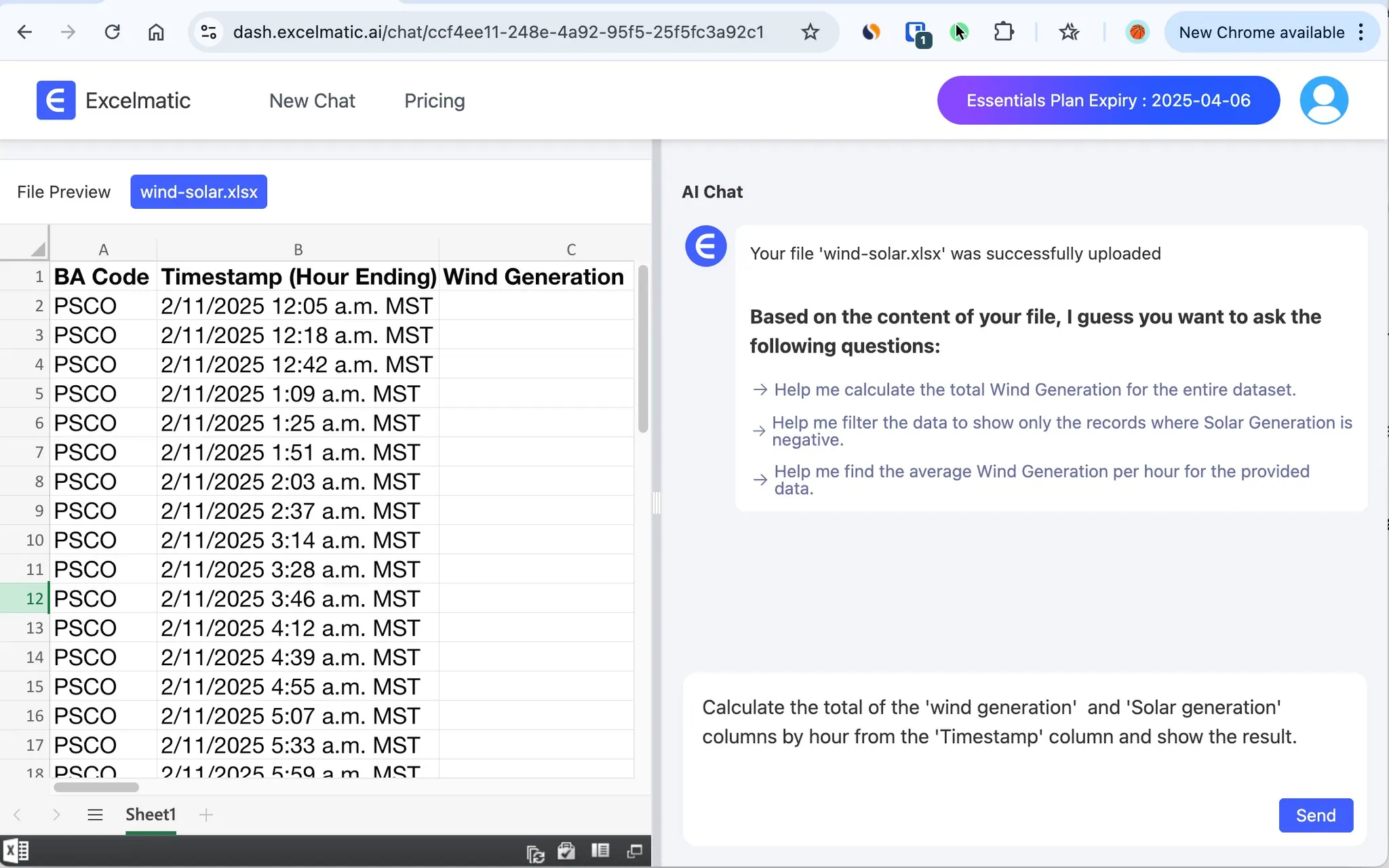
This command tells RowSpeak to:
- Group the data by hour (extracting the hour from the "Timestamp" column).
- Sum the "Wind", "Solar" column for each hour across all days.
- Display the results.
Step 4: Review the Results
Once RowSpeak processes your command, it will generate a table with the hourly totals. Based on our sample data, the output might look like this:
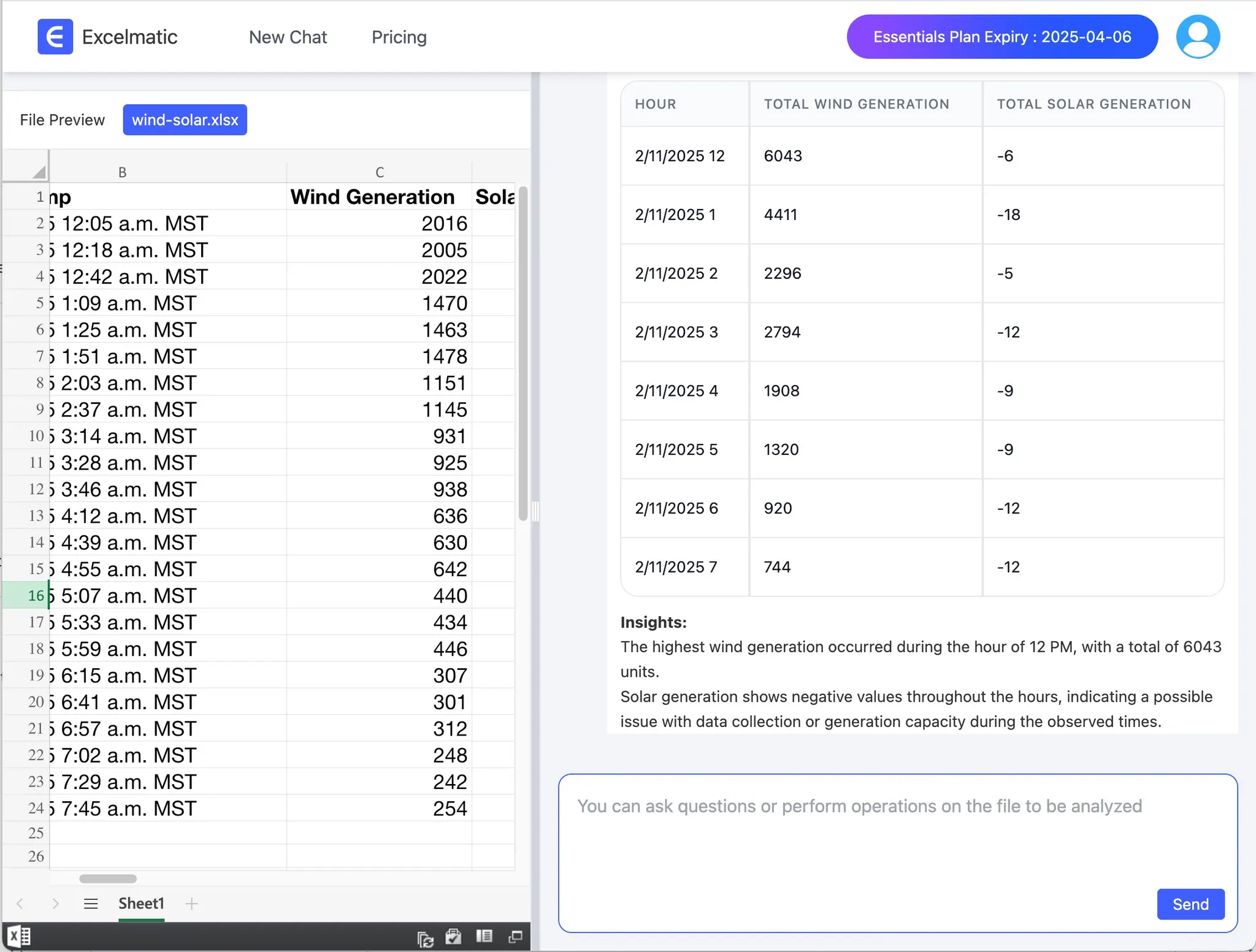
Here’s what happened:
- For 12:00: 2016+2005+2022 = 6034.
- For 1:00: 1470+1463+1478 = 4411.
RowSpeak handles the grouping and summing automatically, saving you the effort of writing formulas or creating pivot tables.
Step 5: Download or Use the Results
After reviewing the output:
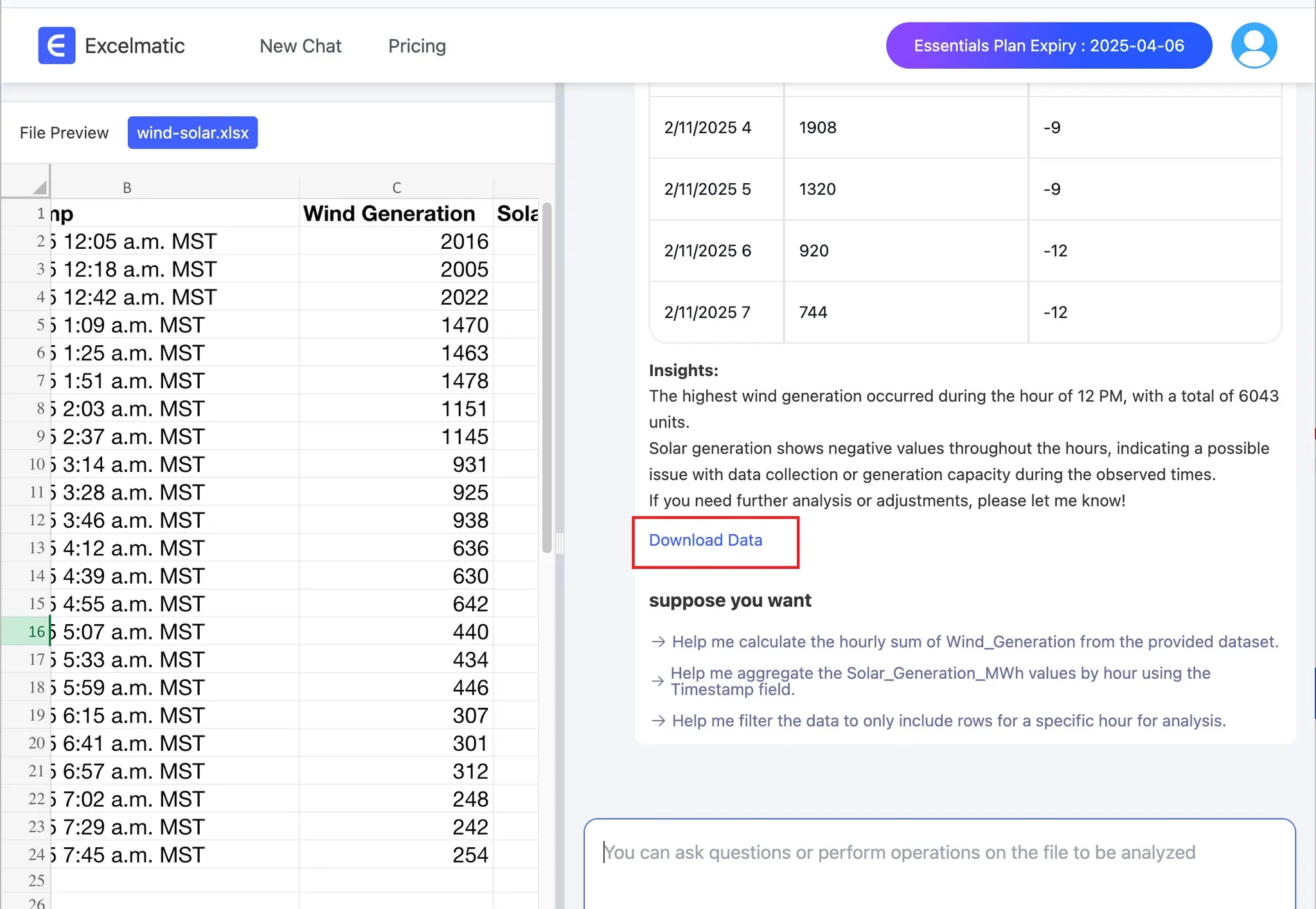
- You can copy the results directly from RowSpeak.
- Alternatively, look for an option to download the results as a new Excel file (e.g., “Export” or “Download”).
- Use this data for reports, charts, or further analysis as needed.
Why Use RowSpeak?
- Speed: No need to spend time learning complex Excel functions like
SUMIFSor setting up pivot tables. - Simplicity: The natural language interface means anyone can use it, regardless of Excel expertise.
- Accuracy: RowSpeak’s AI ensures precise calculations based on your command.
Tips for Success
- Check Your Data: Ensure your "Date and Time" column is consistently formatted (e.g., all entries include both date and time).
- Be Specific: If your column names differ (e.g., "Timestamp" instead of "Date and Time"), adjust the command accordingly.
- Experiment: Try variations like “Calculate the average of the ‘Value’ column by hour” if you want different insights.
Conclusion
Calculating hourly totals from daily/hourly data doesn’t have to be a chore. With RowSpeak, you can upload your file, write a simple command, and let the AI do the heavy lifting. Whether you’re analyzing sales, tracking energy usage, or managing time logs, this approach saves time and reduces errors. Head over to https://rowspeak.ai, upload your data, and give it a try—your hourly totals are just a command away!