AI for finance is often described as forecasting, automation, and "smarter decisions." That is not wrong, but it is too broad to help a finance analyst at 5 p.m. with a workbook full of messy tabs.
The practical question is simpler: can AI turn the finance file you already have into a useful, reviewable answer?
Key takeaways:
- The best AI for finance workflow starts with a real file: Excel, CSV, PDF, screenshot, or exported report.
- Finance teams need outputs they can review: variance tables, charts, explanations, and report-ready summaries.
- RowSpeak helps bridge the gap between manual spreadsheet work and heavier BI/reporting systems.
Start with the file, not the trend
A finance workflow usually begins with one of these files:
| File | Common question |
|---|---|
| P&L workbook | What changed in revenue, COGS, and margin? |
| Budget vs Actual export | Which departments drove the unfavorable variance? |
| Cashflow sheet | What does the next 6 months look like under different assumptions? |
| General ledger extract | Which accounts or vendors look unusual? |
| PDF report | Can we extract the table and summarize it? |
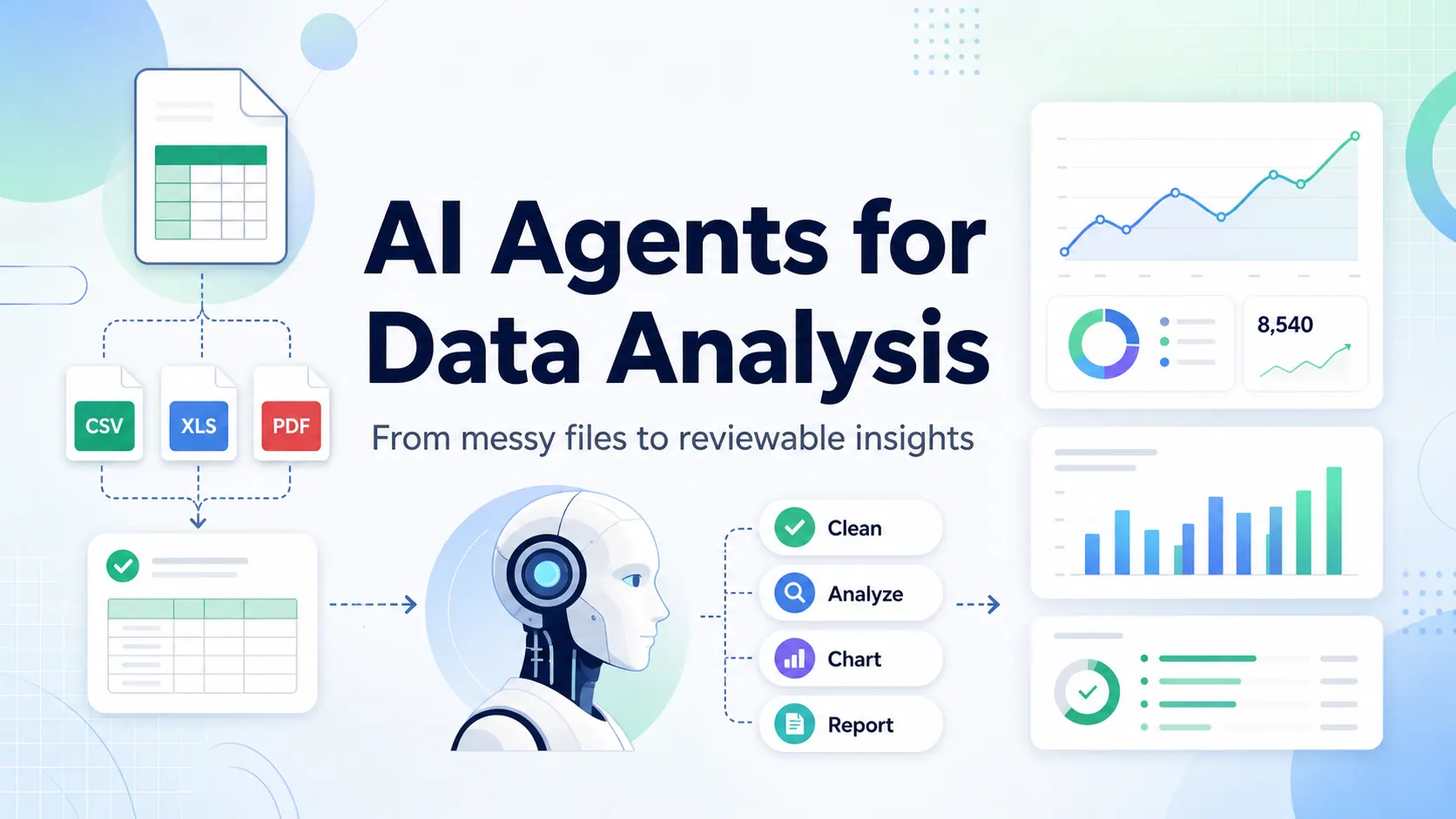
This is where a file-based finance AI for Excel workflow is more useful than a blank AI chat window. The tool needs to understand the uploaded file well enough to produce tables, charts, and explanations tied to the source data.
A spreadsheet analysis workflow
Use this process for a recurring monthly finance report:
- Upload the workbook or exported file.
- Ask a narrow finance question.
- Review the table, narrative, and chart output.
- Ask follow-up questions to correct period logic or grouping.
- Share or export the final output for review.
Example prompt:
Analyze this monthly P&L. Explain the largest month-over-month changes in revenue, gross margin, and operating expenses. Create a concise executive summary and list the rows I should review manually.
The result should not be just a paragraph. A useful AI finance output includes:
- A ranked list of the largest movements.
- A short explanation of why each movement matters.
- A chart recommendation or generated chart.
- A "review manually" list for suspicious or high-impact rows.
- A management summary that can be edited before sharing.
If your team needs more visual reporting, connect this workflow to charts and graphics or an Excel-to-dashboard workflow.
What finance teams should verify
AI can speed up analysis, but finance judgment remains with the team. Before using any output, check:
- Did the tool use the right period?
- Did it compare budget, prior month, prior quarter, or prior year?
- Are missing rows or blank fields changing the result?
- Are signs handled correctly for revenue, expense, and contra accounts?
- Does the explanation match known business events?
This review loop matters. RowSpeak is useful because it supports follow-up questions after the first pass instead of treating the first answer as final.
Where RowSpeak fits
RowSpeak helps teams turn spreadsheet files into answers, reports, and dashboards. It works best when finance has a real file and a business question:
- "What drove the OPEX variance?"
- "Which vendors look unusual?"
- "Forecast cashflow under three scenarios."
- "Create a management summary from this workbook."
For broader analytics, use RowSpeak with your data analysis workflow. For recurring written outputs, use it with AI reporting.
Try the workflow on one monthly finance file in RowSpeak Finance AI and compare the output with your current manual report.